

The Facebook tile covers all three types. Click it, then pick Page, Profile or Group in the window that opens. Profiles and Groups publish through a push notification to the RecurPost mobile app rather than directly; Pages publish directly.
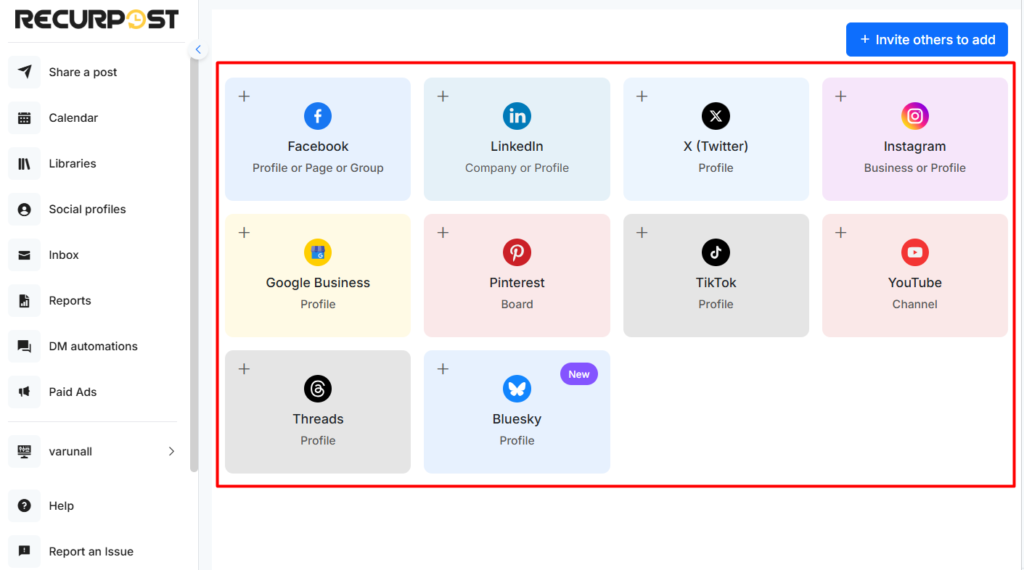
You will be redirected to Facebook’s login page if you are not already logged in. Provide RecurPost with the required permissions to schedule posts on your profile. No personal data or credentials will be saved.
Posting on Facebook Profile & Group is not a completely automated posting as it works via push notification due to restrictions from Facebook’s end. To learn more, please check out our help article here.
Create a One-off Post
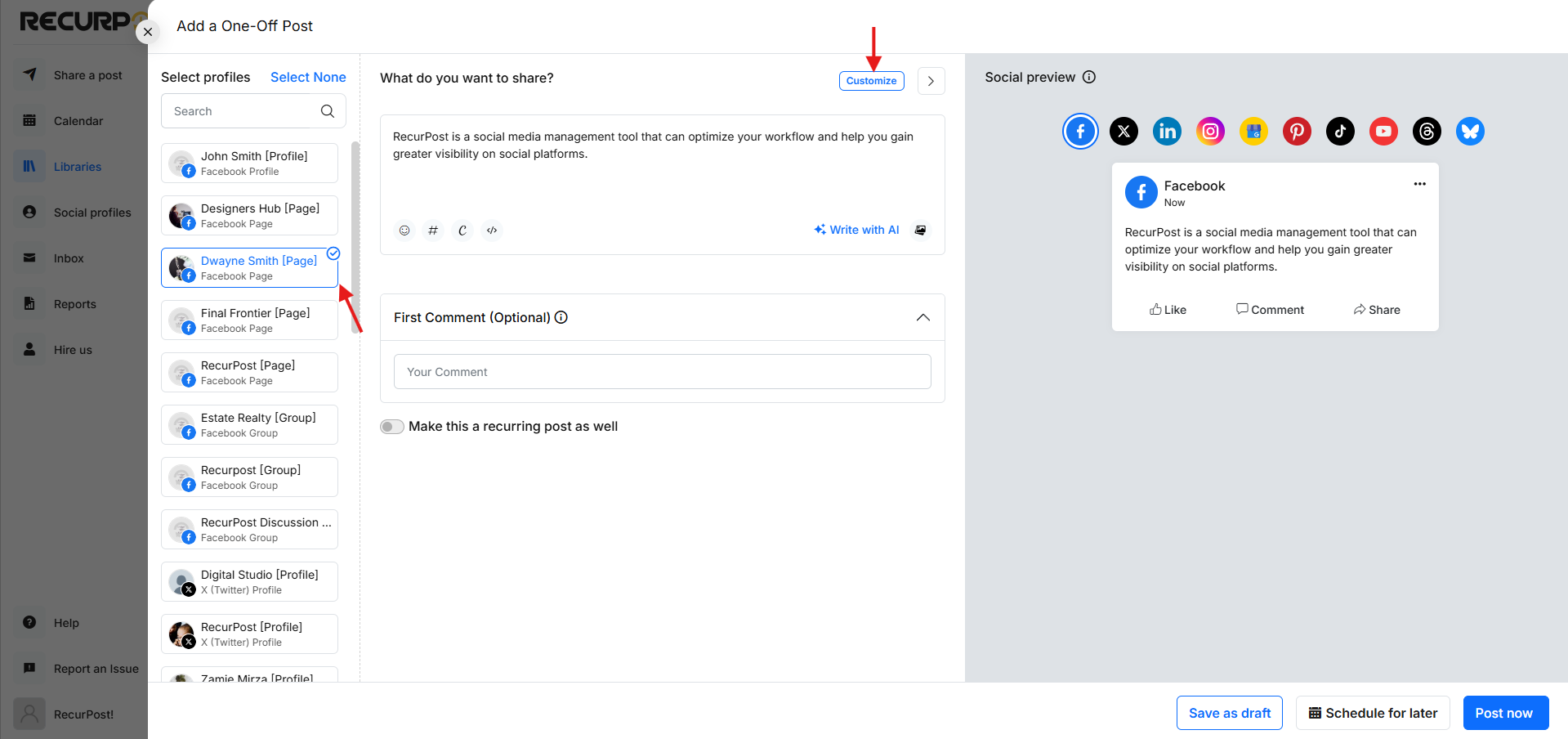
One-off posts are helpful when you want to schedule a single post on multiple profiles. These posts will be shared on your profiles just once. To create a One-off post, click anywhere inside the ‘Share a Post’ dialogue box on the ‘Calendar‘.

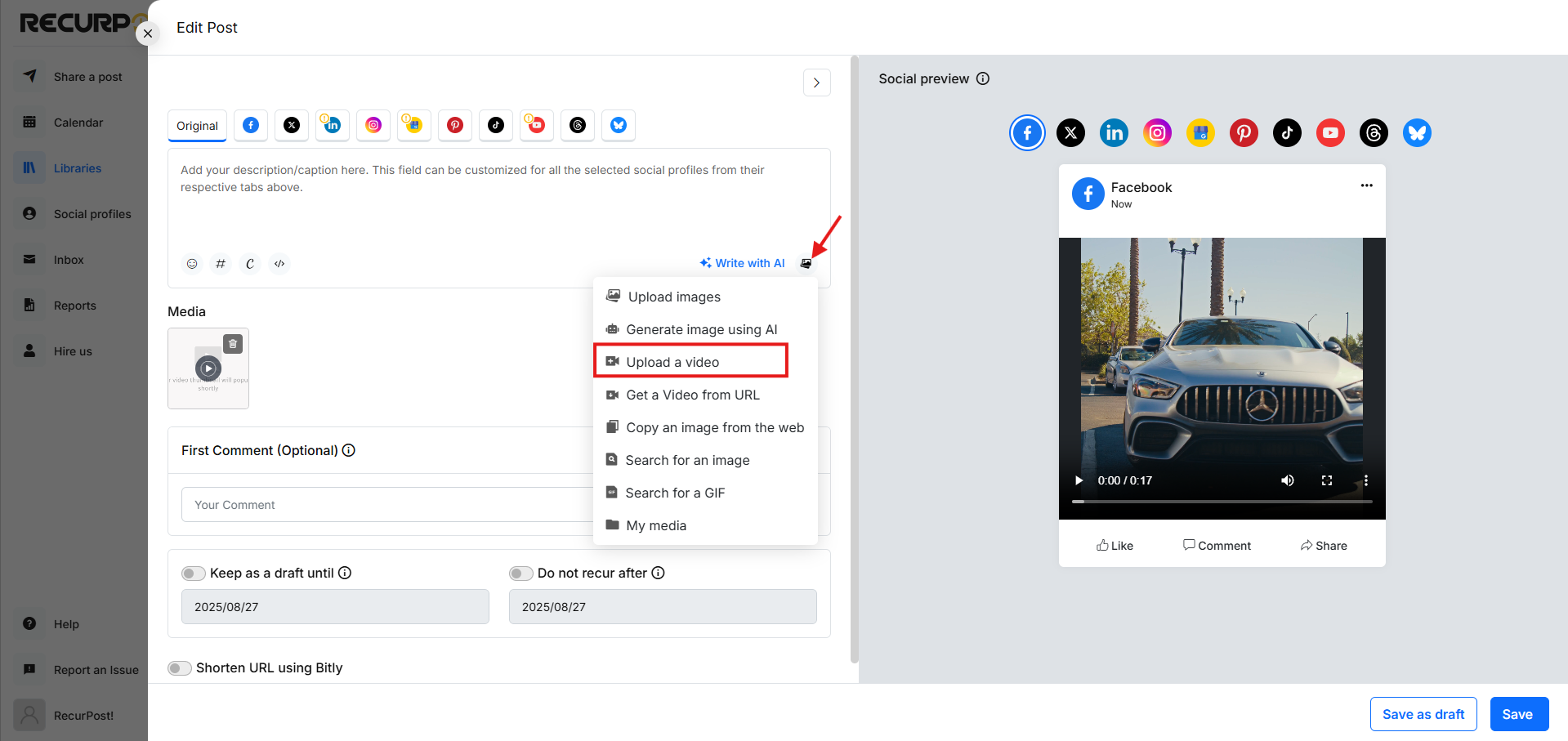
A pop-up window will appear where you will be able to add your content. Add a description/caption, attach images/video or import media directly from Canva, add hashtags, include emojis, insert a link (a preview will be automatically fetched) and select the Facebook profile that you want to post on.
Once ready, either post immediately or schedule it for a specific date and time.
Add Content to Libraries
You can fill up your libraries with awesome content and set a recurring schedule to make all that content go out in a loop on your Facebook profiles. You shall find all your content libraries on the ‘Library’ page.
When you sign up, some libraries will be created by default for you. You can edit or delete them, or create as many new libraries as you want. In these libraries, you will find a lot of options to add recurring posts.
You can add a single post, add images/videos/text/link posts in bulk, add content through a CSV file, import content from a social profile, or set up an RSS feed. Read more…

Create Recurring Schedules (Time Slots)
After adding content to your libraries, you need to set a recurring schedule to let the posts go out on your social profiles. To set a recurring schedule, go to the library and navigate to the ‘TIME SLOTS’ tab. Then click on the ‘ADD RECURRING TIME SLOTS’ button.

Here, you can select the frequency at which you want your posts to go out. Choose an option between Daily/Weekly, Monthly, or Custom, set the time, and click on the ‘ADD TIME SLOT’ button.

That’s it. All the posts in your libraries will be posted according to the set schedule(s).
Now let’s see how your Facebook posts will appear once posted through RecurPost.
How will Text posts appear on Facebook?
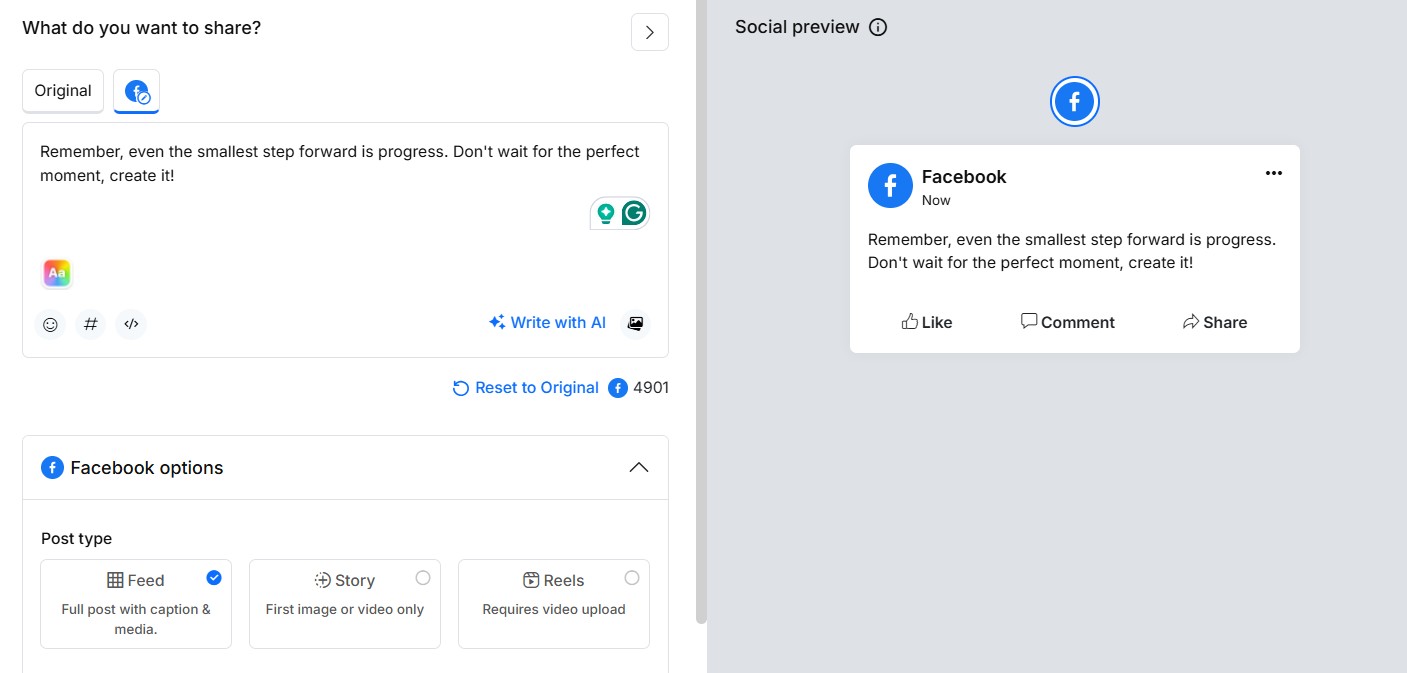
If you are only posting text, it will appear the same on Facebook as the way you have typed it on RecurPost.
This is how you will compose a one-off post.
How will text posts with background appear on Facebook?
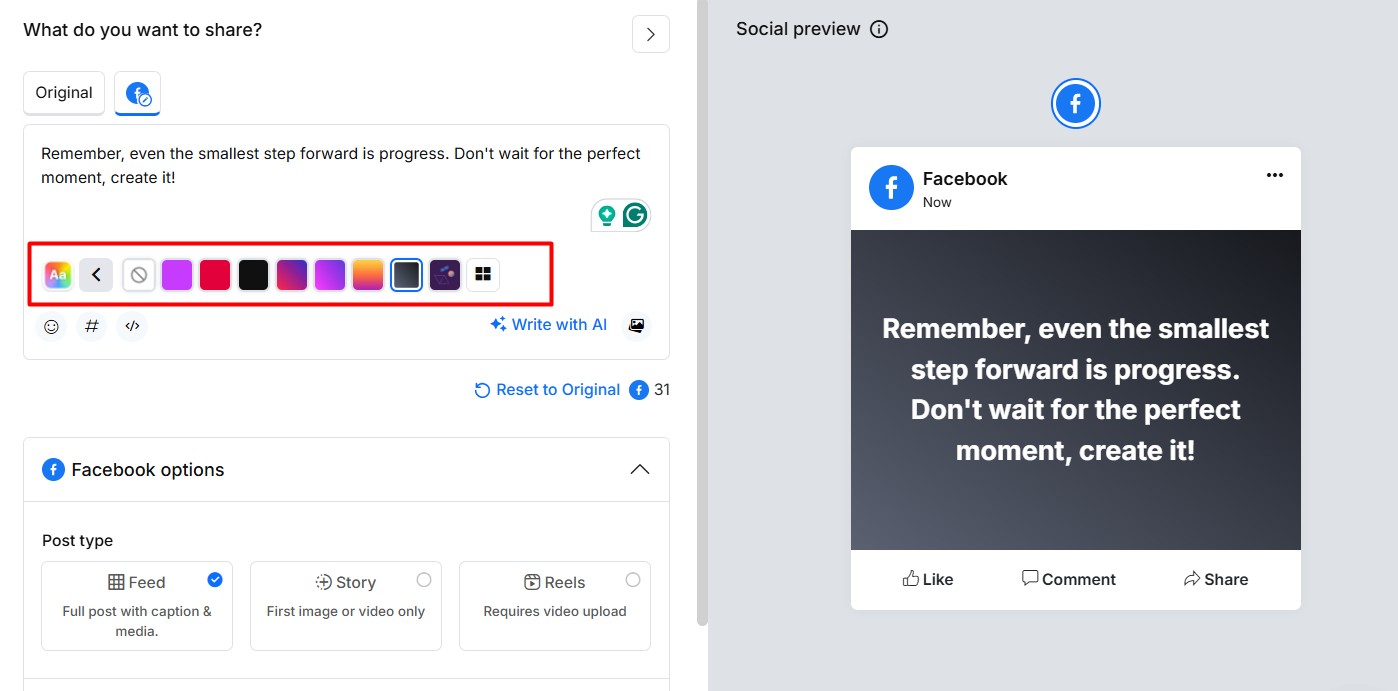
If you are only posting text, it will appear the same on Facebook as you have typed it on RecurPost. However, Facebook allows you to add colorful backgrounds to text-only posts. While RecurPost does not offer background selection within the platform, you can still create engaging text posts that Facebook may automatically format with a background when published, depending on the character length and platform settings.
This is how you will compose a one-off post.
How will Image and Video posts appear on Facebook?
Here, you can upload up to 15 images or one video. Facebook does not allow images and a video in the same post, so if you upload both, choose Image(s) or Video in the Facebook tab. You can also add a ‘First Comment’ to this post.
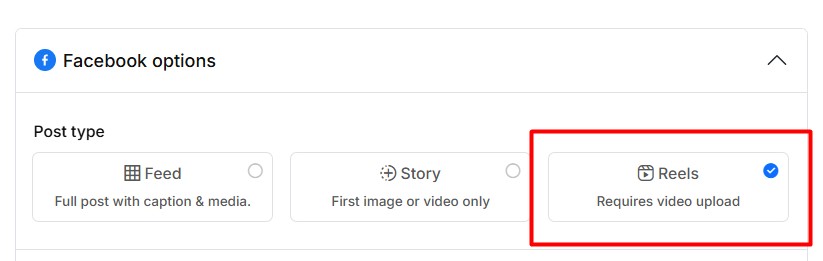
When sharing a video, you can now choose where to publish it, and you’re not limited to just one spot. RecurPost lets you select Feed, Story, and Reels all at the same time from the Facebook options section.
Just check the formats you want. Each one you pick counts as a separate post in your quota. So selecting all three = 3 posts counted. Keep that in mind when planning your content!
Note: Stories only show the first image or video. Reels require a video upload. Feed posts include your full caption and media.
Here is how those posts shall look:
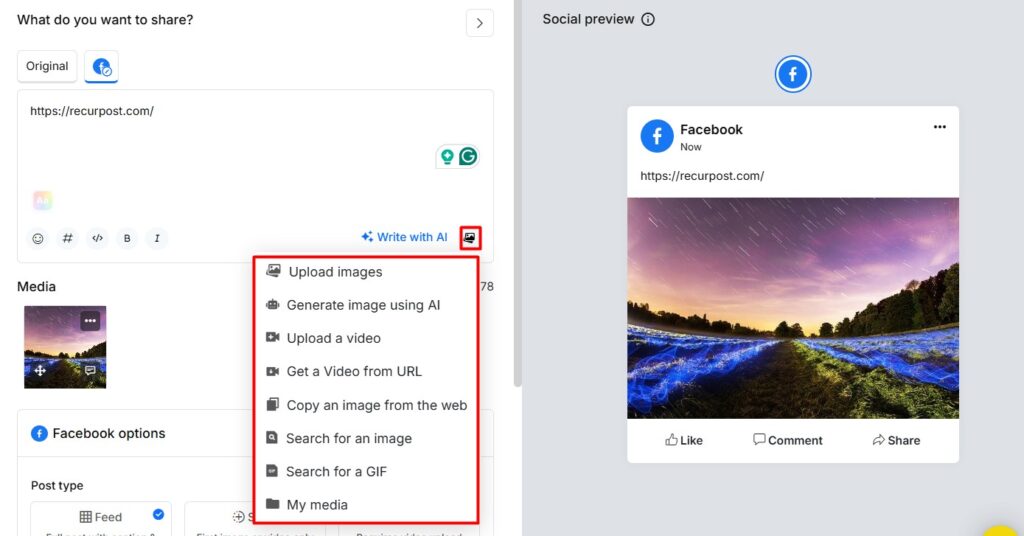
How will the link post appear on Facebook?
When you paste a link into the message box, RecurPost will automatically retrieve a title, image and description from that link. Please note that when posting a link, the preview is completely controlled by Facebook at the time of posting and RecurPost does not have control of the post in the case of a link only.
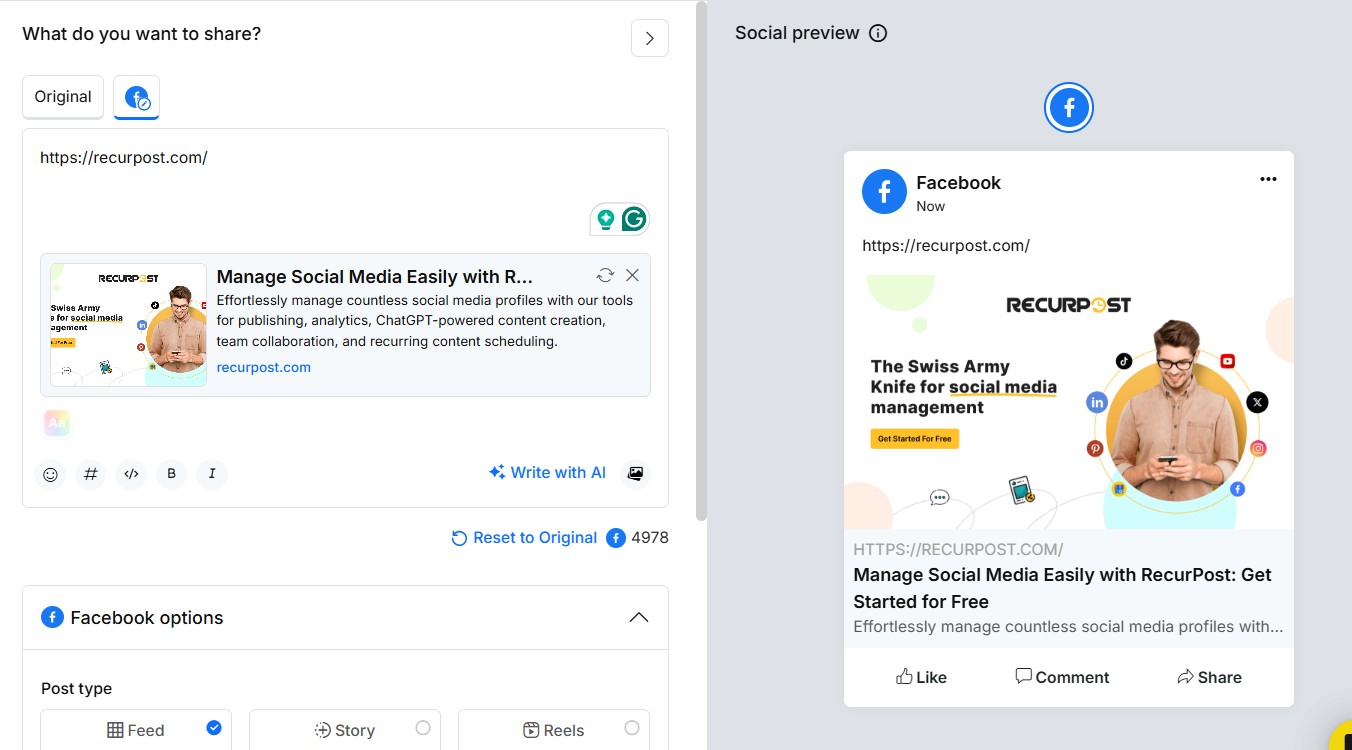
This is how your post would appear on Facebook.
That’s how you can schedule posts on Facebook using RecurPost! For further queries, contact us at support@recurpost.com.
Posting to a Facebook Profile
Facebook does not allow third-party tools to publish to personal profiles, so RecurPost handles these through a push notification rather than posting directly. Facebook Groups work the same way. Pages publish directly and need none of this.
- Install the RecurPost mobile app and sign in, since the post is completed from there.
- Schedule the post as usual. If you use Post now, the notification arrives immediately; if you schedule it, the notification arrives at the scheduled time.
- Tap the notification. RecurPost opens the Facebook app with your caption and media copied ready to paste, and you publish from there.
Because the final step happens on your phone, a Facebook Profile post is not published until you act on the notification.
Video tutorial: posting to a Facebook Profile
In 2018, Facebook implemented changes to their platform which caused many social media scheduling tools to no longer support sharing posts on Facebook Profiles. However, RecurPost still allows posting on Facebook profiles.
With the new changes, we let you post via push notifications. It is not as convenient as direct publishing, but the post is still scheduled in advance and goes out with one tap when the notification arrives.
RecurPost sends you a push notification on your phone at the scheduled time of posting on your Facebook profile. When you click on the push notification, your message gets copied to your phone’s memory, after which you are directed to the Facebook dialog box. All you need to do is paste your message from the phone’s memory and you are good to go.
Here is a video showing you how it works:
Posting to a Facebook Page: Feed, Story and Reels
Posting on Facebook Page Feed
Your Facebook Page Feed is where your audience sees your regular updates. Here’s how you can schedule a post on your Facebook Page:
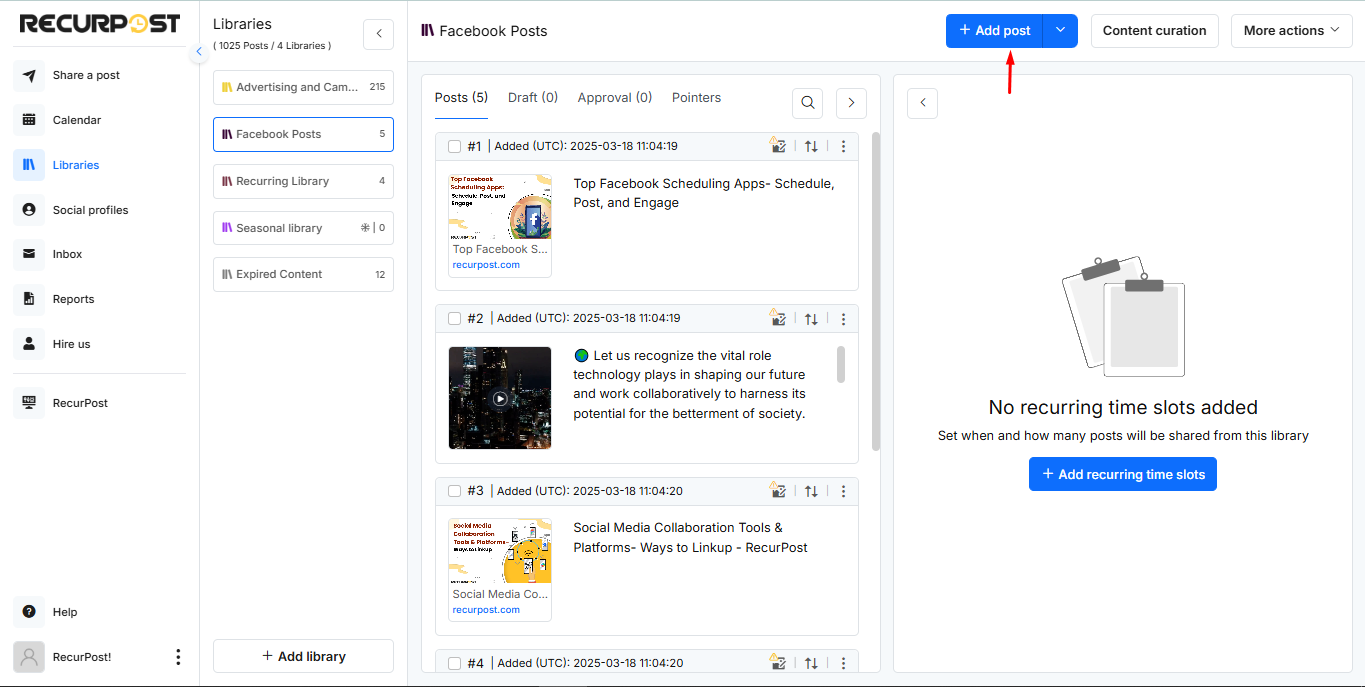
1. Create a Post: You can create and schedule content as a One-off Post as well as a Recurring Post. In this example, we will see how to create and schedule posts as Recurring Posts.
Go to Libraries from the sidebar, select a library, and click ‘+ Add post’.
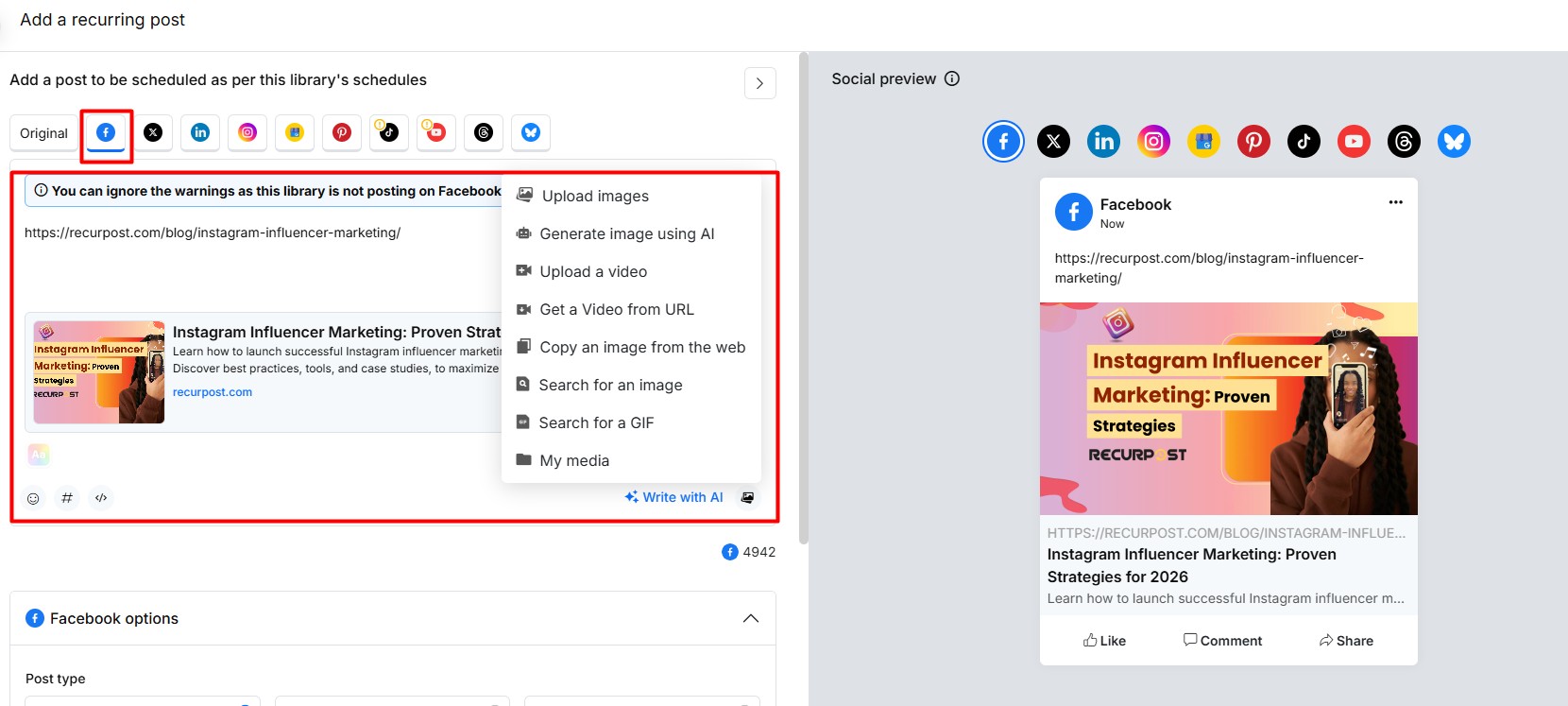
2. Add Content: Upload your image or video, write a caption, and then click on Customize. Be sure to use engaging captions and include hashtags to increase reach. (Check out our guidelines Video | Image)
3. Select Facebook Feed: In the Facebook tab, choose Feed as the type of post you’re creating.
New: You can now select more than one post type at a time. For example, you can check Feed, Story, and Reels all at once. Each selected format will count as a separate post in your quota.
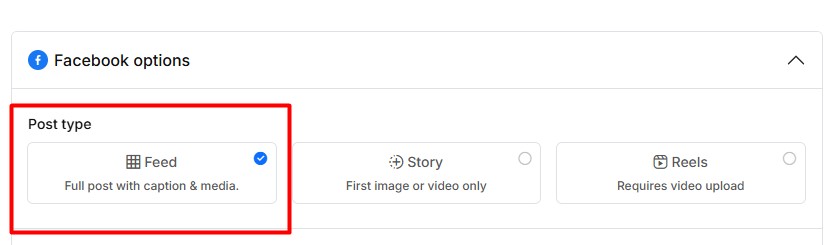
4. Add Post to Library: Once you’re finished, click Add to Library to save it for future use,
or if you’re creating a One-off Post, choose Schedule to set a specific time or Post Now to publish immediately. Your post will go live on your Facebook Page’s Feed at the selected time.
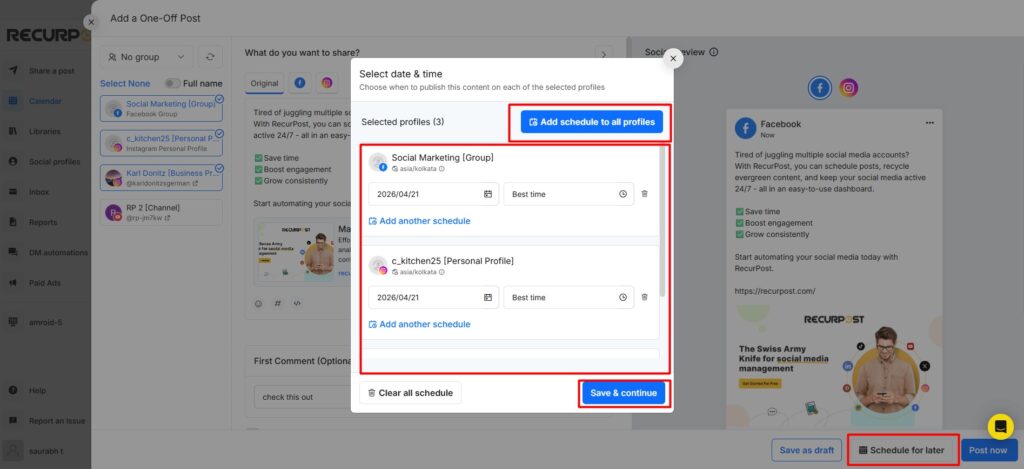
Posting on Facebook Page Story
Stories disappear after 24 hours, making them great for quick updates and engaging content. Here’s how to share a Story via RecurPost:
1. Create a Post: Go to Libraries from the sidebar, select a library and click ‘+ Add post’.
2. Add Content: Upload your image or video, write a caption, and then click on Customize. Be sure to use engaging captions and include hashtags to increase reach. (Check out our guidelines Video | Image)
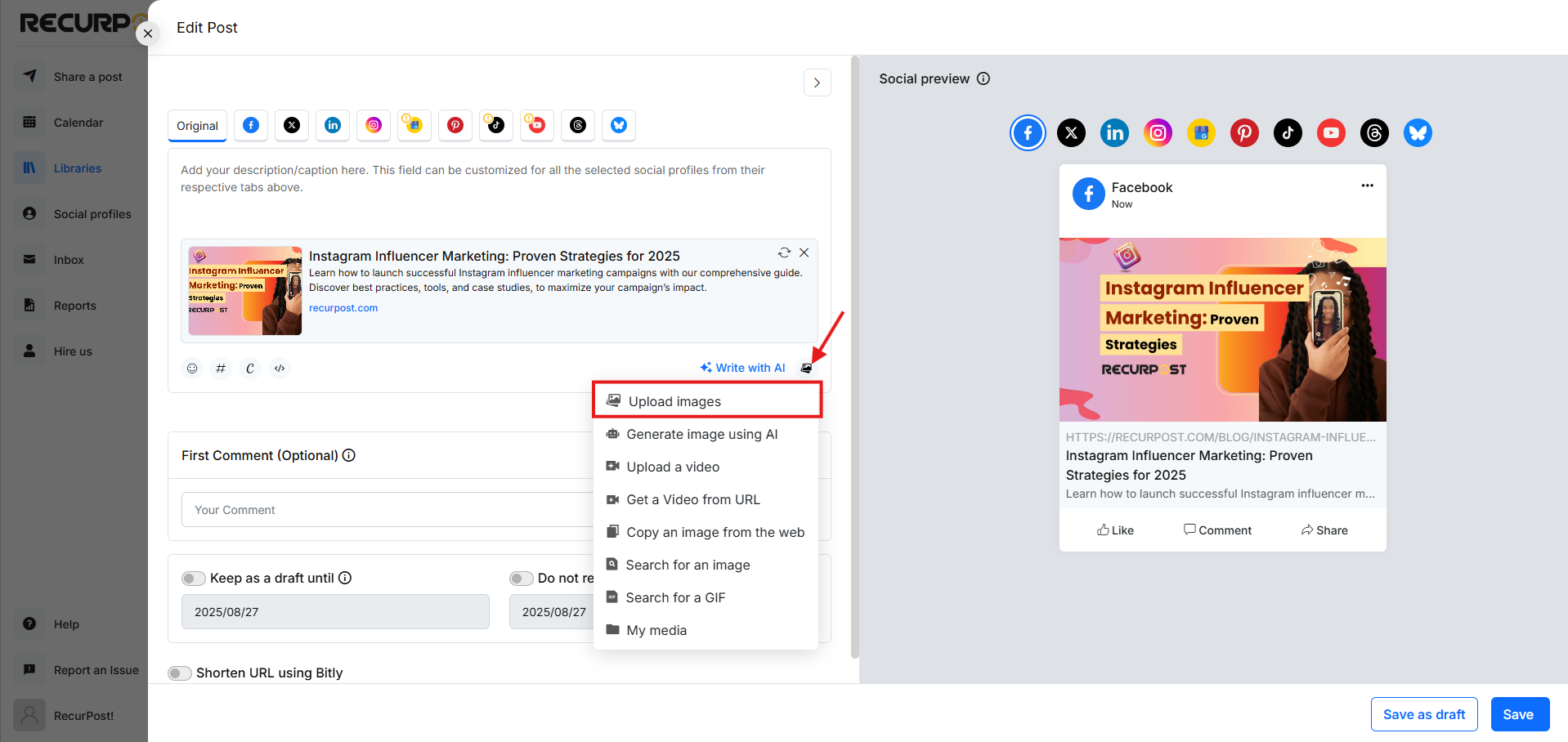
3. Select Facebook Story: In the Facebook tab, choose Story as the type of post you’re creating.
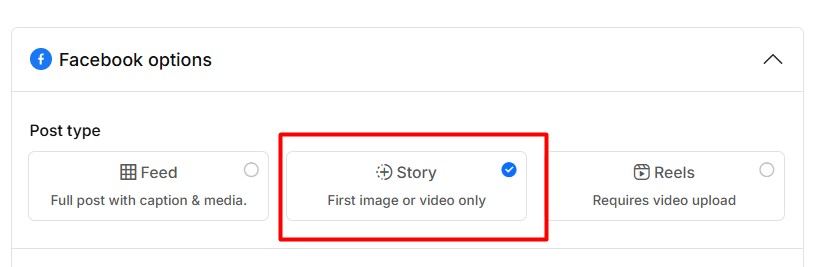
4. Add Post to Library: Once you’re finished, click Add to Library to save it for future use,
or if you’re creating a One-off Post, choose Schedule to set a specific time or Post Now to publish immediately. Your post will go live on your Facebook Page’s Feed at the selected time.
Posting on Facebook Page Reels
Reels are short, engaging videos designed for better reach and discovery. Here’s how to post a Reel via RecurPost:
1. Create a Post: Go to Libraries from the sidebar, select a library and click ‘+ Add post’.
2. Add Content: Upload your image or video, write a caption, and then click on Customize. Be sure to use engaging captions and include hashtags to increase reach. (Check out our guidelines Video | Image)
Tip: You can also use our AI feature to generate a caption.
3. Select Facebook Reel: In the Facebook tab, choose Reel as the type of post you’re creating.
4. Add Post to Library: Once you’re finished, click Add to Library to save it for future use, or if you’re creating a One-off Post, choose Schedule to set a specific time or Post Now to publish immediately. Your post will go live on your Facebook Page’s Feed at the selected time.
Final Tips for Posting on Facebook
- Mix and match! Select Feed, Story, and Reels together to reach your audience across all formats in one step.
- Remember each format you pick counts as one post in your quota. Plan accordingly.
- Optimize video formats (MP4 works best for all three).
- Keep captions short and punchy. Our AI writing tool can help.
- Check Facebook Reports in RecurPost to see which format performs best for you.
That’s it! Now you can effortlessly share content on your Facebook Page Feed, Story, and Reels using RecurPost. If you need any help, feel free to reach out to our support team.