
RecurPost lets you schedule pins for your Pinterest boards, helping you maintain a consistent presence and grow your engagement on the platform.
How to share a post on Pinterest Boards?
1. Connect your Pinterest Board
To connect your Pinterest Board, click on the ‘Social profiles’ menu on the left-hand side and click on the ‘+ ADD social profiles’ button. Under Pinterest, you shall see the ‘Board’ option.
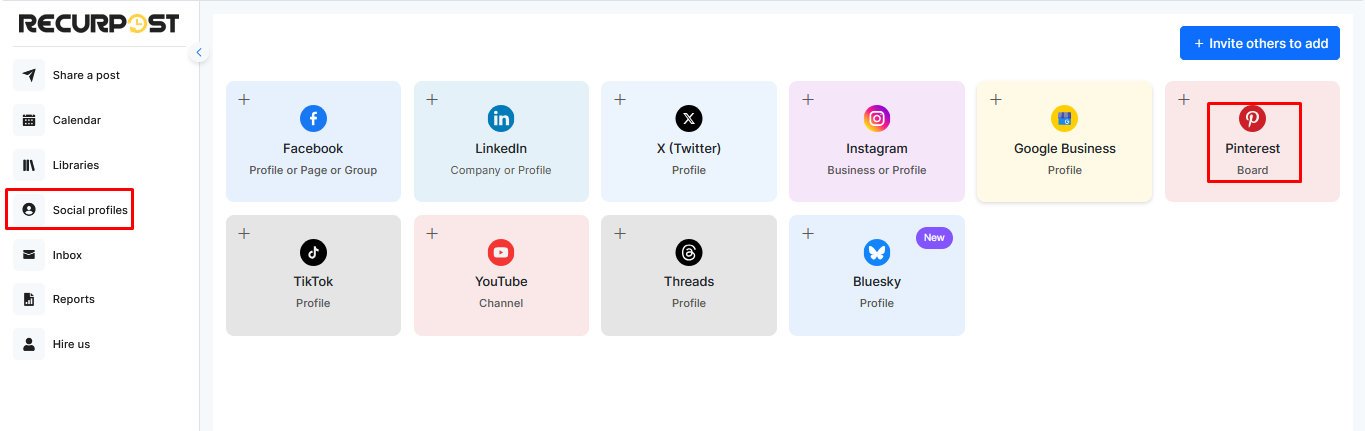
Once you click on that, you will be redirected to Pinterest’s login page if you are not logged in already. Provide RecurPost with the required permissions to add and schedule posts from RecurPost. No personal data or credentials will be saved.
2. Create a One-off Post
One-off posts are helpful when you want to schedule a single post on multiple accounts. These posts will be shared on your accounts just once. To create a One-off post, click ‘Share a post’ from the left-side menu and select ‘Create a Post Manually‘.
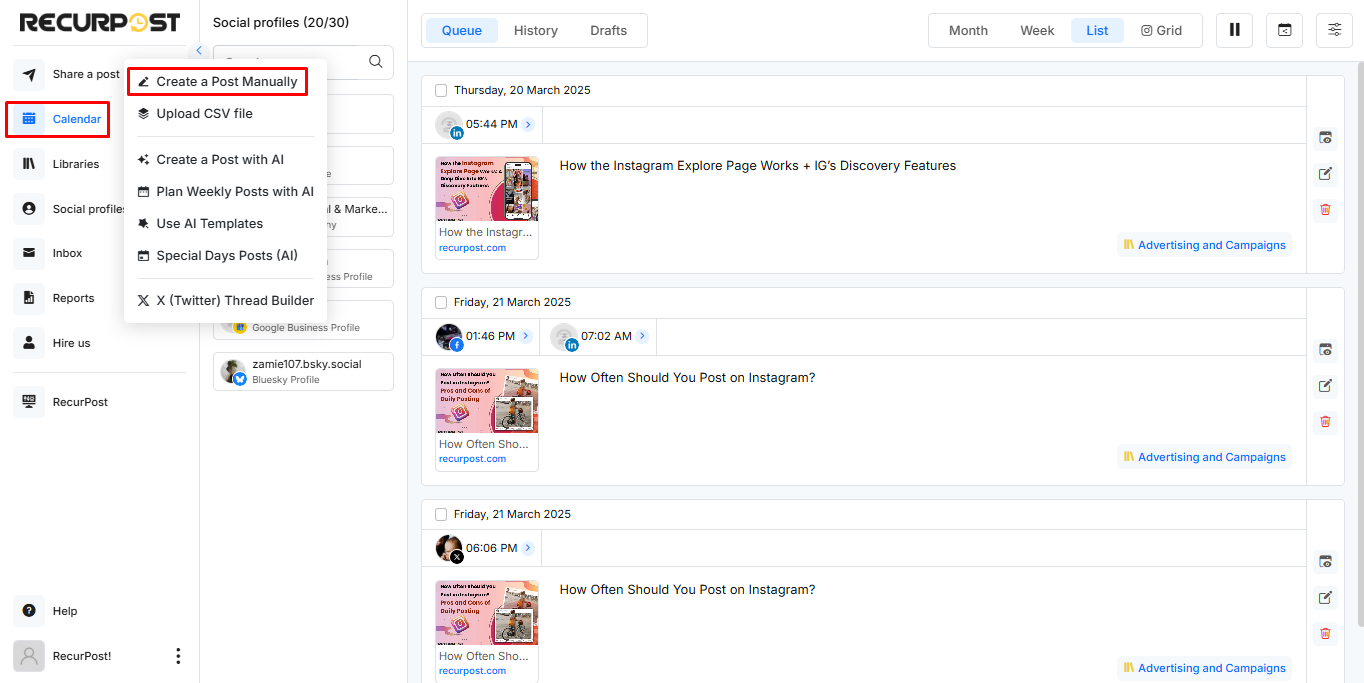
A pop-up window will appear where you will be able to add your content. Add Title, Description, add URL to Destination link, attach images/video or import media directly from Canva, add Hashtags, include Emojis, and then select the Pinterest Board that you want to post on.
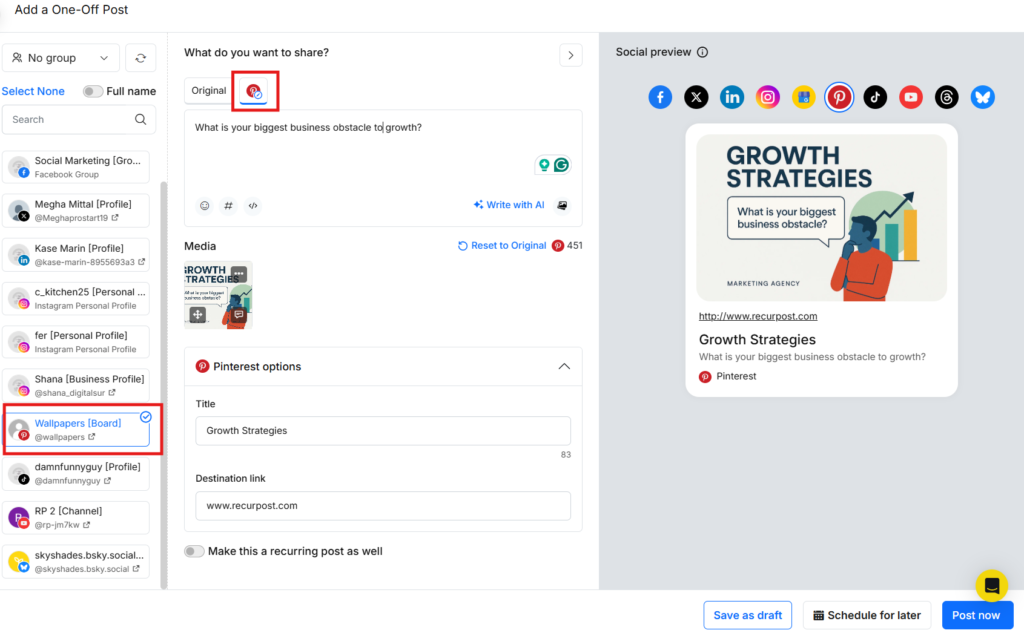
Once ready, either post immediately or schedule it for a specific date and time.
3. Add Content to Libraries
You can fill up your libraries with awesome content and set a recurring schedule to make all that content go out in a loop on your Pinterest Board. You shall find all your content libraries on the ‘Library’ page.
When you sign up for a free trial, some libraries will be created by default for you. You can edit or delete them, or create as many new libraries as you want.
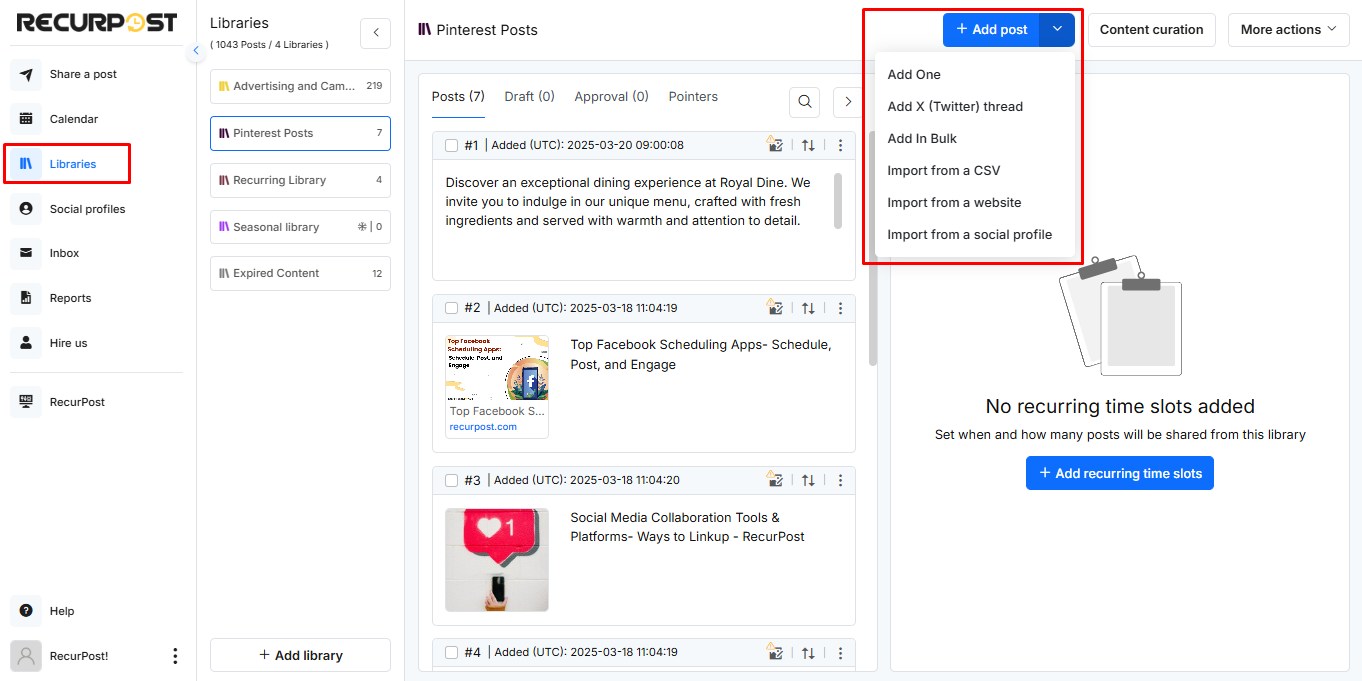
In these libraries, you will find a lot of options to add recurring posts. You can add a single post, add images/videos/text/link posts in bulk, add content through a CSV file, import content from a social account, or set up an RSS feed. Read more…
4. Create a Recurring Schedule
After adding content to your libraries, you need to set a recurring schedule to let the posts go out on your social accounts. To set a recurring schedule, go to the library and go to the ‘Time slots’ section. Then click on ‘+ Add recurring time slots’ button.

Here, you can select the frequency at which you want your posts to go out. Choose an option between Daily/Weekly, Monthly, or Custom, set the time, and click on the ‘Add time slot’ button.

That’s it. All the posts in your libraries will be posted according to the set schedule(s).
Now let’s see how your Pinterest posts will appear once posted through RecurPost.
How will Text and Link appear on the Pinterest Board?
Here is how the post shall look.

How will Image and Video posts appear on Pinterest?
Here is how the post shall look.


That’s how you can schedule posts on Pinterest using RecurPost! For further queries, contact us at support@recurpost.com.