

Import Posts into Your RecurPost Library
RecurPost lets you bring posts from your connected social profiles directly into a library. The import runs through a 4-step wizard: Library, Content, Customize, and Review. Each step gives you control over how posts land in your library, so you spend less time editing after the fact.
Step 1: Select a Library
After selecting the posts you want to import, the wizard opens on the Library step.
Choose the library where these posts should go. You can search by name or scroll through your existing libraries.
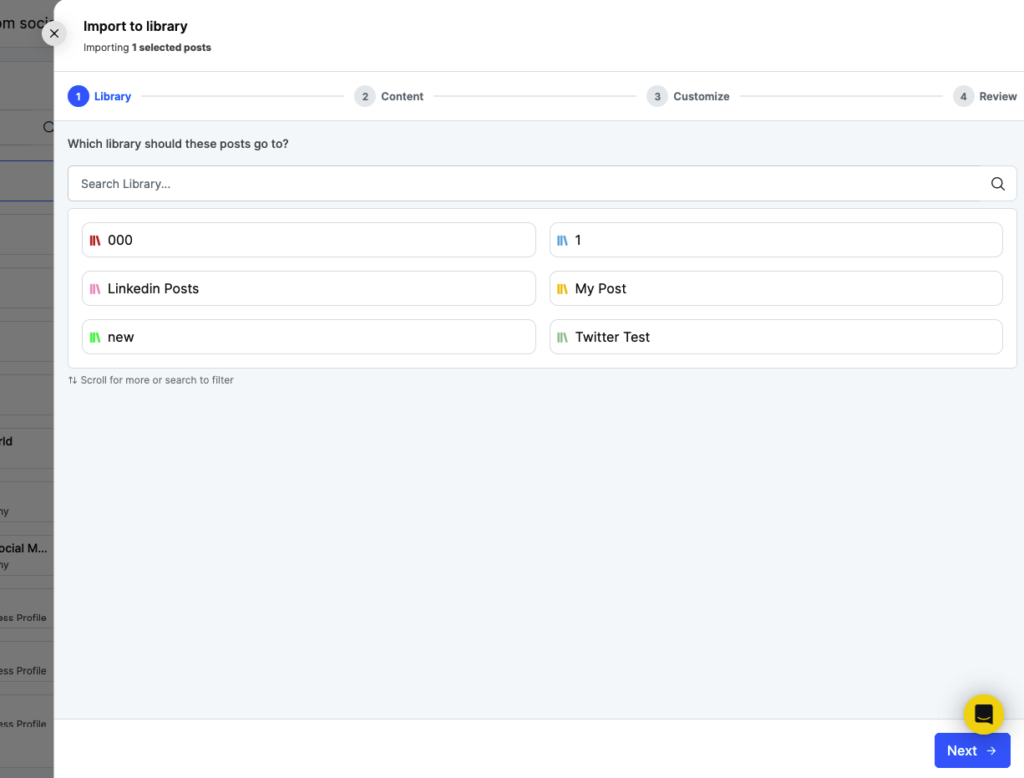
Click Next to move to the Content step.
Step 2: Customize Content
This step lets you make text changes that apply to every imported post.
Caption text
- Add to the start (prefix): Text added here appears at the beginning of every imported post’s caption.
- Add to the end (suffix): Text added here appears at the end of every imported post’s caption.
Leave these fields blank if you want to keep the original captions as-is.
First comment
Type a comment to post automatically after each imported post goes live. This applies to Facebook Pages, LinkedIn, and Instagram Feed posts only.
Hashtags
Pick from your saved hashtag collections or type custom hashtags directly into the field and press Enter. Selected hashtags are added to the caption of every imported post.
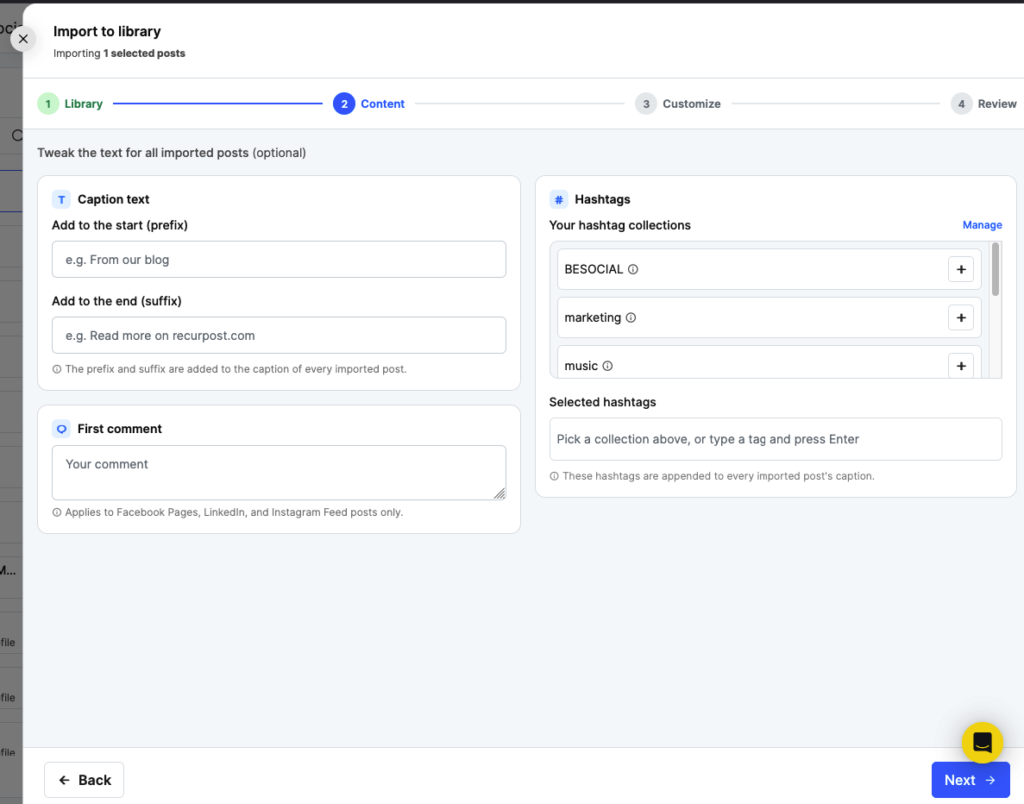
Click Next to move to the Customize step.
Step 3: Set Network Options
This step lets you set platform-specific options before the posts land in your library.
You have two choices:
- Do not customize: posts import with original captions and media, no platform settings applied.
- Customize per network: pick one or more networks and set options for each.
Select the networks you want to configure. You can pick from Facebook, Instagram, LinkedIn, Pinterest, Google Business, TikTok, and YouTube.
Note: TikTok and YouTube options apply to video posts only. If a selected post has no video, those network settings are skipped for that post. A notice on screen tells you how many posts will be affected.
TikTok options (video posts only)
- Privacy status: set who can see the post (e.g., Public to Everyone).
- Allow users to: toggle Comments, Duets, and Stitches on or off.
- Disclose post content: check Your brand or Branded content if applicable.
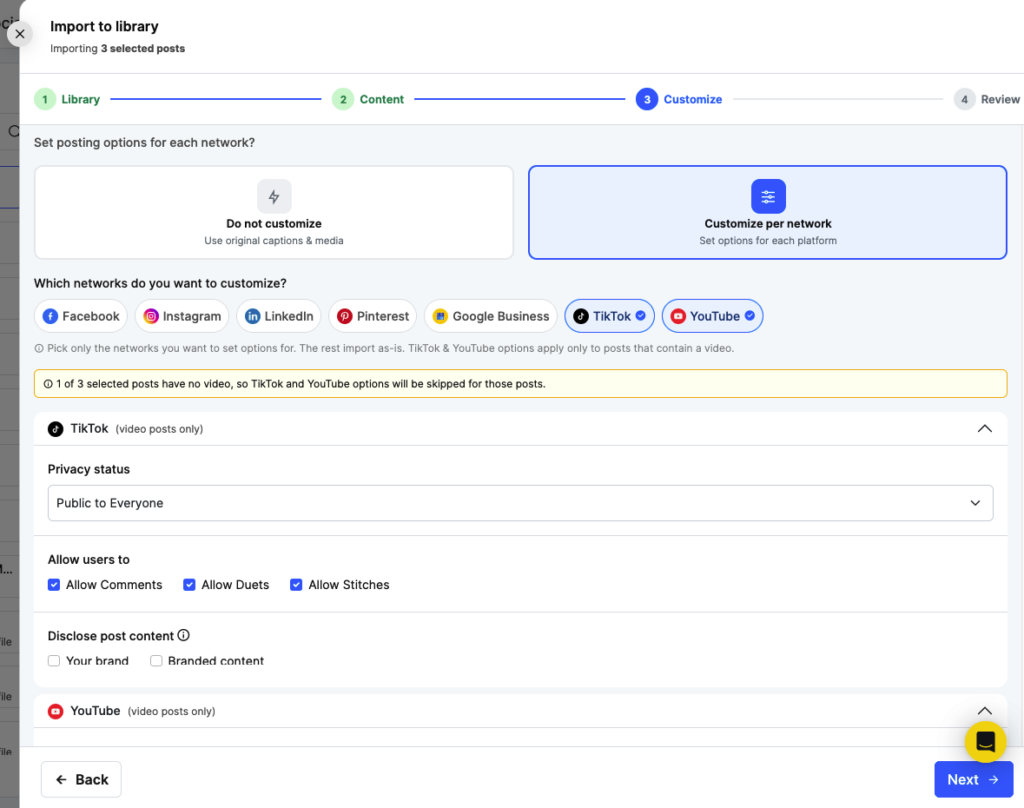
Click Next to move to the Review step.
Step 4: Review and Import
The final step shows a summary of everything you configured.
| Setting | What’s shown |
| Library | The destination library name |
| Caption | Whether a prefix or suffix was added |
| Hashtags | Collections or tags attached |
| First comment | Comment text, or “None” |
| Network options | Which networks were customized and any skipped posts |
A note at the bottom reminds you that you can still adjust any post in the composer after import.
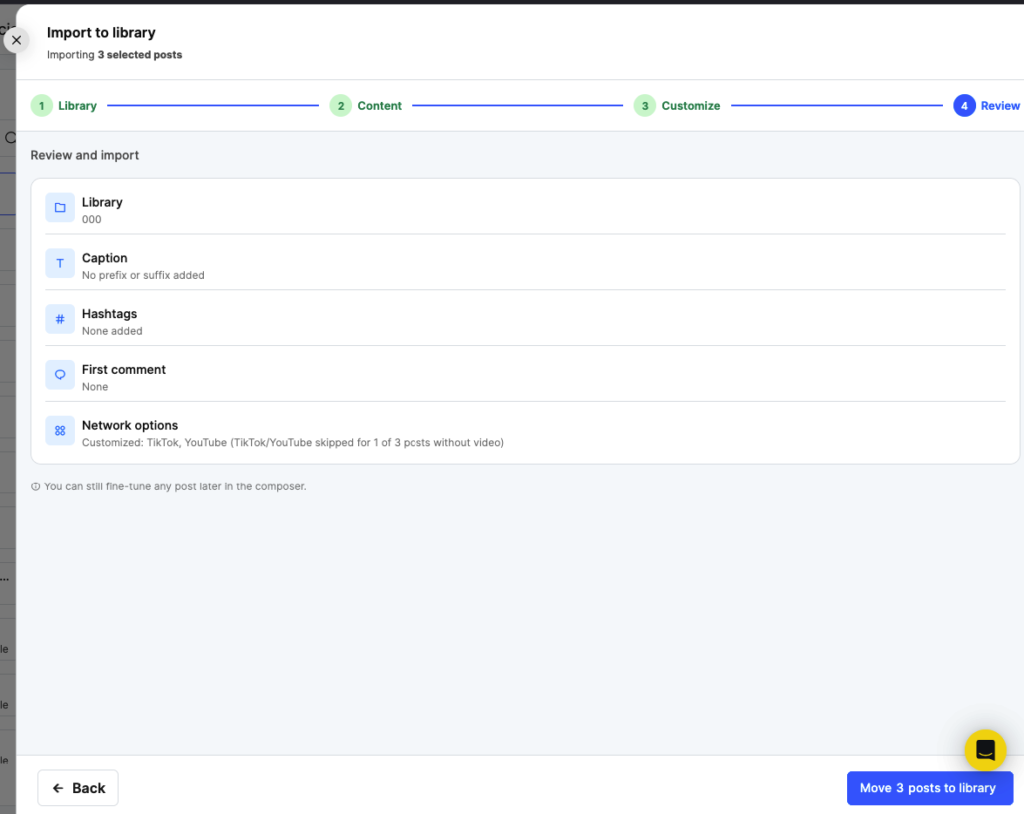
When everything looks right, click Move [X] posts to library to complete the import.
For further queries, contact us at support@recurpost.com.
Watch the step-by-step tutorial
Watch the Step-by-Step Tutorial
Using the Import posts from Social Media plug-in
If you want to import content that was already published on your social profiles, you can do that with RecurPost. This feature lets you bring posts from connected social profiles into your RecurPost libraries.
To use this feature, go to Plug-ins and click Manage under Import posts from Social Media. Select the social profile from the left panel, then choose the posts you want to import.
Once you select your posts, RecurPost opens a 4-step import wizard: Library, Content, Customize, and Review.
Step 1: Library
Pick the destination library for your imported posts. You can search by name or scroll through your existing libraries.
Step 2: Content
Add a caption prefix or suffix to all imported posts. You can also attach hashtag collections and add a first comment. The first comment applies to Facebook Pages, LinkedIn, and Instagram Feed posts only.
Step 3: Customize
Set platform-specific options before the posts land in your library. You can choose to import posts as-is or configure settings per network. TikTok and YouTube options apply to video posts only. If a selected post has no video, those settings are skipped for that post.
Step 4: Review
Check a summary of all your selected settings before completing the import. You can still fine-tune any post in the composer after import.
Once you’re ready, click Move posts to library to complete the import.
For a detailed walkthrough of each step, see How to Import Posts into Your RecurPost Library.
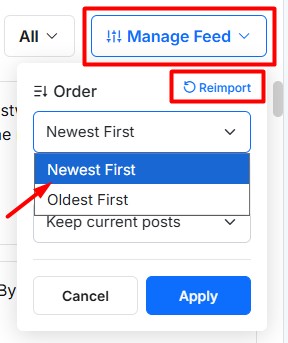
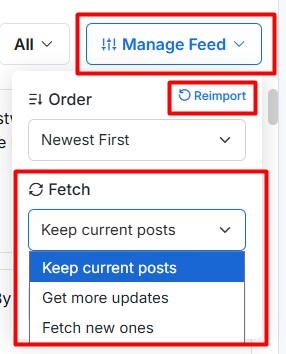
Manage Feed options
The Manage Feed dropdown gives you more control over imported content.
Reimport
The earlier Delete and Fetch Again option is now replaced with Reimport. You can use this option from the Manage Feed dropdown to refresh imported content.
Order
You can sort imported posts by posting date using these options:
- Newest First
- Oldest First
Fetch
You can also choose how imported posts should be fetched:
- Keep current posts
- Get more updates
- Fetch new ones
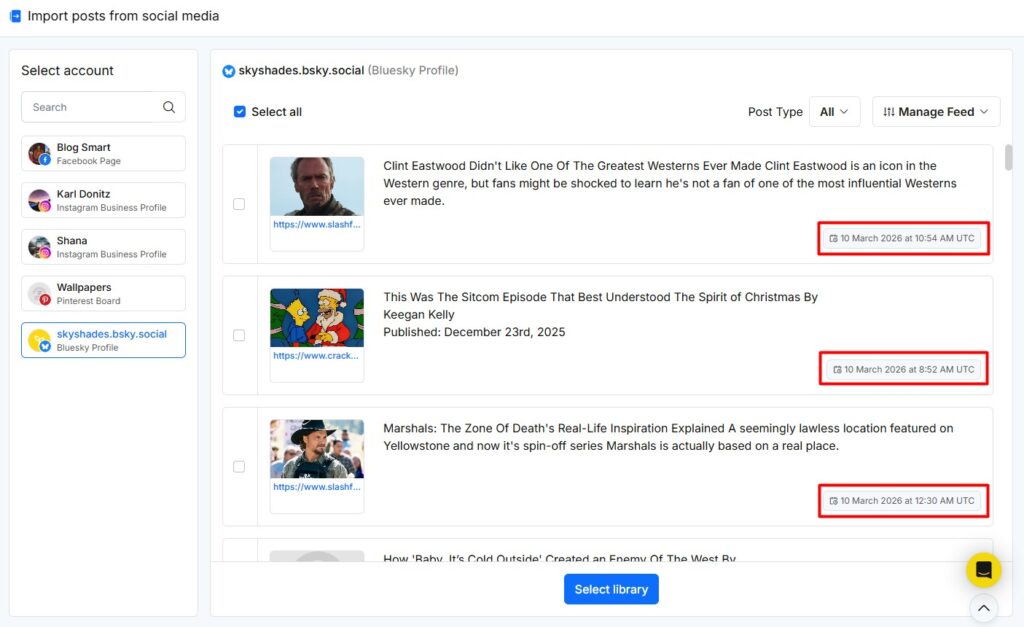
Timestamps in UTC
Imported post timestamps are shown in UTC. This keeps time references consistent across different accounts and regions.
Once you have selected the posts that you want to import, RecurPost will ask you to choose the library where those posts should be saved. You can also check out our video tutorial here.