
“Your account needs to be reconnected to RecurPost”
If you see this message while scheduling or publishing the post, it means that RecurPost has lost access to your page or profile. We will not be able to sync your posts or social inbox, and you won’t be able to perform any action related to that social profile.
This could happen for a number of reasons. You might have changed the password of your social profile, revoked access for the RecurPost app, etc. In the case of LinkedIn, profiles go into a reconnection state periodically. You simply need to reconnect the concerned social profile and everything will start working fine again.
Below are the reasons why your social profiles can go into a disconnected state and how to reconnect them:
1. Facebook
- Token expiration: FB expires the token every 60 days and thus RecurPost can get disconnected from Facebook. Thus, you need to reconnect the profile/page/group and re-authenticate.
- Revoked access for RecurPost: In case you have removed the RecurPost application from Facebook Business Integration settings or revoked some permissions, your profile will go into a disconnected state. We need those permissions in order to successfully post on your accounts.
- Admin rights: If you’re not an Admin or an Editor, but have another role (Moderator, for instance), you’ll need to ask the Admin or Editor of your Page to renew the token using his/her account, or you may need to get the Admin/Editor rights again.
How to solve this and reconnect your Facebook profile:
To reconnect a Facebook Page, you just need to log in to your Facebook profile on the browser that you are using, and then go to RecurPost, click on the ‘Reconnect‘ icon next to your Facebook profile on the Dashboard page. That’s it, no additional steps.
Note: If you denied RecurPost permission to post on your Facebook profile, you need to reconnect. Firstly, you need to visit the Facebook Business Integrations page. You will see the RecurPost app listed there. Remove the RecurPost app and then go to RecurPost. Try adding your profile again and it will work just fine. Make sure to turn on all the permissions.
At times, it is possible that you may not be able to see your Facebook Page when you try to add it to RecurPost. This is a common issue with Facebook. Read this guide to fix it.
2. Instagram Business Profile
- Token expiration: Facebook expires the token every 60 days, which makes RecurPost get disconnected from Instagram. Thus, you need to reconnect the profile and re-authenticate.
- Revoked access for RecurPost: In case you have removed the RecurPost application from Facebook Business Integration settings or revoked some permissions, your profile will go into a disconnected state. We need those permissions in order to successfully post on your accounts.
- Lost Admin rights: You might have lost admin rights to the Facebook page that is connected to your Instagram business profile.
- Switch Instagram profile type: If you switch from an Instagram business/creator profile to a personal profile, your profile will go into a reconnection state.
How to solve this and reconnect your Instagram business profiles:
As an Instagram business profile is linked with a Facebook page, the reconnecting process also takes you to Facebook. Log in to your RecurPost account and go to the dashboard. On the left-hand side, click on the ‘Reconnect‘ icon next to your Instagram profile and you will be taken to your Facebook login page.
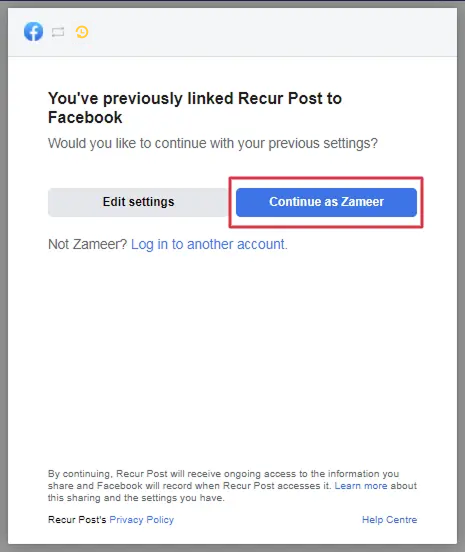
Click on Continue, and your account will be reconnected.
Note: If you are reconnecting your profile for the first time after the latest update from Facebook, click here to see the steps.
If you have removed the Instagram integration or changed the Facebook page connected to your Instagram business profile, you need to fix it first by going to ‘Settings‘ on your Facebook page.
3. Instagram Personal Profile
- Token expiration: Facebook expires the token every 60 days and thus RecurPost can get disconnected from Instagram too. Thus, you need to reconnect the profile and re-authenticate.
- Revoked access for RecurPost: In case you have removed the RecurPost application from Apps & Websites on Instagram or revoked some permissions, your profile will go into a disconnected state. We need those permissions in order to successfully post on your profiles.
- Instagram profile deleted: In case your Instagram profile is deleted or suspended by Instagram itself, it will automatically get disconnected from RecurPost too.
How to solve this and reconnect your Instagram personal profile:
Log in to your RecurPost account and go to the dashboard. On the left-hand side, click on the ‘Reconnect‘ button next to your Instagram profile; you will be shown the account that you are already logged into on your browser.
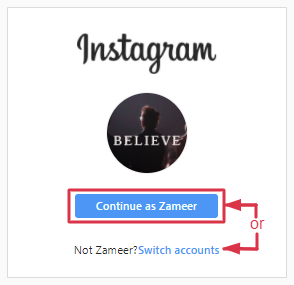
Just select your right Instagram profile and it will be reconnected. If you are not already logged in, it will ask you to enter your Instagram login credentials. Fill in your Username and Password, and click on Continue to finish the reconnecting process.
4. X (formerly Twitter)
- Access tokens are not explicitly expired. An access token will be invalidated if a user explicitly revokes an application from the Apps and Sessions page of their X (formerly Twitter) profile, which makes RecurPost get disconnected from X.
How to solve this and reconnect your X (formerly Twitter) profile:
Log in to your RecurPost profile and go to the dashboard. On the left-hand side, click on the “Reconnect” button next to your Twitter profile and you will be taken to your Twitter login page.
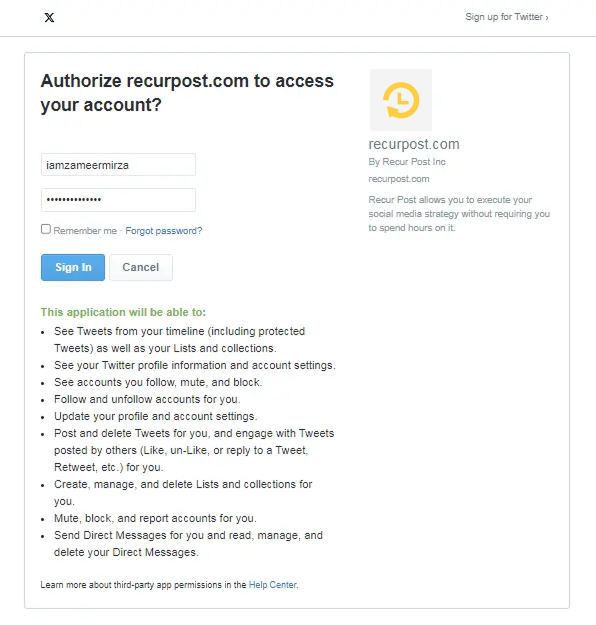
Enter your Twitter username and password, and your profile will be reconnected.
5. LinkedIn
- Token expiration: LinkedIn tokens get automatically refreshed every 60 days and thus RecurPost can get disconnected from LinkedIn; but once a year (after 365 days), you have to reauthorize your profile to continue posting through RecurPost.
- Revoked access: In case you have removed the RecurPost application from LinkedIn’s permitted services settings, your profile will go into a disconnected state.
How to solve this and reconnect your LinkedIn profile:
From the RecurPost dashboard, click on the ‘Reconnect‘ button next to your LinkedIn profile and you will be taken to the LinkedIn login page.
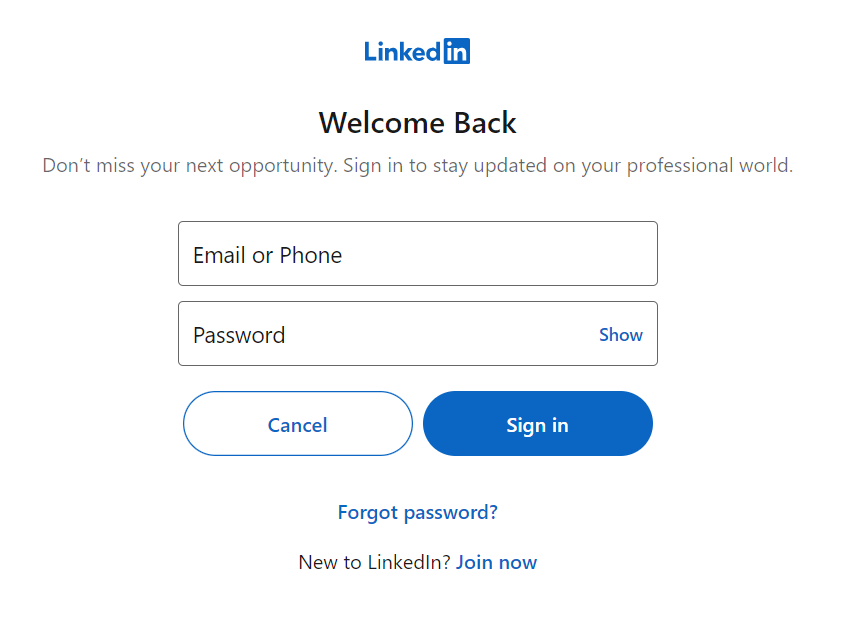
Enter the credentials associated with your LinkedIn profile and it will be reconnected successfully.
6. Google Business Profile
- Token expiration: Google My Business expires the token every 200 days and thus RecurPost can get disconnected from GMB. Thus, you need to reconnect the account and re-authenticate by giving all permissions.
- If your local listing is suspended or posting permission is disabled, we will not be able to post on your behalf.
How to reconnect your Google Business Profile:
From the RecurPost dashboard, click on the ‘Reconnect‘ button next to your GBP. It will take you to Google’s login page.
Enter your Google email address and password associated with your Google Business Profile. The next screen will ask you to give RecurPost permission to post on your profile. Click on the ‘Allow’ button and your profile will be reconnected.
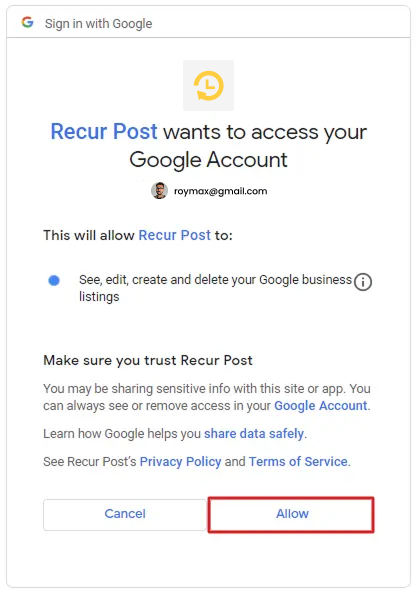
Note: RecurPost never saves your Login credentials or uses any information related to any social profile. We connect profiles through APIs so as to practice better security and privacy of the user. The permissions that you allow are needed to take action of posting on your behalf.
7. Pinterest
- The access tokens provided by Pinterest do not have particular expiry dates, so the Pinterest profile does not need to be reconnected to RecurPost frequently like other social profiles.
- However, an access token will be invalidated if a user explicitly revokes the RecurPost application from the Apps page of their Pinterest profile, which disconnects RecurPost from Pinterest.
How to solve this and reconnect your LinkedIn profile:
From the RecurPost dashboard, click on the ‘Reconnect’ button next to your Pinterest account or go to ‘Social Profiles’ from the selection in the dashboard and click on the ‘Reconnect‘ icon under the Pinterest profile and you will be taken to Pinterest’s login page.
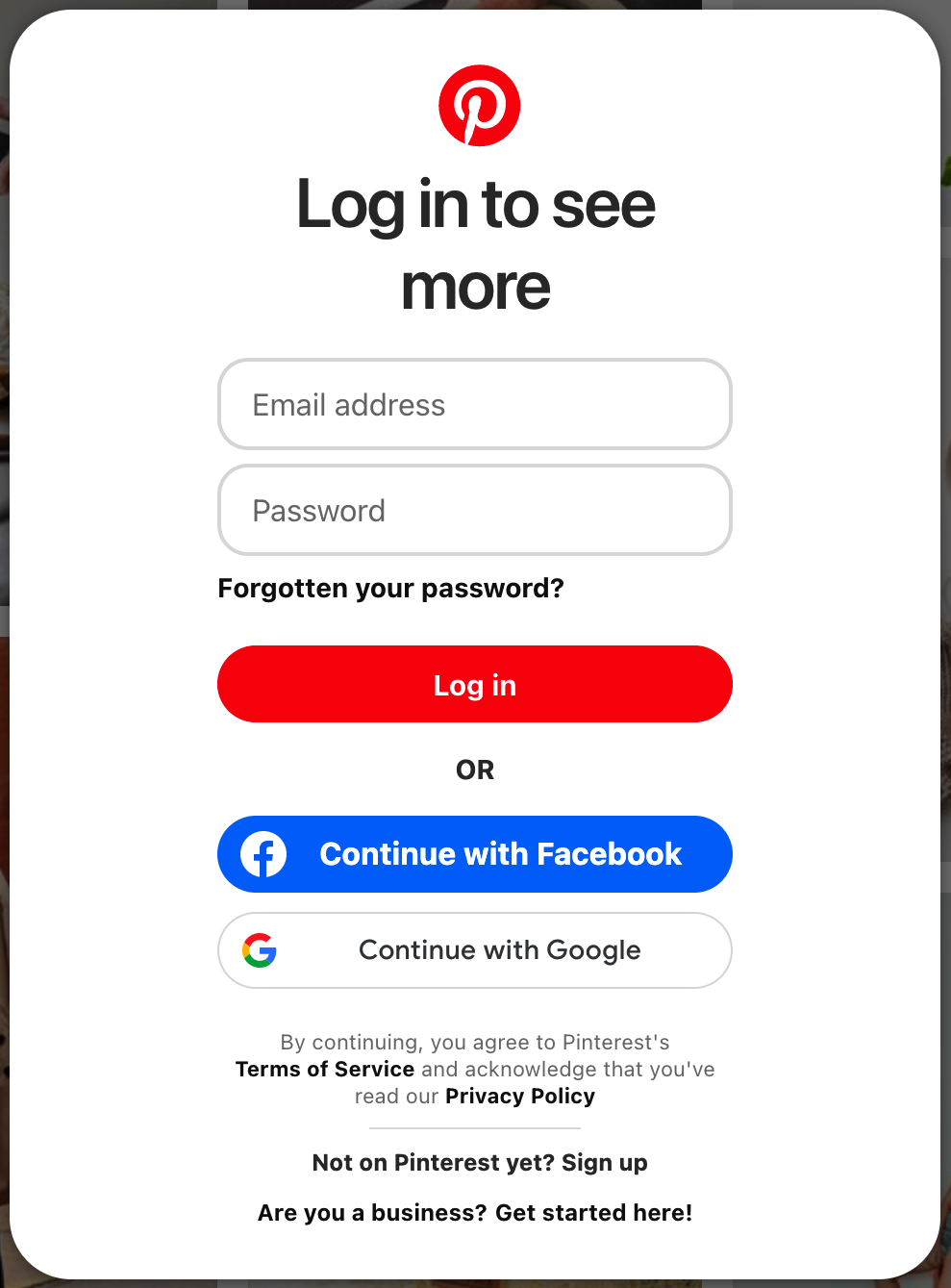
Enter the credentials associated with your Pinterest profile and it will be reconnected successfully.
In case of any queries, feel free to contact us at support@recurpost.com.