
RecurPost just made Facebook Page publishing a whole lot more flexible. You can now select Feed, Story, and Reels all at the same time. No need to create separate posts for each format.
Want your content to go out everywhere at once? Just check the boxes. This guide shows you exactly how multi-post type publishing works on Facebook Pages.
What’s changed in this update:
Before this update, you could only pick one post type at a time. Now, you can select Feed + Story + Reels all in one go while creating a post.
Here’s one important thing to keep in mind – each format you select counts as a separate post toward your quota. So if you select all three, that’s 3 posts counted. Choose only what you need!
Posting on Facebook Page Feed
Your Facebook Page Feed is where your audience sees your regular updates. Here’s how you can schedule a post on your Facebook Page:
1. Create a Post: You can create and schedule content as a One-off Post as well as a Recurring Post. In this example, we will see how to create and schedule posts as Recurring Posts.
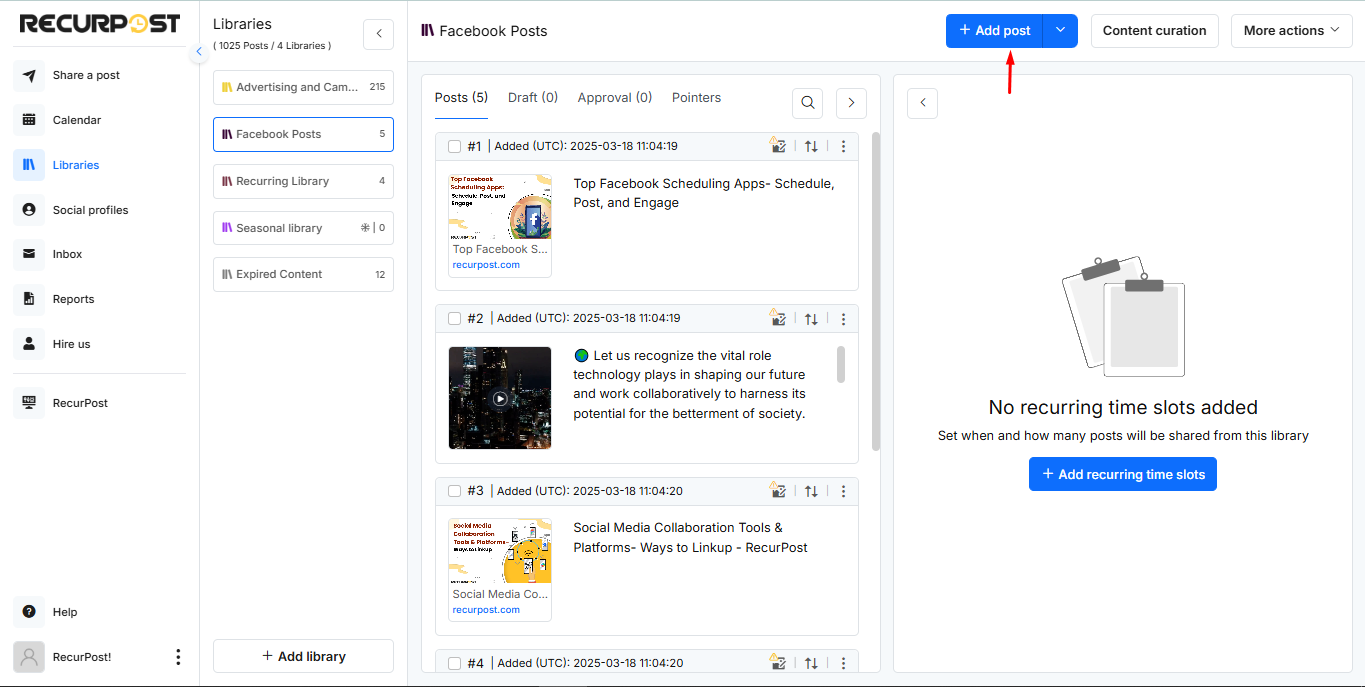
Go to Libraries from the sidebar, select a library, and click ‘+ Add post’.
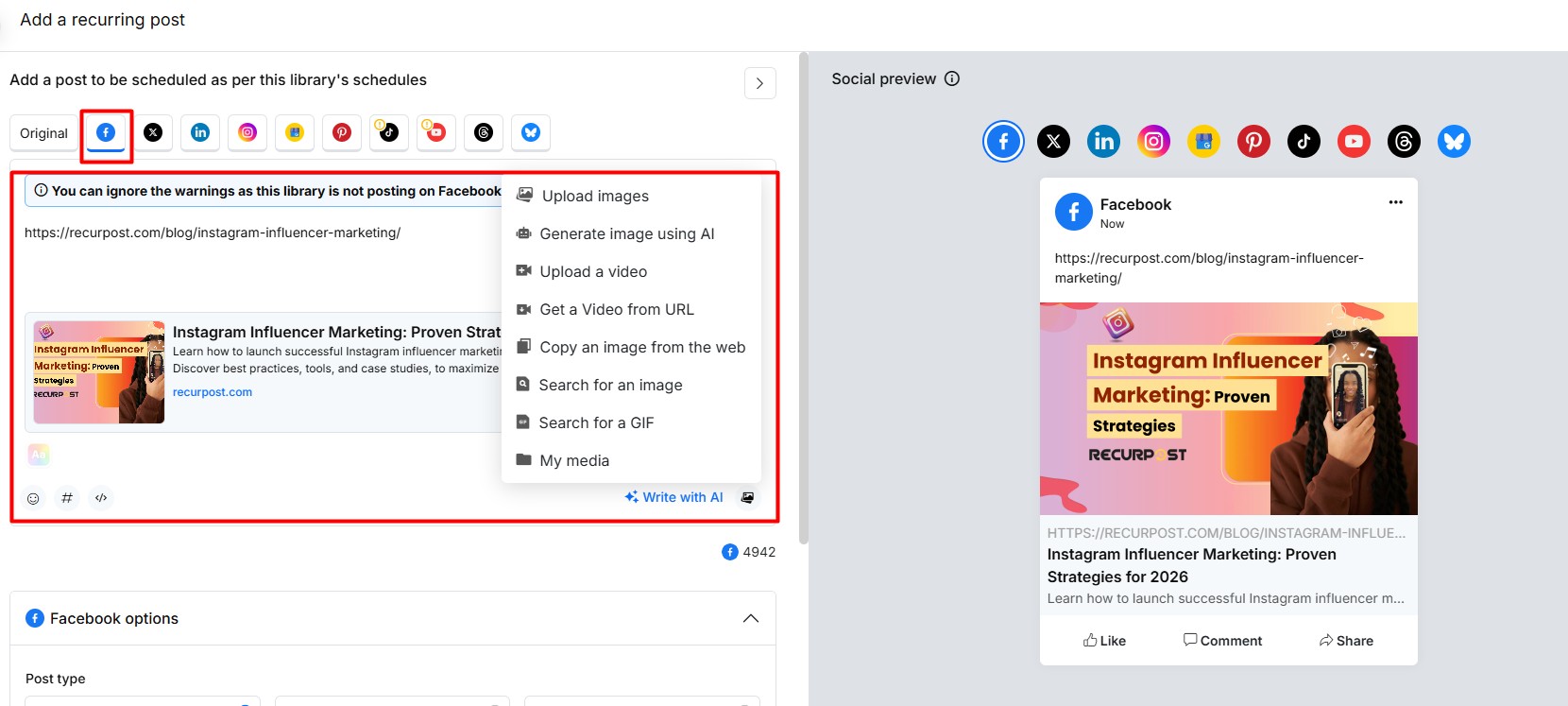
2. Add Content: Upload your image or video, write a caption, and then click on Customize. Be sure to use engaging captions and include hashtags to increase reach. (Check out our guidelines Video | Image)
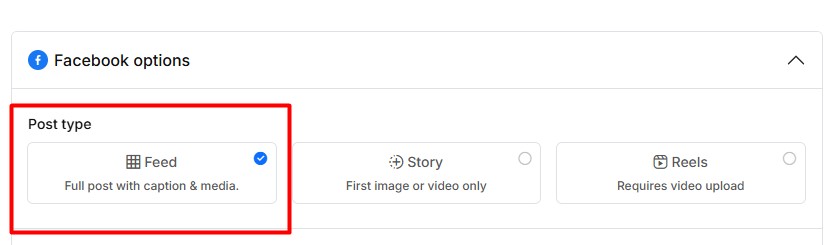
3. Select Facebook Feed: In the Facebook tab, choose Feed as the type of post you’re creating.
New: You can now select more than one post type at a time. For example, you can check Feed, Story, and Reels all at once. Each selected format will count as a separate post in your quota.
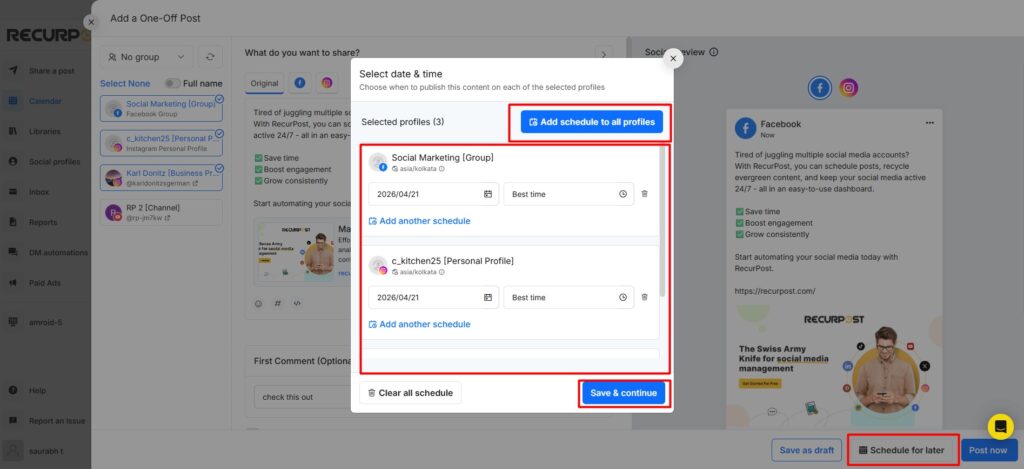
4. Add Post to Library: Once you’re finished, click Add to Library to save it for future use,
or if you’re creating a One-off Post, choose Schedule to set a specific time or Post Now to publish immediately. Your post will go live on your Facebook Page’s Feed at the selected time.
Posting on Facebook Page Story
Stories disappear after 24 hours, making them great for quick updates and engaging content. Here’s how to share a Story via RecurPost:
1. Create a Post: Go to Libraries from the sidebar, select a library and click ‘+ Add post’.
2. Add Content: Upload your image or video, write a caption, and then click on Customize. Be sure to use engaging captions and include hashtags to increase reach. (Check out our guidelines Video | Image)
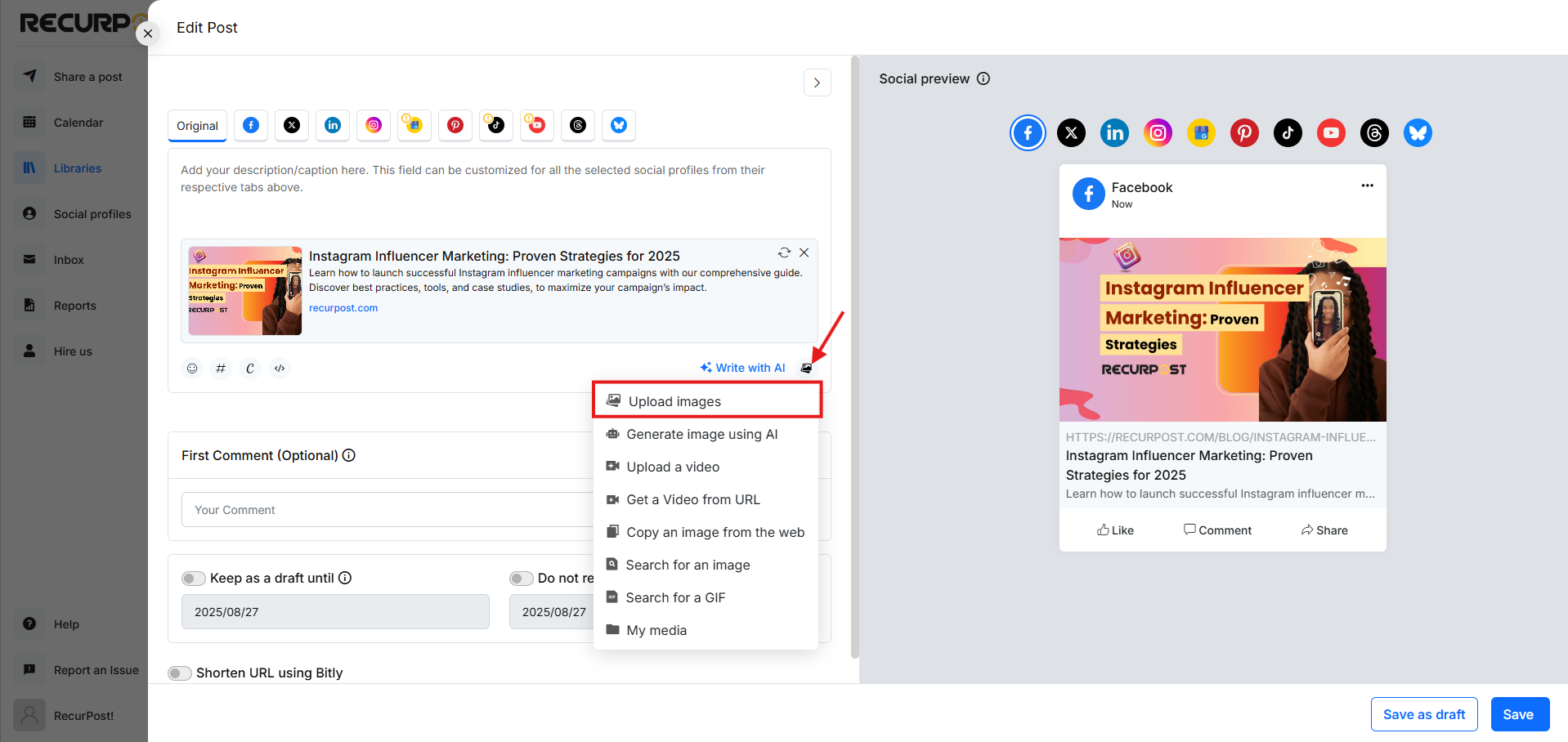
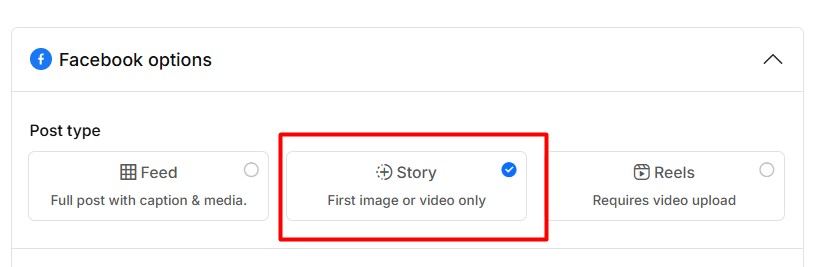
3. Select Facebook Story: In the Facebook tab, choose Story as the type of post you’re creating.
4. Add Post to Library: Once you’re finished, click Add to Library to save it for future use,
or if you’re creating a One-off Post, choose Schedule to set a specific time or Post Now to publish immediately. Your post will go live on your Facebook Page’s Feed at the selected time.
Posting on Facebook Page Reels
Reels are short, engaging videos designed for better reach and discovery. Here’s how to post a Reel via RecurPost:
1. Create a Post: Go to Libraries from the sidebar, select a library and click ‘+ Add post’.
2. Add Content: Upload your image or video, write a caption, and then click on Customize. Be sure to use engaging captions and include hashtags to increase reach. (Check out our guidelines Video | Image)
Tip: You can also use our AI feature to generate a caption.
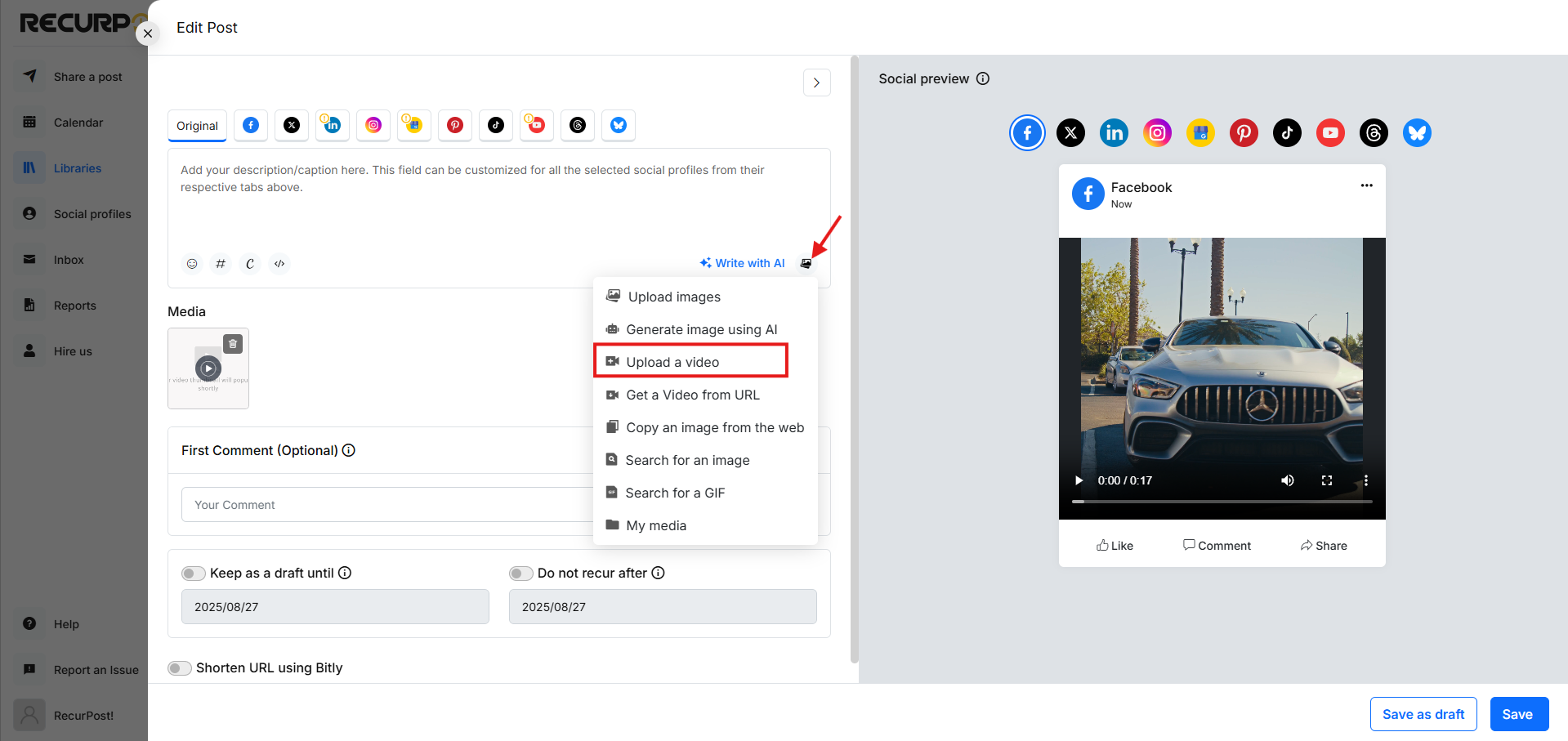
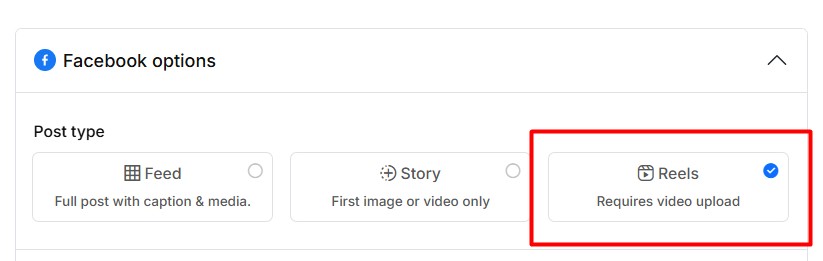
3. Select Facebook Reel: In the Facebook tab, choose Reel as the type of post you’re creating.
4. Add Post to Library: Once you’re finished, click Add to Library to save it for future use, or if you’re creating a One-off Post, choose Schedule to set a specific time or Post Now to publish immediately. Your post will go live on your Facebook Page’s Feed at the selected time.
Final Tips for Posting on Facebook
- Mix and match! Select Feed, Story, and Reels together to reach your audience across all formats in one step.
- Remember each format you pick counts as one post in your quota. Plan accordingly.
- Optimize video formats (MP4 works best for all three).
- Keep captions short and punchy. Our AI writing tool can help.
- Check Facebook Reports in RecurPost to see which format performs best for you.
That’s it! Now you can effortlessly share content on your Facebook Page Feed, Story, and Reels using RecurPost. If you need any help, feel free to reach out to our support team.