
Through this article, you’ll learn how to easily edit the date and time of your scheduled posts on RecurPost.
Quick steps:
- Open Calendar from the side-bar menu and go to the Queue tab.
- Click the pencil icon beside the post.
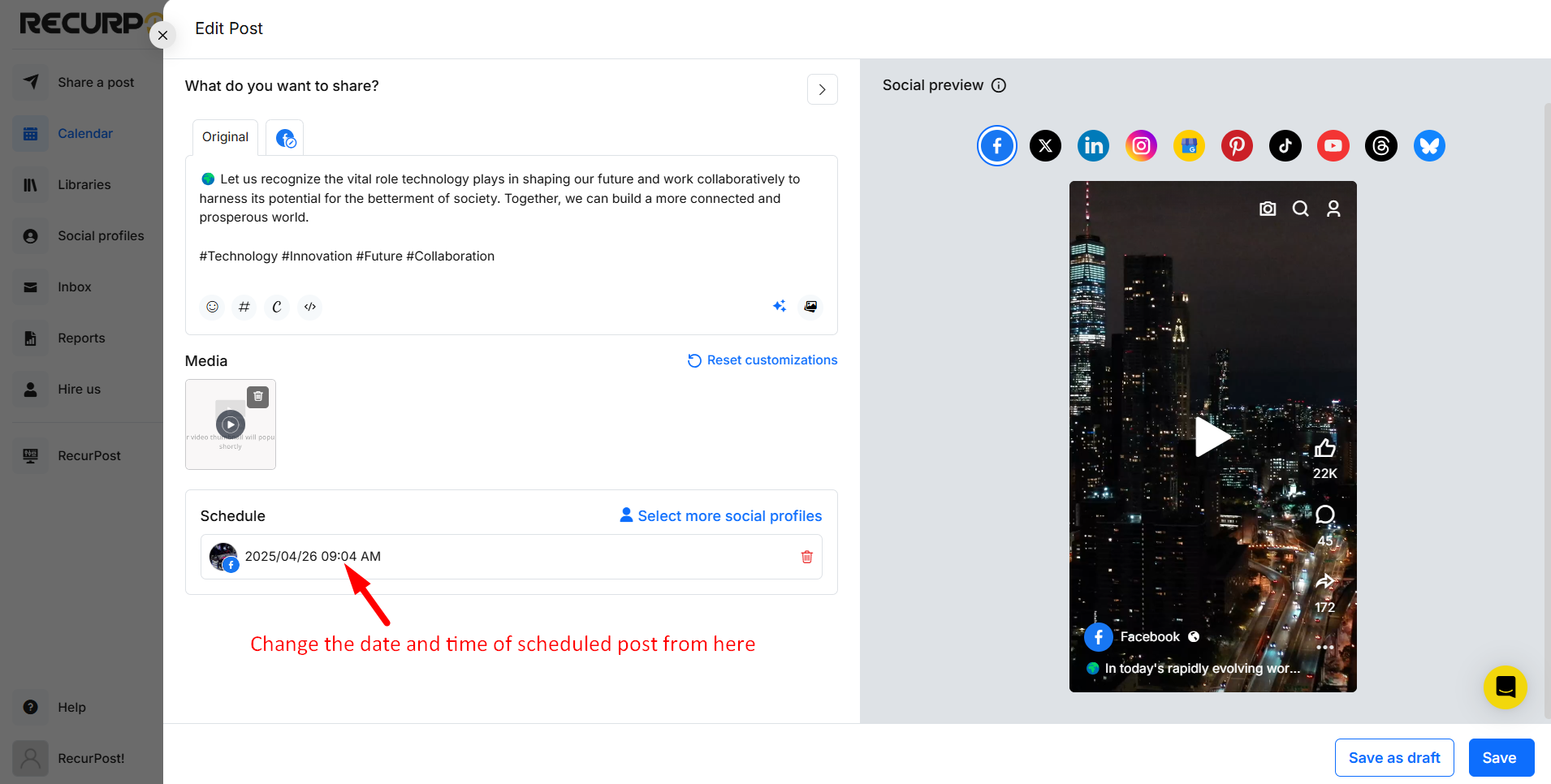
- Click the schedule bar beside the social account bubble and select the new date and time.
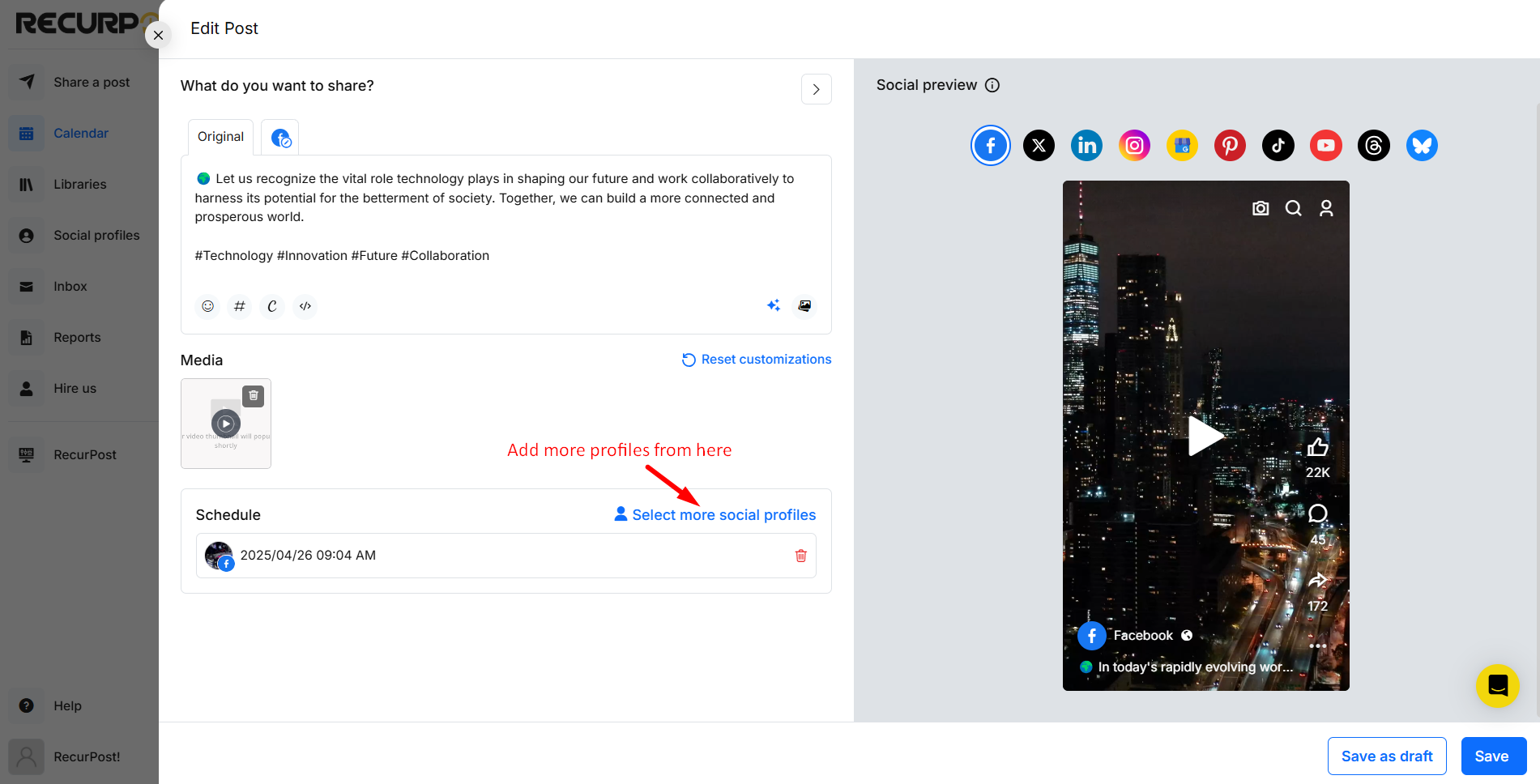
- Optional: click Select more social profiles to add multiple social accounts to the post.
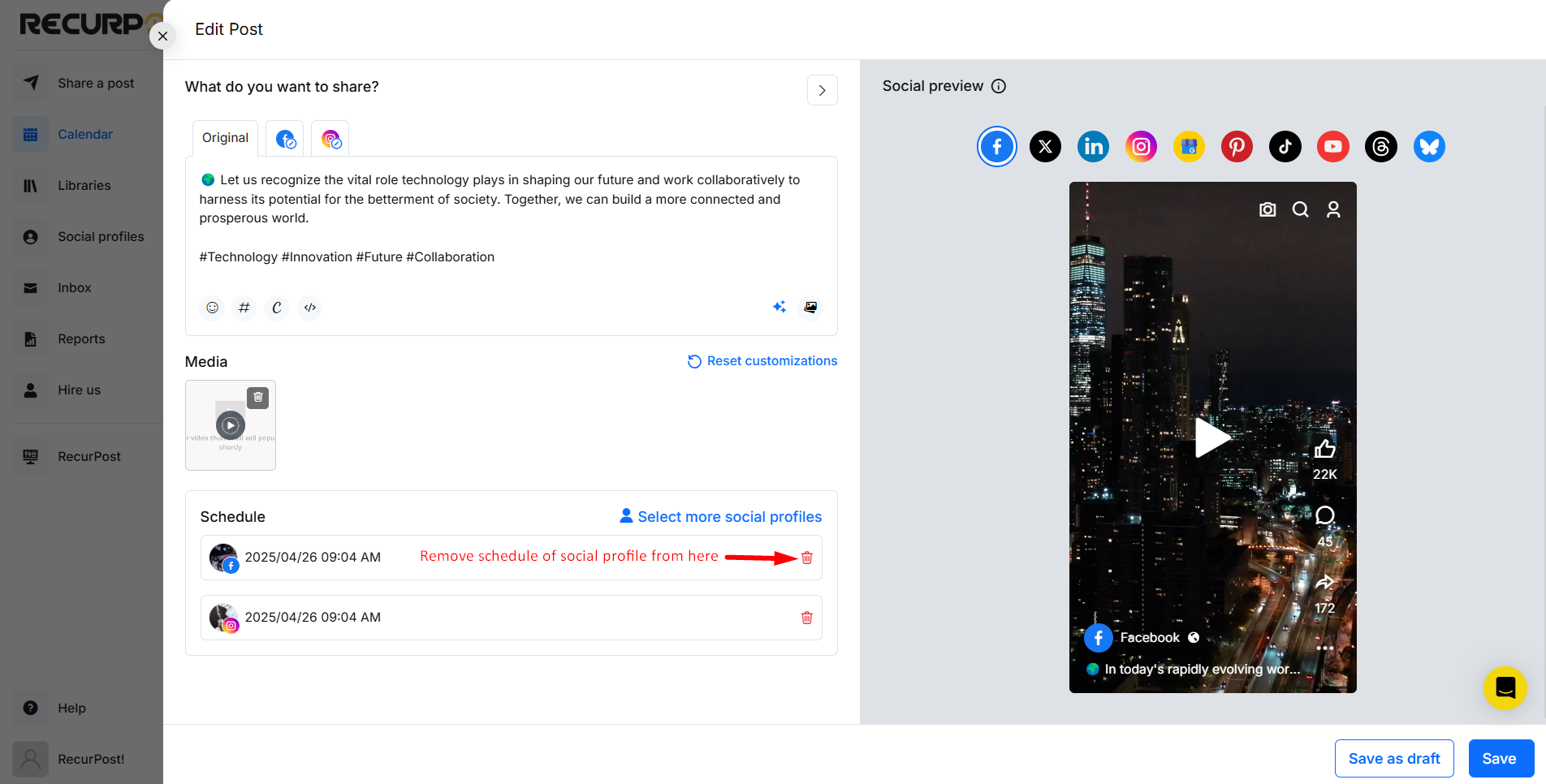
- Optional: set up independent schedules for each social account (and remove one if needed).
- Click SAVE on the bottom right.
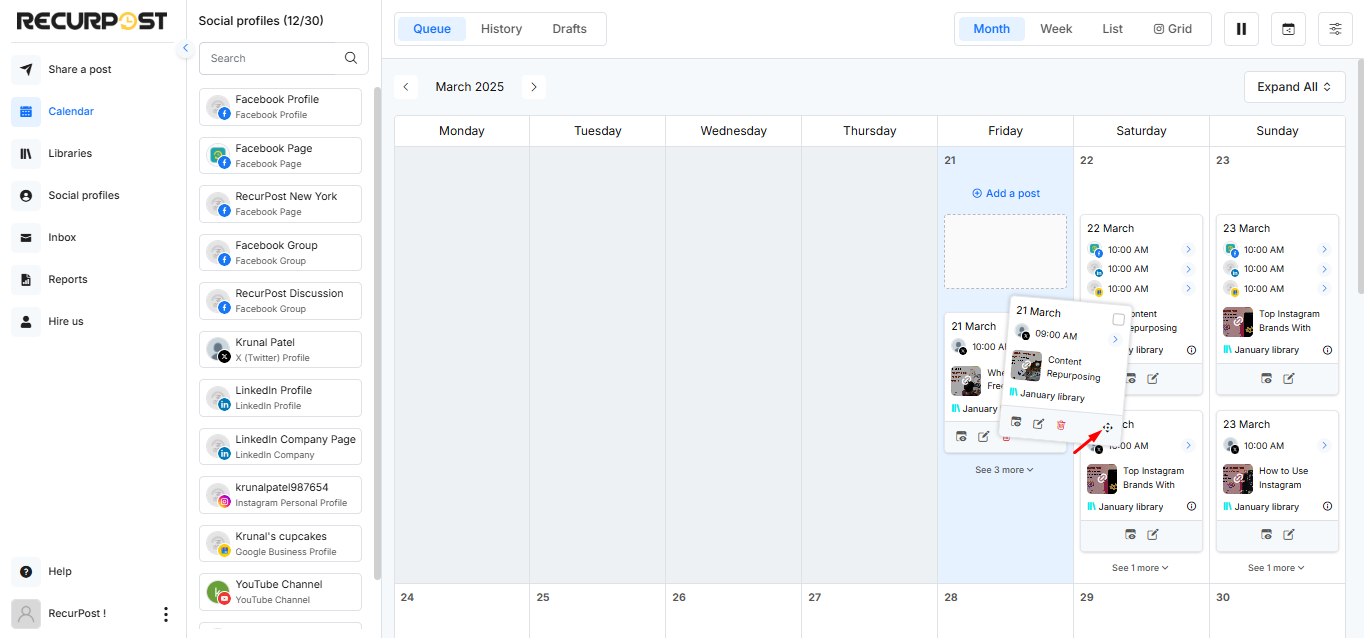
- Optional: Use Drag and Drop on the Calendar page to change the date.
How to edit a post
To edit a particular post, simply click on the pencil icon beside it, as shown in the image below:
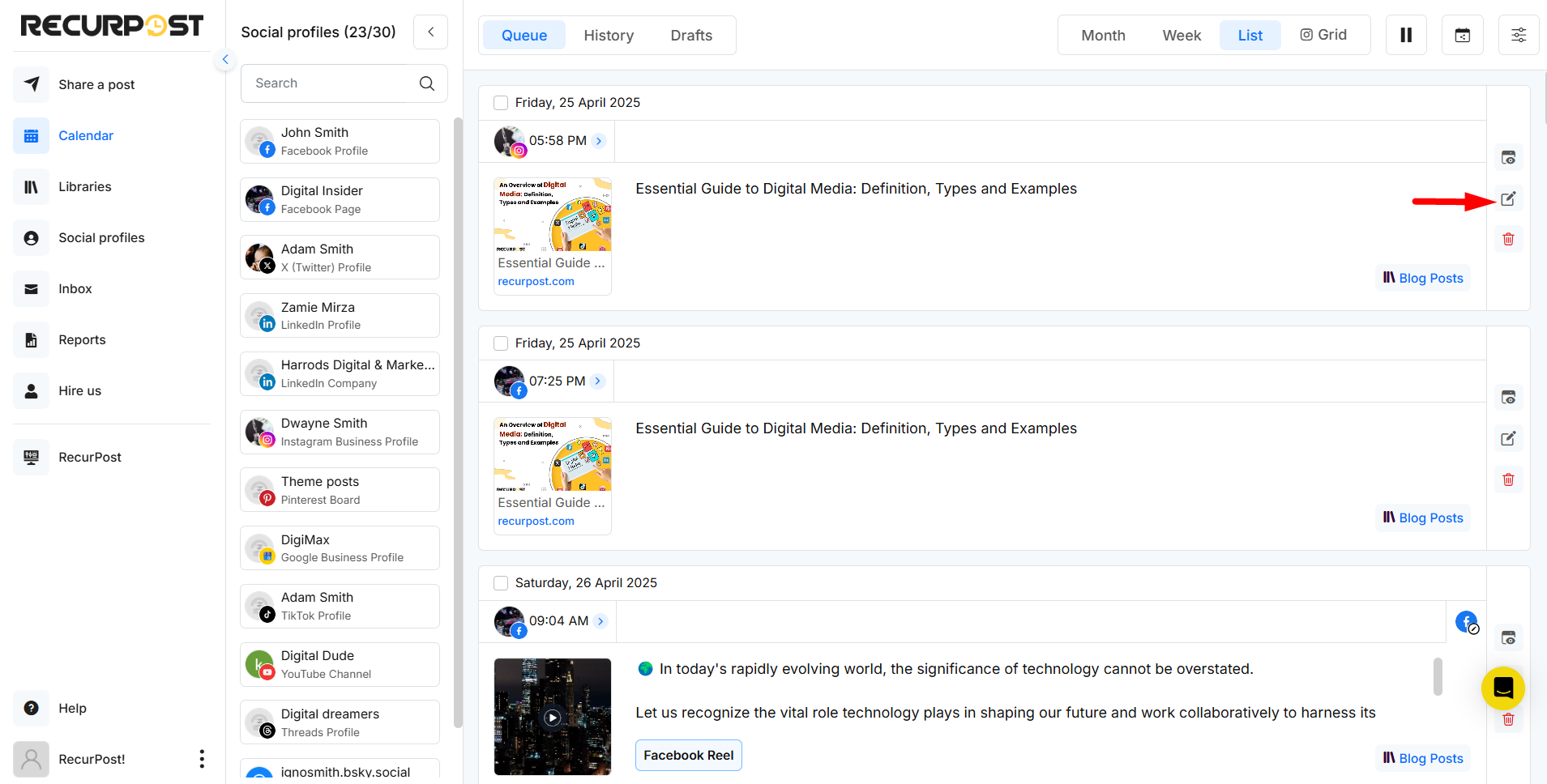
Once you do, you’ll see a pop-up window where you’ll be able to edit multiple aspects of your post at once, including date & time, textual message, images, and social accounts.
To reschedule your post, click the schedule bar beside the social account bubble, then select the new date and time.
You can also add multiple social accounts for the post right from the pop-up. Simply click on ‘Select more social profiles’ and add your desired number of accounts like so:
You can set up independent schedules for each social account using the same procedure.
Once you’re happy with all the changes, click on ‘SAVE’ on the bottom right. This will set things in motion.
Note: For some profile types, scheduled posting is completed via a push notification at the selected time.
Watch this video to learn more about how to schedule content on RecurPost: [Click here].
Use Drag and Drop: To change the day or date, you can use RecurPost’s drag and drop feature to change the date of scheduled posts from the Calendar page.
If you have any further queries, feel free to reach out to us at support@recurpost.com.