

1. What is a Link Preview?
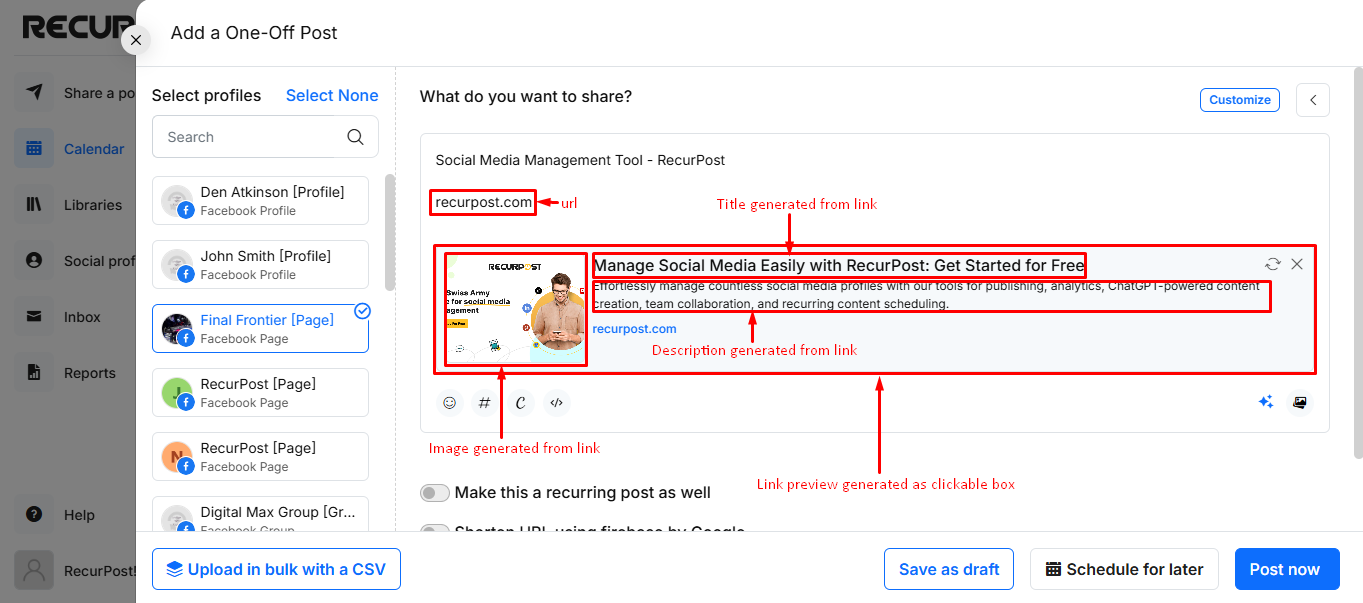
When you include a link in your post, a Link Preview is automatically generated. This preview is a clickable box containing an image from the link, the link’s title and a brief description of its content.
2. Why does the Link Preview differ in RecurPost compared to Facebook and Twitter?
Facebook and Twitter control the link preview displayed on their platforms when using any 3rd party apps like RecurPost. Therefore, we cannot control the link preview at the time of posting.
3. How are Link Previews generated by Facebook and Twitter?
Facebook and Twitter automatically generate link previews based on meta tags in the website’s code. Essential tags include:
- og:image
- og:image:height
- og:image:width
- og:title
- og:description
4. How to Change the Image in the Link Preview?
You can change the image you see in the link preview with these two options:
Option 1: You can publish a post with a link preview, with an attached image or video and simply click on ‘Replace link with image’ button in the post. Please refer to the below post.
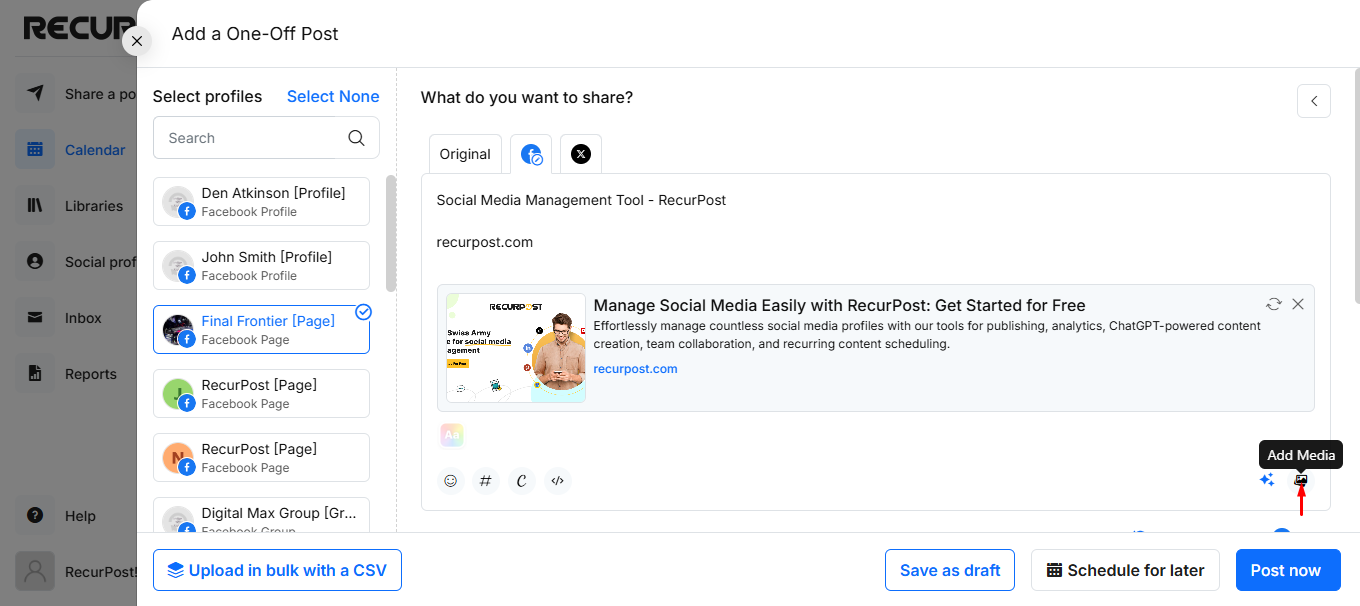
Here your post will be published as a photo on Facebook and Twitter with your accompanying text and link.
Option 2: Create meta tags (open graph tags) for your website’s link to control the image in the link preview. Please check out our help article here. Once you set up the meta tags then you should be able to generate your choice of image when you use the same link again in RecurPost.
5. How to Remove Link Preview?
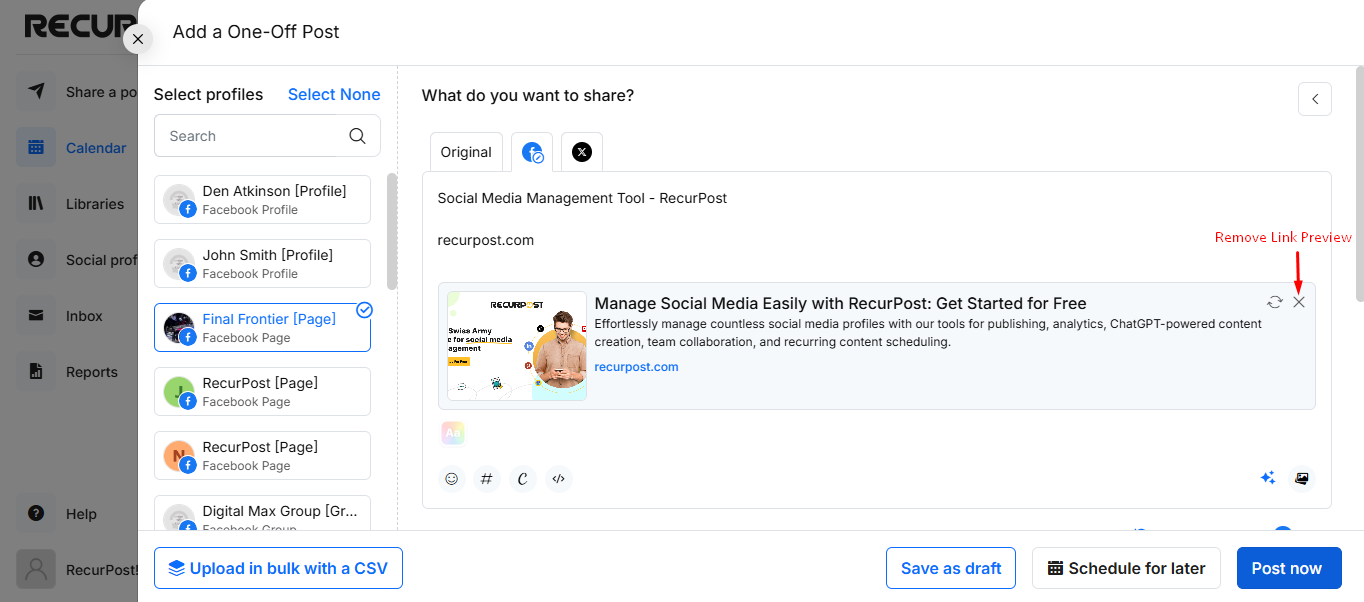
Simply click the ‘✖️‘ button at the top-right of the preview box as shown below.
6. Why isn’t RecurPost displaying the Link Preview for my link?
There are a few reasons why RecurPost may not be able to display a preview for your link. Check out some of the common issues below:
- Server error: RecurPost may have received a server error from the website, likely due to site maintenance or another issue on the website’s end. In most instances, these errors are temporary.
- SSL error: If your URL is correct and there are no current server issues, RecurPost may be receiving an SSL error from the site. The website will not allow a preview to be pulled due to a firewall or security plugin. Give another link from the same domain a try. If RecurPost is still unable to pull a preview, this is likely the case.
But don’t worry. Facebook and Twitter will still display a preview when the post is published even though the image is not pulled to RecurPost. If you want to see what that preview will look then you can enter your link here and debug it.
Use Link Debugger Tools:
To troubleshoot, use the link debugging tools provided by Facebook. Enter your link to identify missing information or update outdated previews. Clicking “Scrape Again” forces Facebook to refresh its cached version of your link preview, which is typically stored for 30 days.
By following these steps, you can better understand and manage link previews on Facebook and Twitter when using RecurPost.
If you have any additional questions or need further assistance, please don’t hesitate to contact us at support@recurpost.com.
7. Controlling the preview with OG tags
Facebook no longer lets third-party tools change the title, description or image attached to a link. It made this change to limit the spread of fake news, so it applies to every scheduling tool, not only RecurPost. If you attach a different image to a link post, Facebook will still show whatever the destination page declares.
If the link points at a site you own, you control the preview through Open Graph (OG) tags on that page. Facebook, X and the other networks read these tags to build the preview:
og:titlethe headline shown in the previewog:descriptionthe text below itog:image, withog:image:widthandog:image:height
OG tags go between the <head> and </head> tags of the page. On WordPress an SEO plugin will manage them for you. After changing them, use the network’s own debugger to clear its cached copy of the page.
8. Sharing facebook.com links
You can schedule links to Facebook content from RecurPost, including links to Events, Groups, posts inside public or private Groups, Pages, Page posts, videos, photo albums, and personal profiles and their posts.
What you will not get is a preview. Facebook’s terms do not allow third-party tools to render previews of facebook.com or instagram.com links. Examples include links to Facebook events and posts shared by personal profiles, because a preview could expose text or images meant only for a limited audience.
If you leave one of these links attached as a preview, the post will fail and you will get a post-failure notification. The link is not stripped automatically. To publish it, keep the URL in the caption text and remove the preview attachment.
Publishing a facebook.com or instagram.com link
- Open the post. If it already failed, go to your History and click Reschedule on the failed post.
- Copy the link. Hover over the link preview to see the URL, then right-click and choose “Copy link address”.
- Paste it into the caption. Put the URL into the text box of the post so it travels as part of the message.
- Remove the preview. Click the small ✖ at the top-right of the preview box. This is the step that stops the post from failing.
- Add an image (optional). Without a preview the post is plain text, so upload an image if you want it to stand out in the feed.
- Save or schedule it. Click Save in the Library, or Schedule for a one-off post.
Also check the privacy of whatever you are linking to. A link to a private group or a restricted post will not open for most of your audience even when the post itself publishes.