

A hashtag is essentially a label that is used on social media sites that makes it easier for people to find content related to a specific theme or topic of interest.
RecurPost offers 2 features pertaining to hashtags: ‘Hashtag suggestions’ and ‘Bags of hashtags’.
The ‘Hashtag Suggestions’ feature helps you discover relevant and high-performing hashtags for your social media posts — instantly. When you add your caption, RecurPost analyzes your content and suggests popular hashtags based on your keywords and topic. This makes it easier to increase reach, boost engagement, and stay on top of trending conversations — without the guesswork.
‘Bags of hashtags‘ is a collection of hashtags that is very important in the present-day social media scenario because of the extreme overload of digital information. Through hashtags, people can cut through the clutter and find information related to their topic of interest.
RecurPost allows you to create ‘bags of hashtags‘ that you can use for every post that you create. This will save you some time when you have to create and schedule posts for your social profiles.
How to create bags of hashtags on the RecurPost website?
Let’s jump straight to how you can create bags of hashtags with RecurPost using the below steps:
Step 1: Log into your RecurPost account
The very first thing to do is log in to your account on RecurPost. Sign up if you do not already have one. There is also a 14-day free trial for you to begin with scheduling.
Step 2: Go to the Dashboard and click on ‘Share a Post’
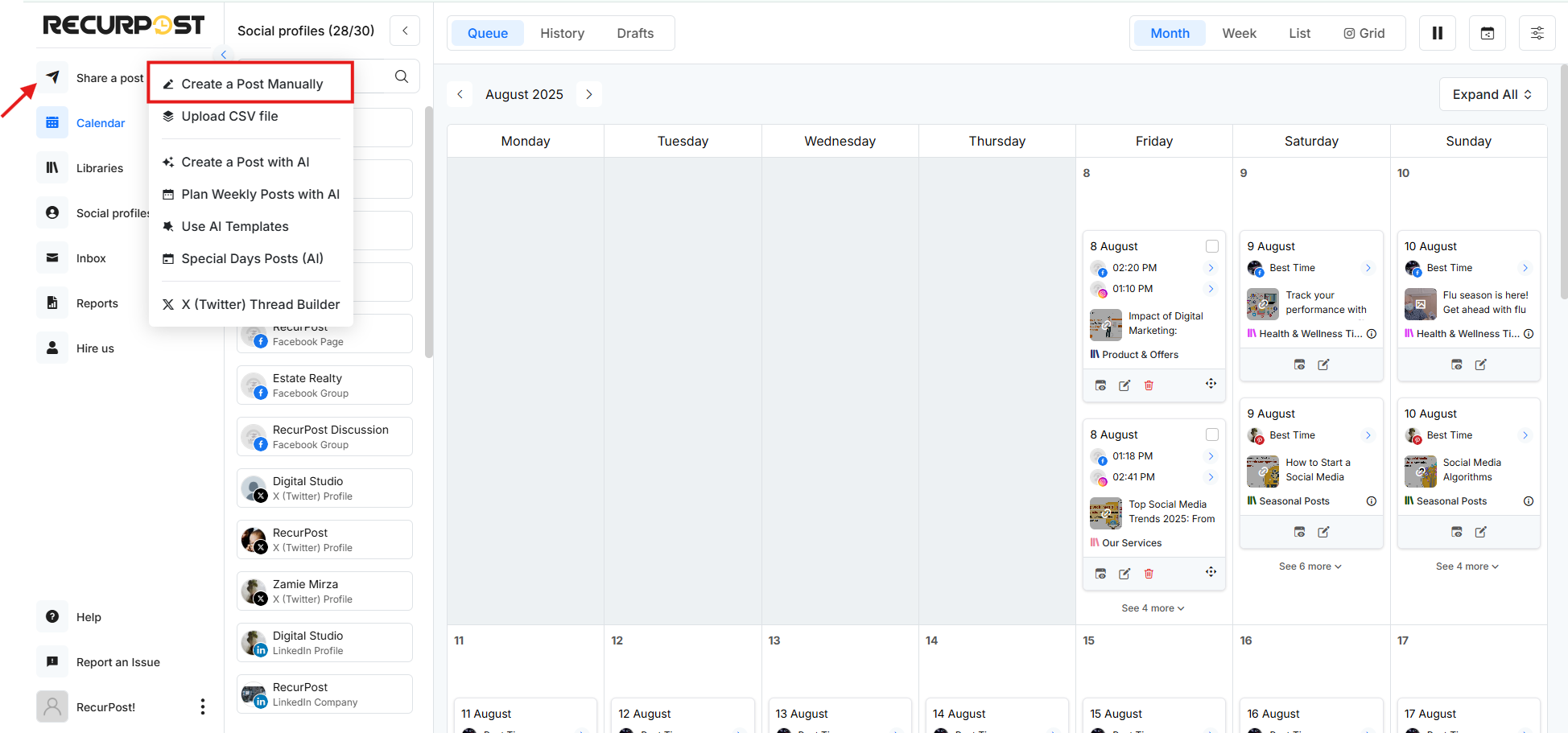
On the Dashboard, select ‘Share a Post‘ > ‘Create a Post Manually’ to create a one-off post.
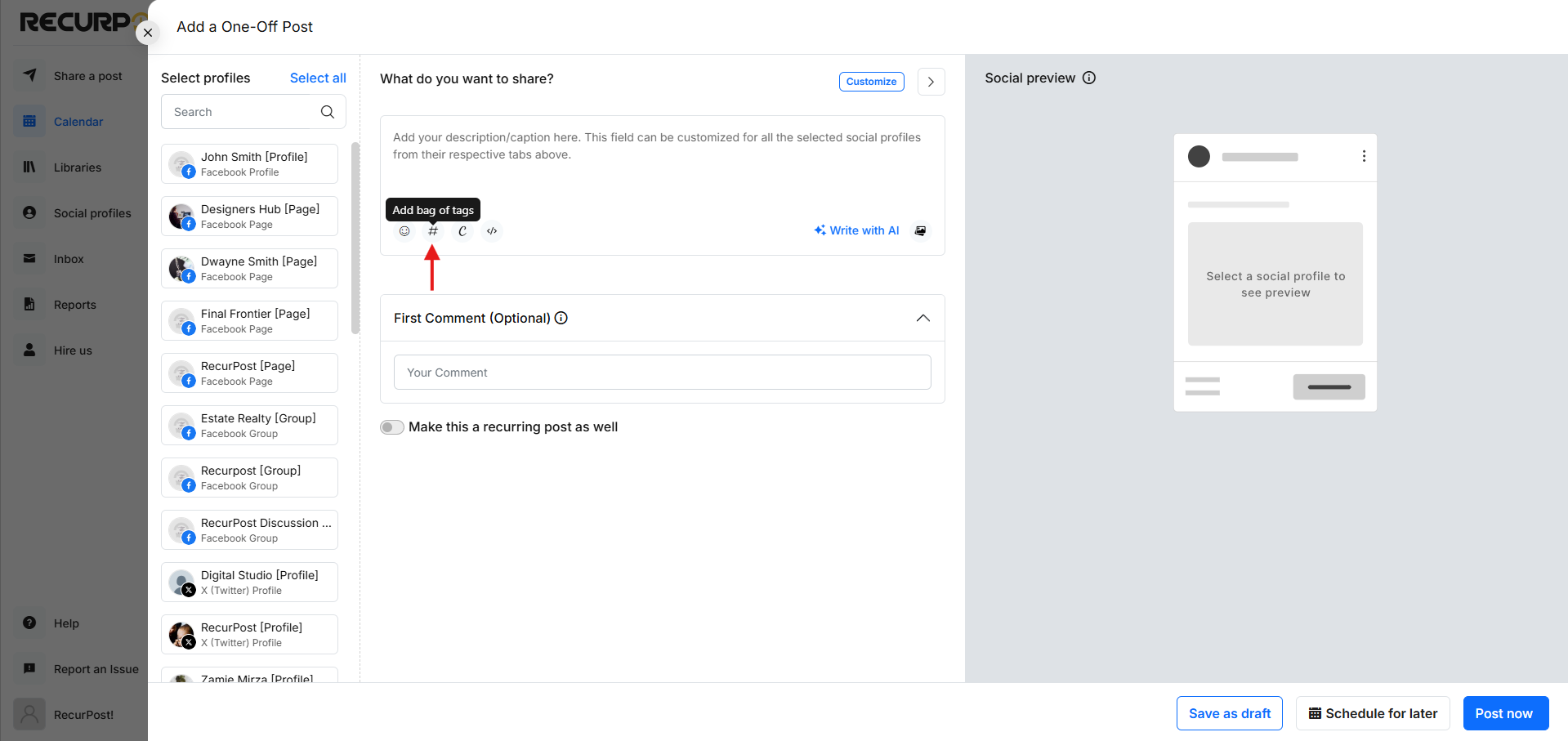
Step 3: Draft your post here
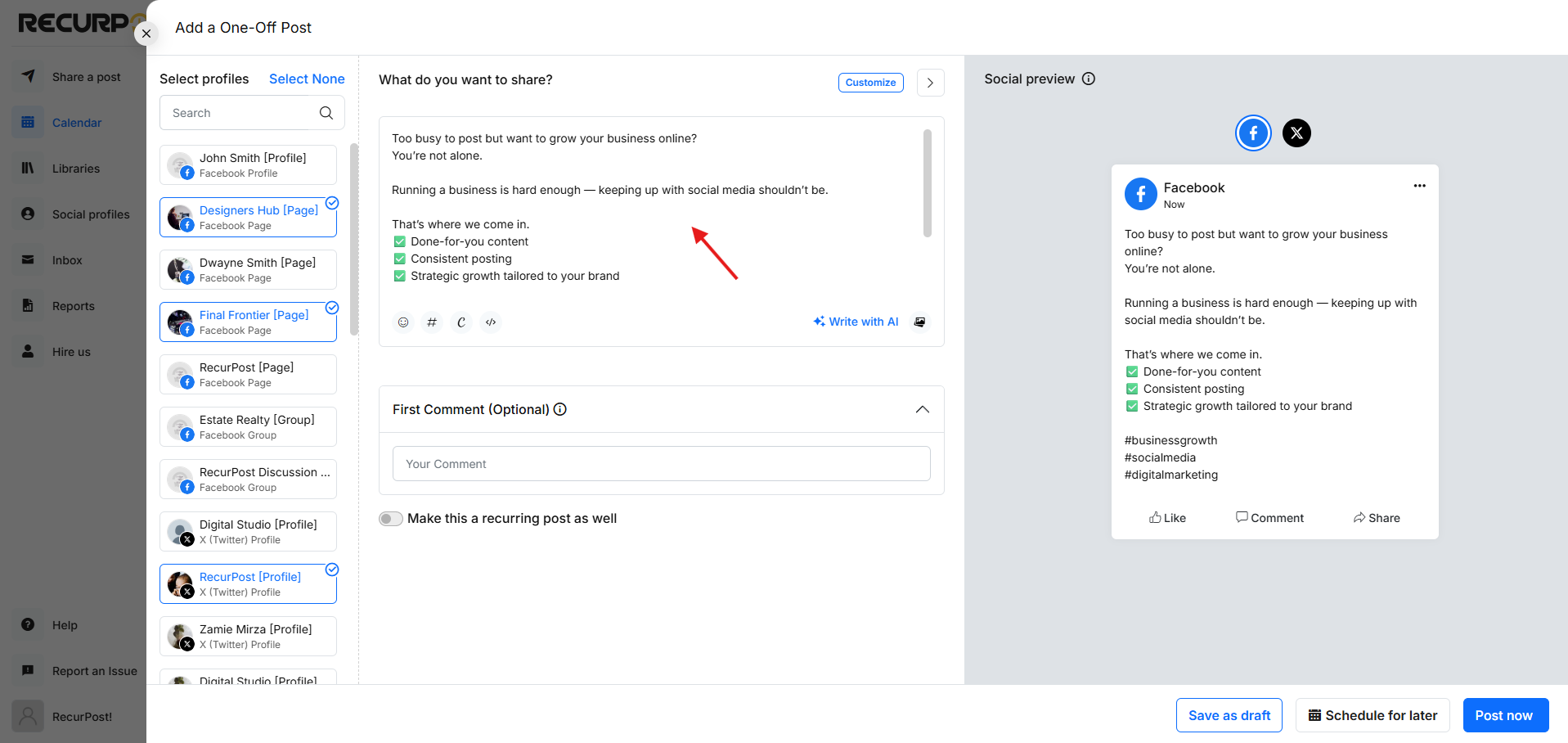
Add your content in the description box. You will also have the option of customizing your post for each platform.
Step 4: Add media and hashtags to your post
To access ‘Bags of tags’, click on the hashtag icon below and select ‘Bags of tags‘ from the pop-up box.
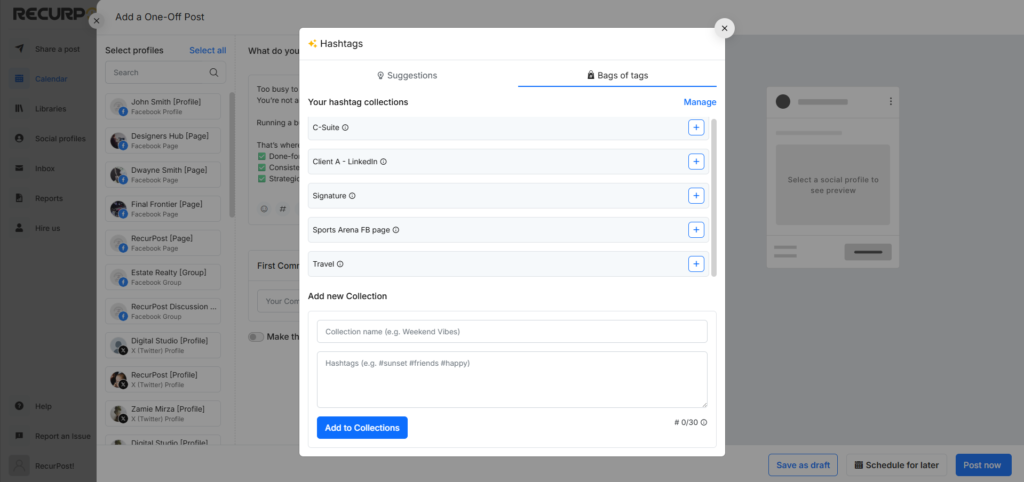
Here are the options you have while adding hashtags:
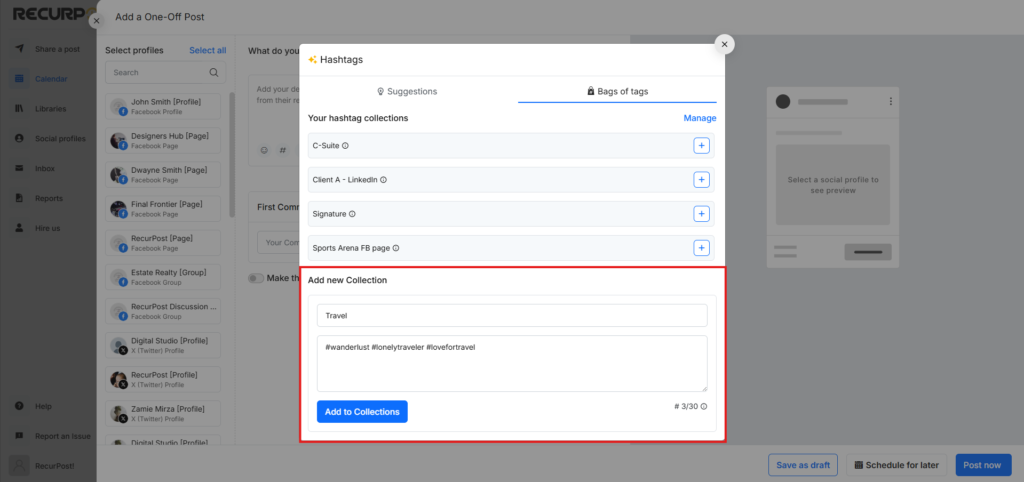
1. Create a new bag
If you want to create a fresh bag of hashtags, add the title and collection of hashtags under ‘Add new collection’. Once done, click on ‘Add to Collections’ button once you are done adding the details and your bag of hashtags will be created.
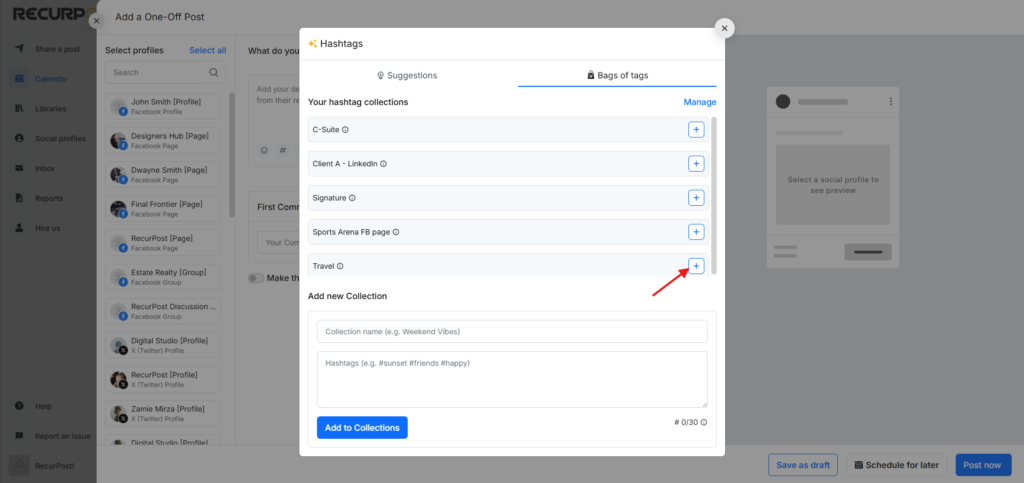
2. Pick from existing bags
When the window pops on your screen, all your existing bags of hashtags will be listed on it. To select the bag that you want to pick, click on ‘ADD‘. The hashtags from that bag will be added to your post.
3. Manage your bags of hashtags
To add hashtags to an existing bag, remove unwanted bags, or create new ones, simply click the ‘Manage’ button at the top of the page.
Seize every opportunity to use a hashtag where appropriate. You don’t even need to keep track of your popular hashtags. Just input your hashtags for your libraries once and we will remind you when there is a possibility to include a hashtag. With just one click you will be able to use it.
How does the hashtag limit differ on different platforms?
All major social media platforms are supported by RecurPost and hashtags are beneficial for every single one of them. However, you should know the optimal number of hashtags to use for each platform. Here is a breakdown to help you:
- There is a limit of 30 hashtags on Instagram.
- X has a 280-character limit for its posts. So, it is best that you stick to about two hashtags for your X profile.
- Facebook has no limit on the usage of hashtags but you must keep it minimal since user engagement goes down if there are too many hashtags on your Facebook posts.
- Hashtags for Pinterest can go over 20 but it is recommended to stick to 2 to 8 hashtags for best results.
- There is no limit on hashtags for LinkedIn. However, the platform recommends using only up to 3 per post.
Click to learn more on How To Schedule Your Recurring Posts? In case you are a first-time visitor and want to know more about RecurPost services, check RecurPost pricing for more information!
Also, you can Start your free 14-day trial now!
How to create bags of hashtags from the RecurPost mobile app?
Let’s see how you can create bags of hashtags from the mobile app:
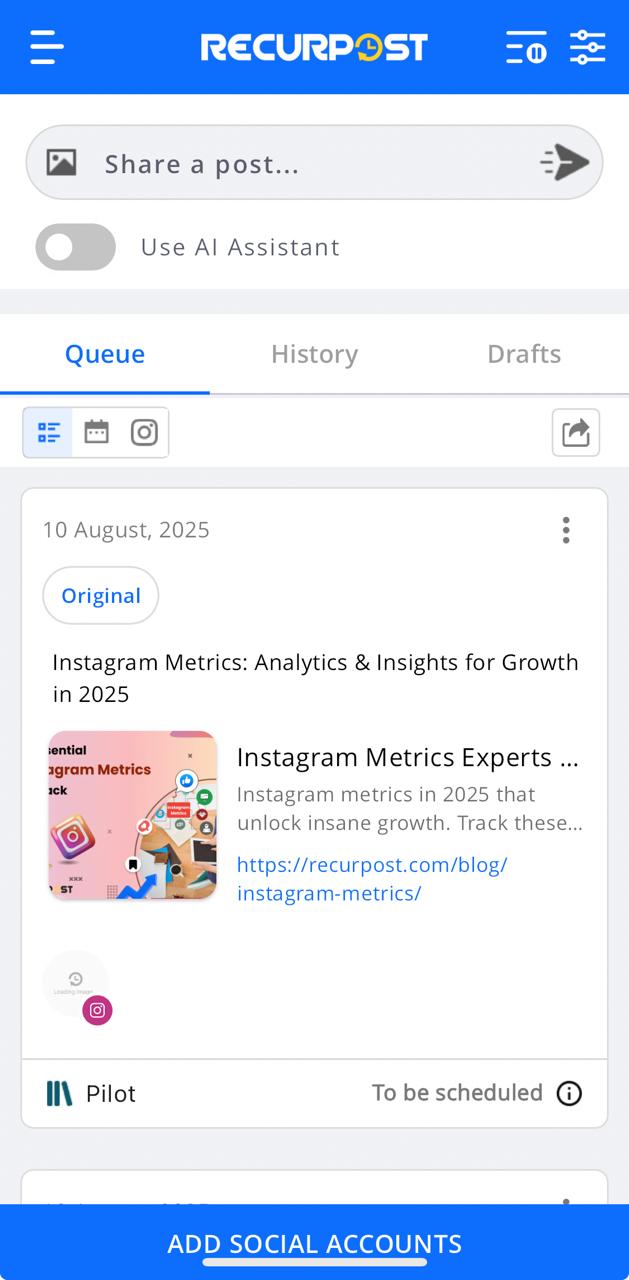
Step 1: Go to the Dashboard and tap on the ‘Share a post…’ and a post creator window will appear on your screen.
Step 2: Draft your post here
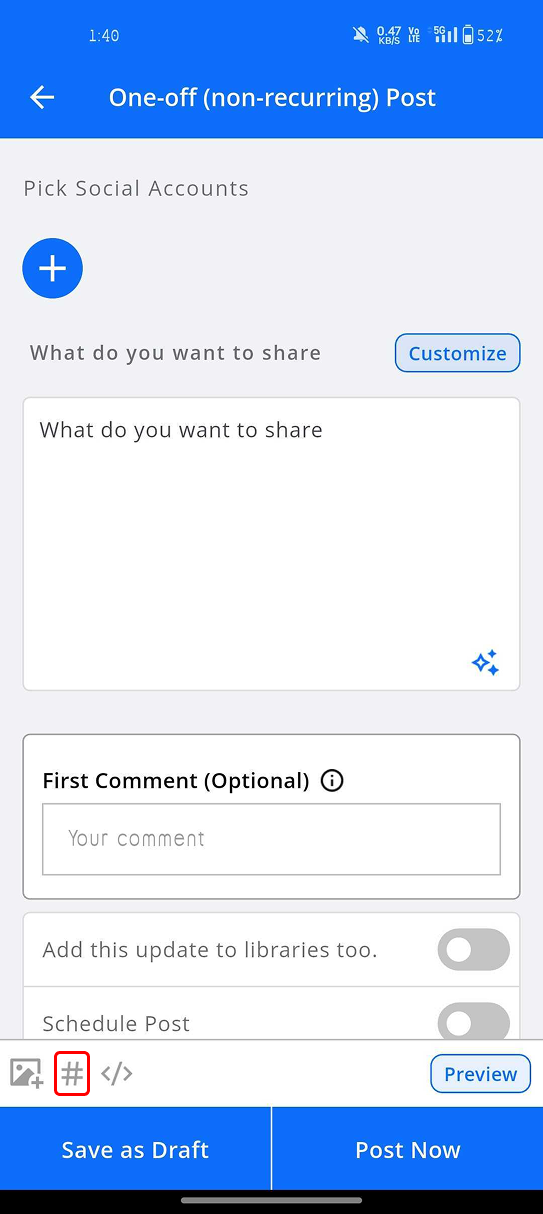
You can select/add the social profiles that you want to post on from the top by tapping on the ‘+‘ icon. In the description box, you can add the caption and then you can add your choice of video or photos, emojis, and hashtags. To add the hashtags, click on the hashtag icon and a window will appear on your screen that says ‘Bags of Hashtags‘.
Step 3: Create a new bag
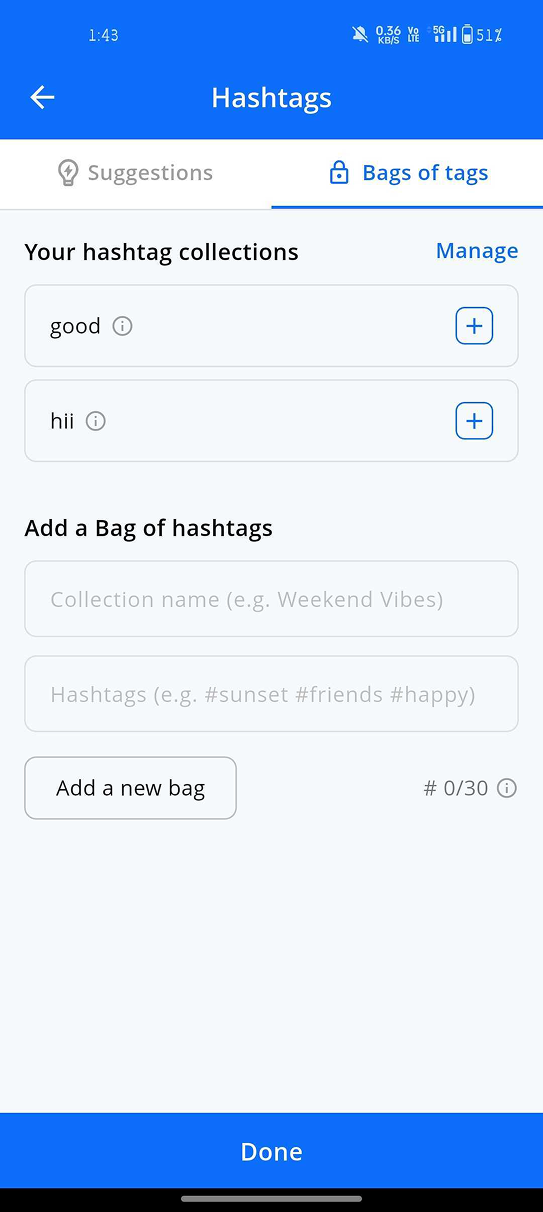
You can create a new bag of hashtags by tapping on ‘CREATE A NEW BAG‘. Please add a name for your bag and in the other box, you can add all the hashtags that you want in that particular bag. Tap on ‘SAVE‘ once you are done adding the details and your bag of hashtags will be saved.
Step 4: Pick from existing bags
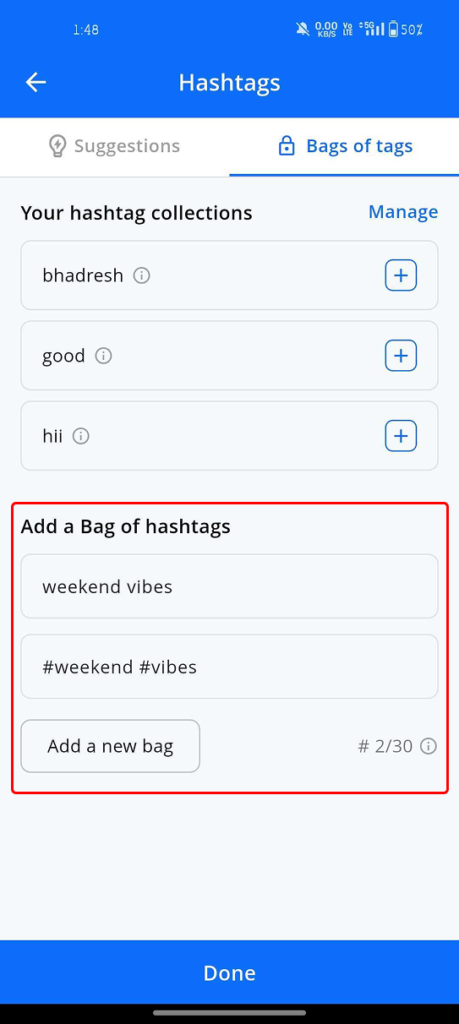
When you already have some bags created, you will find them listed so you can select the bag that you want to pick by tapping on the ‘+’ icon. The hashtags from that bag shall be added to your post.
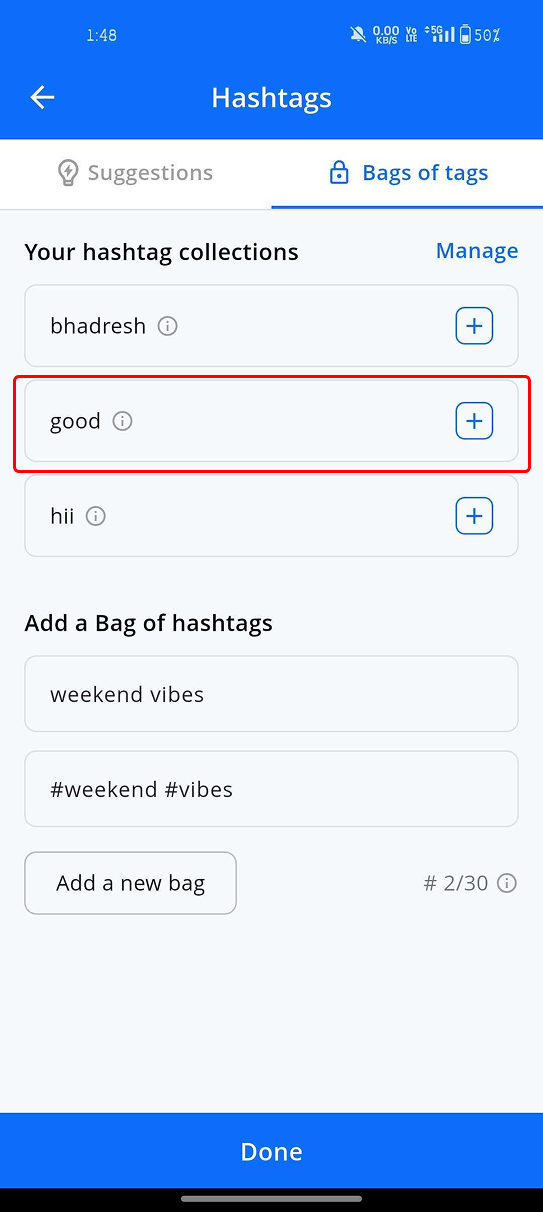
You can see the bag preview, add/remove more hashtags, or delete the bag by tapping on the 3 dots (ellipsis) beside the ‘+’ icon.
How to Use the Hashtag Suggestion Feature in RecurPost
RecurPost’s Hashtag Suggestion feature makes it easy to find the best hashtags for your post — helping you boost reach and engagement without the guesswork.
Here’s how to use it:
1. Start creating a post in your RecurPost dashboard.
2. In the caption box, begin typing your content.
3. Click on the hashtag icon and click on the ‘Generate Relevant Hashtags’ button.
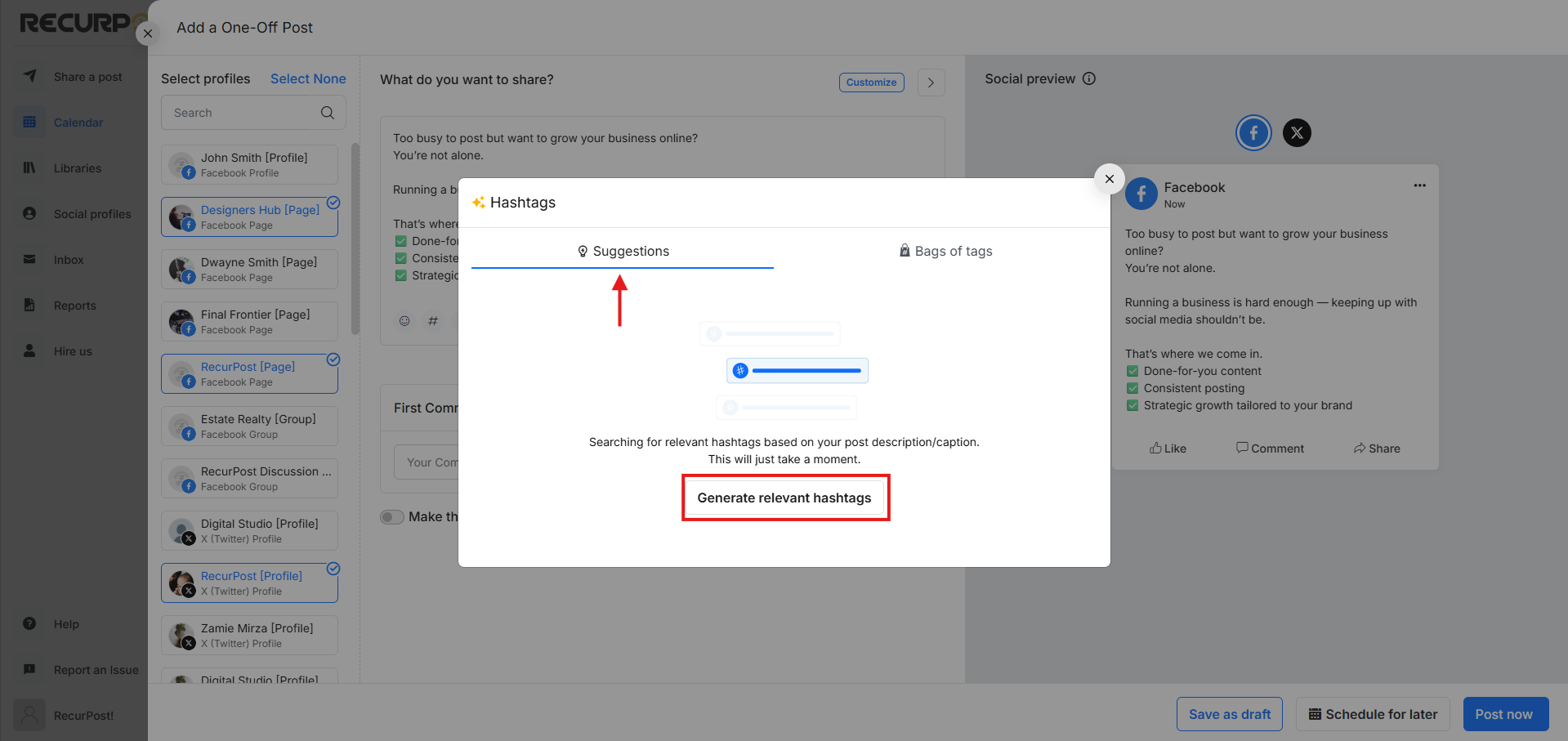
4. RecurPost will automatically analyze your text and suggest relevant hashtags based on your topic.
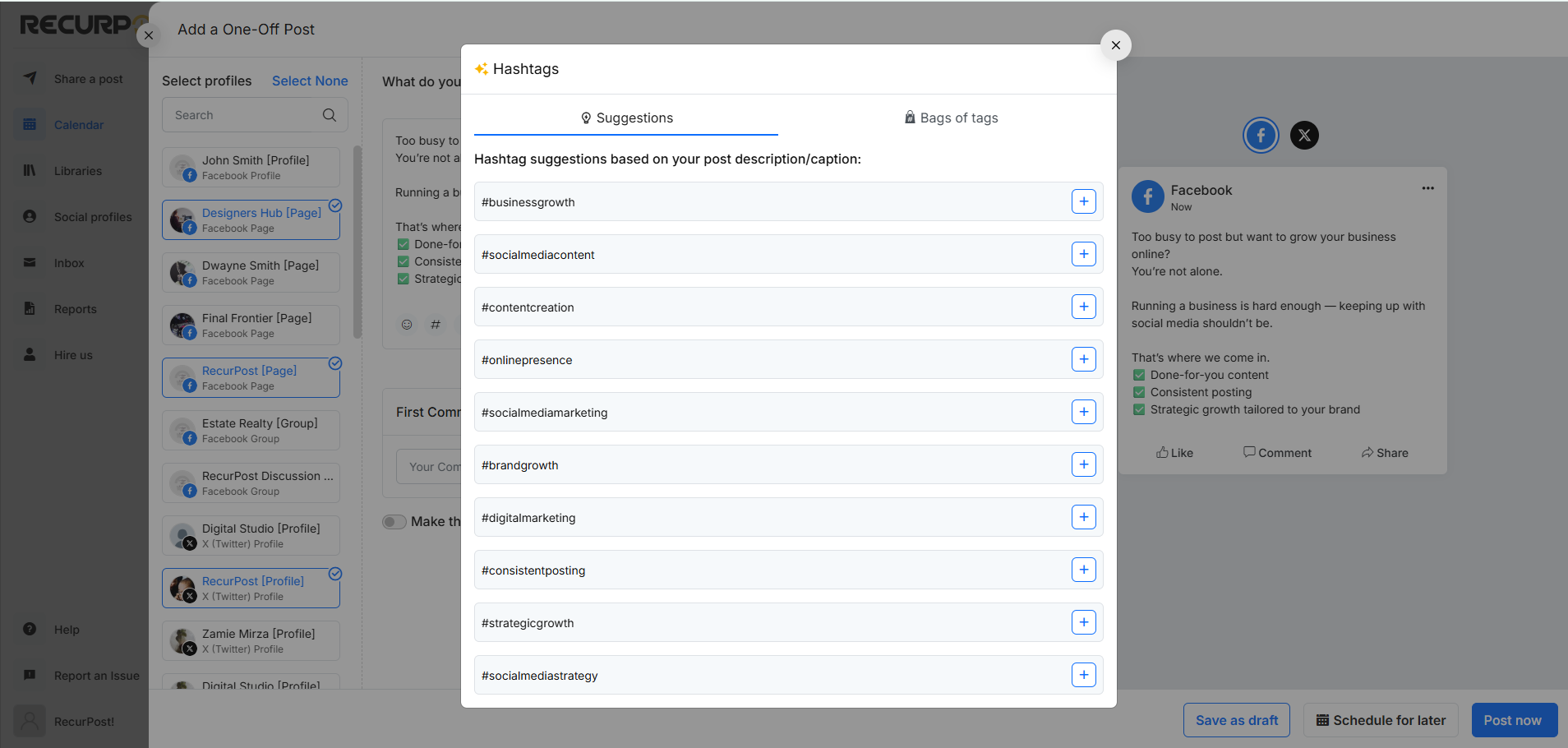
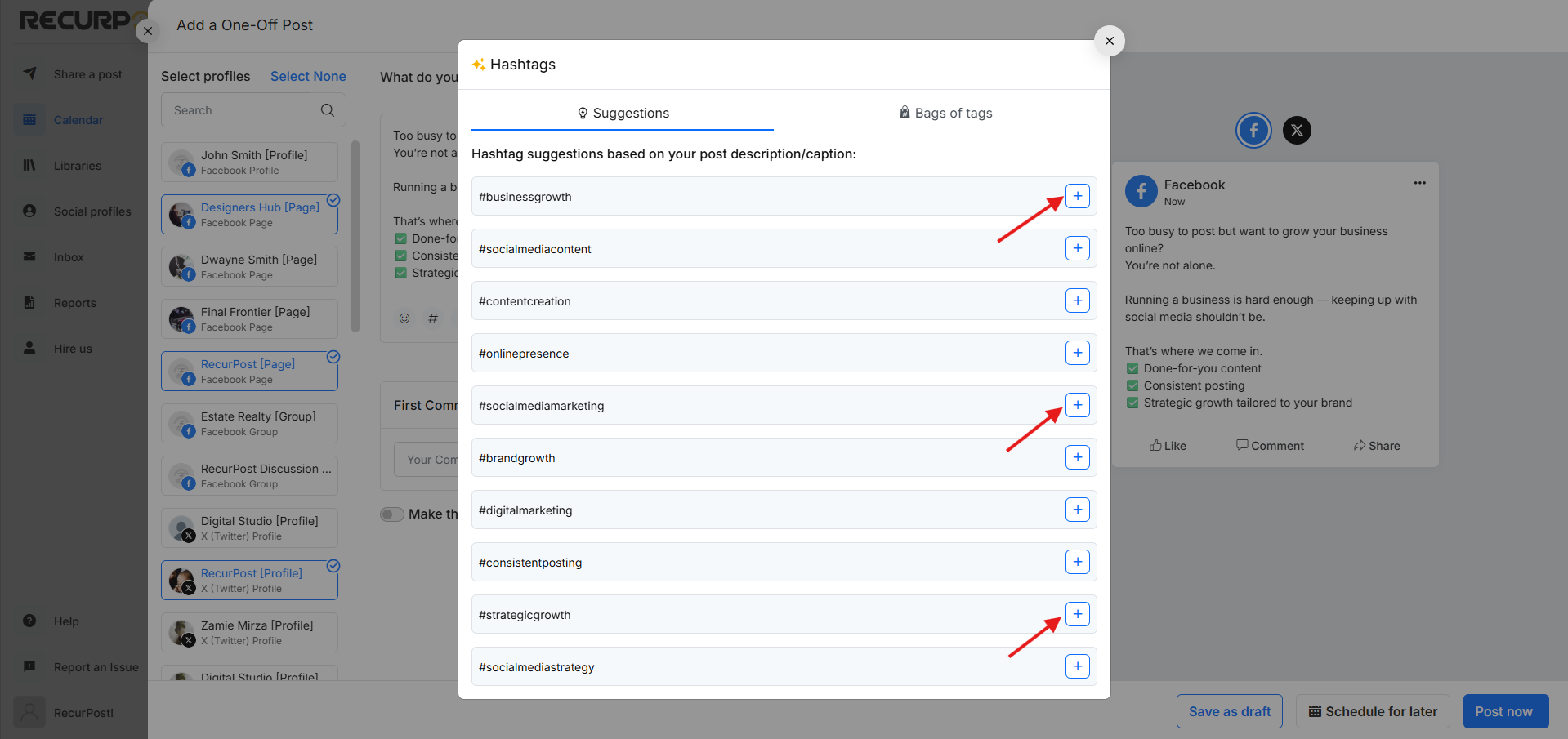
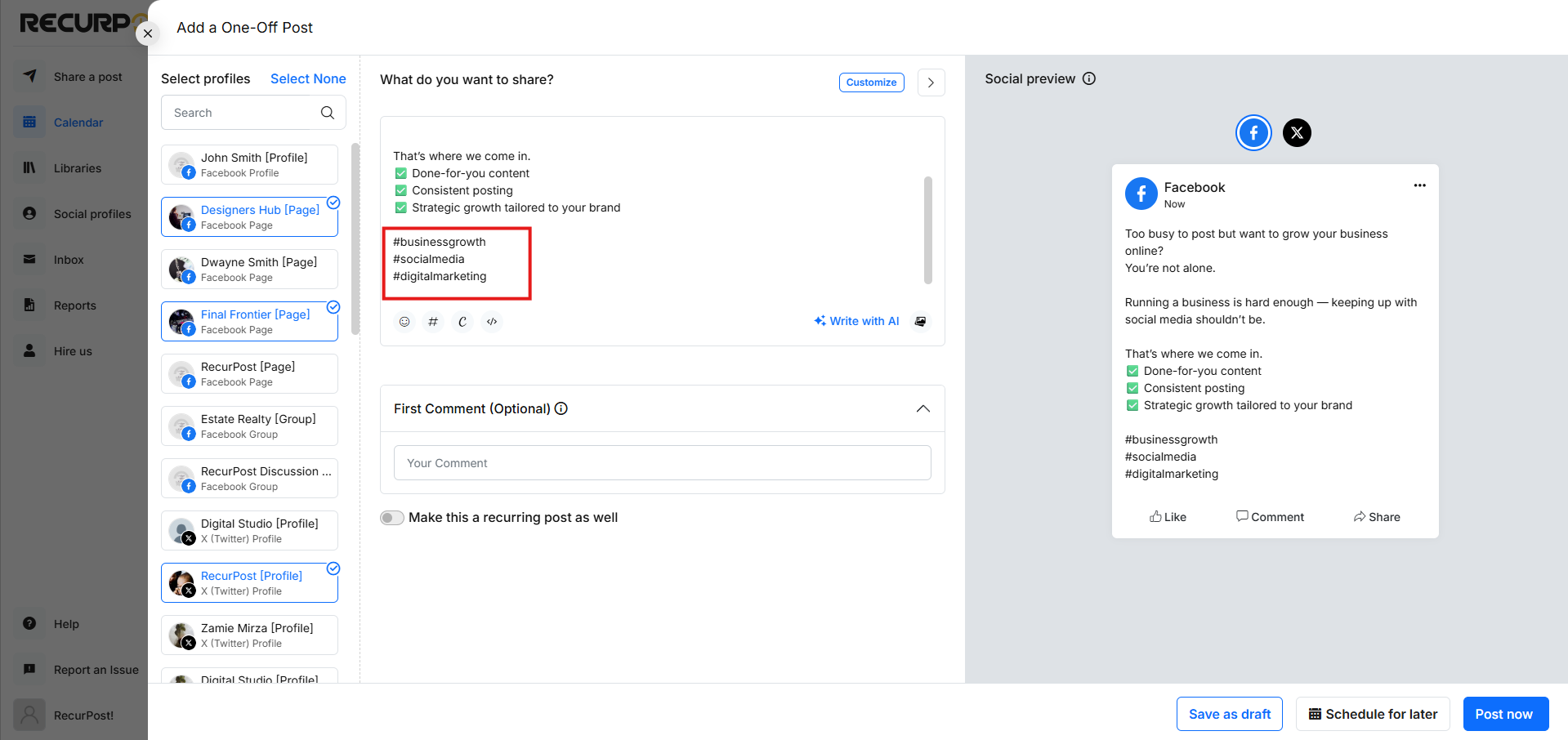
5. Click on the ‘+’ icon of the suggested hashtags to add them directly to your post.
If you have further queries then please reach out to us on support@recurpost.com.
Using the Hashtags plug-in
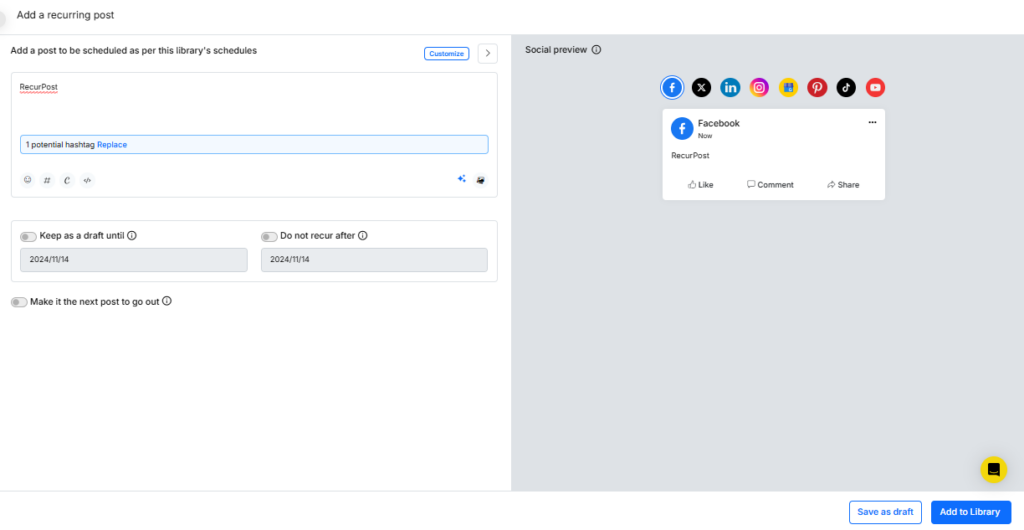
You can replace the keywords in your social posts with popular hashtags of your choice. Use a hashtag whenever possible. Simply enter your hashtags for your libraries once and we will notify you when a hashtag is available. You will be able to use it with a single click.
You can add the hashtags for each library. To do so, you need to go to plug-ins and click on the Manage option under the ‘Hashtags’ page. After that, you can select the library and add the value for the Keyword to replace and the value in the Hashtags.
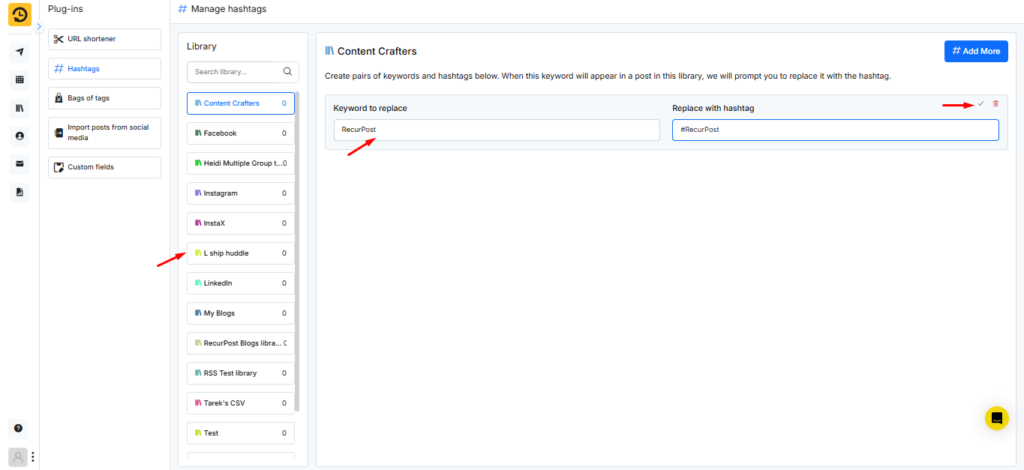
Once you have added the value and saved the hashtag, when you go to add the post in this library and use the keyword, it will prompt you with the hashtag value that you have added for that keyword. Once you click on Replace, the value will be replaced with the keyword.
Check this video for more details on the hashtag feature.
Using the Bags of Tags plug-in
“Bags of Tags” is a hashtag collection that is particularly significant in today’s social media scene due to the enormous deluge of digital information. RecurPost allows you to construct hashtag bags that you may use for each post you make.
To create a bag of tags, you need to go to plug-ins and click on the ‘Manage’ option under Bags of Tags. After that, you can click on “+ Add a new bag” and add the hashtags that you want to add to your post.
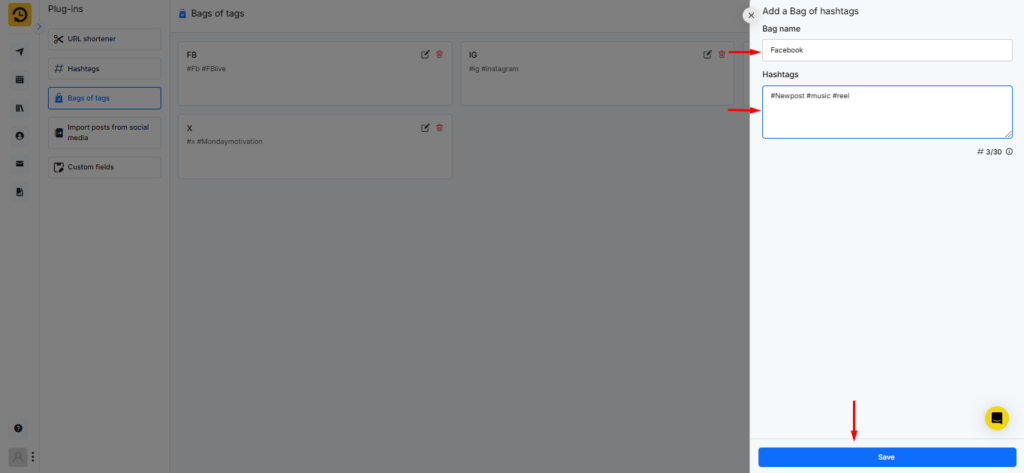
Once you have saved this bag, you can add this bag of tags while sharing a one-off post or while adding the post to your library.
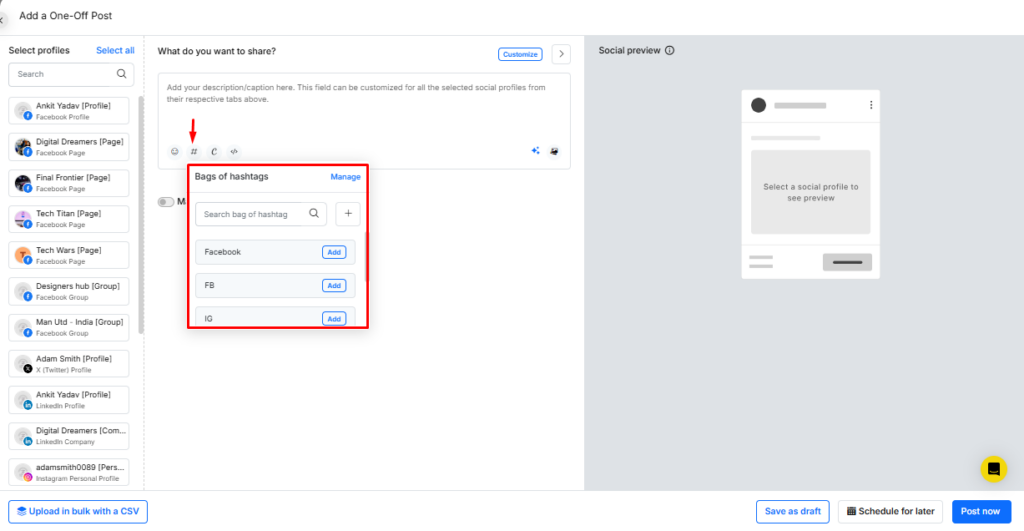
Read more…To learn how to use Bag of Tags.