

In this post, we are going to see how you can share a post on your profiles from RecurPost. We call it a one-off post, unlike recurring Posts from your libraries, which do not repeat again at a frequency.
After creating an account on RecurPost and connecting your social media profiles, it’s time to create one-off posts. Again, a one-off (non-recurring) post is the post that you’ll be sending out on your selected social profiles just once.
How to create a One-off Post?
Follow the steps below:
1. Create a Post Manually
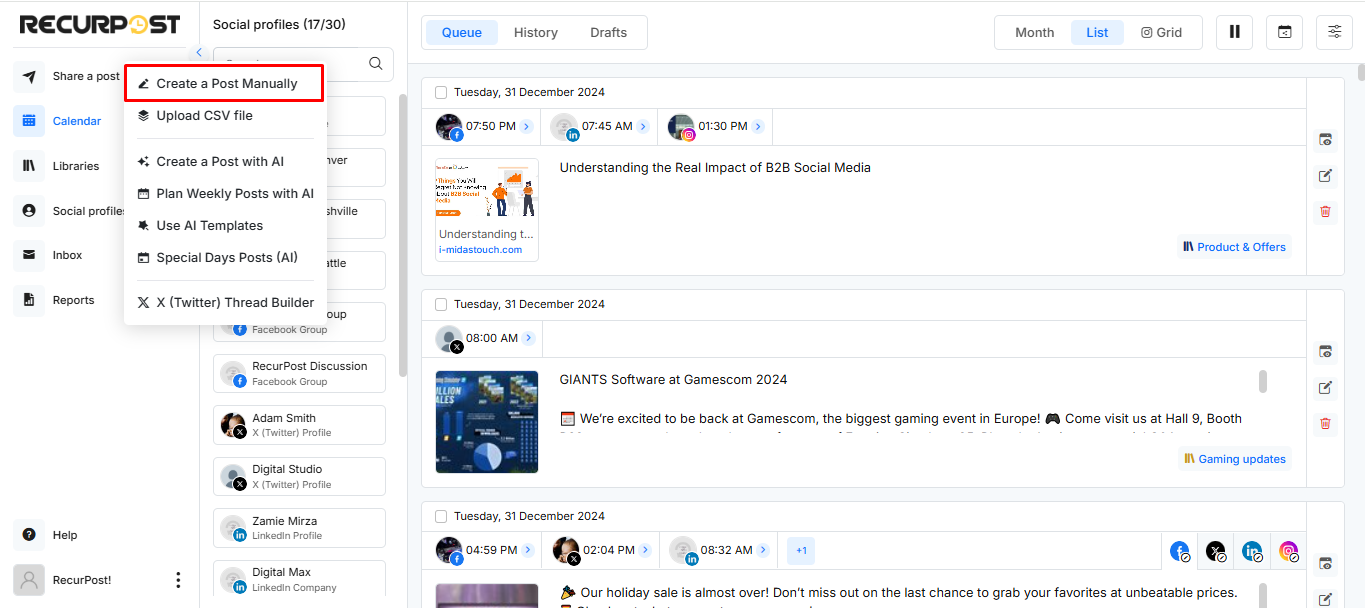
Click on ‘Share a Post’ from the menu on the left-hand side and select ‘Create a Post Manually’.
2. Select the social profile and add a caption
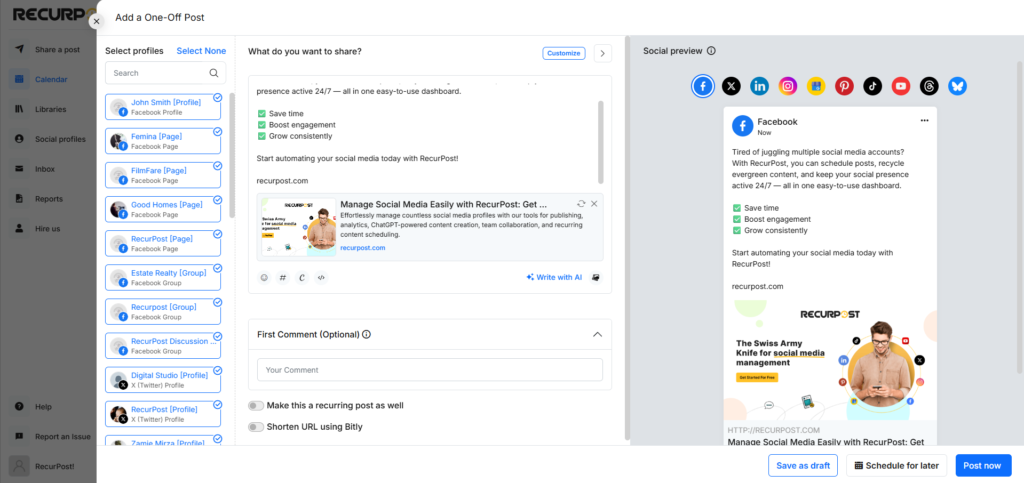
First, select all the social profiles on which you want to share the post. Next, type in the text/caption in the area given below the icons of your social media profiles.
3. Add details of your one-off post
A pop-up window will appear. This is where you’ll be adding all the details of your one-off post.
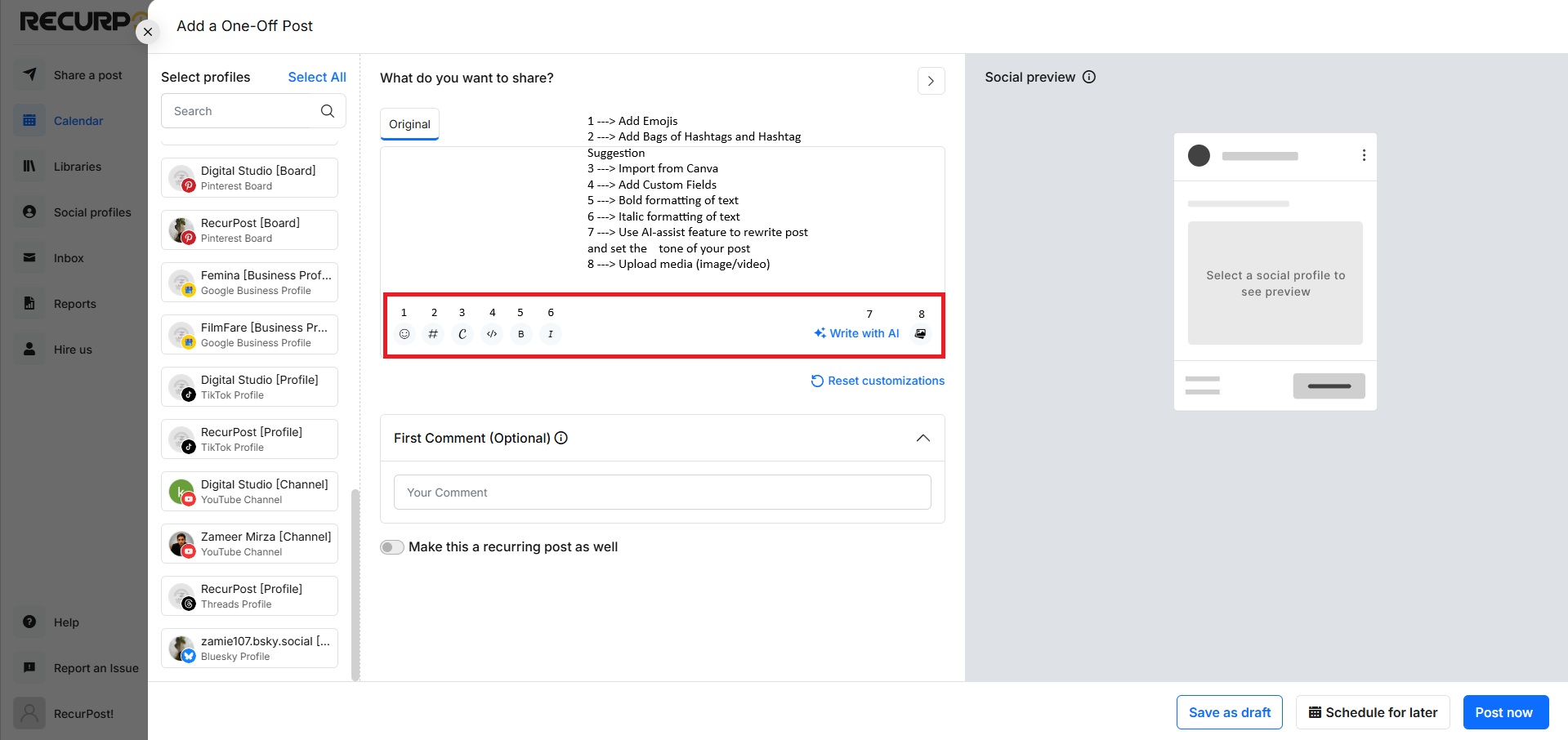
You can customize your post by using emojis, hashtags, uploading images, or adding videos. You can also create custom images with Canva and import them to RecurPost by clicking on the Canva button.
4. Make a recurring post
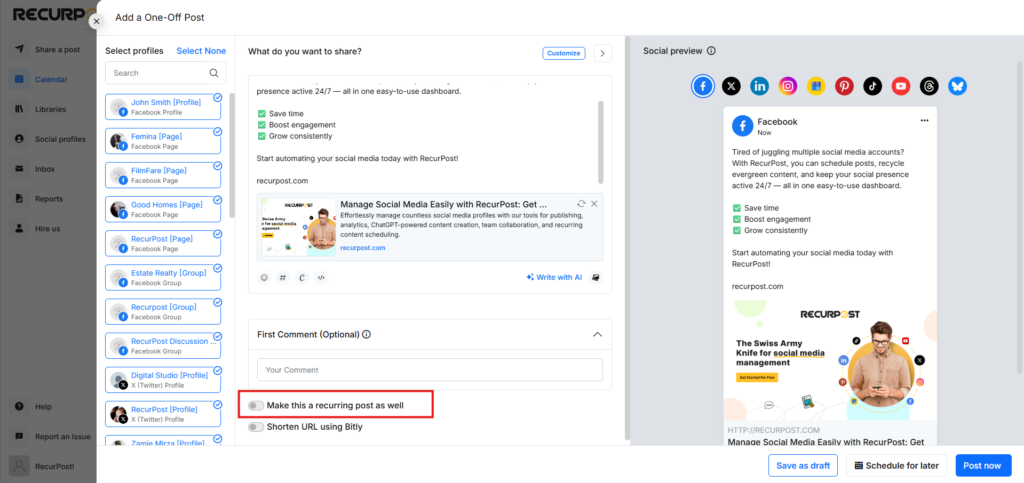
Now, in case you also want to add this post to your library as well for later use or editing, you can do so by ticking the Make this a recurring post as well box.
This means that your one-off post will also be copied to your selected libraries, which you can later edit as per your preference.
5. Customize post
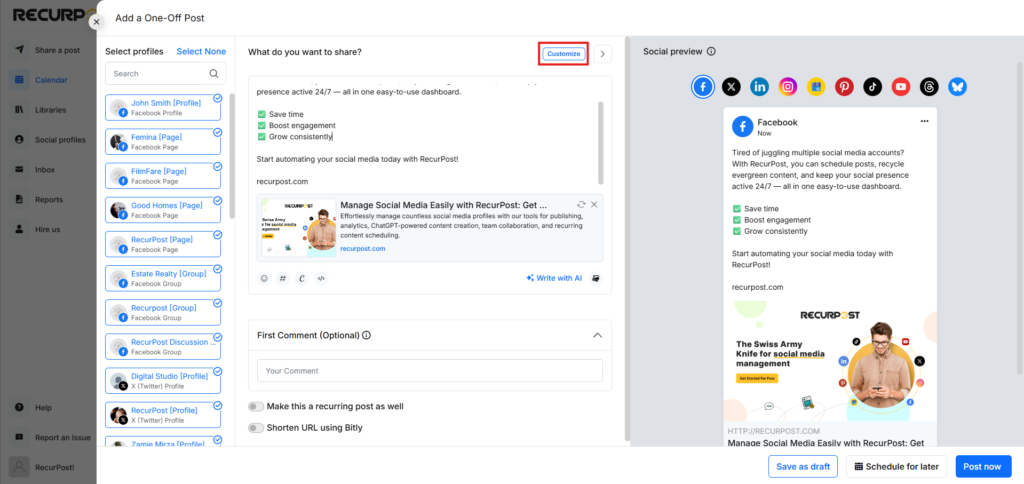
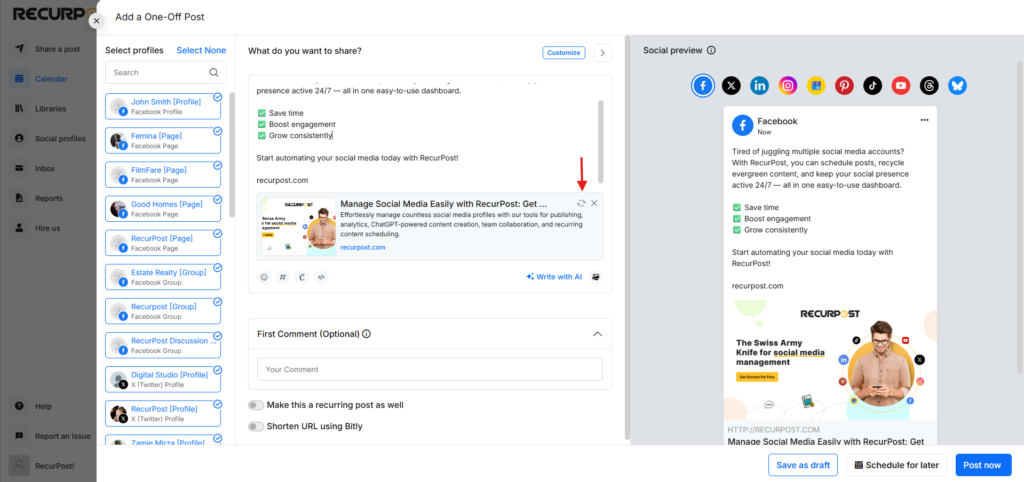
If you want to customize your text/caption for a particular social platform, click on the Customize button, and then you can customize your text for each platform. For each platform that you customize, you will see a pencil icon as highlighted in the image below. If you want to reset your post to the original message, click on the Reset icon.
6. Scheduling a one-off post
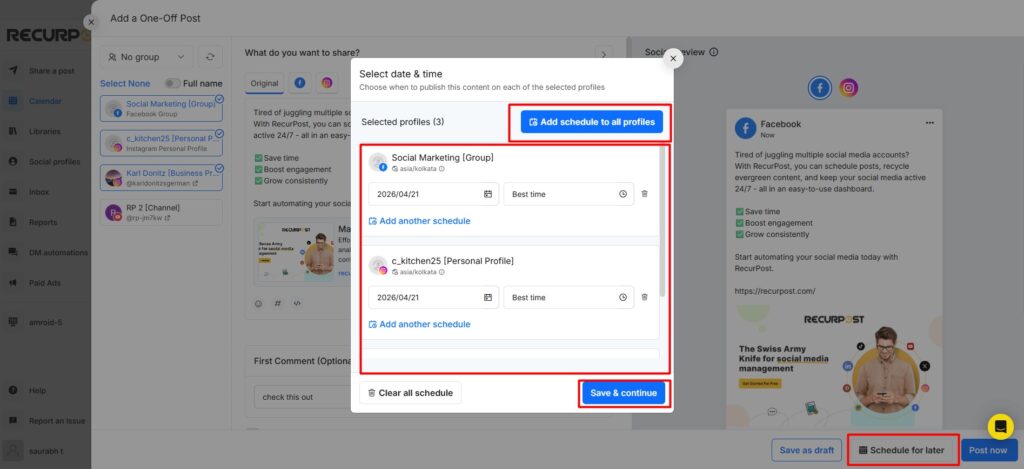
Now it’s time to schedule your post. Turn on Schedule for later, then set the date and time for when the post should go live. If more than one social profile is selected, set the schedule for each social profile(flexible scheduling).
- Turn on Schedule for later.
- Set your posting date and time.
- If multiple social profiles are selected, set the schedule for each profile.
- Click Schedule to save the schedule.
- To publish immediately, turn off Schedule for later and choose Post Now.
7. Best time scheduling
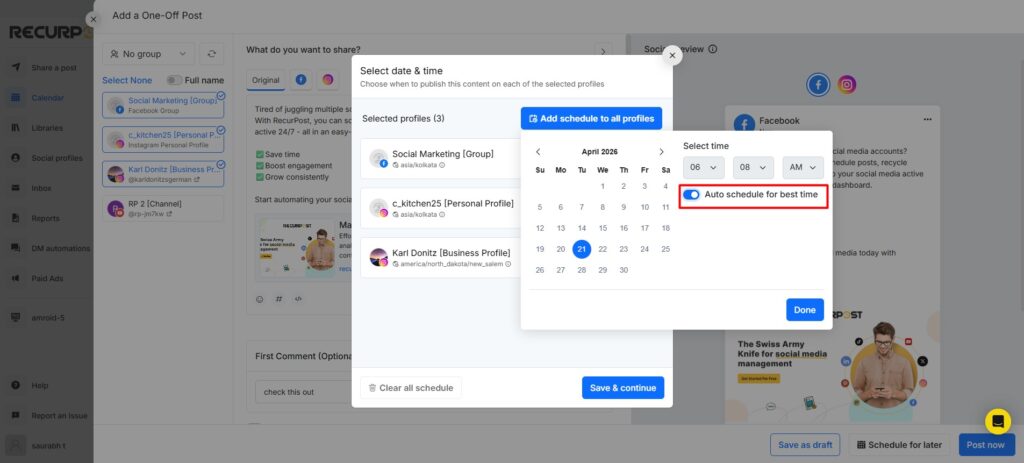
To auto-schedule, select Auto-schedule for the best time under Schedule for later. RecurPost schedules the post at the best time on the selected date.
Points to Note:
1. When you are posting on your Instagram personal profile:
While we post directly on all platforms, it is not true for Facebook profiles, Facebook groups, and Instagram personal profiles. You will get a push notification on your mobile immediately (when using Post Now) or at the selected time in case of a scheduled post.
Tapping on the notification will take you inside the RecurPost mobile app, and when you tap on Post Now, you will go to the Instagram mobile app and your text will be copied to the clipboard. Next, select where you wish to share the post – Feed, Story or Reel. Your post will show up and then you can complete the posting process on the Instagram mobile app.
2. When you are posting on a Facebook Personal profile & Facebook Group:
If you select Post Now, you will get a push notification on your mobile phone immediately. Tapping on the notification will take you inside the RecurPost mobile app and when you tap on the Post Now button, you will be redirected to the Facebook mobile app, where you will find your post and you can make your post live from that screen.
When you switch to the FB mobile app, you need to upload an image from your phone’s gallery that we have copied to your phone’s gallery and simply tap (long press) and paste your message in the caption that is copied into your phone’s memory before posting. If you have scheduled the post for a later time, you will get a push notification through RecurPost’s mobile app on your phone, just like the Instagram posting mentioned above and then you can follow the same process as mentioned in the above paragraph.
If you have any further questions or need more help, please feel free to reach out to our support team at support@recurpost.com. We’re happy to help!