
With our Workspace feature, you will easily be able to invite team members and assign them libraries and profiles that they may be responsible for. You can check our article on ‘How To Use A Workspace Feature On RecurPost‘ from here to see how to create one. Once you have created a Workspace, the invitation itself is a two-step process, which we will see below.
Step 1: Create a Workspace
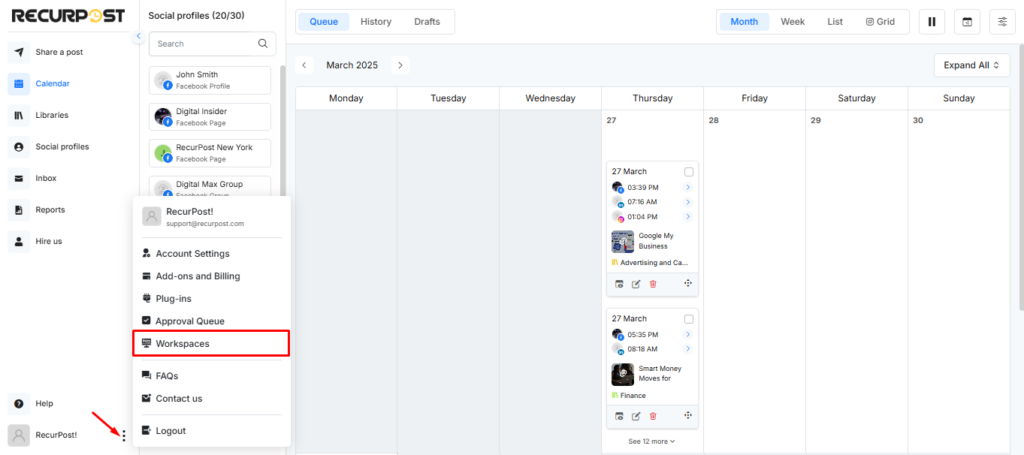
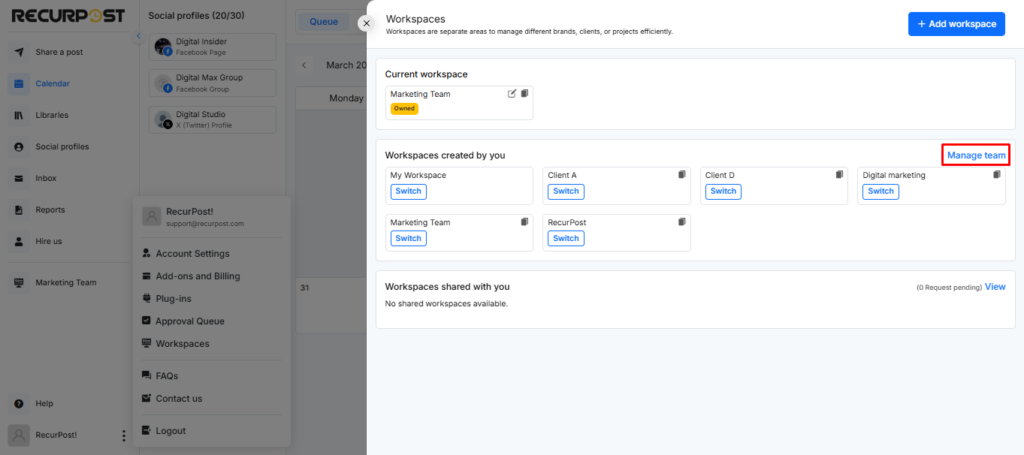
To get started, head to the left-hand sidebar and click on the Profile Icon at the bottom. Select Workspaces from the menu.
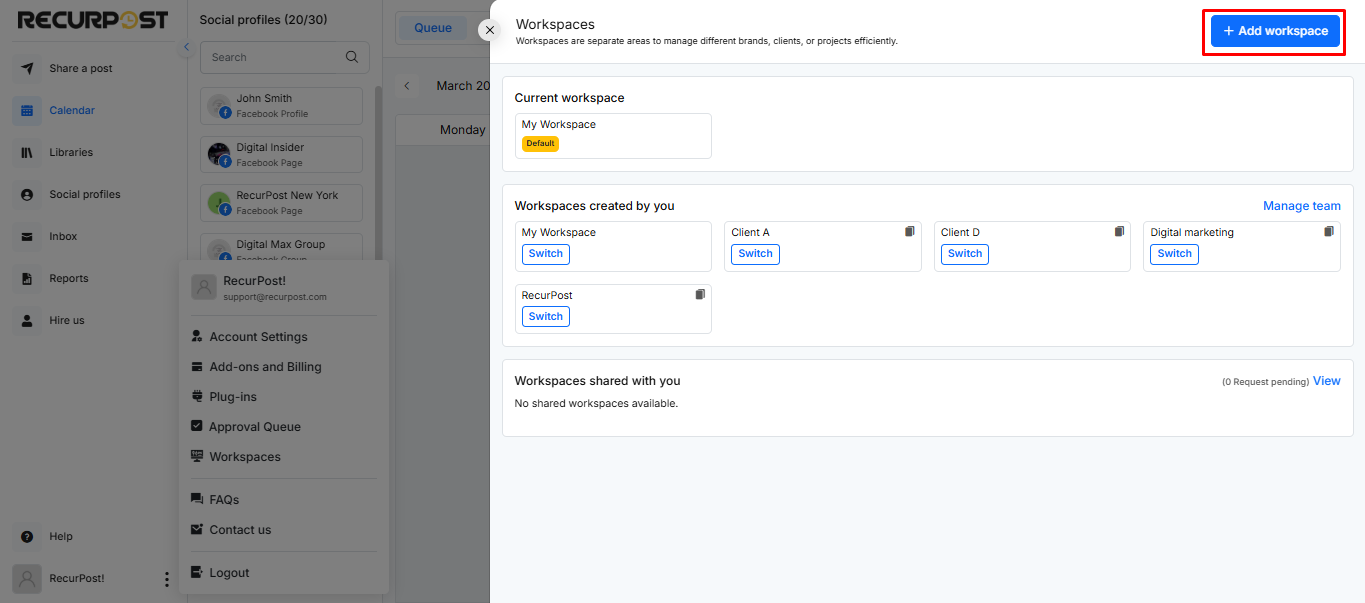
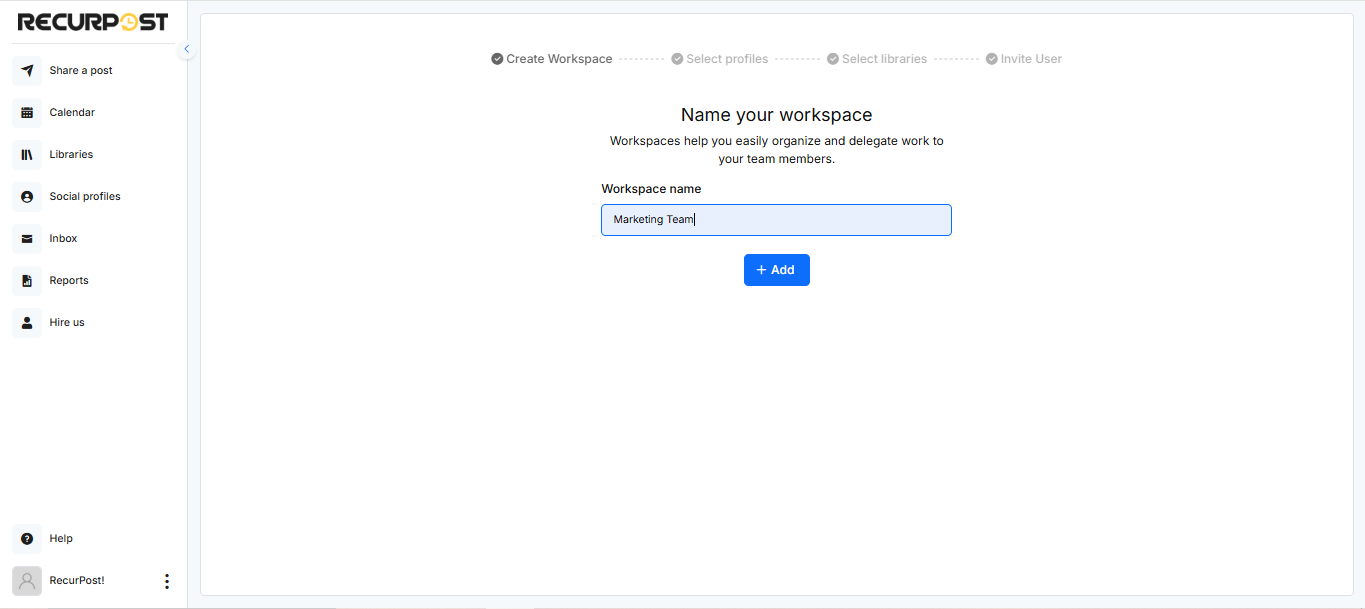
In the top-right corner of the Workspaces window, click ‘+ Add Workspace’. A pop-up will appear where you can type a name for your new workspace. Once confirmed, it will show up under “Workspaces created by you.”
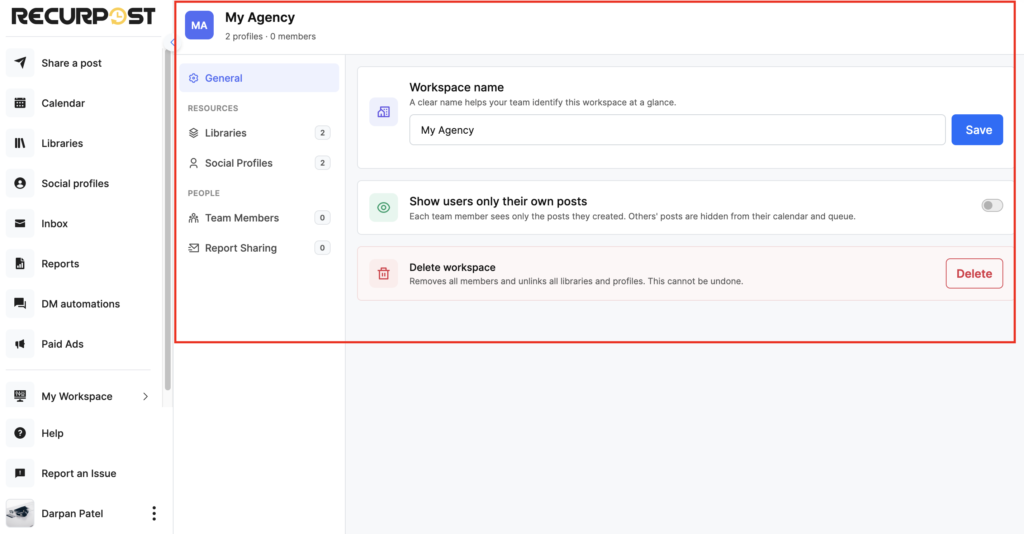
New UI: Once your workspace is created, click on it to open the Edit Workspace screen. You’ll see a clean layout organized into three sections on the left — General, Resources, and People. This is where you manage everything for that workspace from one place.
Step 2: Grant team members access to your social profiles and libraries
Once you’ve entered the name of your workspace.
- Select social profiles that you want your new team member(s) to have access to.
- Select the libraries that your team member(s) will be handling and will be responsible for.
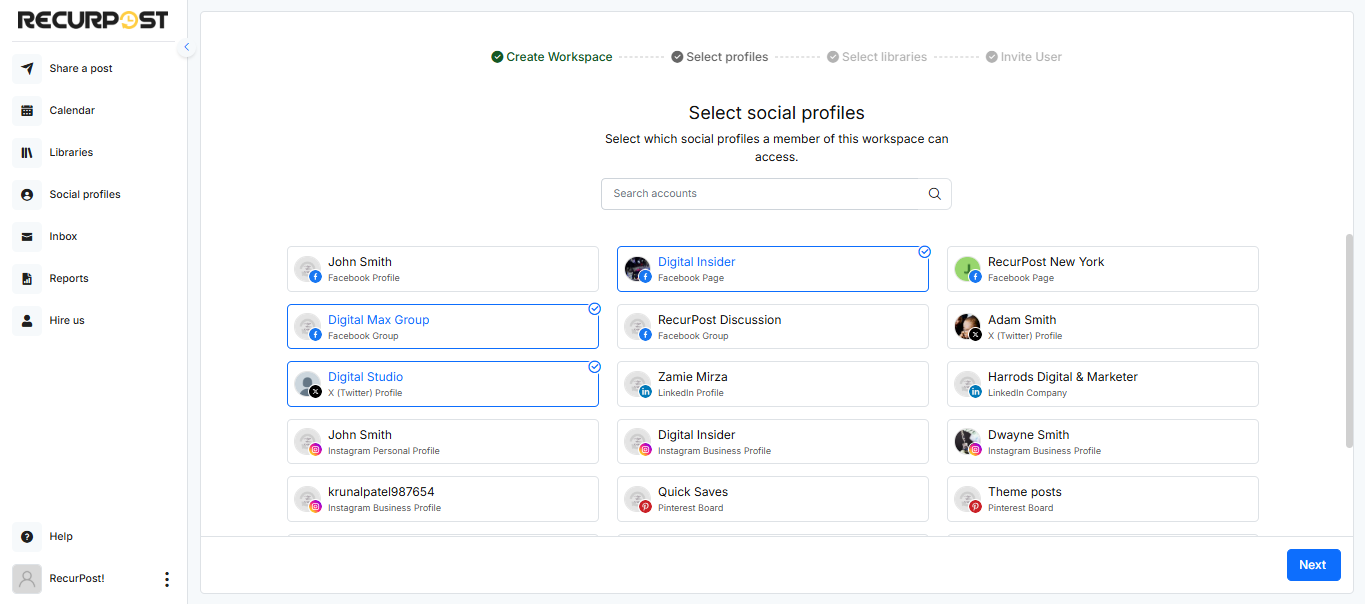
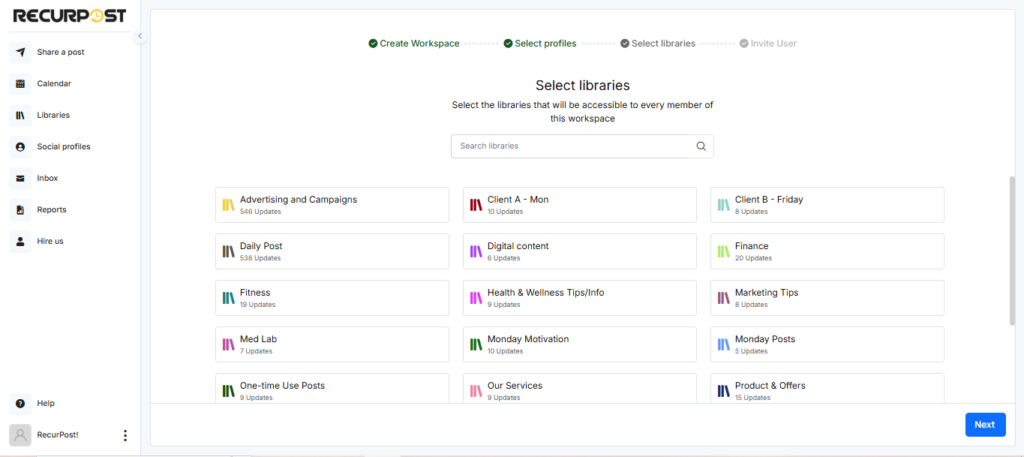
This will allow you to assign specific duties to each member and keep a check on their responsibilities individually. Also, this will ensure that they don’t accidentally post on the social profiles that they are not supposed to, as we know that’s usually not a great move to make in the attention industry.
In the new UI, you can jump directly to Libraries or Social Profiles from the left sidebar of the Edit Workspace screen. No need to go back and forth between different pages.
Step 3: Invite the team member
To invite someone, enter their email address and hit ‘INVITE’. Once you do, they will get an email invitation request, which they must accept.
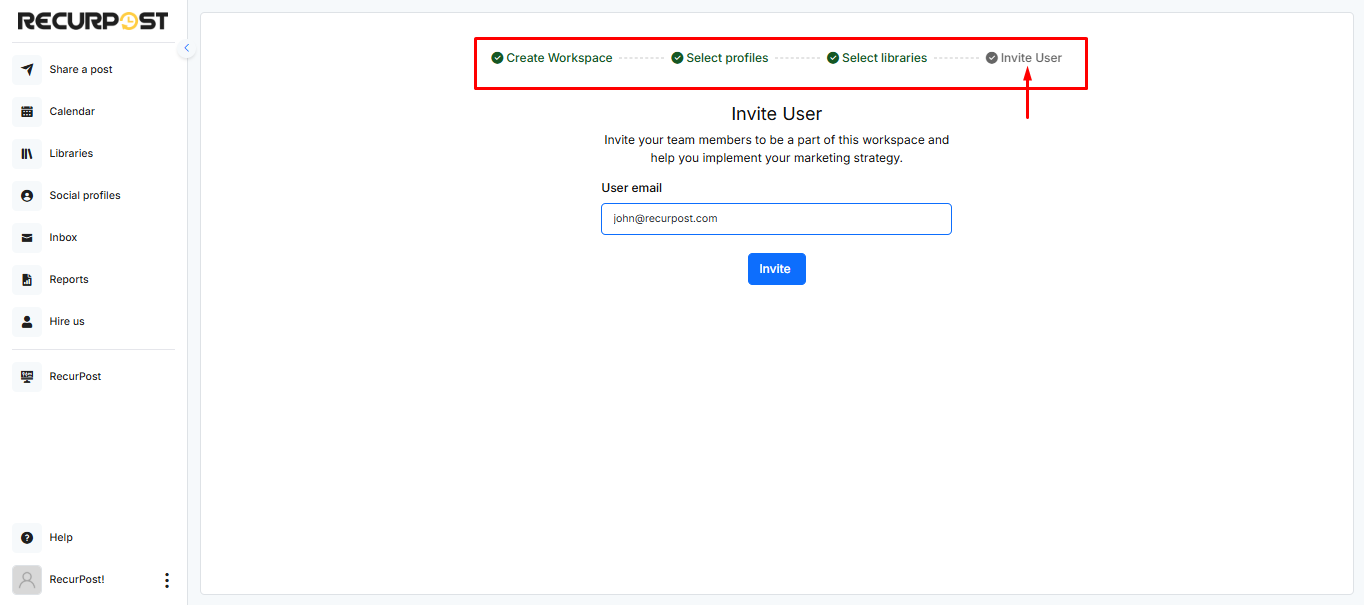
How many people you can invite depends on your plan. Each plan includes a number of users and that count includes you, so Starter and Personal include 1 user and Agency includes 3. An Agency account can therefore invite 2 people besides the owner. Beyond what your plan includes, extra members are $20/month each on any plan.
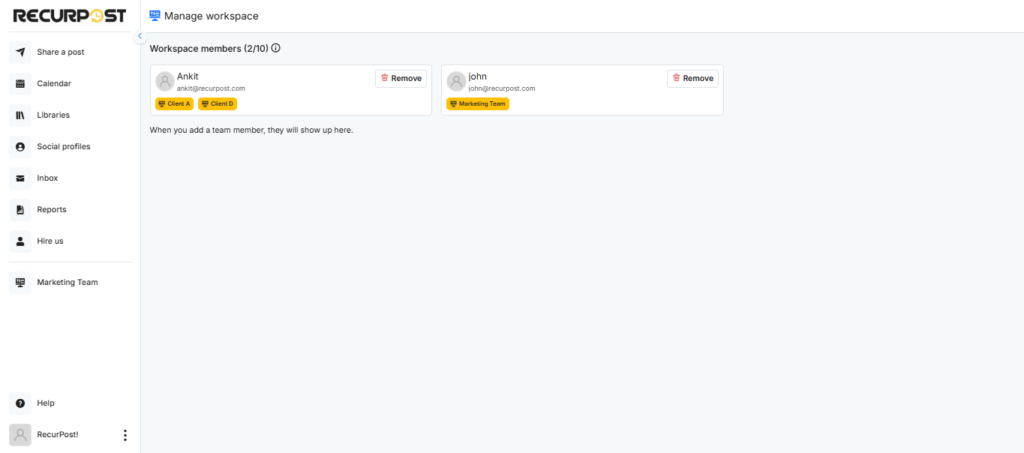
Once you’re done with all of the above steps, your Workspace management page will look something like this.
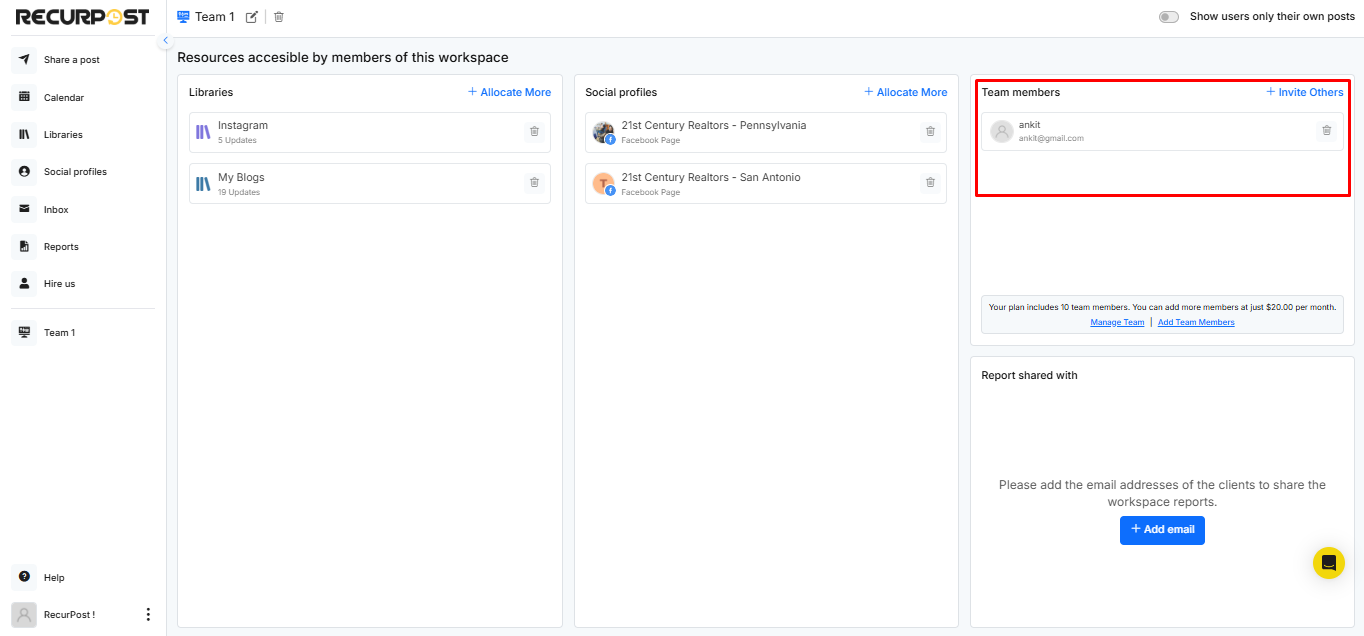
If you would like to see all the team members managing your workspaces, then click on the Manage team button under Workspace.
What Team Members See After Joining
Once your team member accepts the invitation and logs in, they’ll see something helpful right away. RecurPost shows them exactly what they have access to.
As the workspace owner, you can also control what team members see. In the Edit Workspace screen, toggle on “Show users only their own posts” under General settings. When this is on, each team member only sees posts they created — not posts made by others in the same workspace.
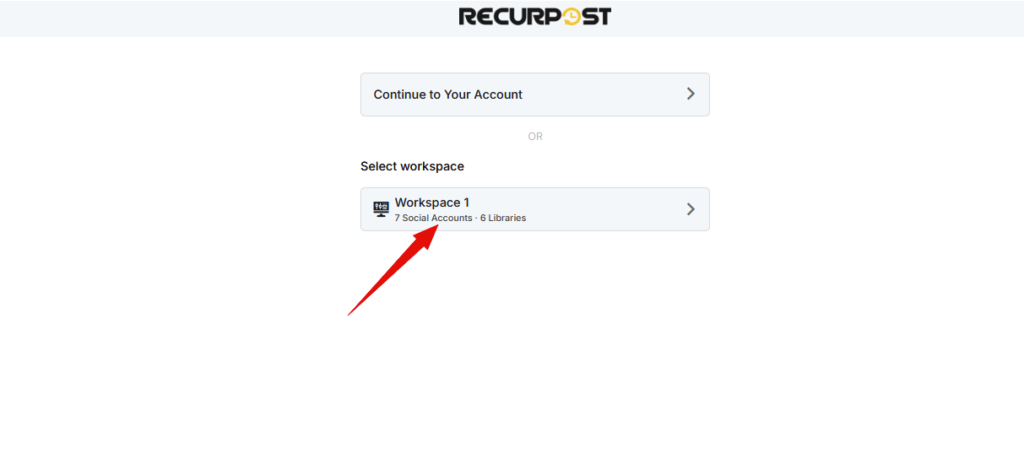
When they reach the workspace selection screen, each workspace displays key information. They’ll see the number of social profiles they can manage and how many libraries they can access.
For instance, if you assigned them 7 social profiles and 6 libraries, that’s what they’ll see listed. No guessing, no confusion about what they’re responsible for.
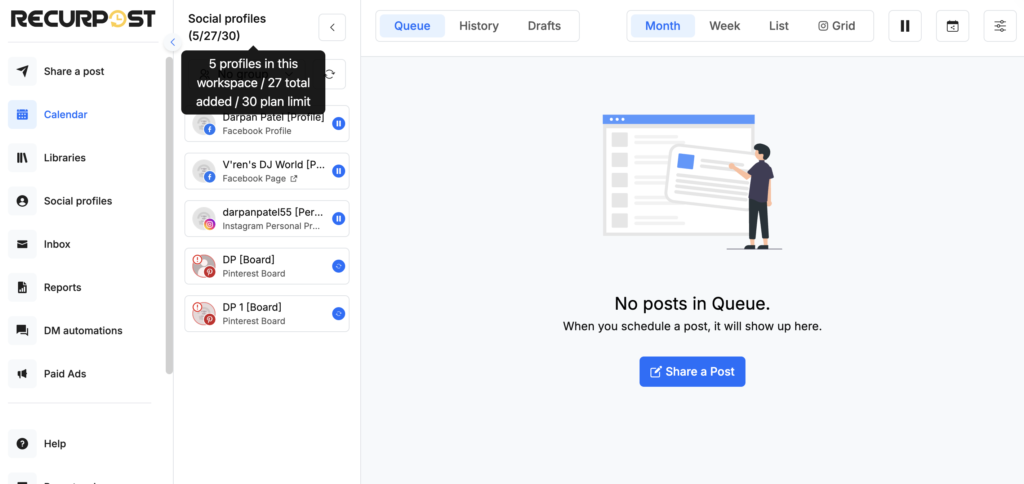
After entering the workspace, this information stays visible on their dashboard. The social profiles count remains on screen, helping them stay organized throughout their work session.
This transparency helps team members understand their scope of work immediately. They know exactly which profiles need their attention and which libraries contain their content.
It’s a simple way to keep everyone on the same page from day one.
We hope this guide helped you understand how to invite new team members and assign them their roles accordingly.
If you still have questions or need any clarification on something, please feel free to contact us at any time at support@recurpost.com.