

Content Curation help you to get new articles from your favorite websites into your RecurPost libraries.
Through RecurPost, you can get newly published content from your favorite websites in no time.
Simply add their RSS Feed and we will automatically grab their latest content as it is published and saves in your RecurPost library, where you can then schedule it to go out to your social profiles if you haven’t already.
What is RSS Feed?
RSS stands for Really Simple Syndication and is an open method for delivering regularly changing web content. Many news-related sites, weblogs, and other online publishers syndicate their content as an RSS Feed to whoever wants it.
An RSS feed is an online file that contains details about every piece of content a site has published. Each time a site publishes a new piece of content, details about that content—including the full text of the content or a summary, publication date, author, link, etc.
How to Get an RSS Feed from a Website?
You can find the RSS Feed URL through the Page Source. Looking at the HTML source of the website’s page will also give you the RSS feed’s URL.
Right click on the website’s page, and choose View Page Source. In the new window that appears, use the “find” feature (Ctrl + F on Windows or Command + F on a Mac), and type in RSS. You’ll find the feed’s URL between the quotes after href=.
How to Add New RSS Feed?
RecurPost allows you to add your newly added posts from your RSS Feed directly to your library. It is a great way to schedule content using RSS feed on your social profiles.
Let’s see how this feature works and why it’s helpful to you as a RecurPost user.
- Open Libraries in the left menu and select a library. Click the arrow beside the Add post button and choose Import from a website. If the library is empty, the same option is offered directly on the page, next to an Import button. Feeds you have already added are managed under Content curation at the top right.
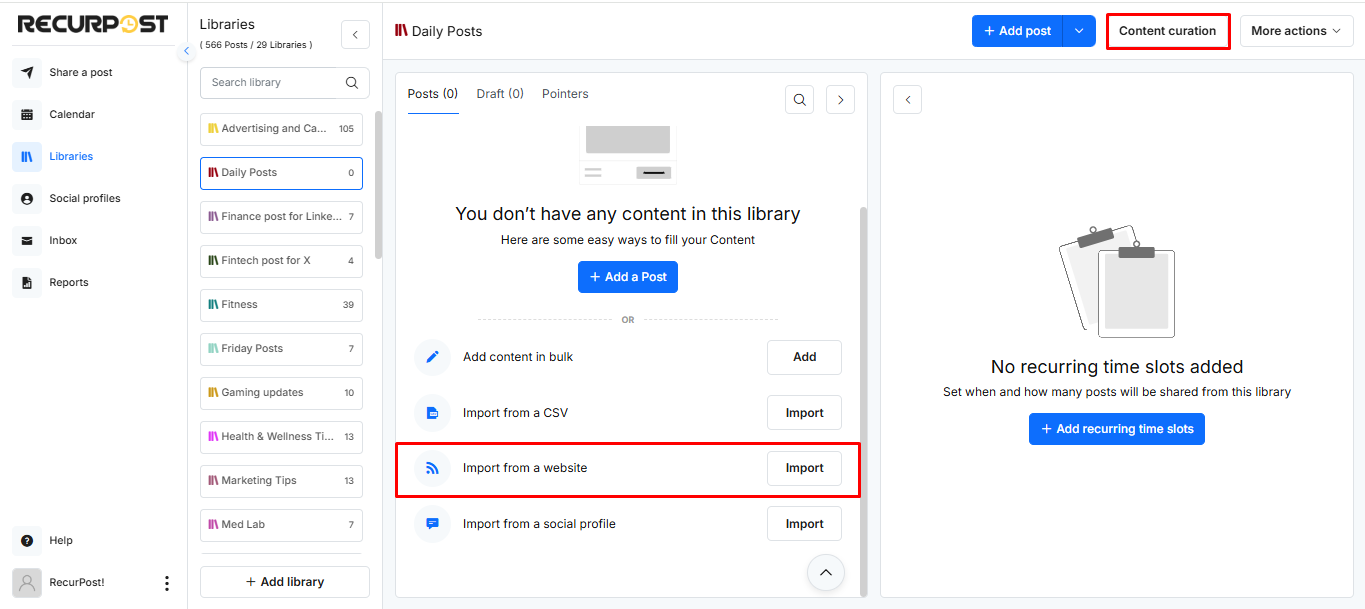
- The Add feed window opens. Enter the site or feed address in Website / Feed URL and click Continue. RecurPost finds the feed for you, so the site’s own address is usually enough.
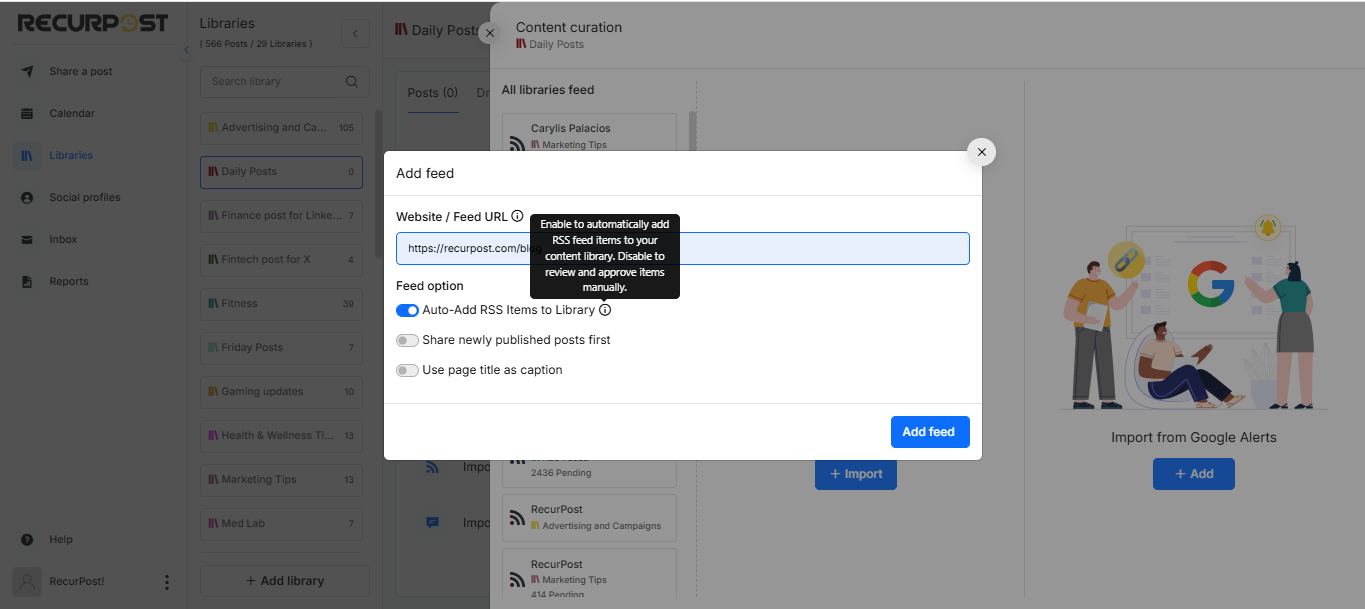
- Set the Feed options.
Auto-Add RSS Items to Library – Turn this on to have new feed items added to the library automatically. Leave it off to review and approve each item yourself before it joins the library.
Share newly published posts first – Select this if you want the new posts imported from the feed to appear at the top of the library.
- Next, click on “Add Feed” and your imported content will be added to your library as per the approval option you have selected.
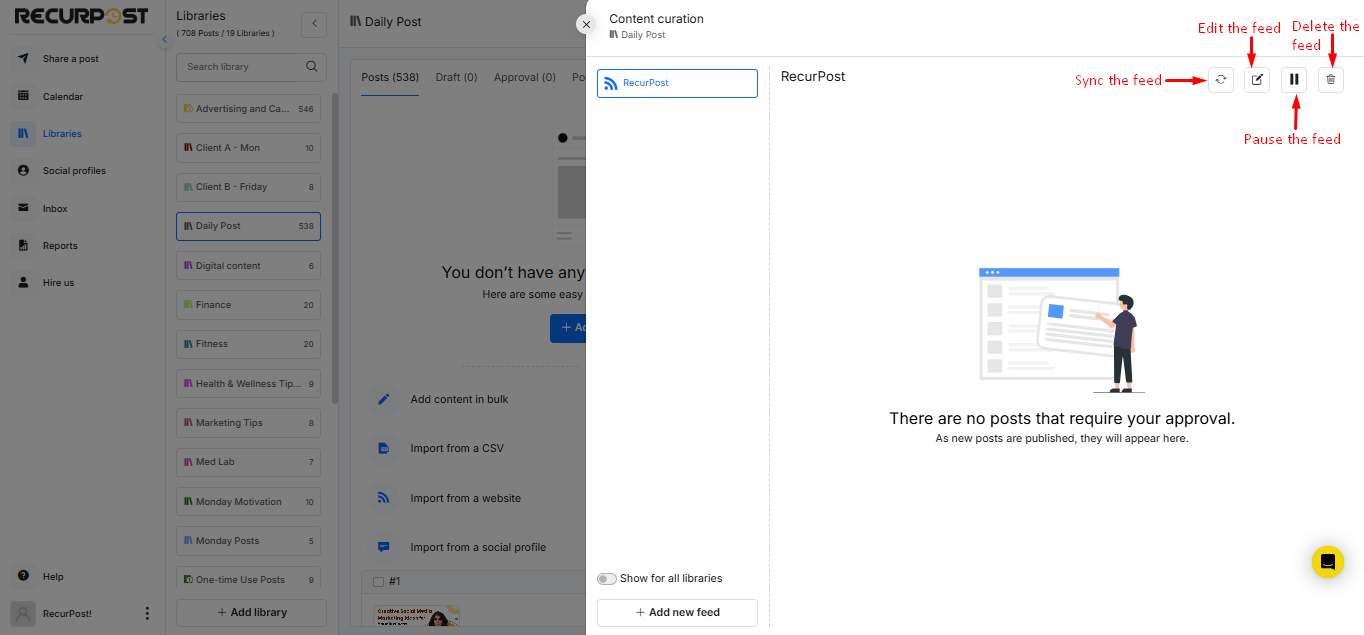
Here is a video tutorial showing how to add an RSS Feed to RecurPost.
Read more from here to check how to connect the RSS Feed to your library.
Note: We get the RSS feed content every 6 hours, i.e. daily at 12:30 pm, 6:30 am, 12:30 pm, and 6:30 pm UTC. So, if you added your material to your website before these times, your post will be pulled into your RecurPost libraries.
How to Import RSS Feed Content Using Library?
You can import content from your RSS Feed using the library, add in bulk post option.
- Open Libraries in the left menu and select a library. Click the arrow beside the Add post button and choose Import from a website. If the library is empty, the same option is offered directly on the page, next to an Import button. Feeds you have already added are managed under Content curation at the top right.
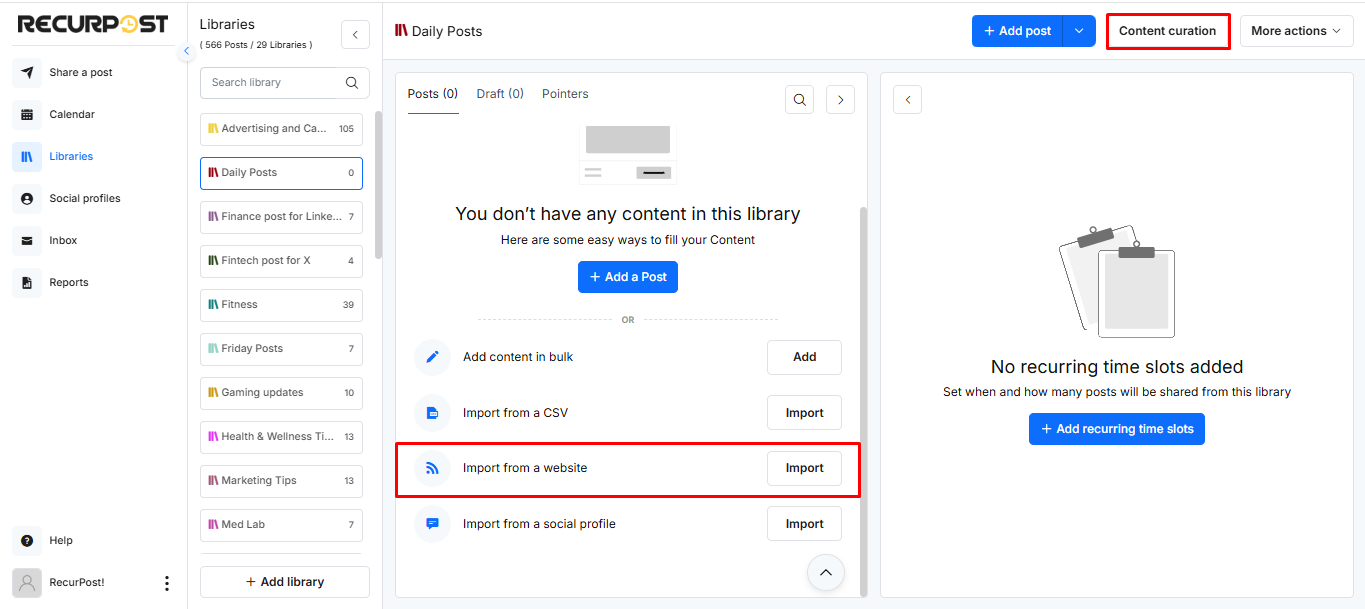
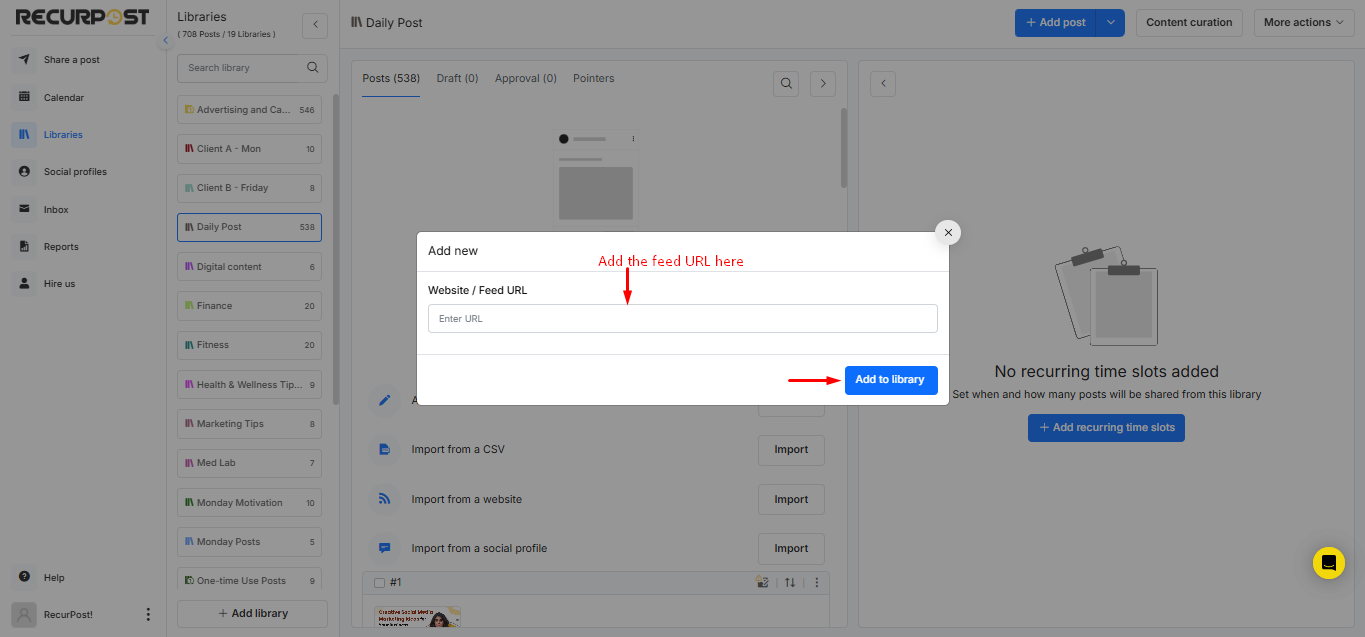
- After selecting “Import from a website”, add the RSS Feed URL. Then click on Add To Library and your content from the website will be added to your libraray.
How to Curate Google Alerts Using RSS Feed?
Google Alerts is a Google tool that notifies you when someone creates fresh viral-worthy content on a topic of your choice. You can now curate this material and effortlessly share it on social media platforms using RecurPost.
Google Alerts is a simple technique that keeps you up to date on all the newest news in your field. You should share these sources with your audience since it establishes you as a subject matter expert.
What RecurPost provides is an easy way to get those Google Alerts into your libraries. When something new is pushed, we add it to your RecurPost library based on the approval queue you choose.
You can follow the steps to set this in your RecurPost account.
- Go to google alerts.
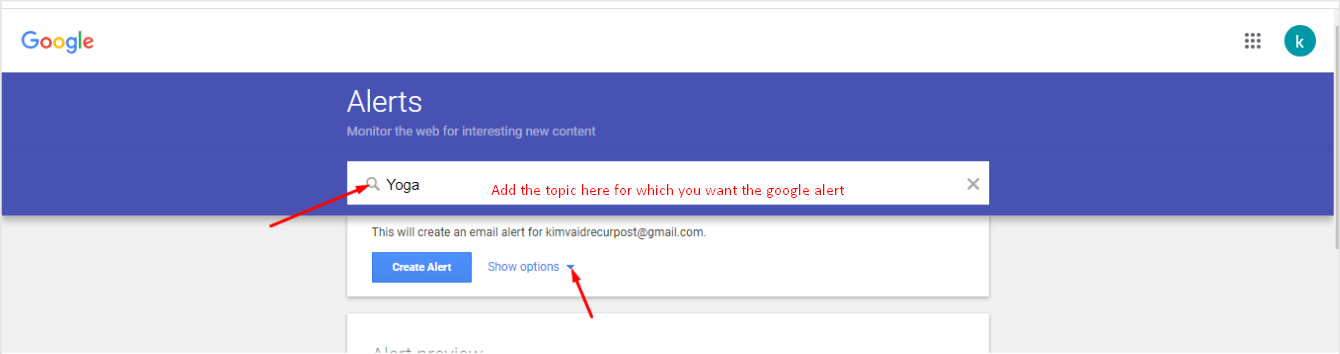
- Add the topic to create the alert, then click on “Show options“.
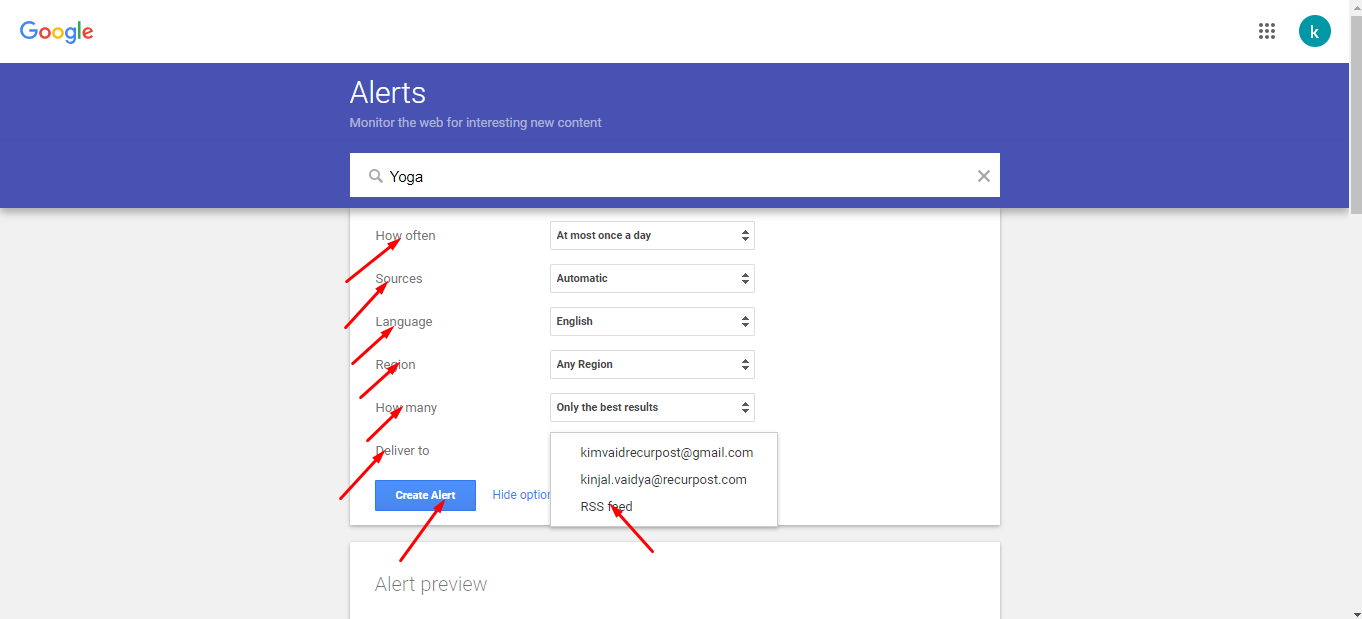
- Then select the options on the frequency of the alerts you need, and choose RSS Feed from “deliver to” option and click on “create alert”.
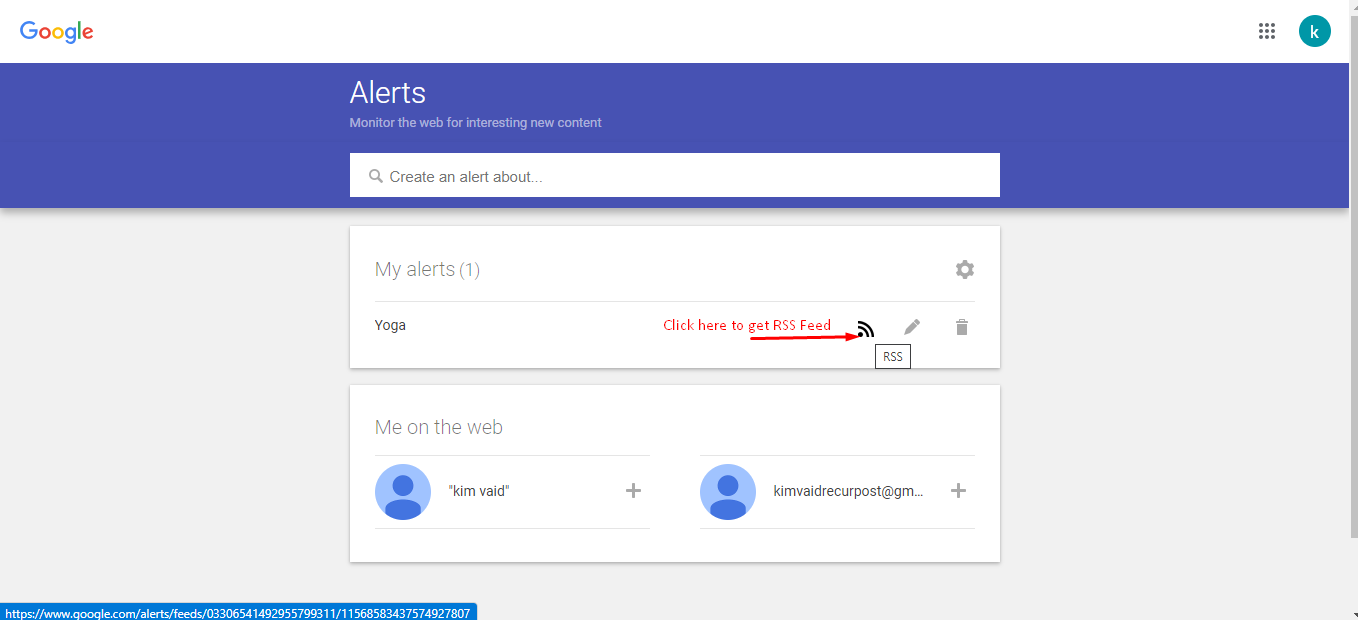
- Once the RSS Feed has been created, just click on the RSS Feed option and it will redirect you in another tab from where you can copy the RSS Feed URL from the address bar and add it to RecurPost Library. (You can add it from Content Curation or directly from library as shown above in this article).
Here is a video tutorial on how to get this viral-worthy content into your RecurPost account.
What each field in a feed item means
When you create or edit a feed item yourself, these are the fields you can fill in:
- Message (Content) – The main body of the item. Accepts plain text or HTML.
- Image – Adds an image to the item. Put the direct image address in the Media URL field. It has to be publicly reachable, or it will not display once published.
- Video – Embeds a video. Put the direct video address in the Media URL field. The video has to be publicly reachable and hosted somewhere that allows direct linking.
- Link (Source URL) – Points back to the original article. Enter the full address of the source page. This one is normally required.
Turning on Share newly published posts first puts new items from the feed at the top of the library instead of the bottom, so they go out sooner. Anything added to a library normally joins the end of the queue.
If Auto-Add RSS Items to Library is left off, new items wait for you to review them. Accept the ones you want and reject the rest; accepted items land in the library and can be scheduled like any other post.
RSS Feeds On a Plan
How many feeds you can add depends on your plan: Personal includes 2 and Agency includes 20. Starter does not include RSS feeds, and Enterprise plans are custom. See the plans and pricing page for the current comparison.
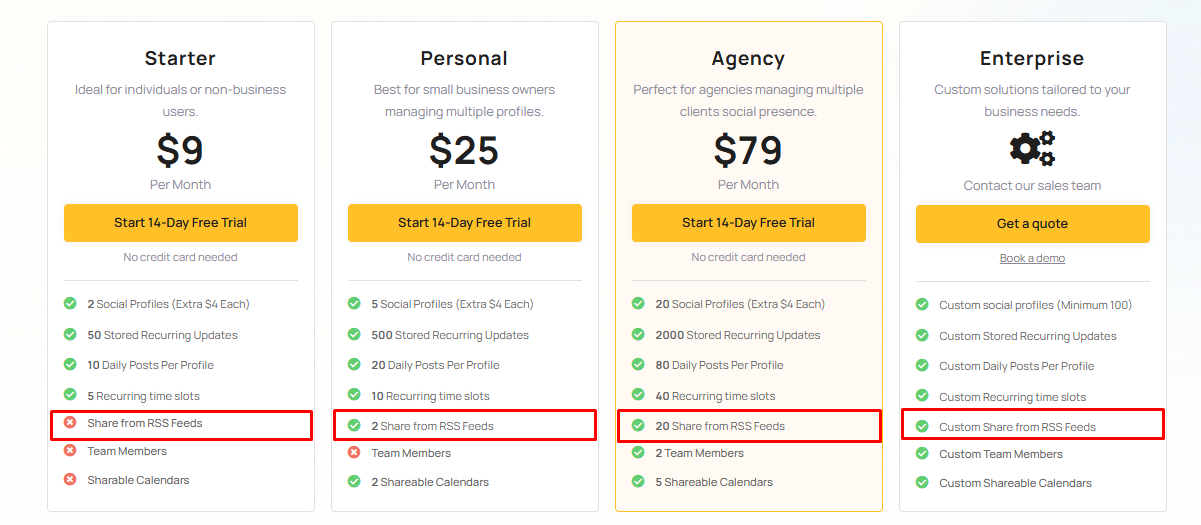
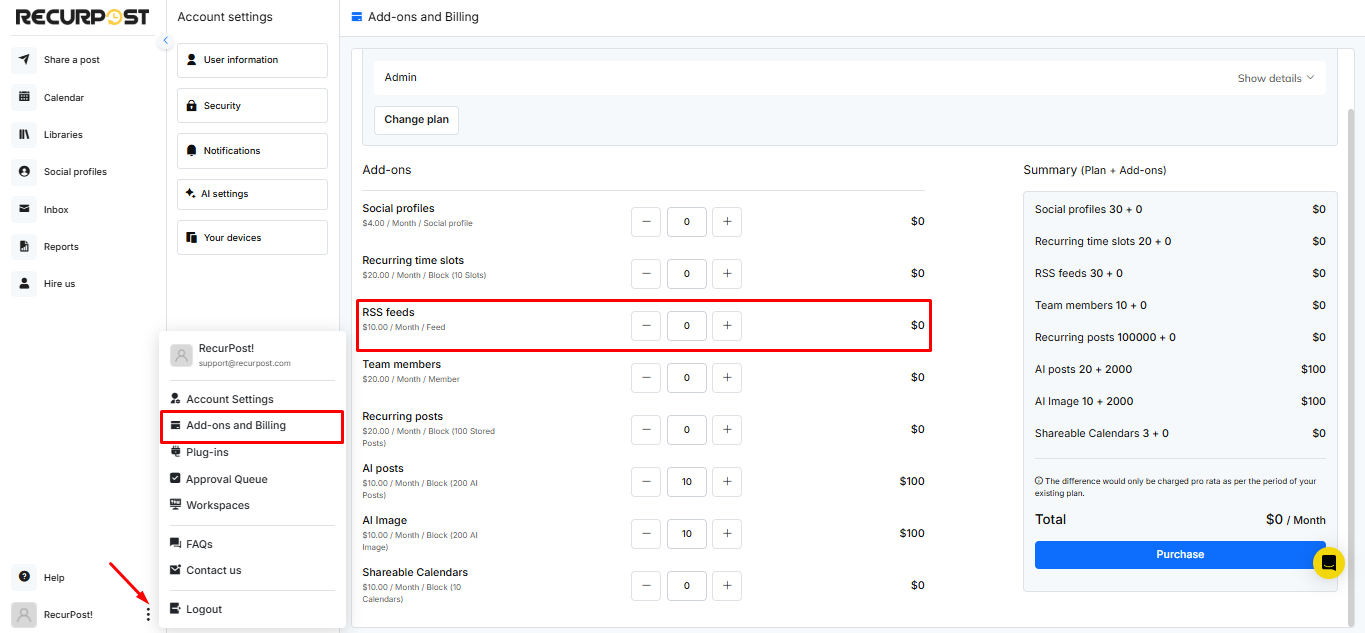
If you want to add more RSS Feed that you get on your plan, you can purchase the add-ons from the billing page.
We hope this information is helpful to you. In case you have any questions or need help with the Content Curation then please reach out to us at support@recurpost.com.
Video tutorial: curating with Google Alerts
Google Alerts is a service by Google that lets you get notified when someone writes a new viral-worthy content about a topic of your choice. With RecurPost, you can now curate this content and share it on your social profiles seamlessly.
You can subscribe to any number of topics as you like. For instance, if you are a life and wellness coach, you can subscribe to new videos as they are indexed by Google. You can even choose only to get notified about the best content.
If you are a content marketer, you can keep track of your brand mentions using Google Alerts. Whenever someone mentions your brand, you get that content in your Google Alerts feed.
It does not matter what niche you belong to as Google has content from almost every website that is out there. If someone writes quality content, Google alerts will deliver it to your feed.
Google Alerts is an easy-to-use technology that keeps you updated with all the latest news in your niche. You should share these sources with your audience as that establishes you as an authority in the field.
Pro Tip: Keep an eye on Google Trends and keep adding new Google Alerts based on what is trending. Sharing content from newly emerging trends will help you create an image of an influencer who is always in sync with the newest things out there.
Also, a mix of content from different sources makes it easy for you to share your own posts in between without looking like a spammer who keeps sharing their own content.
What RecurPost offers is a way to get those Google Alerts into your libraries without any hassles. Whenever something new gets pushed, we add it to your approval queue. You can approve, reject, or edit it before accepting it.
This constant source of quality posts makes sure your social media platforms are always up to date.