

The AI Writing Assistant drafts post copy from a prompt you give it. It draws on your AI credits, the same as the other AI features.
Using the AI Writing Assistant in RecurPost
To use the AI Writing Assistant, start by navigating to the “Share a Post” section in the sidebar menu. From there, select the “Use AI Writing Assistant” option.
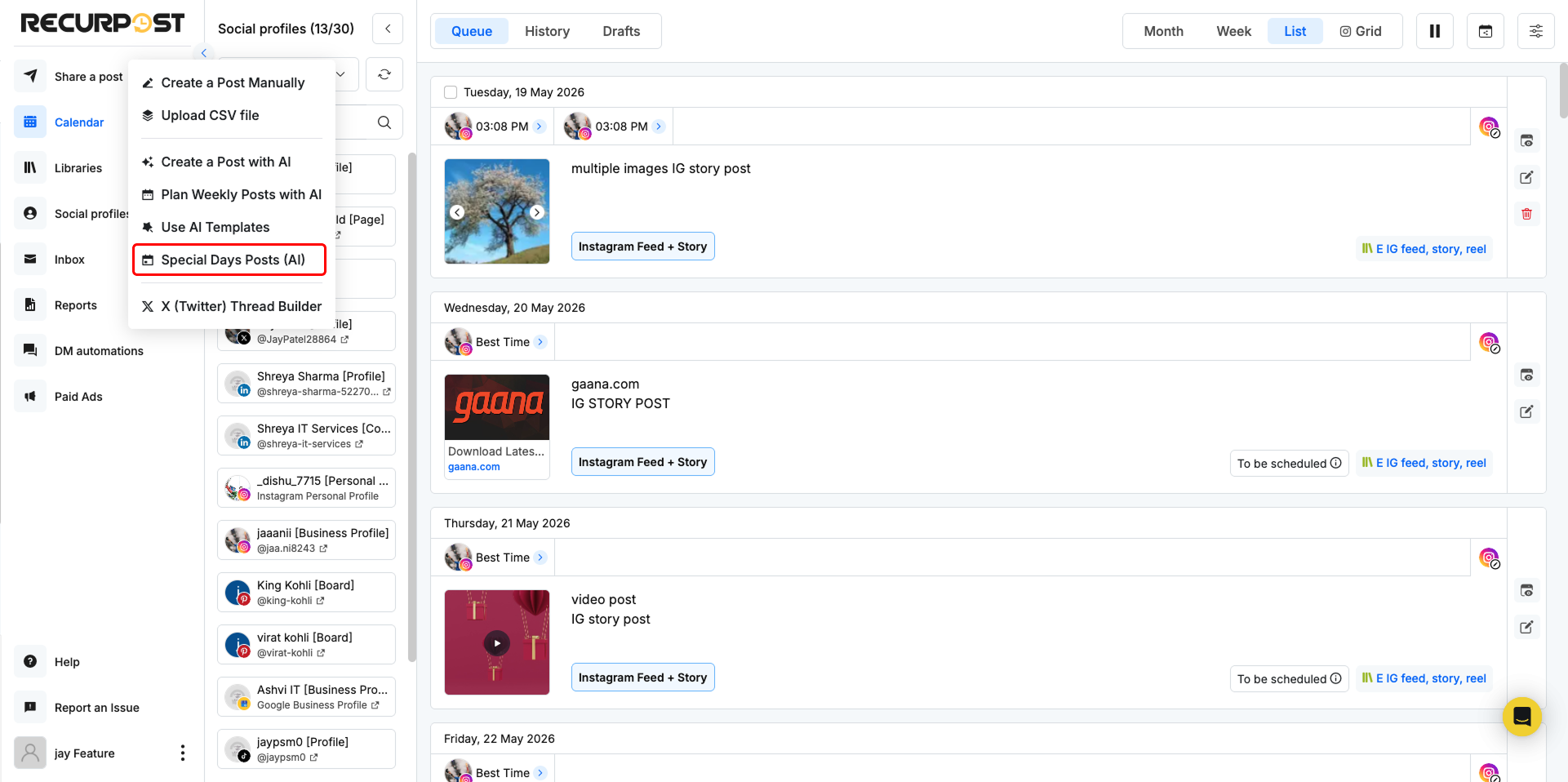
To generate content, enter your prompt and press “Shift + Enter” to submit. Once the content is generated, click “Add to Post” to incorporate it into your draft.
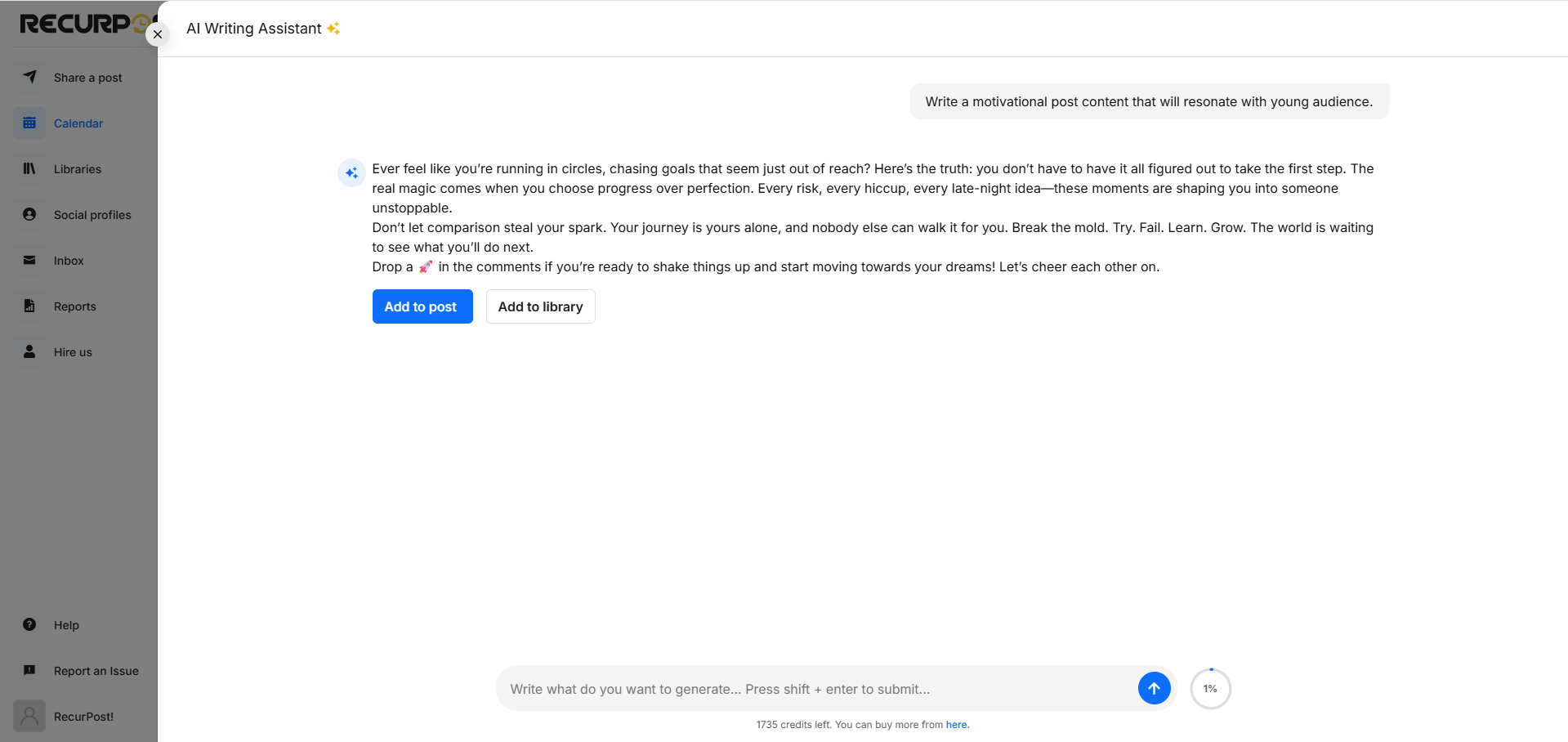
You can interact with the AI assistant to further refine the content if needed. Provide additional instructions or adjustments to tailor the content to your specific requirements. If necessary, you can make specific changes or add more details to better fit your brand’s voice or the post’s purpose.
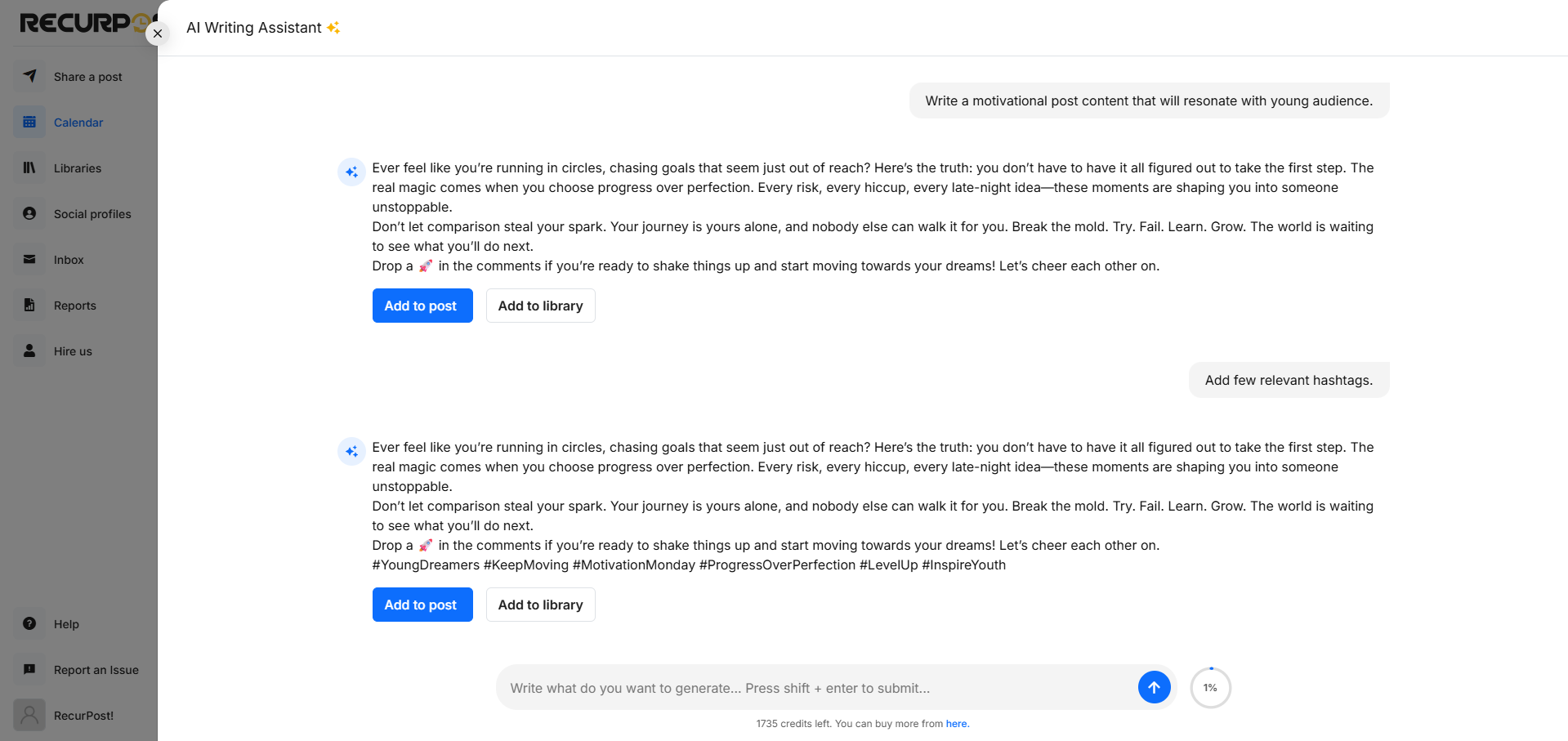
Now, you can select the social profiles where you want to post. Make any desired changes to your content before scheduling it to go live.
Please check out the video tutorials below.
Tips for Crafting an Effective Prompt:
- Clearly state your request.
- Provide relevant details about yourself or your company.
- Include specifics such as:
– The social media platform where the content will be posted
– The topic you’re interested in
– Information about your target audience - For example, instead of saying, “Write a Facebook post about our new product,” you could specify, “Write a Facebook post highlighting the benefits of our new eco-friendly product for health-conscious consumers.”
How to generate a caption in the post?
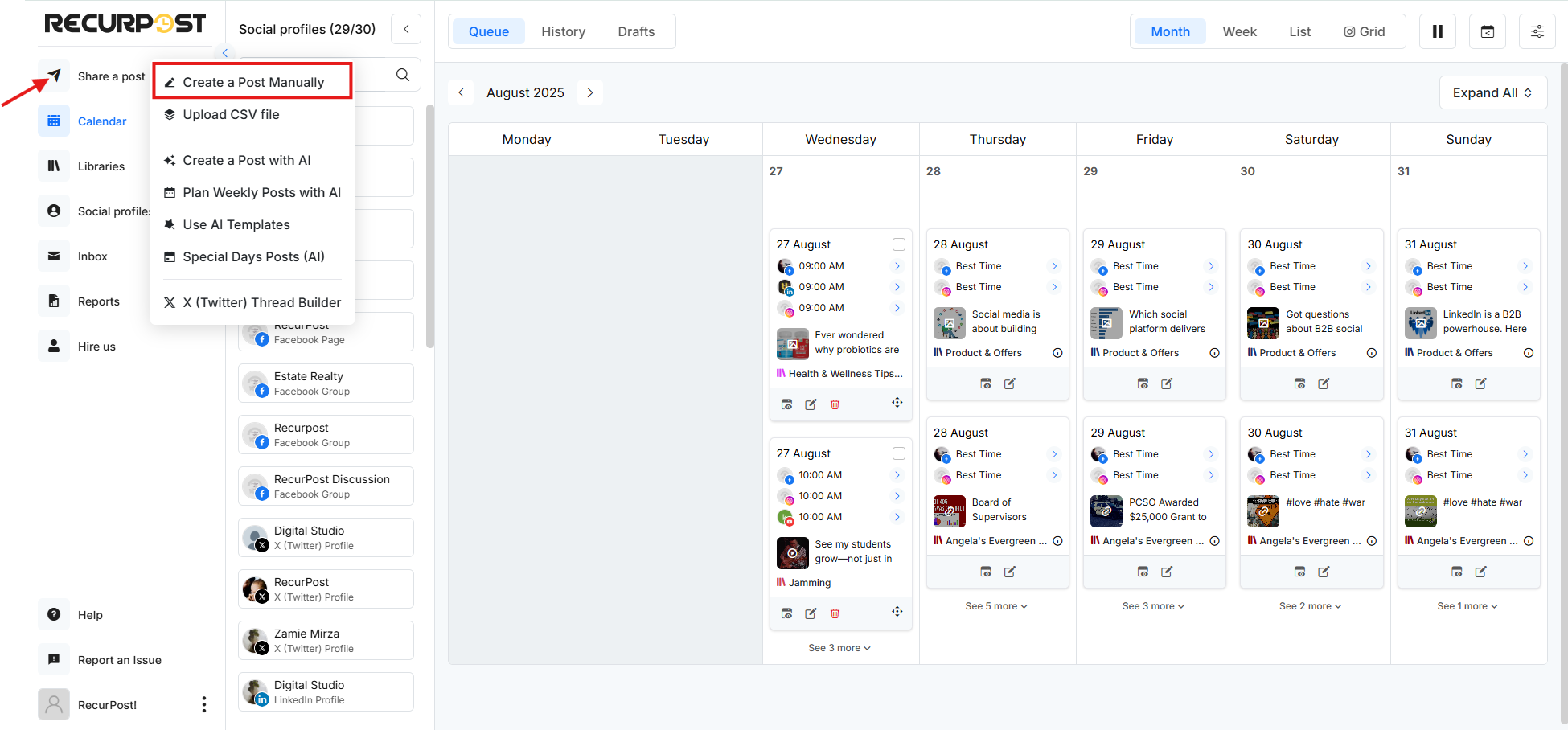
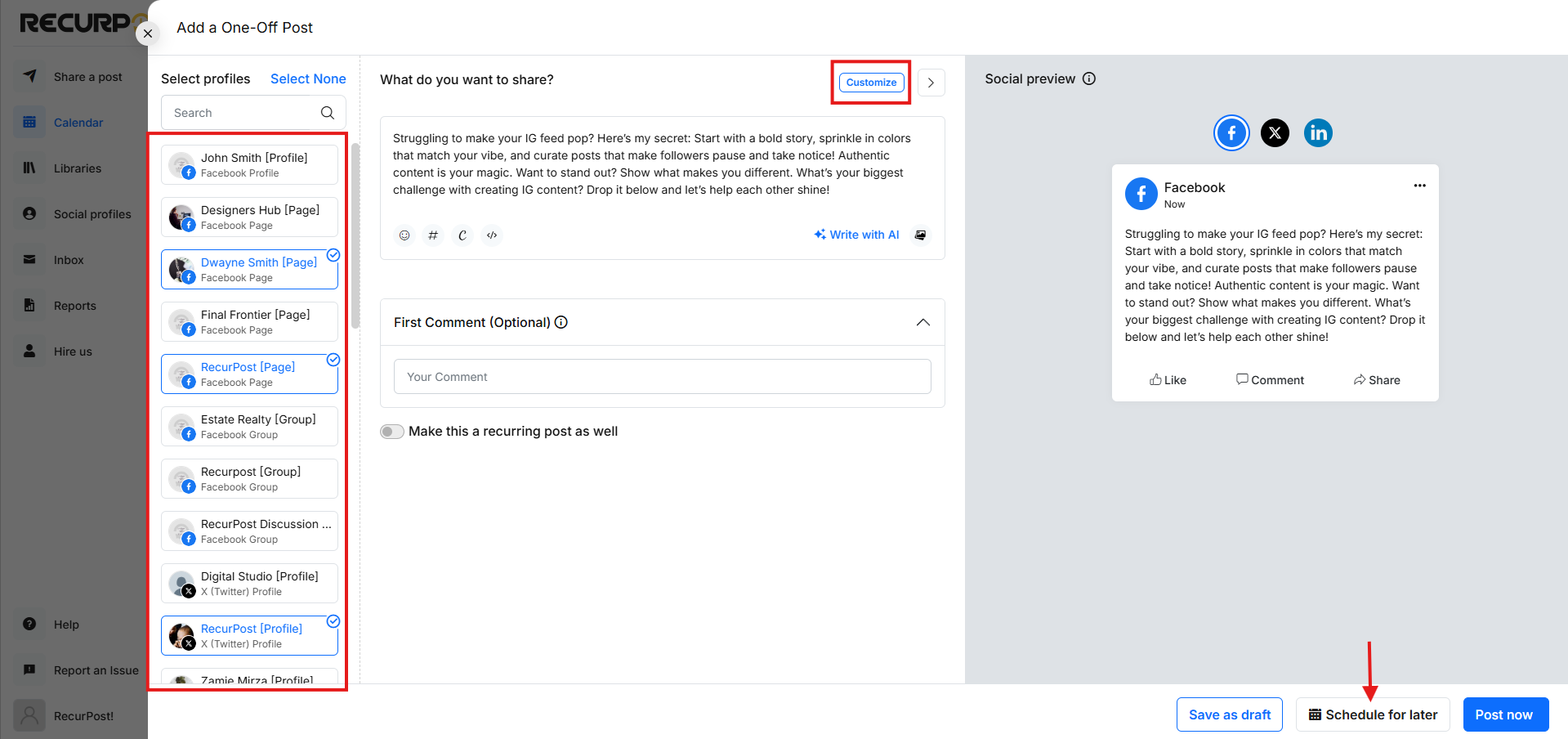
- You can either create a one-off post or add a recurring post inside the library. In this example, we will try to create a one-off post by clicking on the ‘Create a post‘ option on the Calendar.
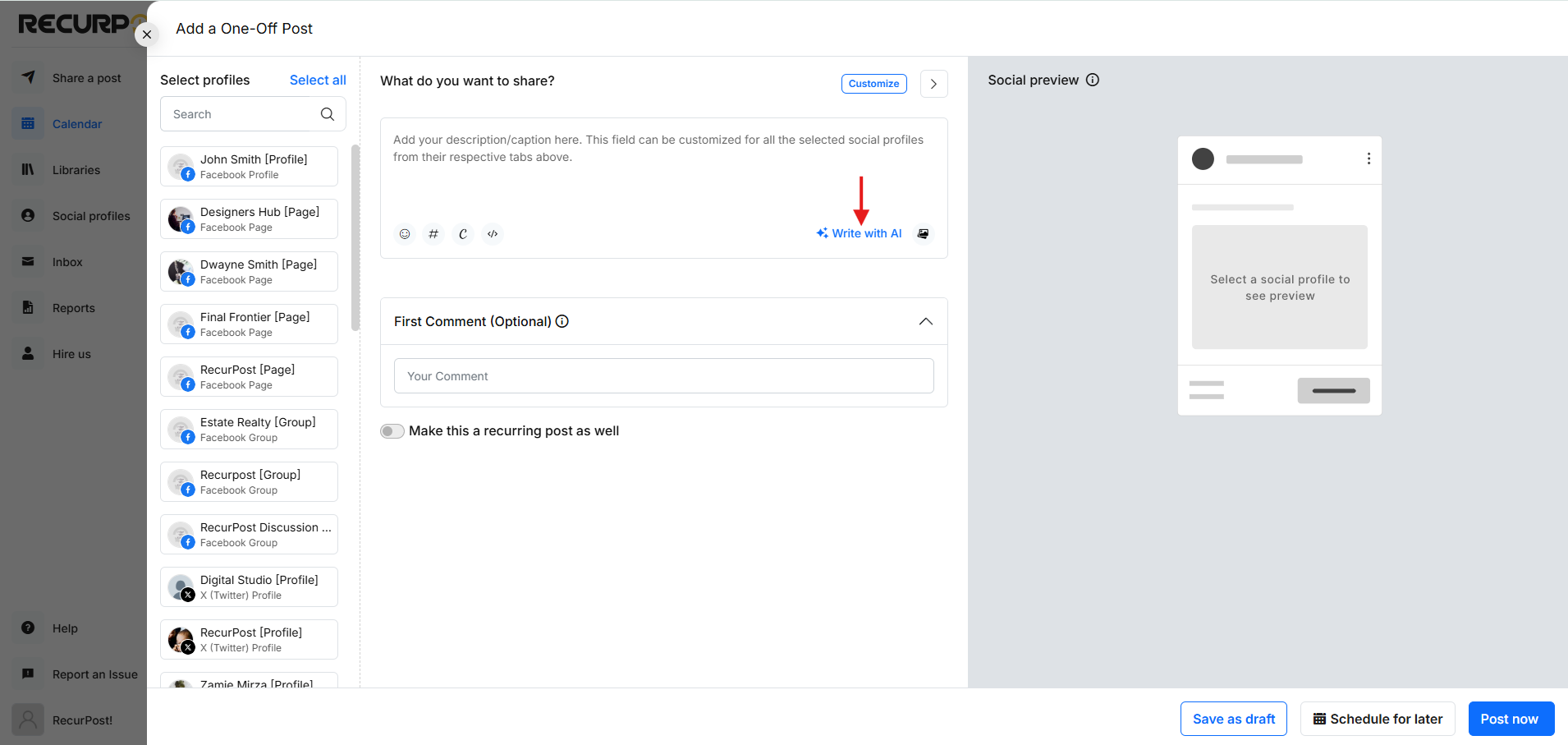
2. Click on this ‘AI option‘ and then enter the content or prompt of your choice to generate an AI post.
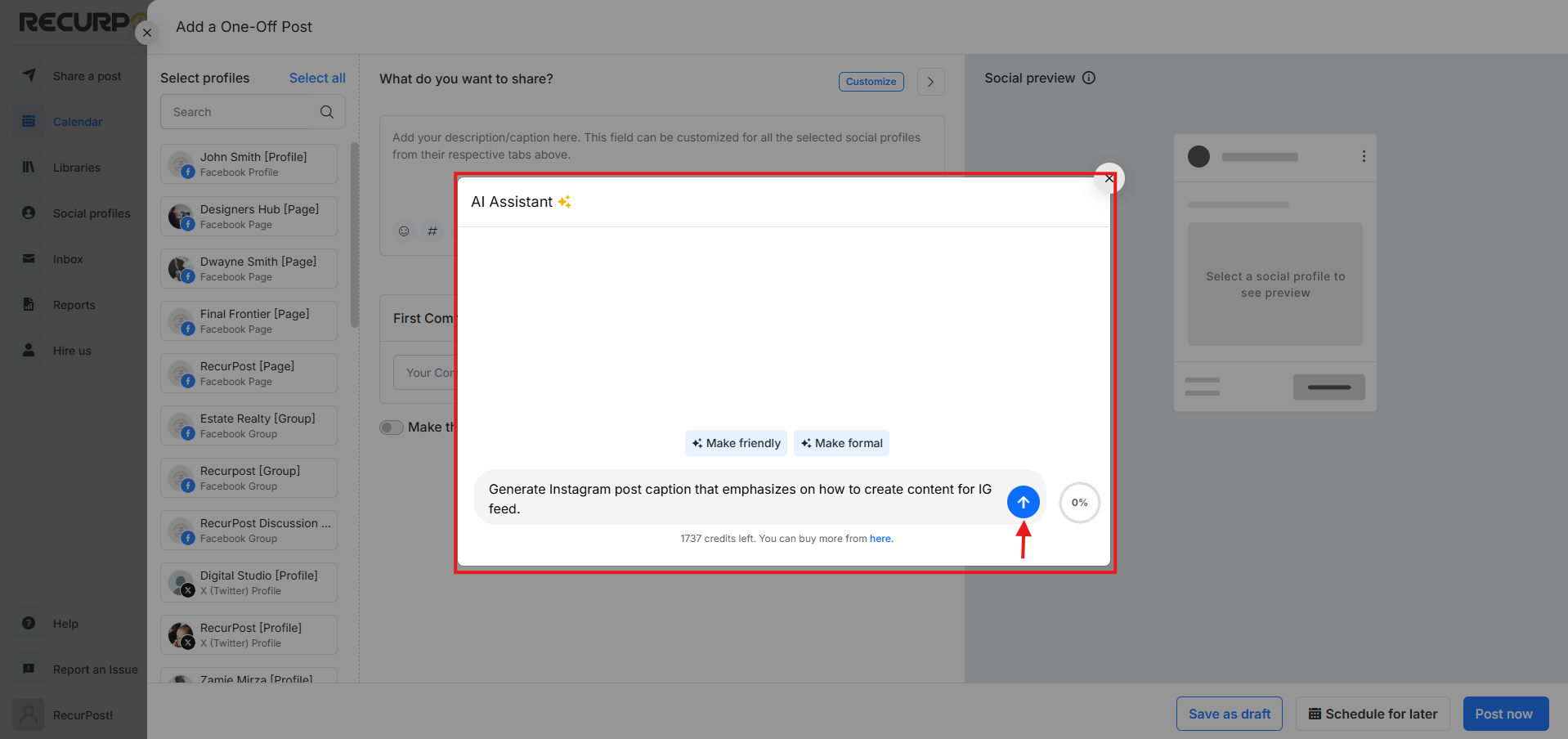
3. Here’s how you can enter your topic or content for which you need to curate a post via the AI feature.
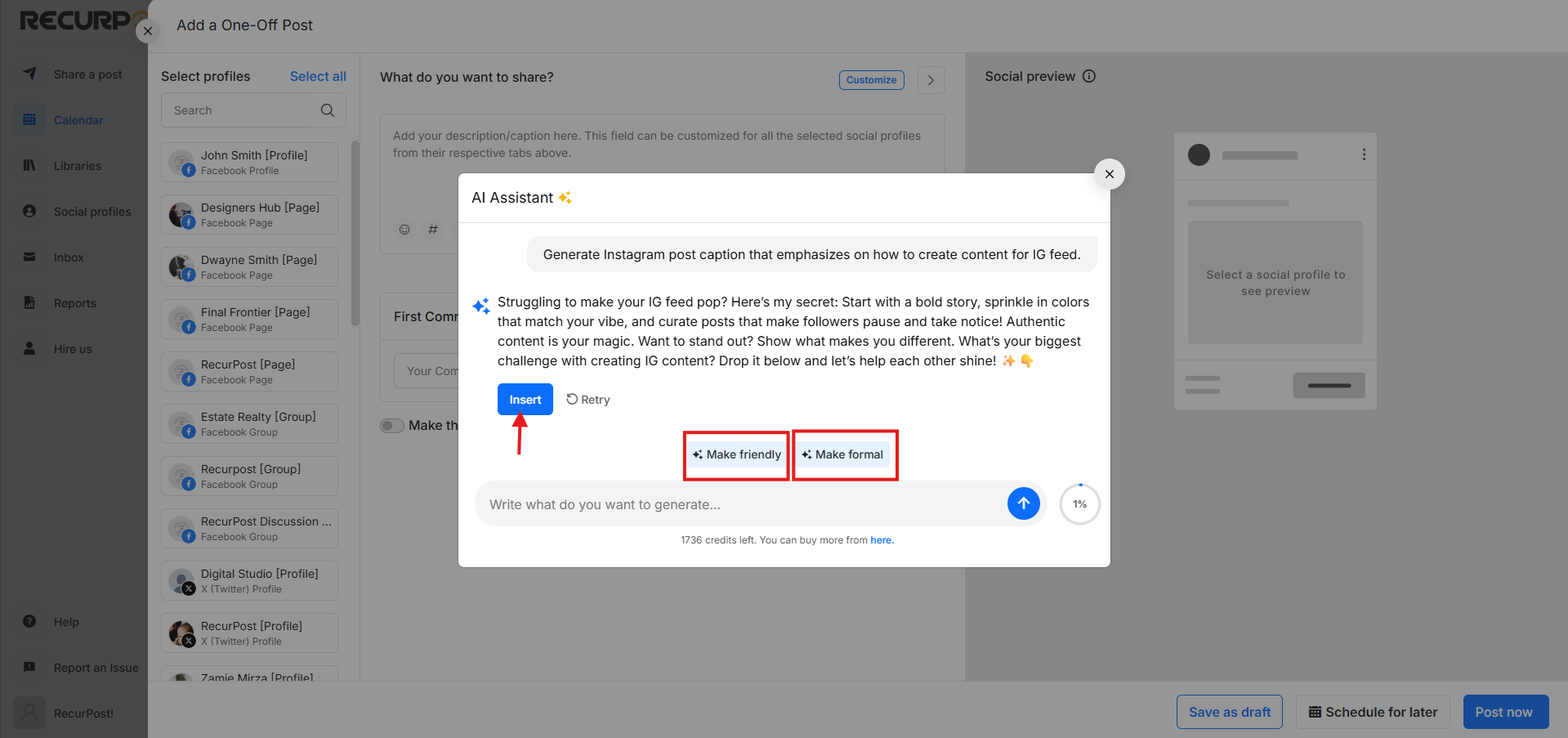
4. Once you’ve finished editing your post, you can select your social profiles and customize it for various platforms. At last, you can choose to either schedule it for a later date, post it immediately, or save it as a draft to revisit later.
Similarly, you can do the same thing when adding your recurring post to the libraries.
Please check out our video tutorial here:
How to generate an image using AI in your post?
AI image generators can create images based on the text you provide. It’s a powerful tool that can turn your ideas into visual representations. With our AI image generator, you can easily generate the perfect image even if it doesn’t exist yet.
Just type in your text prompt, such as “Design an image of an Air Force aerobatic team display in the beautiful sky”. Then, witness your words come to life as beautiful images that can be used for any of your creative projects.
Let’s see how to add an image in RecurPost with the help of AI features in your recurring posts and one-off posts.
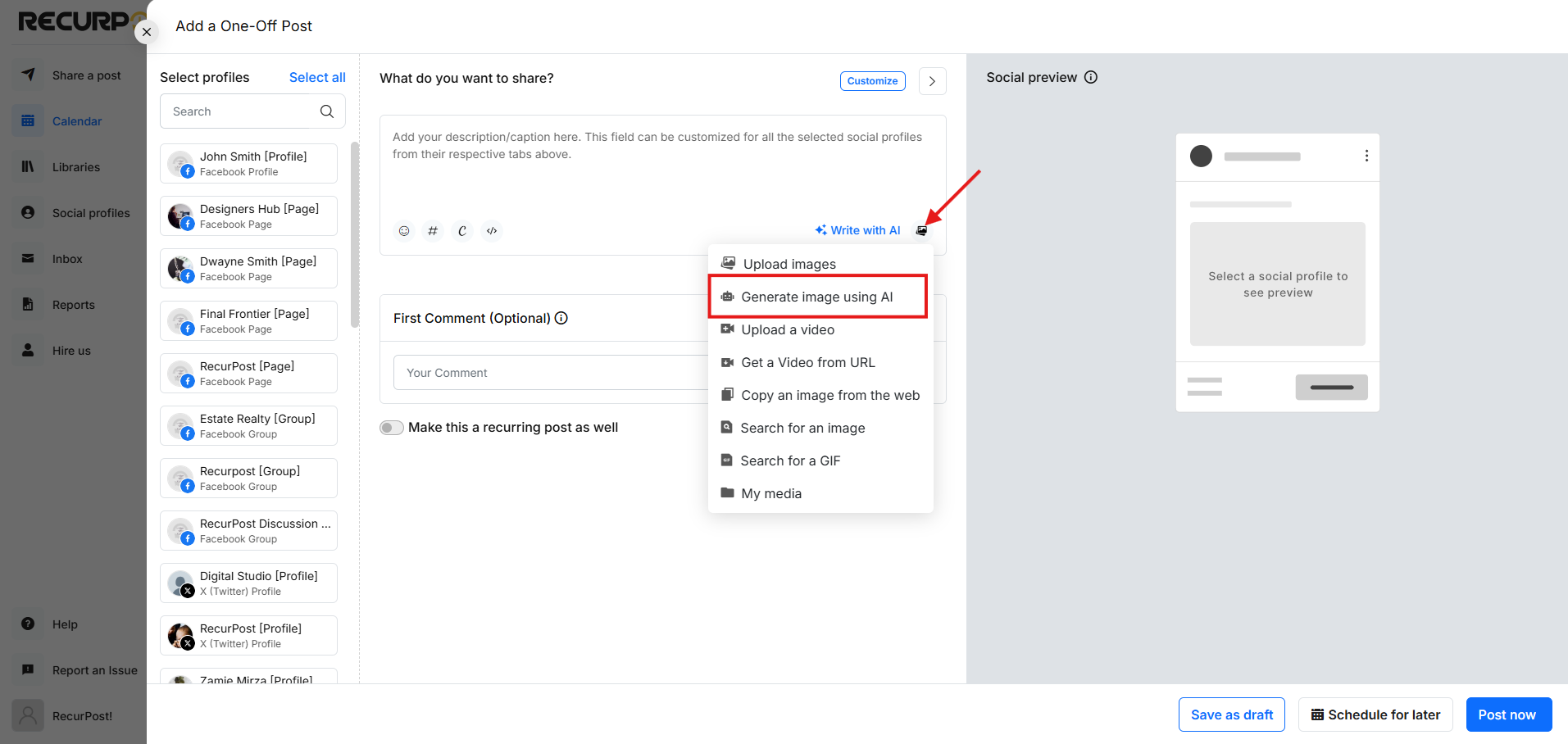
- Start by creating a recurring post or one-off post, click on the image icon, and then choose the “Generate using AI” option.
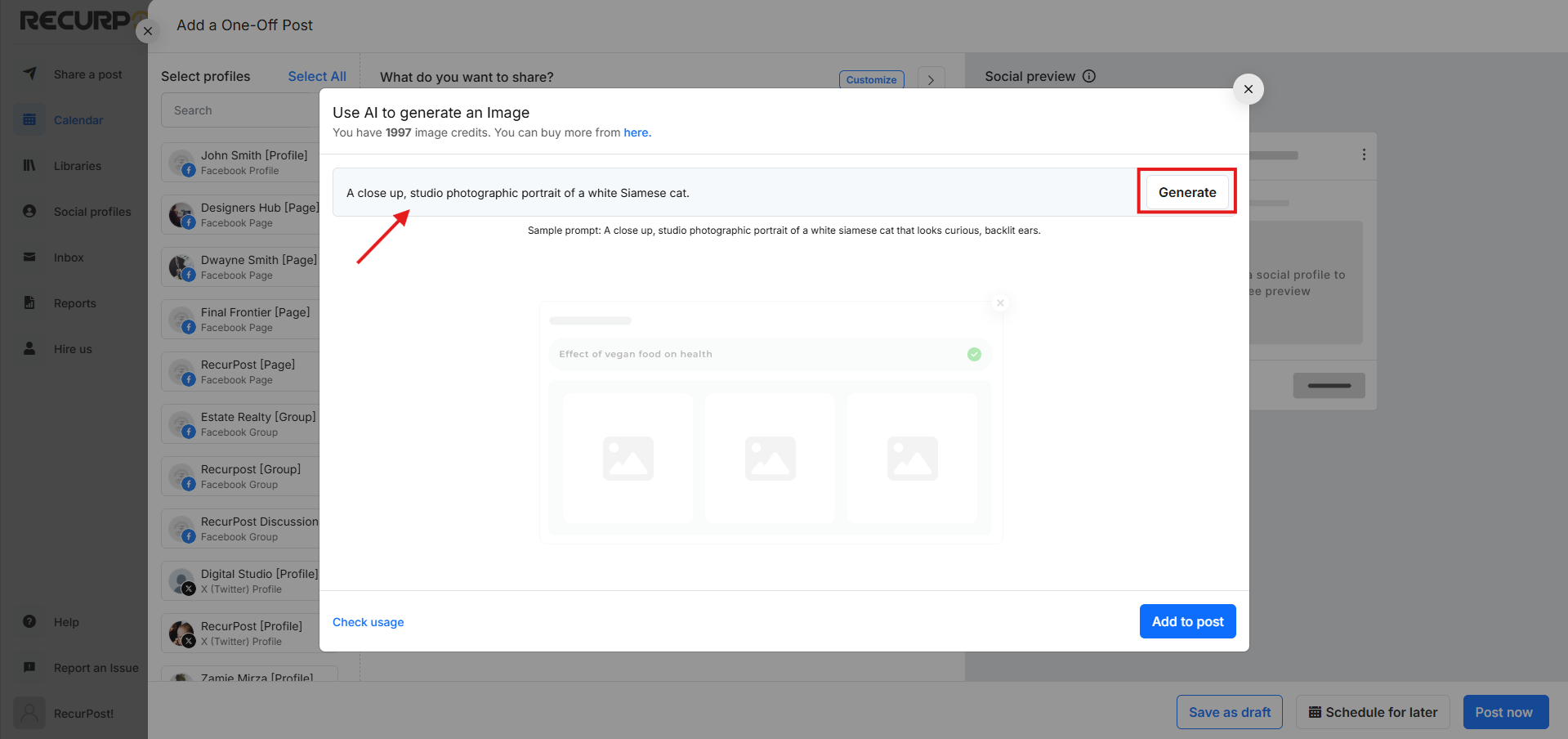
2. Now enter your prompt (text) from which you want AI to generate the image for you, as shown below.
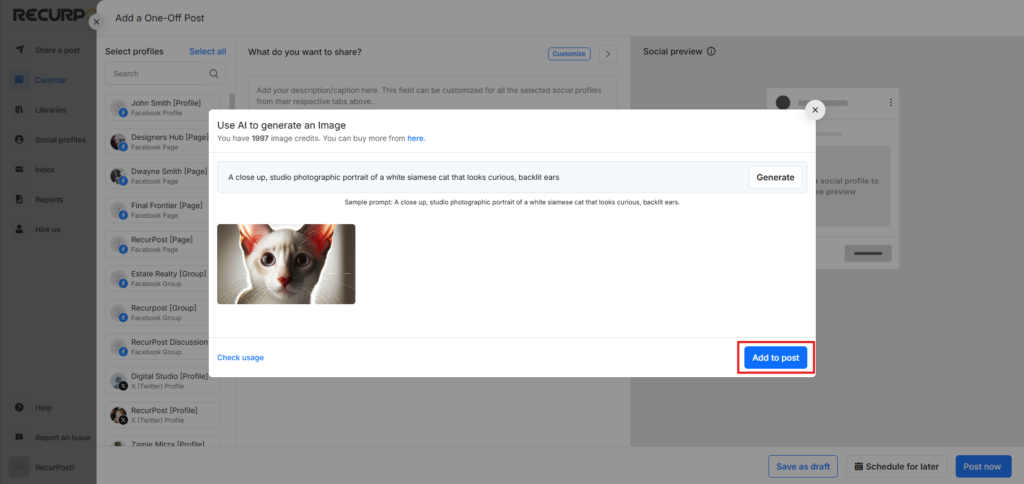
3. Click on Add to Post to upload your image to the post. For recurring posts, it will be saved in your library, and for one-off posts, you can choose either Schedule for Later or Post Now.
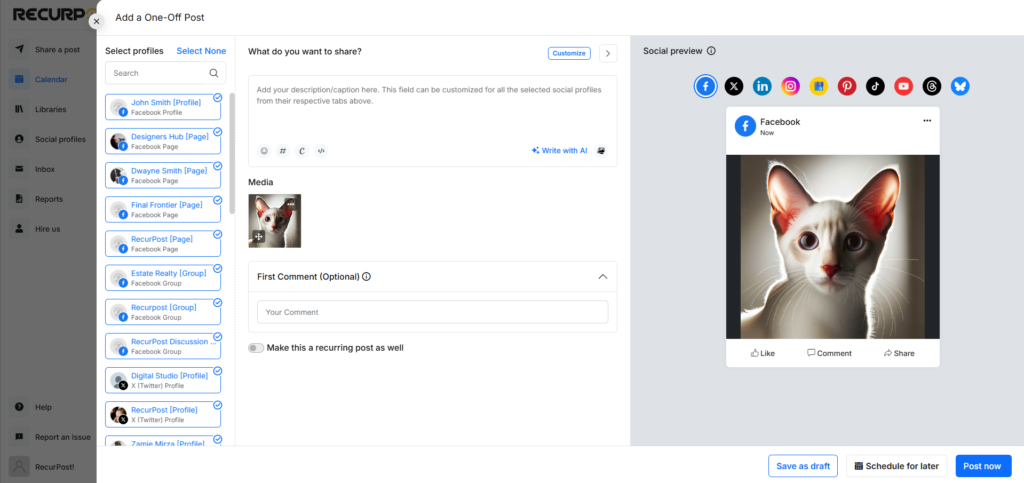
Note: Multiple images can only be added to some of the social profiles. To learn more about the social profiles supporting multiple images in a post you can check out our help page here.
We hope this information is helpful to you. In case you have any questions or need help with AI posting, please reach out to us at support@recurpost.com.