In light of recent changes to Facebook’s API, effective April 22nd, RecurPost has adapted an approach to ensure seamless posting experiences for you. With these changes, third-party apps like ours are no longer able to directly share posts on Facebook Groups. However, we’ve implemented a new method using push notifications to facilitate posting to Facebook Groups. Here’s everything you need to know:
How to Post on Facebook Groups using RecurPost via Push Notification?
Step 1: Install the RecurPost Mobile App
To get started, make sure you have the RecurPost mobile app installed on your phone. You can download it from the App Store (for iOS) or Google Play Store (for Android). Once installed, log into your RecurPost account within the mobile app.
Upon logging in for the first time, you may be prompted to allow notifications from RecurPost. Make sure to grant permission for notifications so that you receive timely reminders when it’s time to post.

Step 2: Schedule Your Posts as Usual
Continue using RecurPost as you normally would. Add your content to the library and schedule your recurring or one-off posts just like before. The only change is in how you’ll post to Facebook Groups.

Step 3: Receive Push Notification
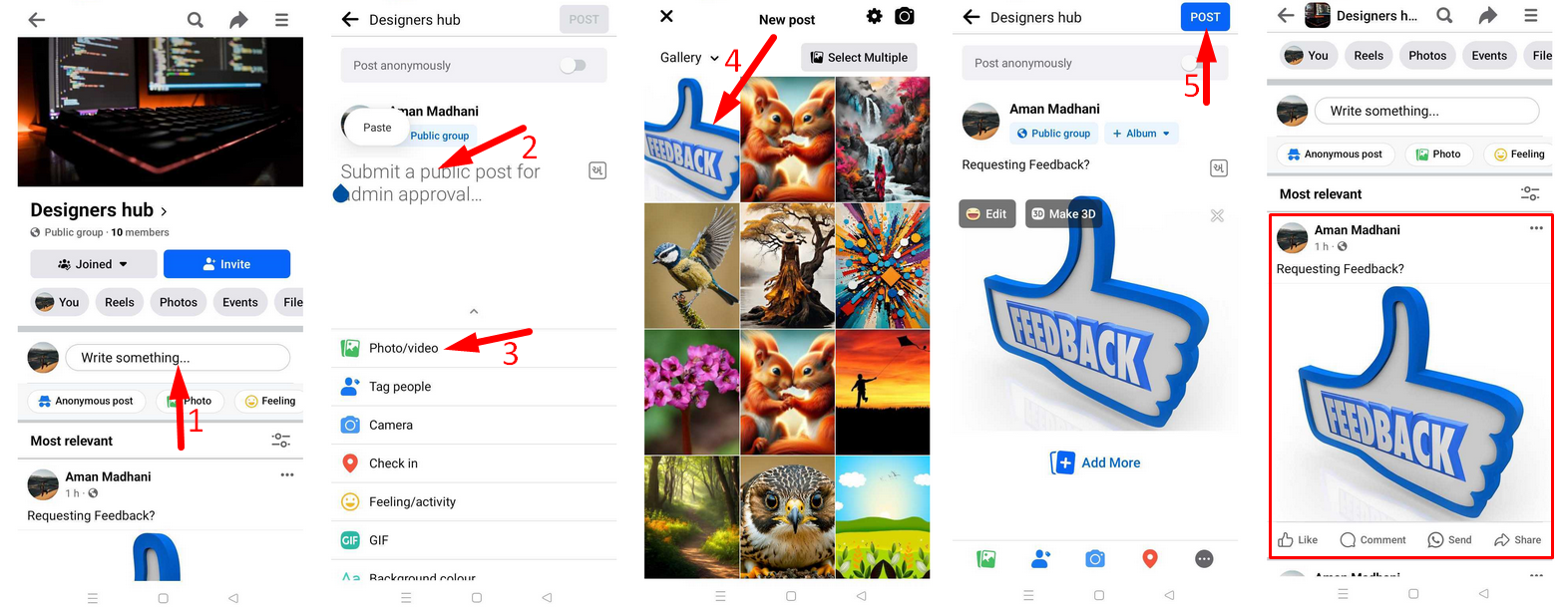
When it’s time to post, you’ll receive a push notification on your phone from RecurPost. Simply tap on the notification to open the RecurPost mobile app. Inside the RecurPost mobile app, tap on “Post Now”. This action will copy the image you’ve added to the post into your phone’s gallery and the text to your phone’s clipboard.


Step 4: Switch to Facebook Mobile App
Upon clicking on “Post Now”, you’ll be directed to the Facebook mobile app. Here, you can upload the image from your phone’s gallery that was copied earlier and you can tap and paste the message from your phone’s clipboard into the caption section.

Step 5: Post Your Content
With the image uploaded and the message pasted, you’re ready to post your content to the Facebook Group. Simply tap on the “Post” button within the Facebook app and your content will be shared with your desired audience.