
RecurPost provides an n8n node, so you can trigger RecurPost actions from an n8n workflow. For example:
- Create content for a client’s social profile inside the RecurPost workspace from n8n workflows.
- Generate images for specific posts on special days and schedule content for social profiles with n8n.
- Choose from a list of RecurPost actions on n8n to automate workflows: add all RecurPost libraries for automation with n8n.
Follow the step-by-step instructions to integrate the RecurPost node into n8n workflows:
Integrate RecurPost node into n8n workfow
A RecurPost node in n8n automates social media tasks inside workflows. Connect your RecurPost account with apps, spreadsheets, forms, CRMs, and AI tools to generate, schedule, and manage content libraries.
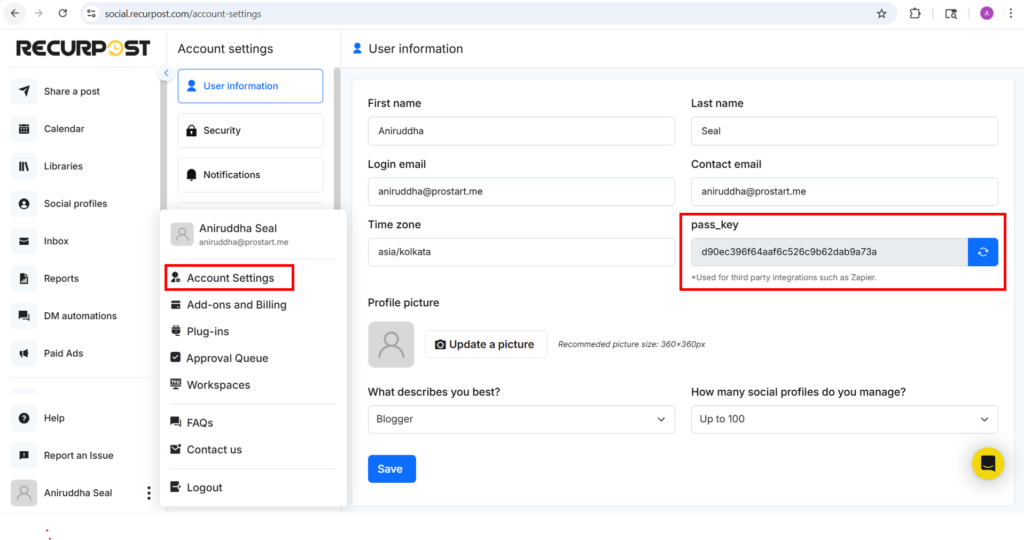
To use the RecurPost app with n8n, you need to verify the integration for safety. Go to your “Account Settings” option on the RecurPost tool to get your unique pass_key (token).
Step 1 – Sign Up or Log In
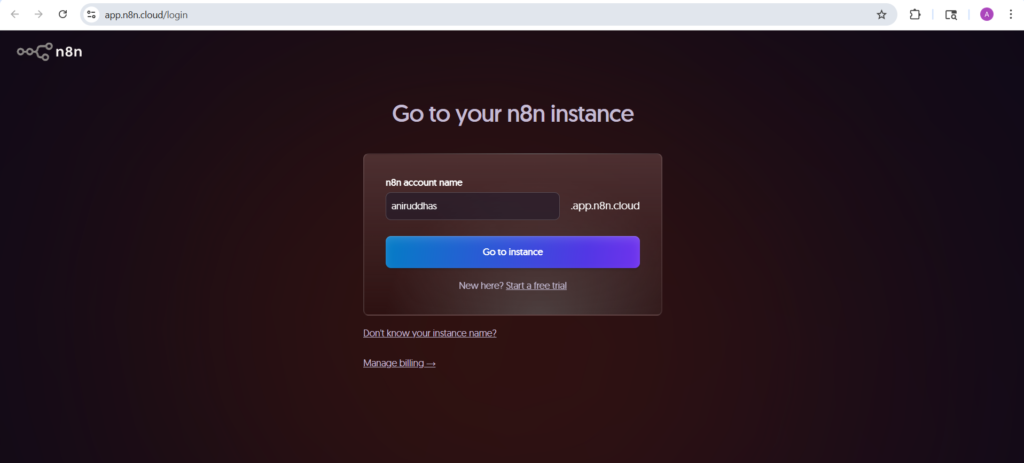
- Keep your RecurPost account logged in and sign up to the n8n platform with your email address and credentials.
- Once the n8n dashboard opens, select the “+” or click the “New workflow” button beside the n8n logo or in the middle of your screen to create your workflows.
- Click the “Add Workflow” option where you want to use RecurPost. You can create new RecurPost workflows or open existing workflows where you want to use RecurPost for 1 time.
Step 2 – Create n8n Workflow
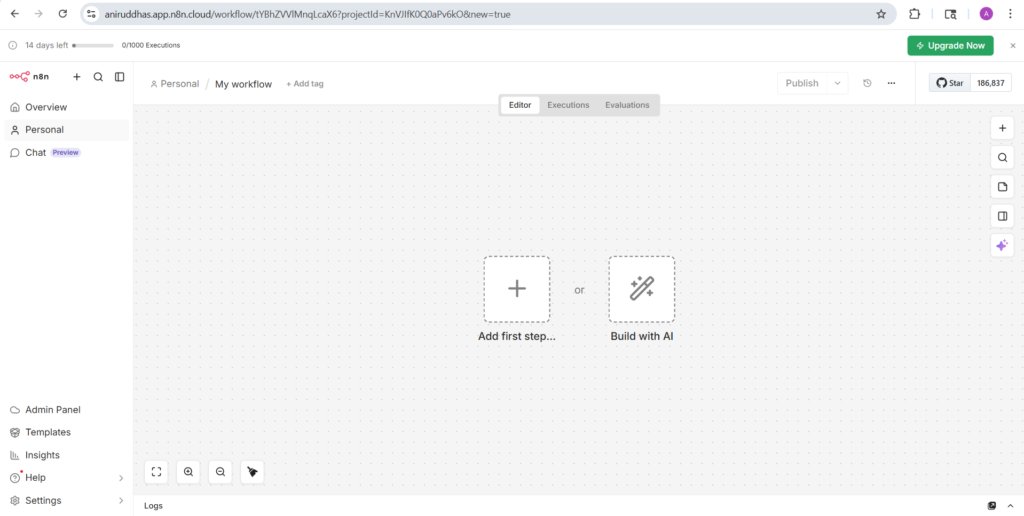
- The “My Workflow” dashboard will open once it is created. Select the “+” button on the top right-hand side of your screen. This is the standard method to add nodes in n8n.
- The Nodes panel will open.
Step 3 – Search for RecurPost
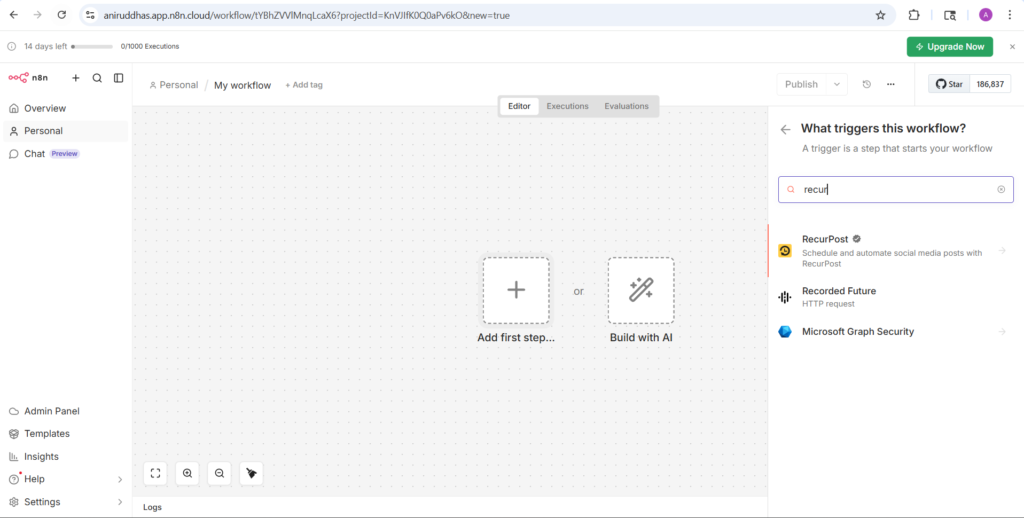
- Type RecurPost in the Nodes panel search bar. Select the verified RecurPost node from the list. A verified node comes with a badge in the search panel.
- Another way to identify a verified node in n8n is to check the icon, as shown in the image right below the tool/app name and logo on the top right-hand side of the screen.
- If you hover over the verified icon, a message appears: “This node has been reviewed and approved by n8n,” along with the tool owner’s name beside the badge.
Step 4 – Add New Credentials (Tokens) and Install Node
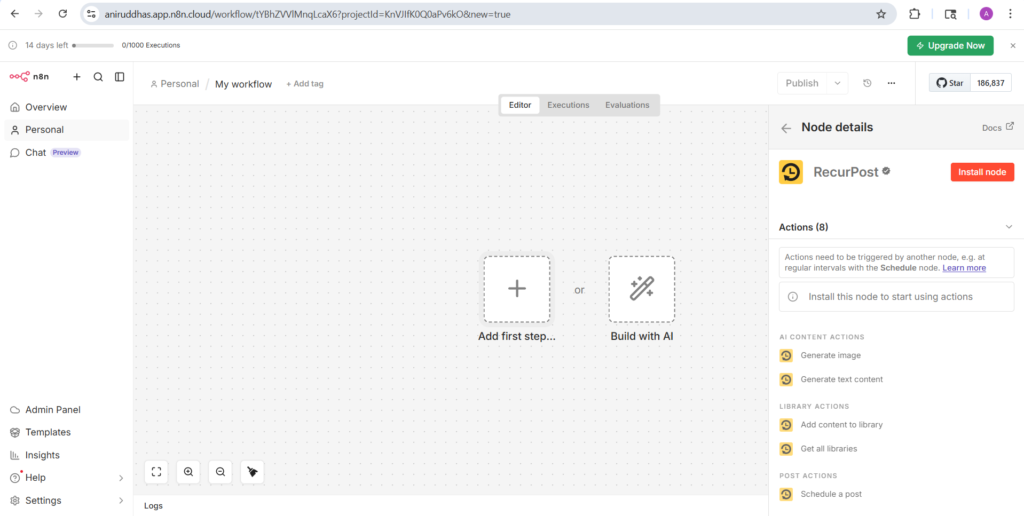
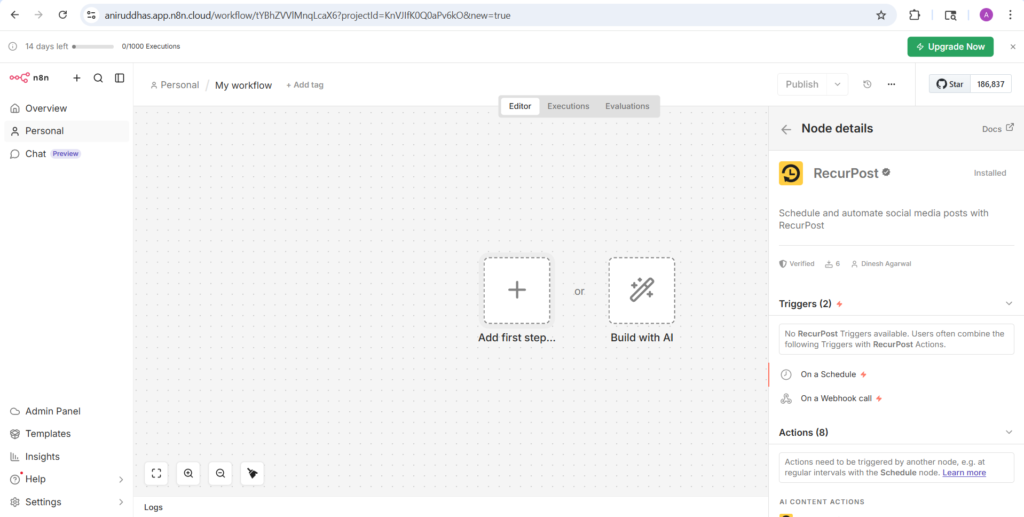
- Select the icon and click on the “Install node” button (red color) right next to it.
- When you install a node and open it for the first time on n8n, the platform asks you for credentials and also shows node details.
- There is an option to create credentials and connect third-party accounts (RecurPost).
- Use your email ID to fill in the user name.
- Copy and paste the pass_key (token) from RecurPost and use it as your password (check the image below, RecurPost + n8n heading).
- Complete the authentication process and save the credentials.
Step 5 – Choose a RecurPost Action in n8n
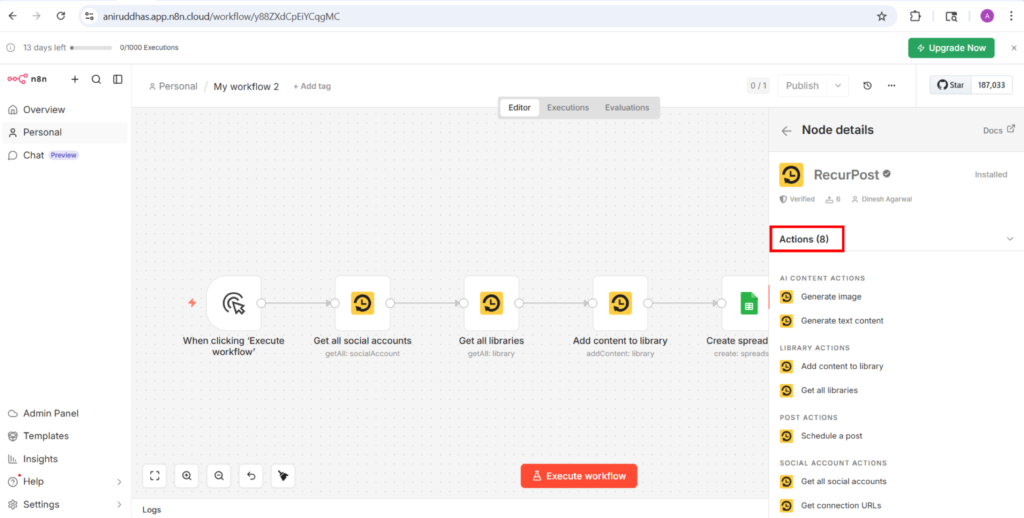
Inside the RecurPost node, you can select from 8 different types of action to add to your workflow. The 8 actions are subdivided into 4 categories. To set up actions one by one, you have to specify all “Parameters” within the action.
The 8 types of actions for the RecurPost node include:
1. AI Content Actions
- Generate image – You can use RecurPost’s AI image generator to create images in n8n workflows.
- Generate text content – You can use RecurPost AI credits to write text captions for your posts on social profiles with n8n workflows.
2. Library Actions
- Add content to the library – Copy and paste any URL to the parameters section within this action, and the content will be added to the selected RecurPost library.
- Get all libraries – This action lets you connect all your RecurPost libraries into an n8n workflow.
3. Post Actions
- Schedule a post – Add a blog to your WordPress account and schedule it with RecurPost for your social profiles through n8n workflows.
4. Social Profile Actions
- Get all social profiles – All social profiles connected within the RecurPost platform will appear on the n8n workflow once you perform this action.
- Get connection URLs – You will get a list of the URLs used in your RecurPost social profiles.
- Get posting history – Get a complete overview of the RecurPost posting history to your social profiles with this action on n8n.
When you add an action, it appears on your editor dashboard (check the images below for example). RecurPost and n8n will validate the action based on your plan, and it will work. In case of any errors, n8n will email error notifications or display specific errors on its dashboard.
Step 6 – Connect Many Nodes in Your Workflow
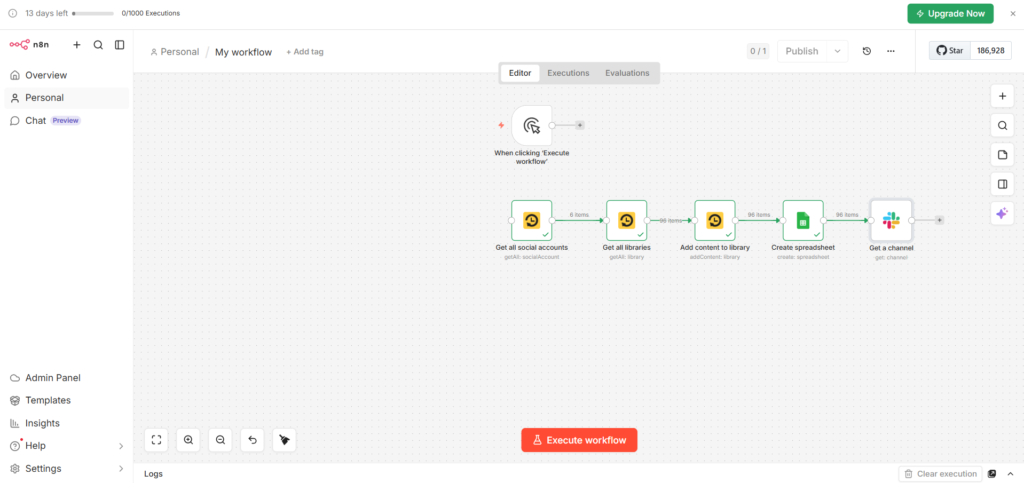
- Connect RecurPost with other apps inside workflows.
- Click on the “+” button beside the Slack logo on your editor (workflow) dashboard.
- The Nodes panel will open.
- Select any nodes (apps/tools) from the list or manual search.
- Add it to the existing workflow in a sequence.
This allows you to connect and automate your RecurPost social profiles and libraries with 1000+ third-party tools.
Example:
Google Sheets – RecurPost – Slack
RecurPost can fetch content ideas from different Google Spreadsheets. It can create captions on the RecurPost platform with its AI features and notify teams in Slack.
Step 7 – Test and Start the Workflow
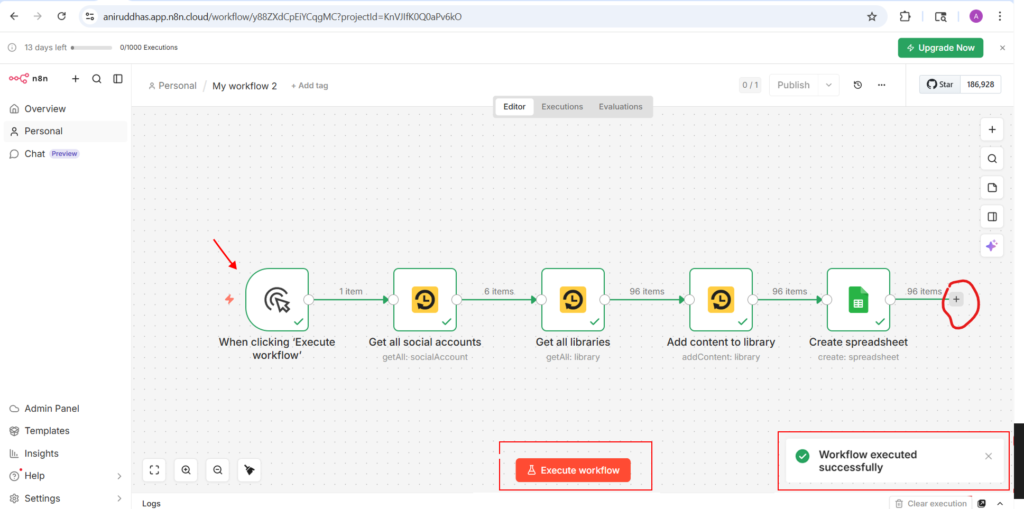
- You can execute a single action with a single step or automate (start) the whole workflow with one click.
- Maintain a sequence.
- For example, click on the “+” button after every action in your workflow dashboard (Editor section) to get a valid input (as shown in the image below).
- To include an individual RecurPost action into your existing workflow, select all “Parameters” first (as shown in the image below).
- Check if the “Input” tab shows data.
- Click on the “Execute Step” button (shown in the image below).
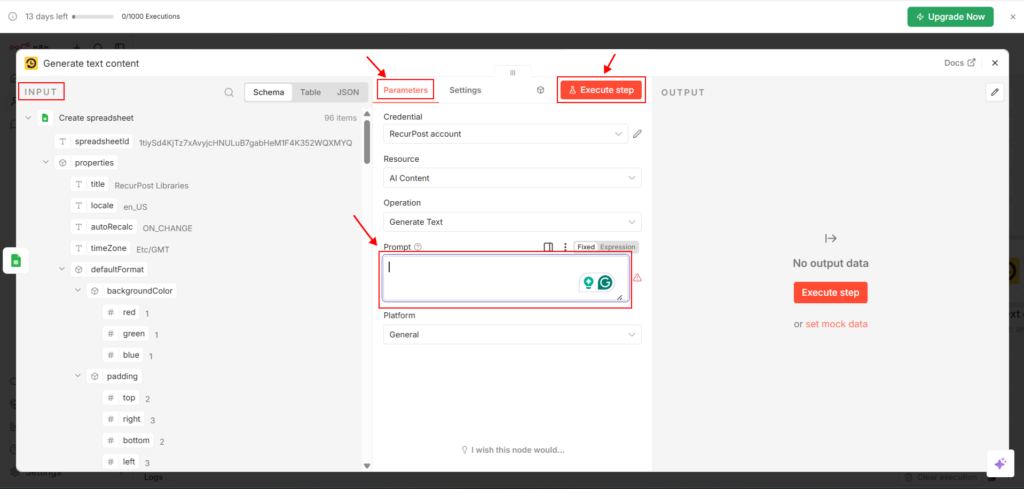
- The green tick for each action, along with the number of items for specific actions, shows that data flow (input) is working inside your workflow.
- It is now ready for automation.
- Click the “Execute Workflow” button to start the automation. This is a test method to confirm that data moves correctly into RecurPost.
- Switch the workflow to “Active” to run it automatically.
This is the easiest way to automate your workflow for RecurPost with n8n nodes. For more queries, contact us at support@recurpost.com.