
What are Social Profiles Filters in RecurPost?
The Social Profiles page in RecurPost is where you connect, view, and manage all your social profiles.
With the latest update, this page now includes clearer filters so you can see:
- How many profiles do you have per network
- Which profiles are active, paused, or need reconnection
These changes make it much easier to scan your setup and spot what needs attention.
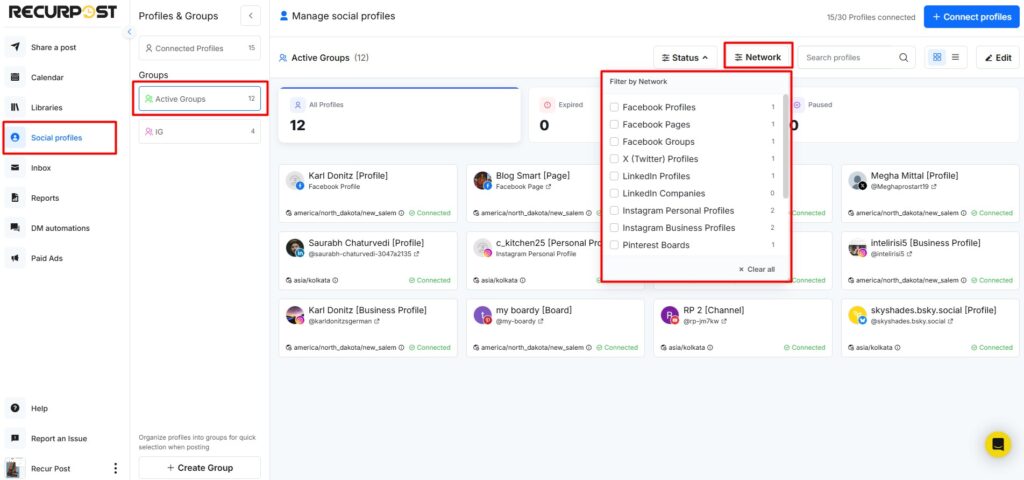
1. “All Networks” Filter with Profile Counts
At the top of the Social Profiles page, you’ll see a filter for All Networks.
Each network now shows a count next to it, such as:
- Facebook Profiles (1)
- Instagram Personal Profiles (2)
- LinkedIn Profiles (5)
This view gives a quick snapshot of how many profiles you have plugged into RecurPost for each platform.
2. “Profile Status” Filter
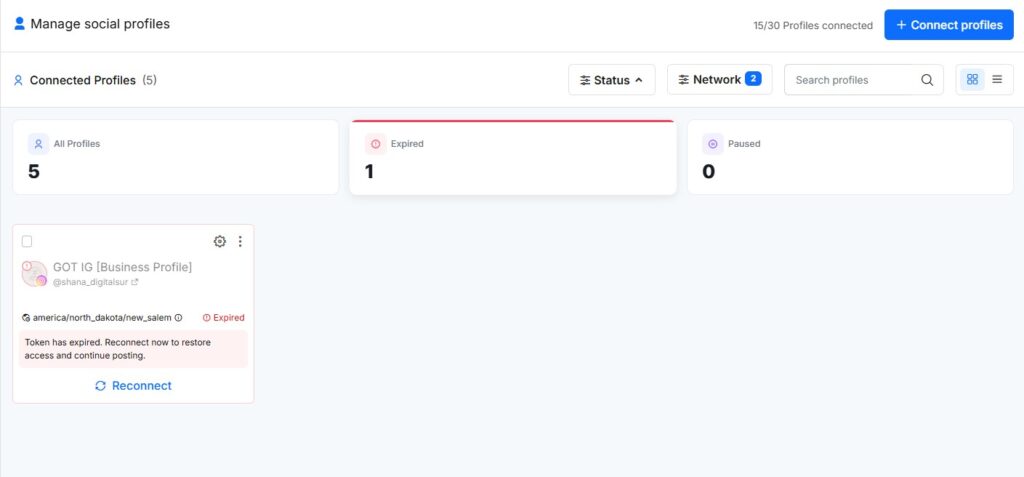
Next to the network filter, you’ll find a Profile Status filter. This lets you narrow down profiles by their current state:
- All Profiles: Shows every connected profile for the selected network, including Active, Expired and Paused.
- Active Profiles: Profiles that are connected and ready to publish.
- Paused Profiles: Profiles that are temporarily paused inside RecurPost, so no posts go out from them.
- Expired Profiles: Profiles that need you to reconnect them because tokens have expired or permissions have changed.
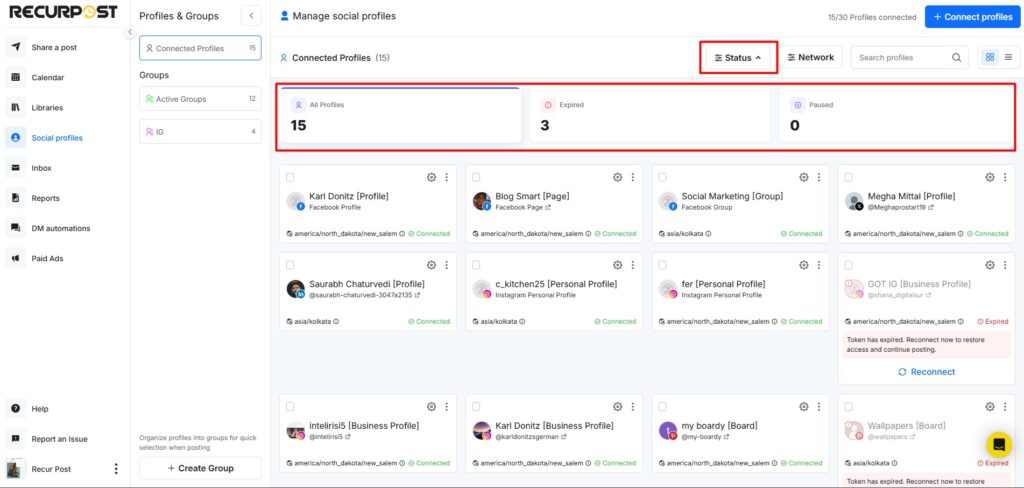
This makes it easy to:
- See which profiles are ready to post
- Spot any that need your attention
- Review paused profiles at a glance
Where to Find and Use These Filters?
1. Go to Social Profiles from the left sidebar in RecurPost.
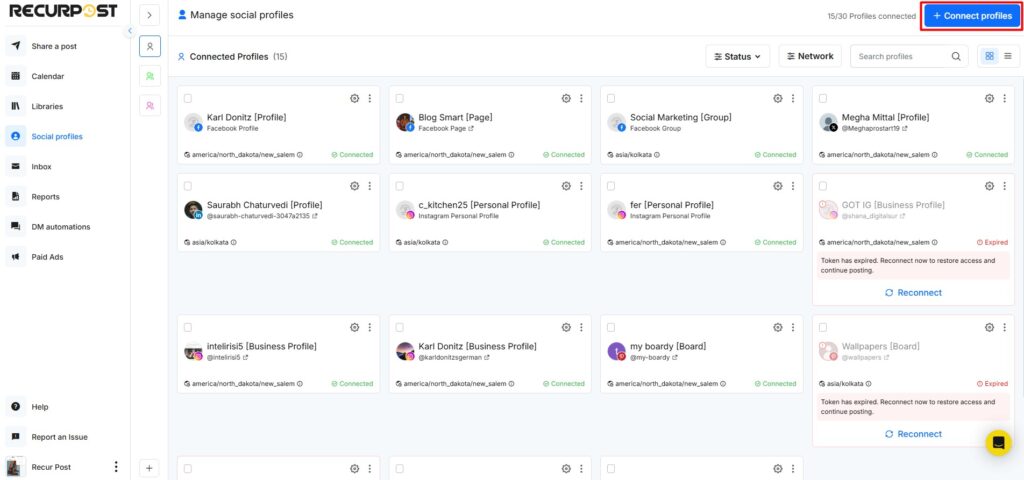
2. At the top of the page, use:
- The “Network” filter to pick a platform and see its profile count.
- The “Status” to see active, paused, or reconnection-needed profiles
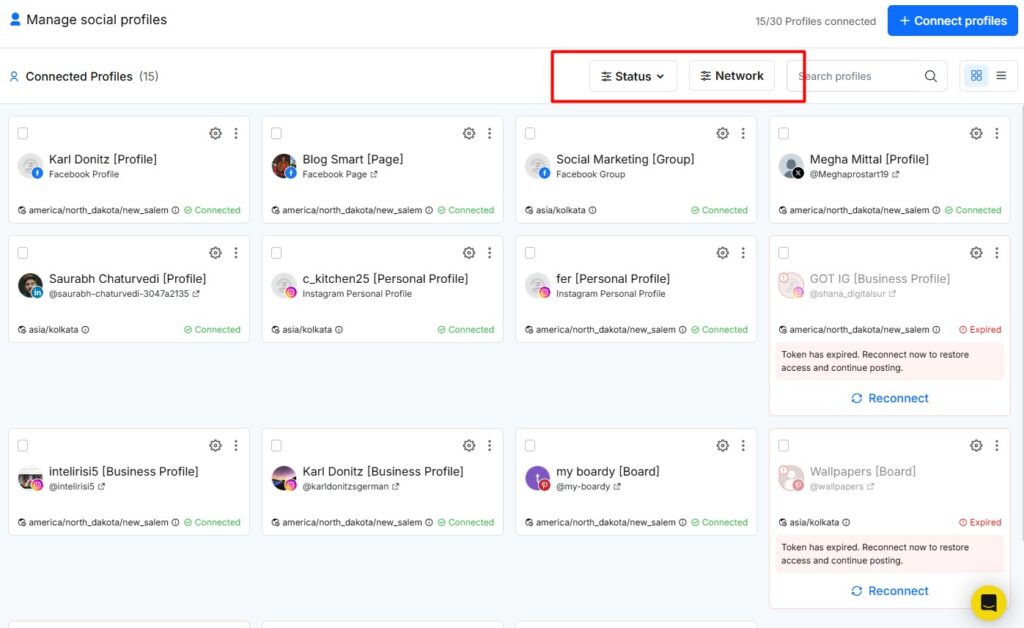
3. You can mix both filters. For example:
- Network: Instagram
- Status: Expired
This will show only Instagram profiles that need you to reconnect with them.
Why Pinterest Counts Might Look Different?
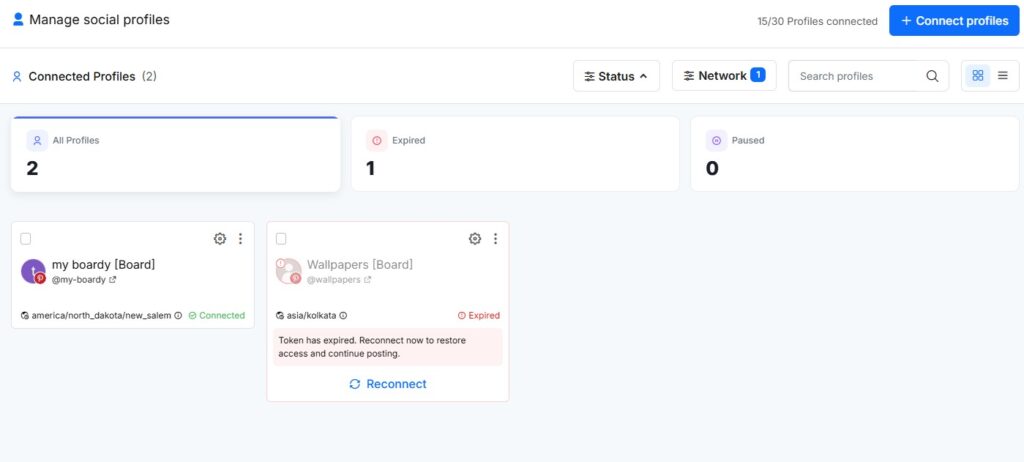
Pinterest works a little differently. If you connect multiple boards from the same Pinterest profile:
- The filters show each board as a separate profile (so the count goes up).
- Your plan usage still treats this as one Pinterest profile.
So you might see:
- Pinterest (5) in the filter (5 boards added)
- But on your plan, this still counts as 1 social profile.
This is expected behavior and not a bug. The filters are designed to show everything you manage, while the plan count tracks how many account slots you are using.
Frequently Asked Questions
1. Why do I see more profiles in the filter than on my plan usage?
This usually happens with Pinterest boards. Boards appear as separate profiles in filters, but your plan counts the Pinterest profile only once.
2. Does changing filters affect posting or my plan?
No. Filters are just a viewing tool. They do not change:
- Your plan
- Your posting limits
- Your schedule
3. How do I fix profiles marked as “Reconnection Required”?
On the Social Profiles page:
- Switch the Profile Status filter to Reconnection Required.
- Click Reconnect under each profile that appears.
- Approve all permissions on the native platform (Facebook, Instagram, LinkedIn, etc.).
Once done, the profile will move back to Active Profiles.