
Click Tracking shows how many times people click the links shared in posts published from RecurPost. When Click Tracking is turned on, RecurPost shares a shortened link and counts clicks on that short link.
What is Click Tracking?
Click Tracking is a feature that shortens a link and counts clicks on that shortened link. It keeps long URLs clean and makes click counts visible inside RecurPost.
Click Tracking is useful for:
- Seeing which posts get more link clicks
- Comparing click results across different social profiles
- Checking which links are getting attention
Where Click Tracking works
Click Tracking now works in both places below:
- Post caption (main post text)
- First comment
If a link is shared as a RecurPost short link in either place, clicks on that short link are counted.
How to Enable Click Tracking?
Click Tracking can be turned on in two ways.
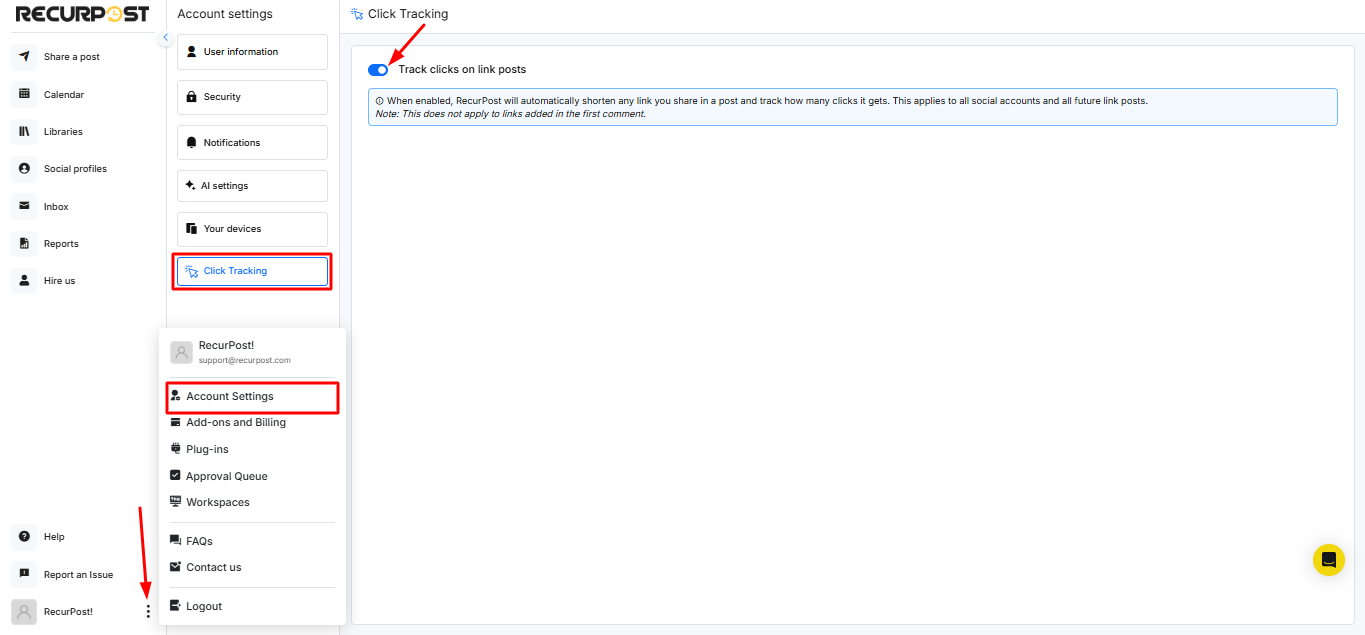
1. Global Click Tracking (for all connected social profiles)
When this is ON, links shared from RecurPost are shortened and tracked across all connected social profiles.
Steps to enable:
- Go to Account Settings → Click Tracking.
- Turn ON Global Click Tracking.
Use this if you want a universal tracking setup across all accounts.
2. Per-Social Profile Click Tracking (for selected profiles only)
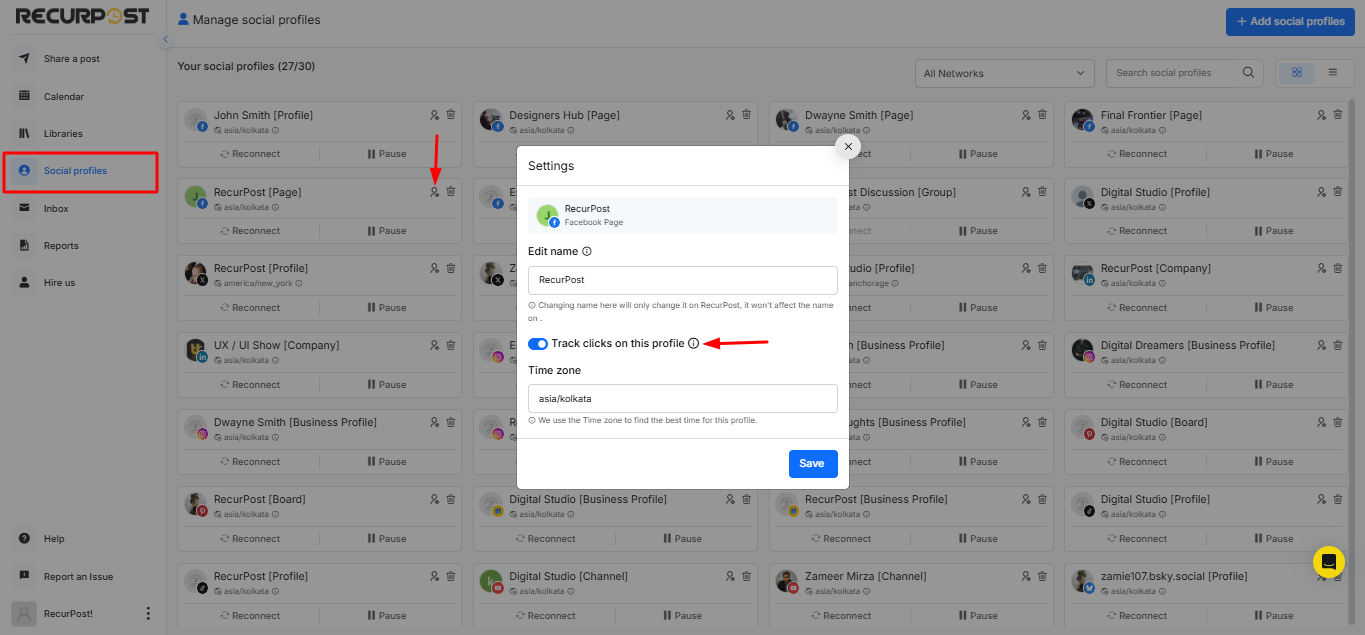
This keeps tracking limited to specific social profiles.
Steps to enable:
- Go to Social Profiles.
- Select a profile → open Settings.
- Turn ON Track clicks on this profile.
Use this if you want to analyze clicks account by account instead of globally.
Which setting takes priority?
- Global ON → tracking runs across accounts
- Global OFF + profile tracking ON → tracking runs only for that profile
- Both enabled → profile-level setting takes priority
How to track clicks in a post
Once Click Tracking is enabled, add a link in the caption and/or first comment.
Track clicks from the caption
- Create a post (or open an existing one).
- Paste the link in the caption.
- Publish/schedule the post.
Track clicks from the first comment
- Create a post (or open an existing one).
- Add the link in the First Comment area (the comment that publishes right after the post).
- Publish/schedule the post.
This keeps tracking active even when the link is placed in the first comment instead of the caption.
Where to view click counts
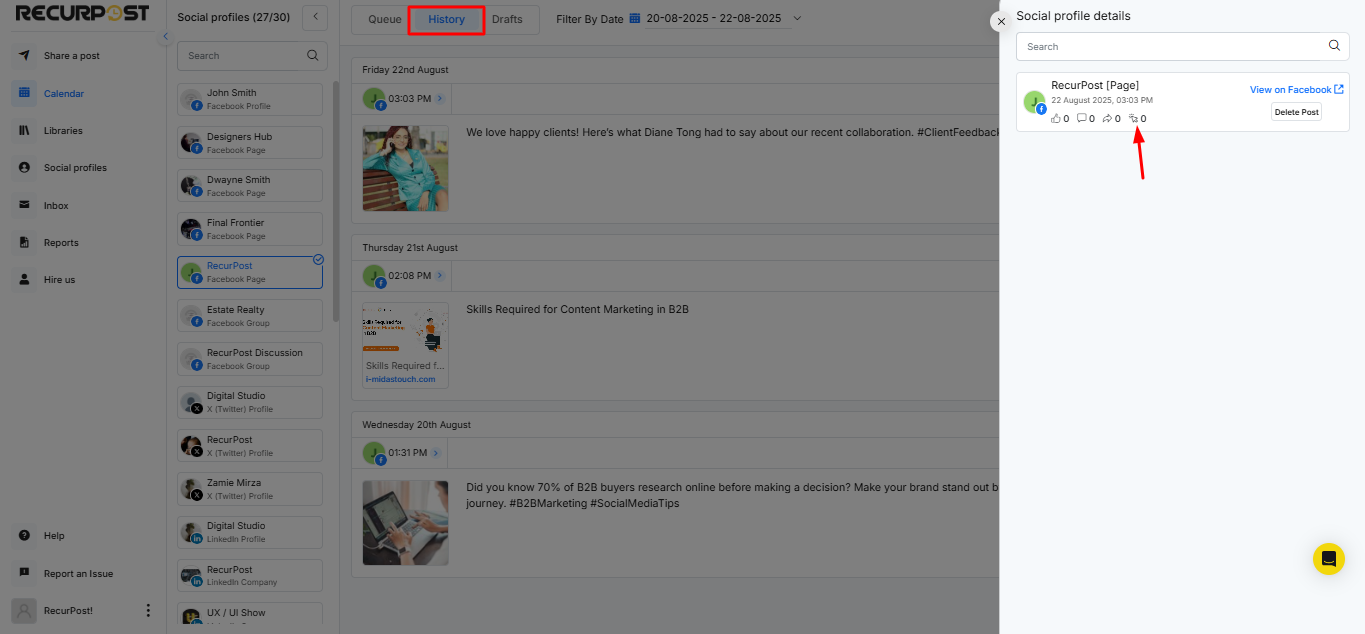
Click counts appear in the History area of the Calendar.
Steps:
- Go to Calendar → History.
- Open a published post entry to see metrics such as:
- Likes
- Comments
- Shares
- Link Clicks
This allows you to see exactly how many people clicked on the links in each post.
How Click Tracking Works (summary)
- Global tracking counts short-link clicks across accounts when enabled.
- Profile tracking counts short-link clicks only for selected profiles when enabled.
- Click Tracking now counts RecurPost short-link clicks from caption + first comment (page update).
Note: Click Tracking does not apply to links added in the first comment of a post. Only links included in the main post text (caption) are tracked.
Here’s a video tutorial on how to set up Click Tracking:
With Click Tracking in RecurPost, you no longer have to guess how your posts are performing; you get clear, trackable data that helps you grow smarter and faster.
Frequently Asked Questions
Q1. Where can Click Tracking be turned on?
Click Tracking can be turned on from Account Settings → Click Tracking (global), or inside Social Profile settings (per profile).
Q2. Where are link clicks shown?
Link clicks are shown in Calendar → History, inside the published post metrics list.
Q3. Does Click Tracking work for links in the first comment?
Yes. Short URL click tracking works in the caption and the first comment (latest update). The older note that excluded first-comment links is no longer valid.
Q4. Does this change the original link on the device?
No. Click Tracking works on the version shared from RecurPost, while the original link stays the same.
Q5. Clicks are not showing—what to check first?
- Click Tracking is OFF (global and profile-level)
- The post was not published from RecurPost
- The link was added outside the caption/first comment areas