
YouTube reaches billions of logged-in users each month, and video content can surface beyond the YouTube app (including in Google Search results, depending on how it’s indexed and displayed).
RecurPost supports scheduling YouTube uploads so videos can be planned in advance and published consistently without needing to manually upload each time.
What can be published from RecurPost?
RecurPost supports scheduling:
- Long-form YouTube videos
- YouTube Shorts (posted automatically based on the video format and length)
Two posting styles are available:
- One-off posts (post once)
Useful for a single scheduled upload (for example, a weekly episode or announcement). - Library-based recurring publishing (repeat on a schedule)
Useful for evergreen videos that should rotate over time (for example, older tutorials, product demos, FAQs). Libraries can be filled in multiple ways, then shared using recurring time slots.
Video and Shorts requirements
Shorts vs standard video
How YouTube decides a Short (important update):
For most standard channels, YouTube categorises a video as a Short if:
- It was uploaded on or after 15 October 2024, and
- It has a square or vertical aspect ratio, and
- It is up to 3 minutes long.
RecurPost also notes that vertical videos up to 3 minutes are treated as Shorts when posted.
Aspect ratio and resolution
- On desktop, YouTube’s standard viewing aspect ratio is 16:9, but other aspect ratios are supported and the player adjusts automatically.
- YouTube recommends at least 1280×720 for content in 16:9, but does not set a single minimum resolution for all videos.
Video length limits
- By default, YouTube uploads are limited to 15 minutes until the account is verified.
- Verified accounts can upload longer videos, up to 12 hours or 256 GB (whichever is less).
Music note for longer Shorts
If a Short is over one minute and has an active Content ID claim, YouTube may block it globally (no channel penalty, but the video won’t play until it is resolved). This is a YouTube rule, not a RecurPost setting.
Connect a YouTube channel in RecurPost
To connect a YouTube channel:
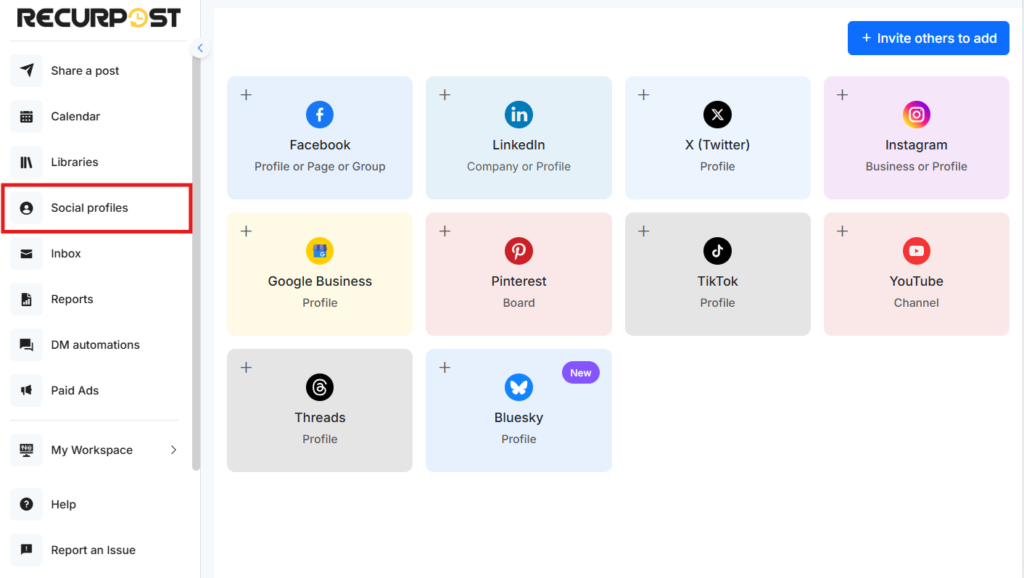
1. Open Social Profiles in RecurPost.
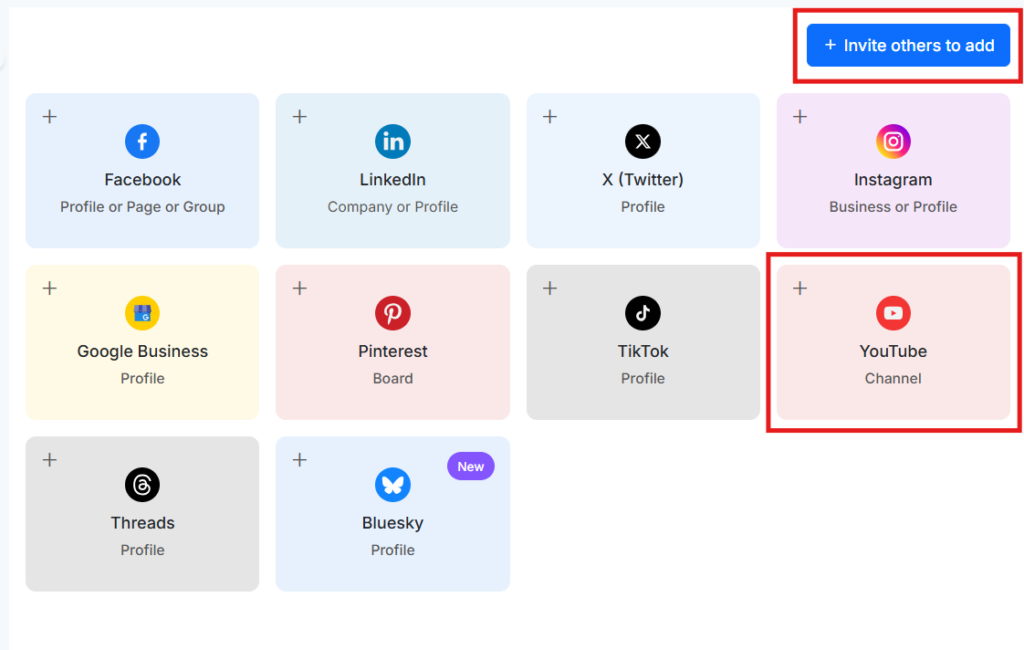
2. Select YouTube (or invite others to add their YouTube account).
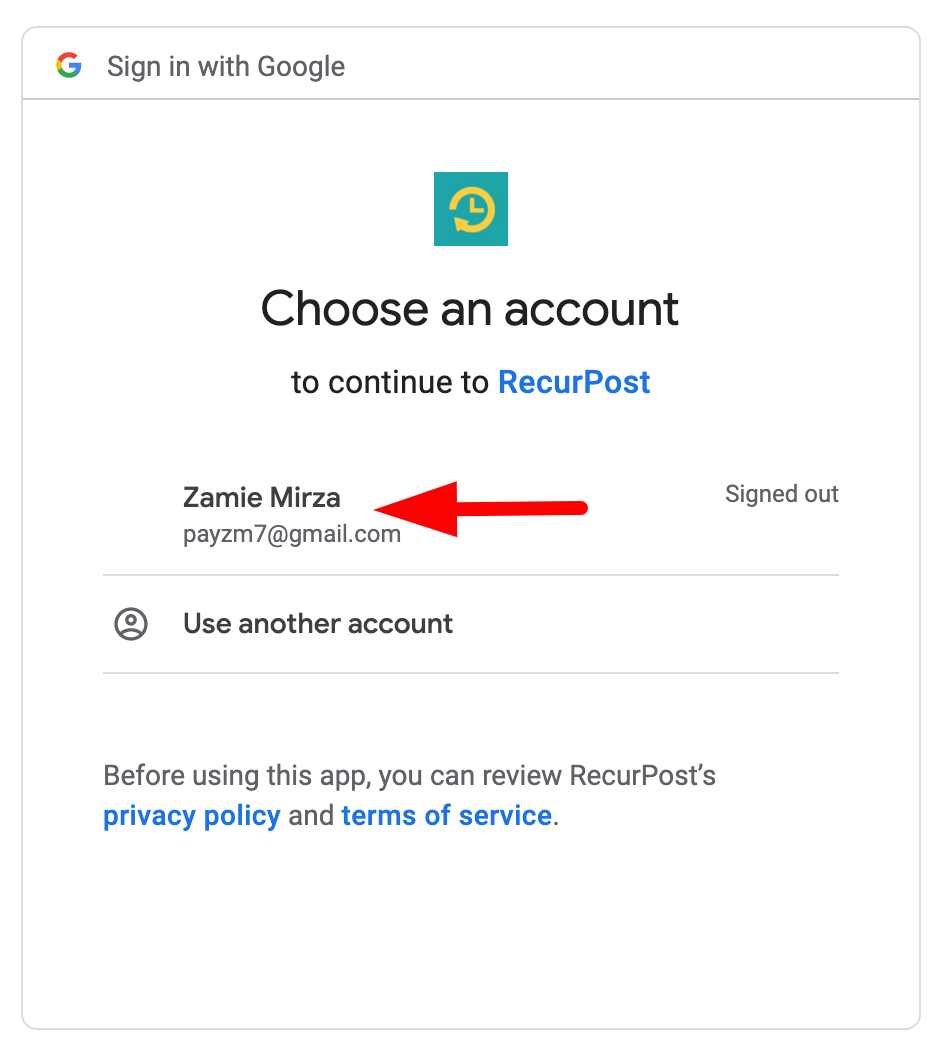
3. Complete the sign-in flow (select the account linked to the YouTube channel).
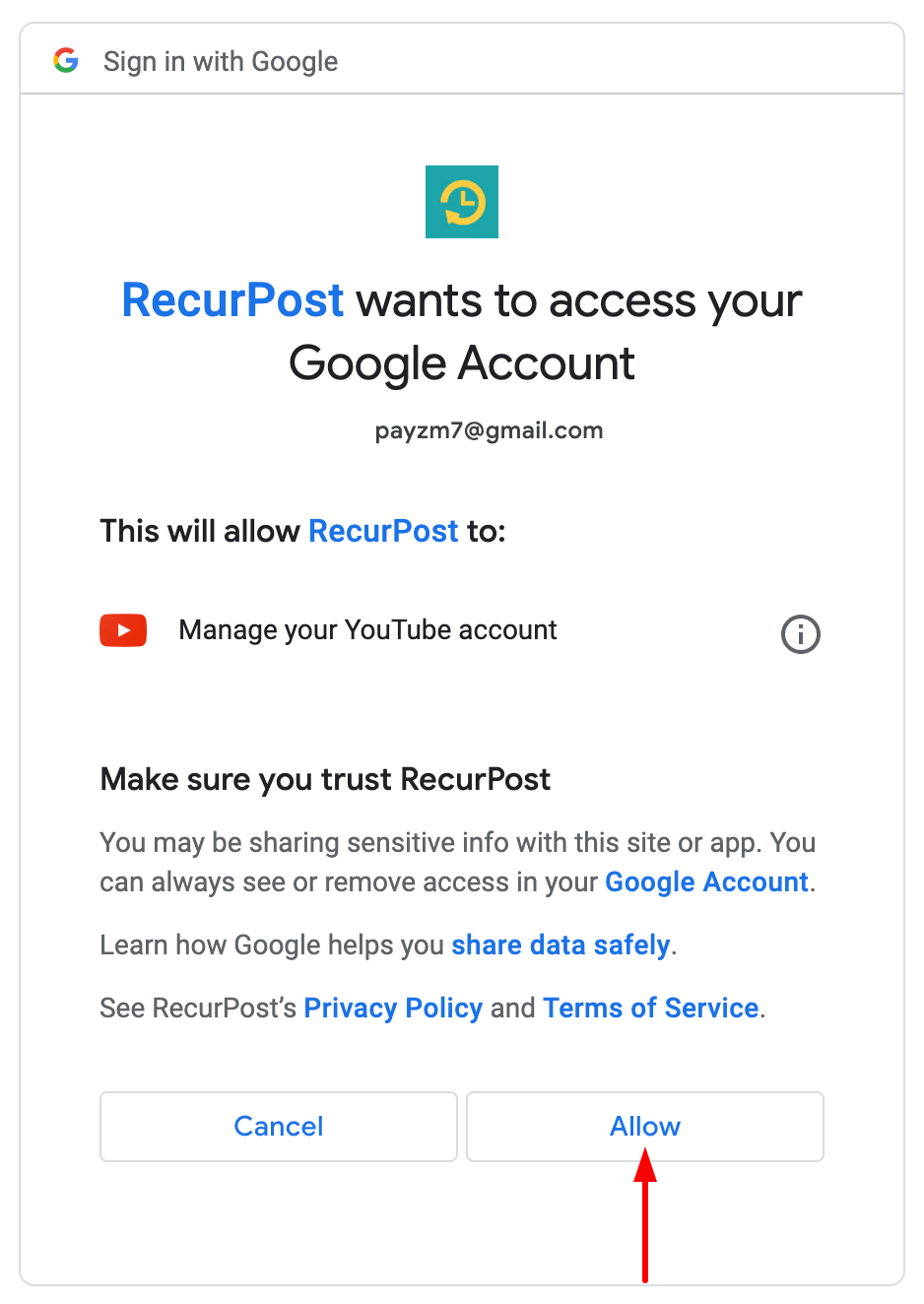
4. Approve the requested permissions so RecurPost can schedule posts to the channel.
5. Confirm the connection message once the channel is added.
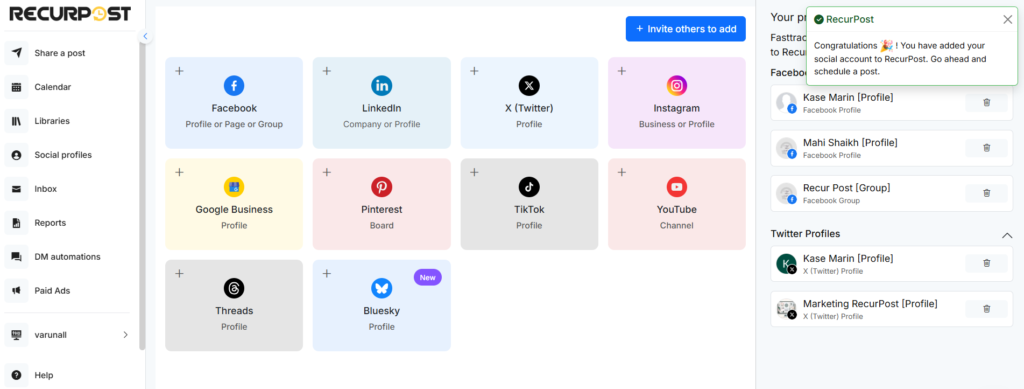
Note: RecurPost does not save personal data or login credentials during this connection process.
Schedule a YouTube video or Short
Schedule a one-off post
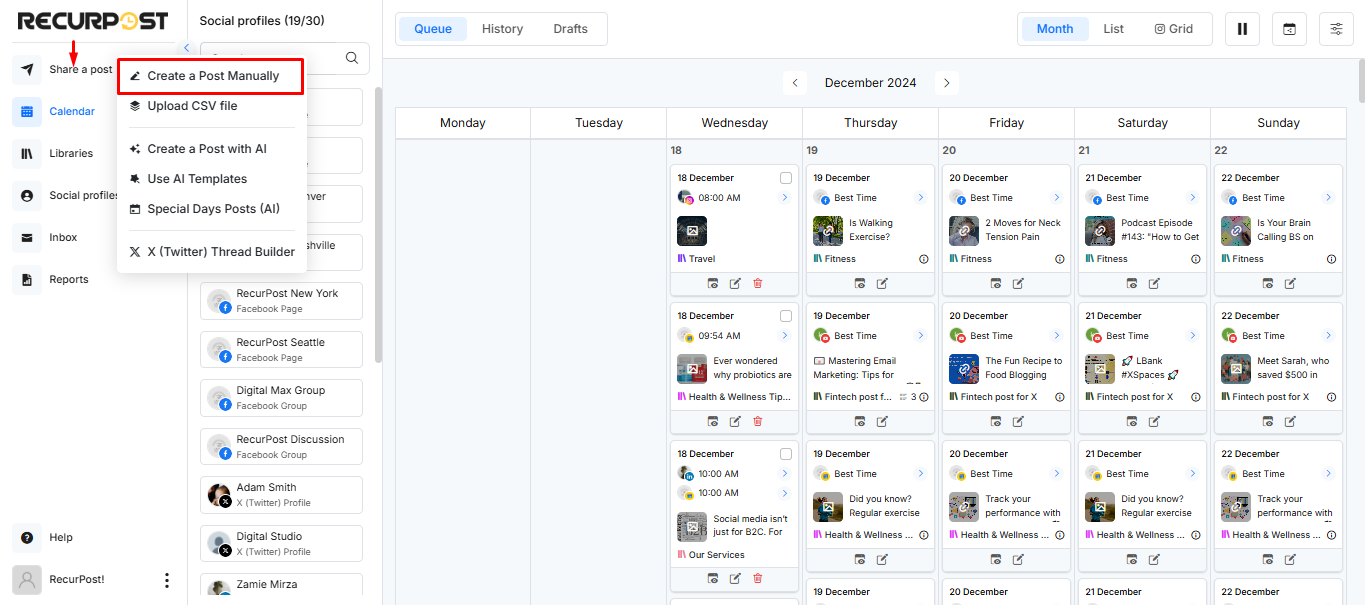
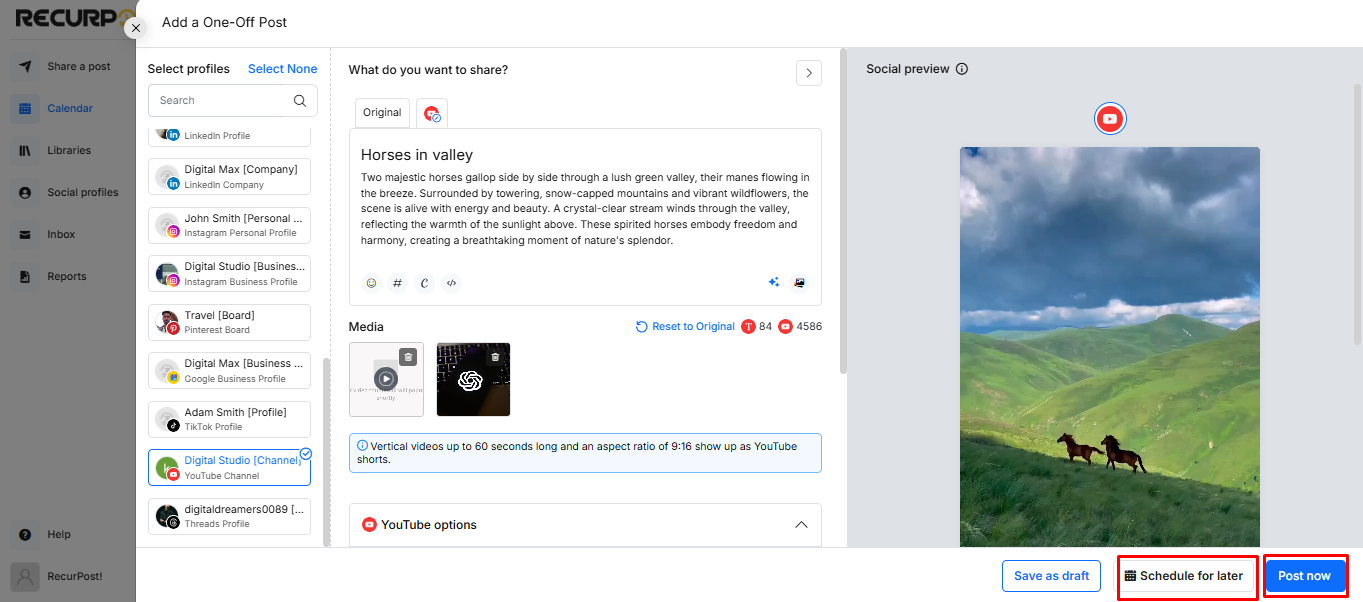
1. From the dashboard, select Share a post and choose to create a one-off post.
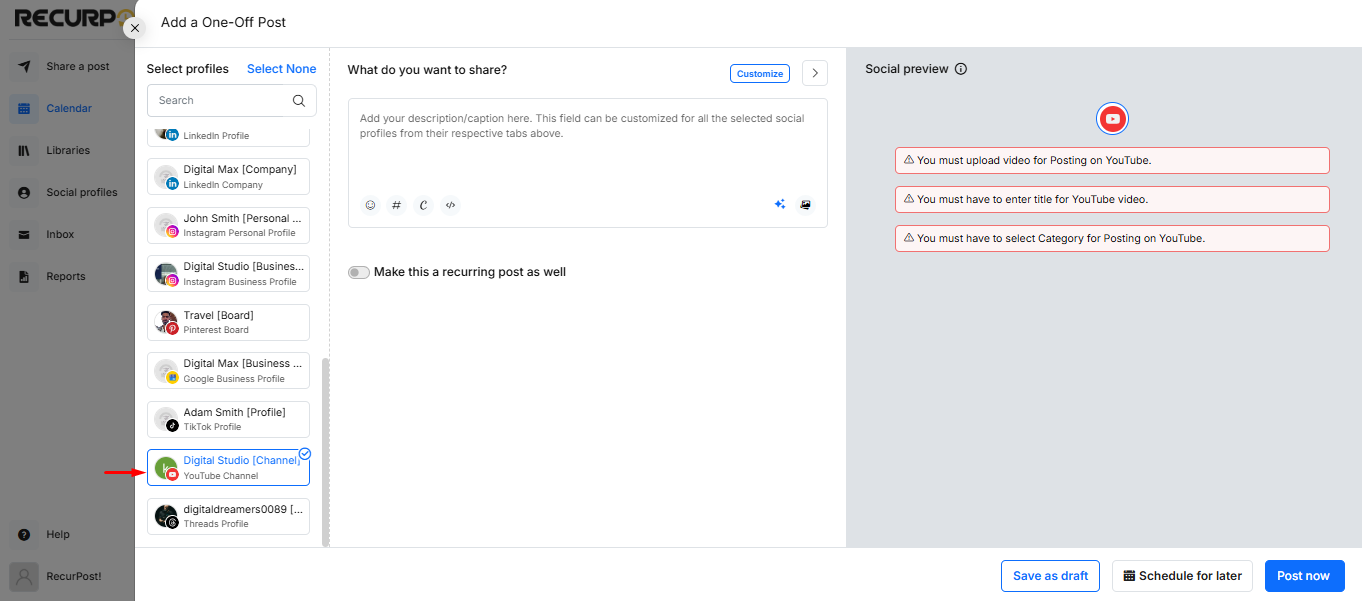
2. Select the connected YouTube channel.
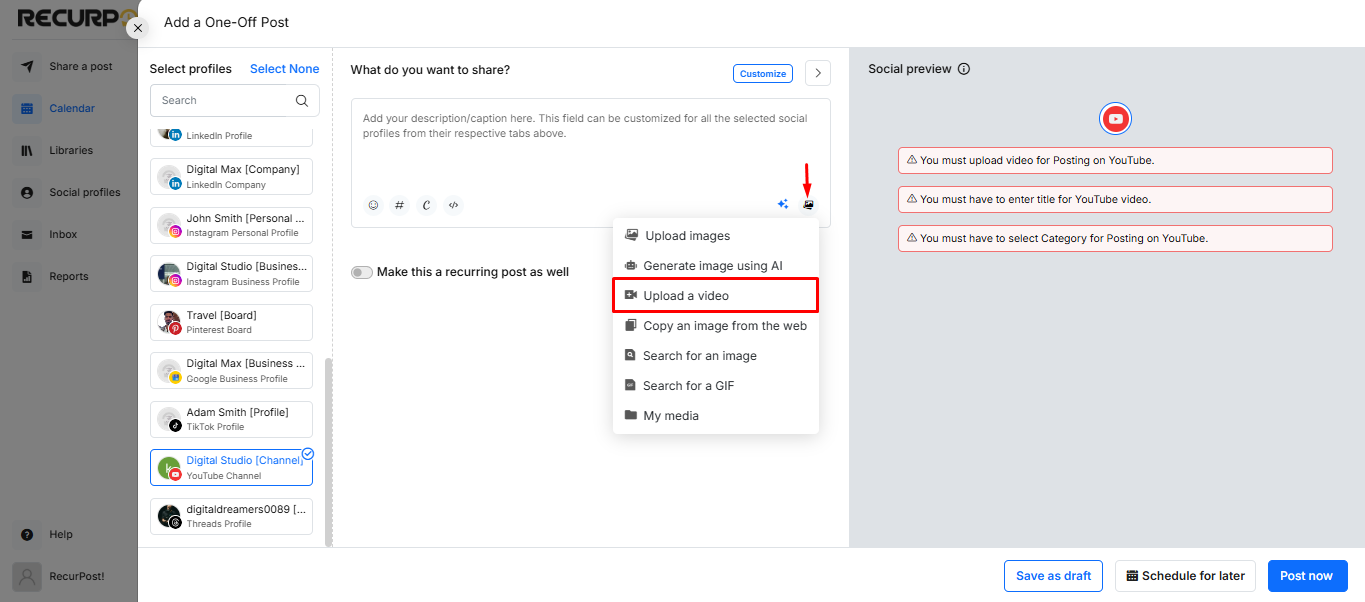
3. Upload a video from the media options.
4. Add the required details (typical fields include title, description, and optional additions such as hashtags).
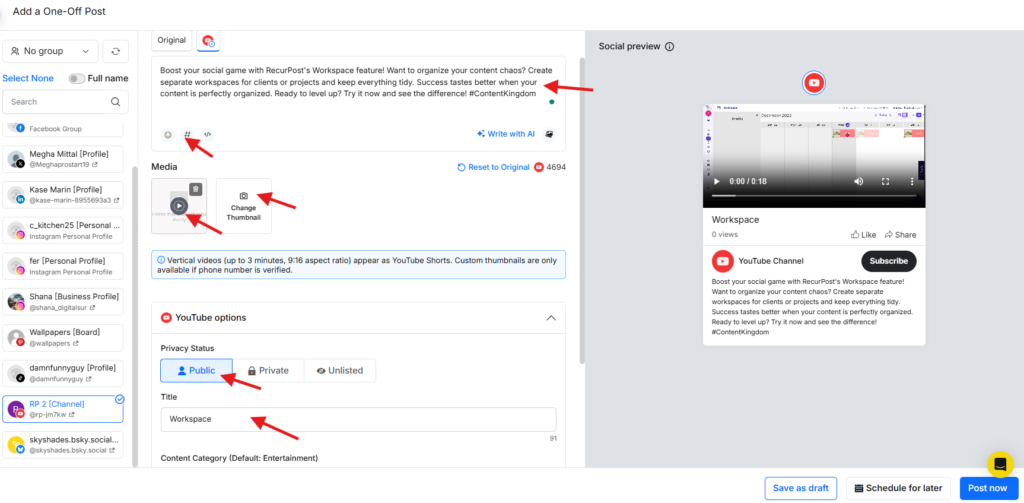
Keep the title within YouTube’s 100-character limit.
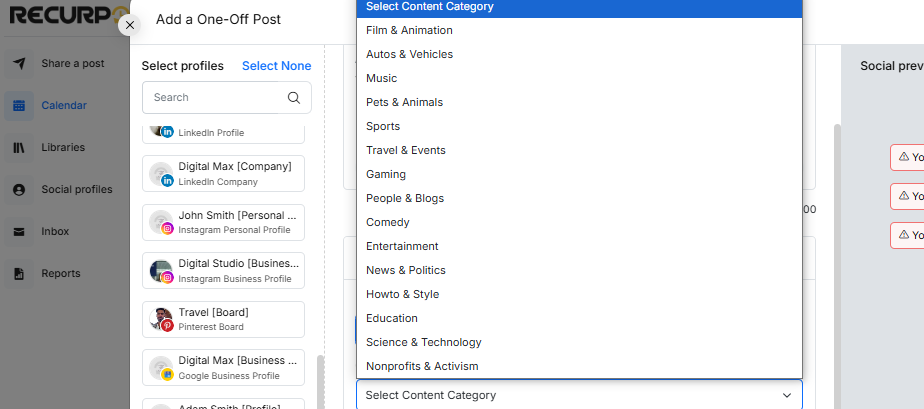
5. Choose a content category (or rely on a default category if one is set).
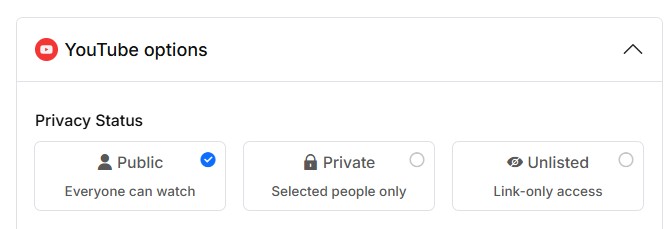
6. Choose a privacy status (Public, Private, or Unlisted).
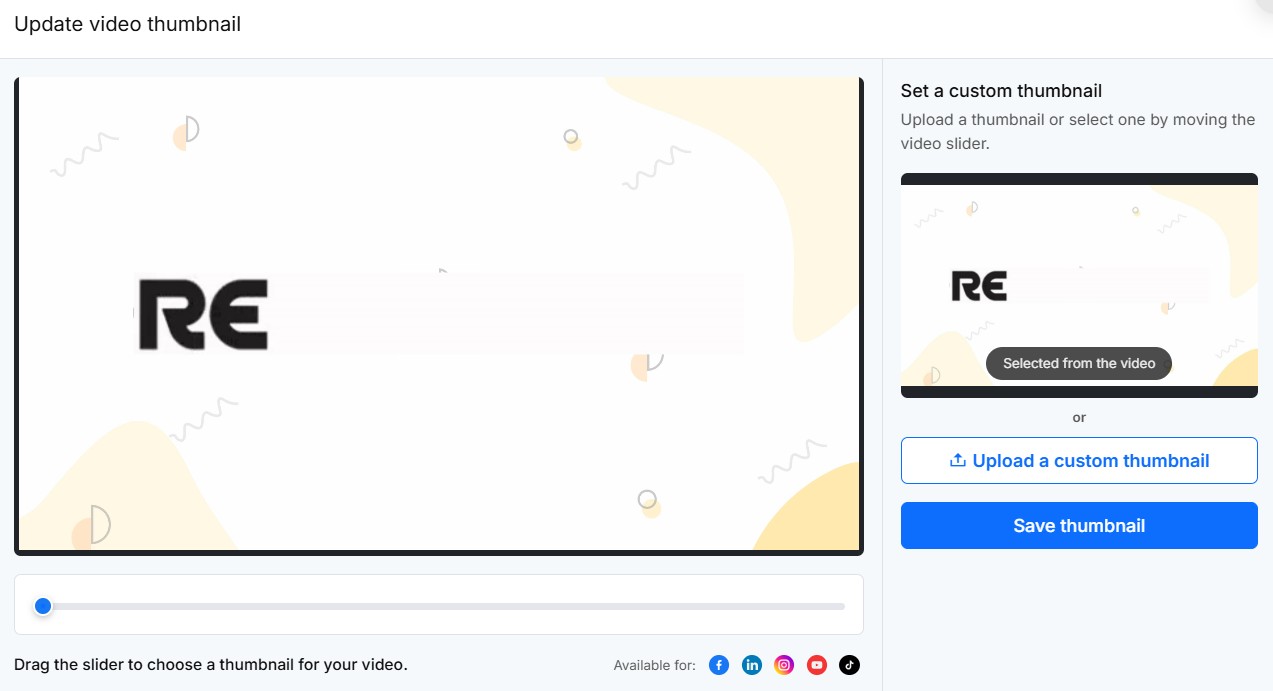
7. Optionally upload a thumbnail.
8. Select Post now or schedule it for a future date and time.
How RecurPost handles Shorts automatically
No separate “Shorts” toggle is required. Shorts are published based on the uploaded video’s format and length, matching YouTube’s Shorts categorisation rules.
Advanced video publishing options
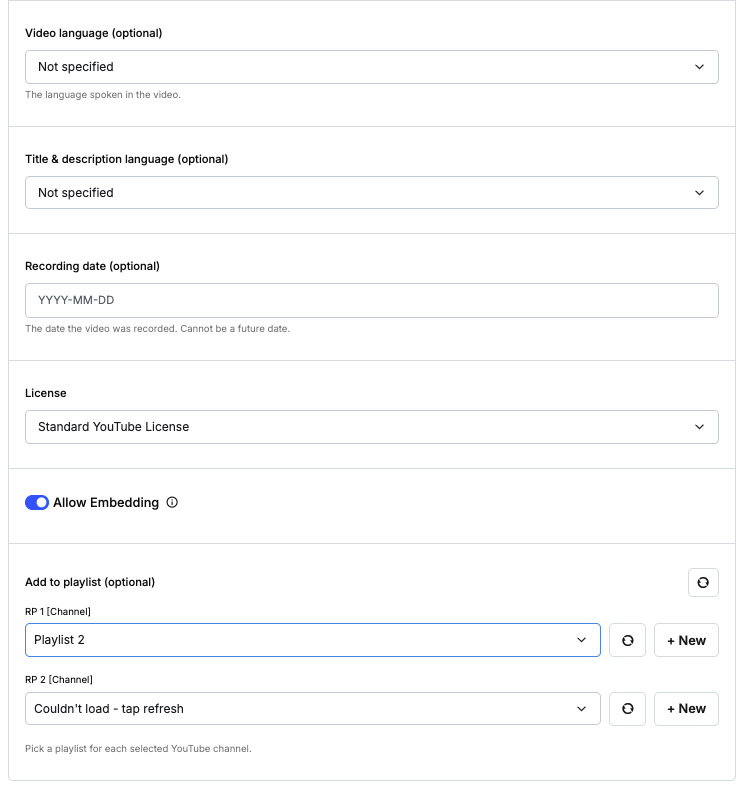
When scheduling a YouTube video, RecurPost now includes additional metadata fields beyond title, description, and privacy. Here’s what each one does.
Video Language
Specifies the language spoken in the video. YouTube uses this to better understand and index the content.
Title & Description Language
Sets the language of your video’s written metadata. You can set this separately from the video language – useful for multilingual publishing workflows.
Recording Date
An optional field for the date the video was originally recorded. Format: YYYY-MM-DD. Cannot be a future date.
License
Two options:
- Standard YouTube License: Default for all uploads.
- Creative Commons – Attribution: Marks the video as reusable with credit.
Allow Embedding
Controls whether the video can be embedded on third-party websites. Enabled by default.
Add to Playlist
Let’s you assign the video to a playlist at the time of scheduling. Playlists are listed per connected YouTube channel. If you have two channels linked (for example, RP 1 and RP 2), you select a playlist for each one independently.
- Use the refresh icon next to each channel to reload the playlist.
- Use + New to create a playlist without leaving RecurPost.
Note: These fields are available on the RecurPost web app. Playlist selection is shown per channel; each connected channel gets its own dropdown.
Privacy, category settings, and common issues
Privacy settings explained
YouTube visibility options behave like this:
- Public: Visible to anyone and can appear in search results and recommended lists.
- Unlisted: Anyone with the link can watch and share, but it isn’t shown publicly in the same way as public videos.
- Private: Only visible to the uploader and people explicitly granted access (and some features, like & comments, may not be available).
Set a default YouTube category for faster scheduling
For teams managing multiple channels (or different content types), a default category reduces repetitive work.
To set it:
- Go to Social Profiles → Settings
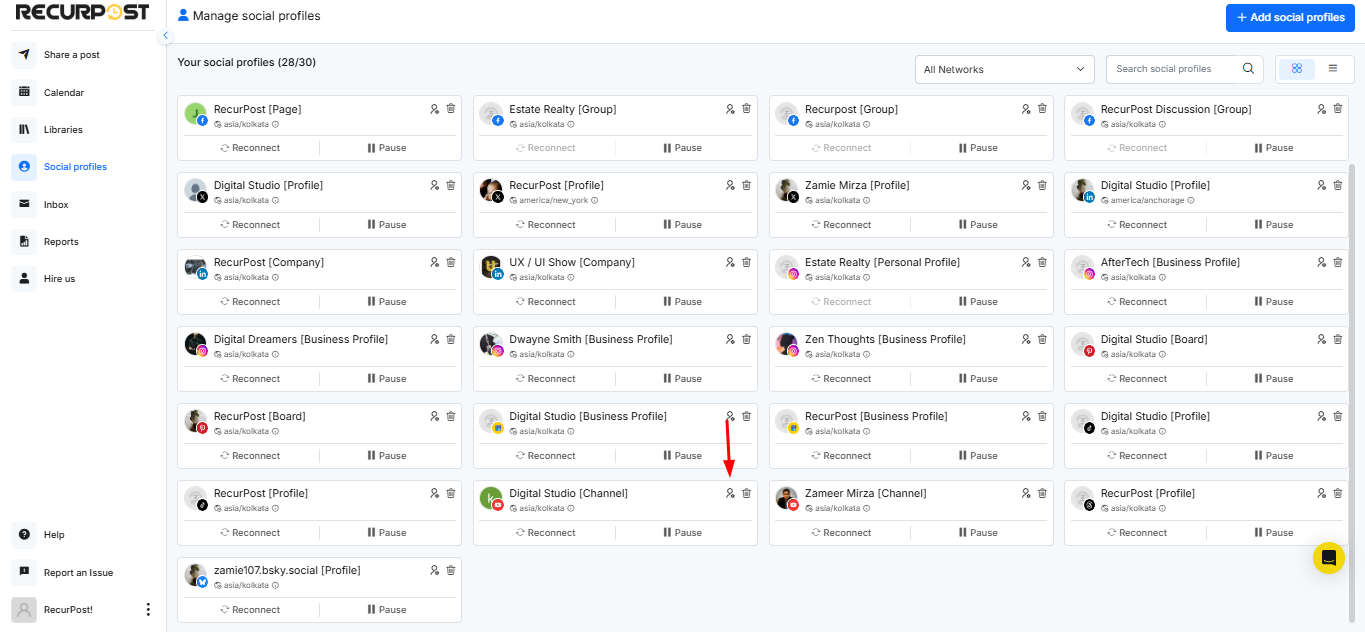
- Select the default category for the YouTube account (for example, Education or Science & Technology)
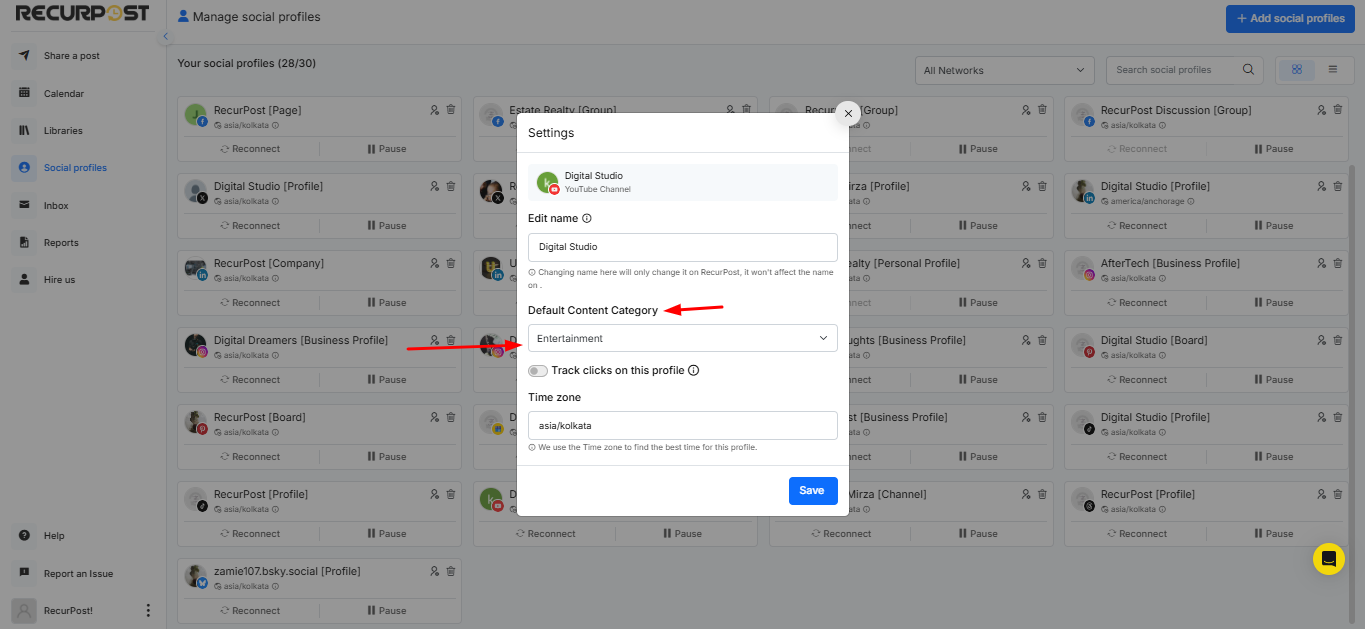
The category can still be changed per post when needed.
Common issue: Why didn’t this upload become a Short?
Check these first:
- The video is square or vertical, and 3 minutes or less.
- The video was uploaded after 15 October 2024 (older uploads may remain long-form even if they match the format).
- If the Short is over one minute and uses claimed music, it may be blocked due to Content ID rules.
Extra optimisation tip that’s often missed
YouTube allows tags, but YouTube states they usually play a minimal role in discovery unless the topic is commonly misspelled. So strong titles and descriptions usually carry more weight than trying to “stuff” tags.
Delete a Published YouTube Post from RecurPost
Sometimes a video needs to come down after it goes live. Maybe the content needs a fix, or the timing was off. Either way, you no longer have to go to YouTube separately.
RecurPost now lets you delete a published YouTube post right from the History section.
Here’s how:
- Head to the Calendar and open the History tab.
- Find the YouTube post you want to delete and click on it.
- A details panel opens on the right side.
- Look for the YouTube channel entry and click Delete Post.
The video gets taken down from your YouTube channel without leaving RecurPost.
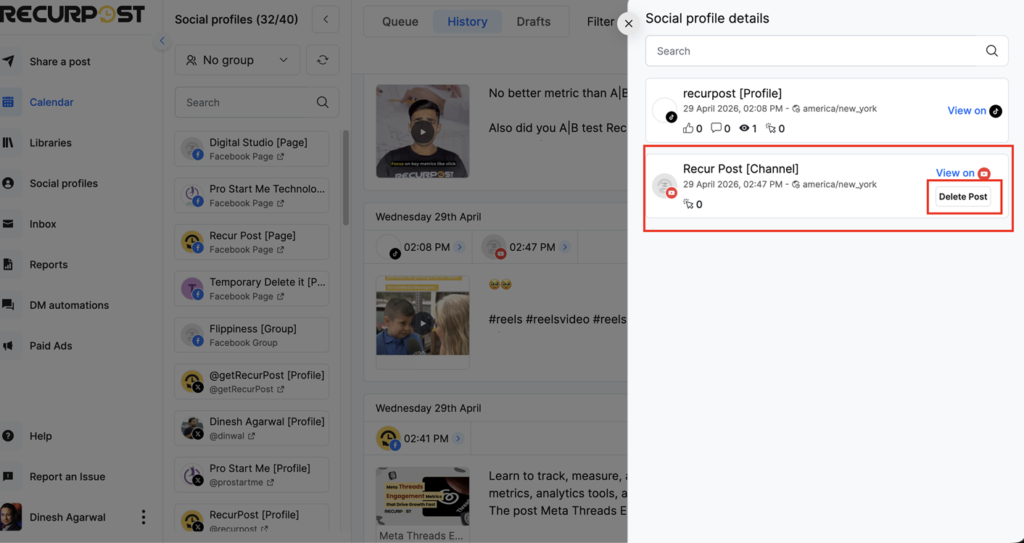
Note: This permanently deletes the video from your YouTube channel. Double-check before you hit Delete Post, there’s no way to undo this.