
You can connect your Canva account directly inside RecurPost. Once connected, you can browse all your Canva designs and add them straight to any post.
- No downloading files.
- No re-uploading them.
- No switching between tabs.
Everything lives in one place. You design in Canva, import into RecurPost, and schedule – all without leaving the platform.
While creating a new post in RecurPost, you’ll get an option to access Canva beside the options to add emojis, hashtags, images, and videos.
Let’s see how you can use this feature.
How to Connect and Use Canva in RecurPost
Step 1: Open the Post Composer
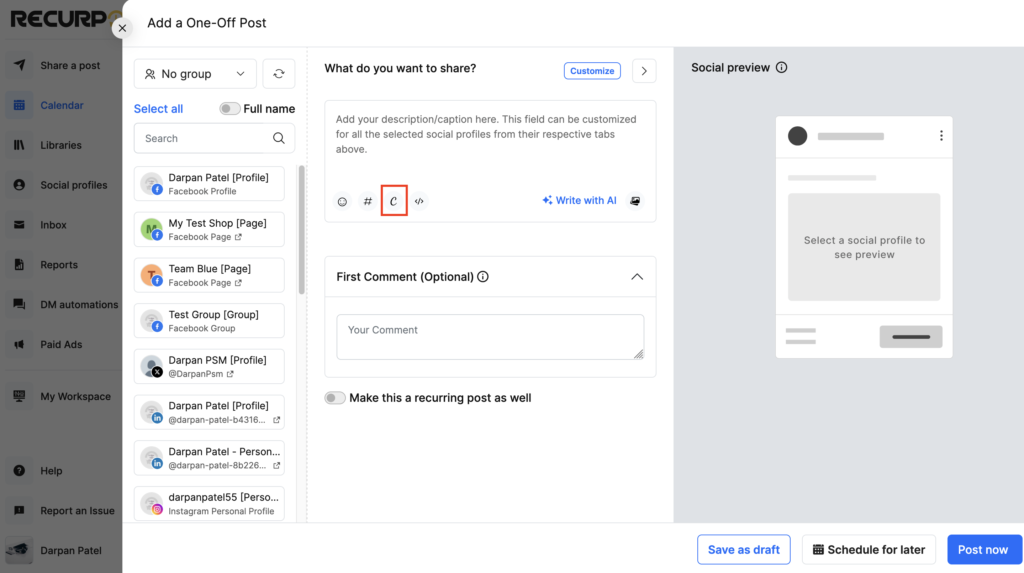
Go to your RecurPost calendar or click “Share a Post” from the left-side menu. The “Add a One-Off Post” window will open.
Look at the toolbar just below the caption box. You’ll see a “C” icon – that’s the Canva button. Click it.
Step 2: Connect Your Canva Account
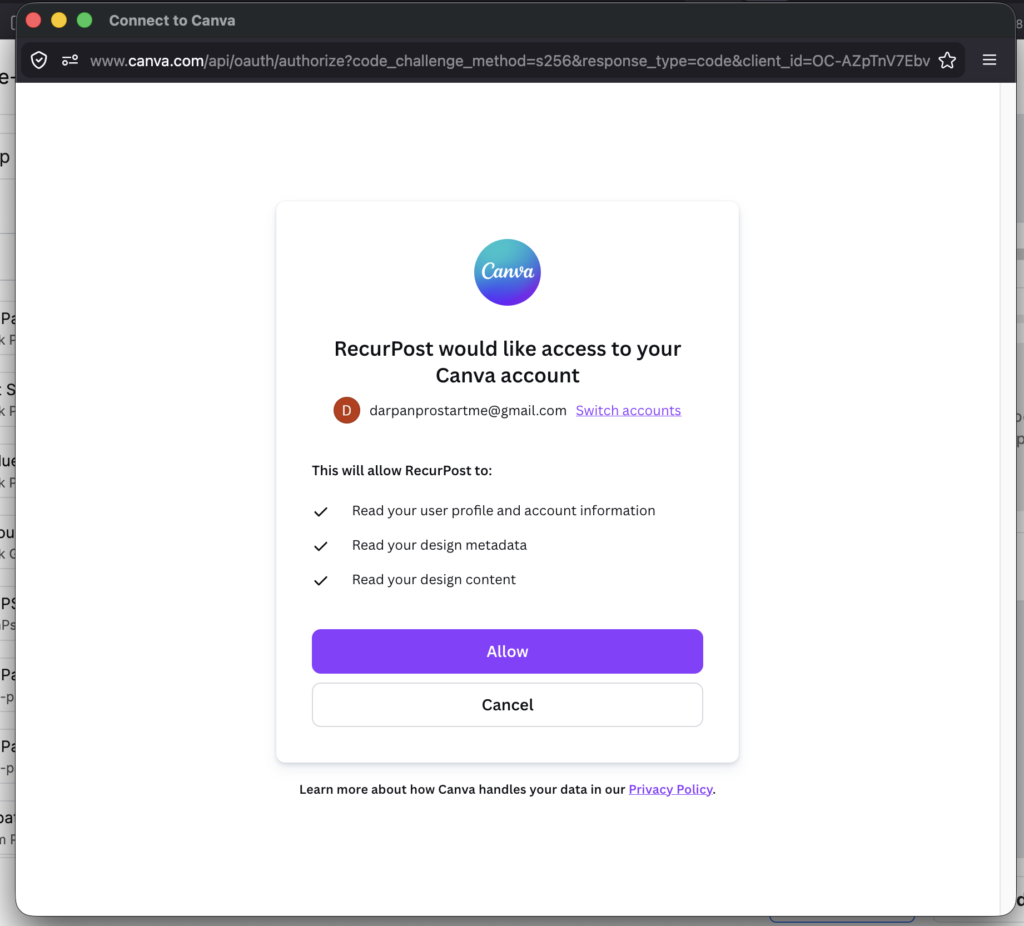
If you haven’t connected to Canva before, a pop-up will appear asking for permission.
RecurPost will request access to:
- Your Canva profile and account information
- Your design metadata
- Your design content
Click “Allow” to complete the connection. You only need to do this one time. After that, RecurPost remembers your account.
Step 3: Browse Your Canva Designs
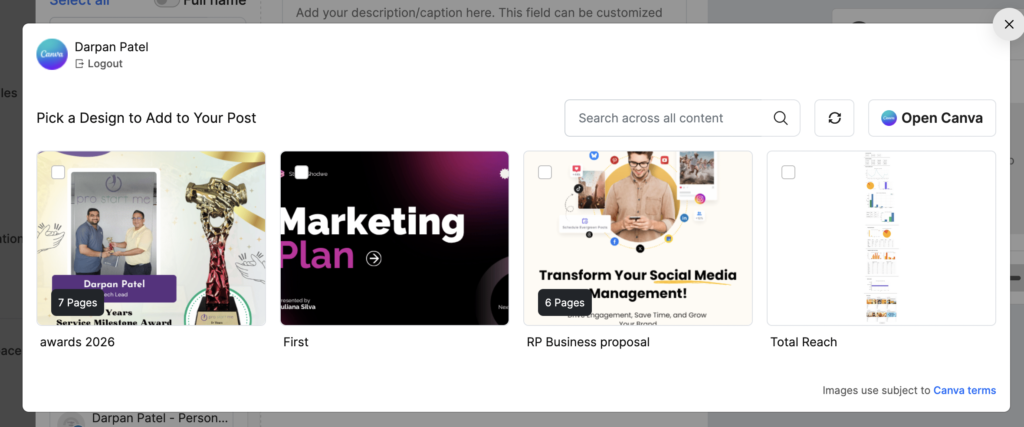
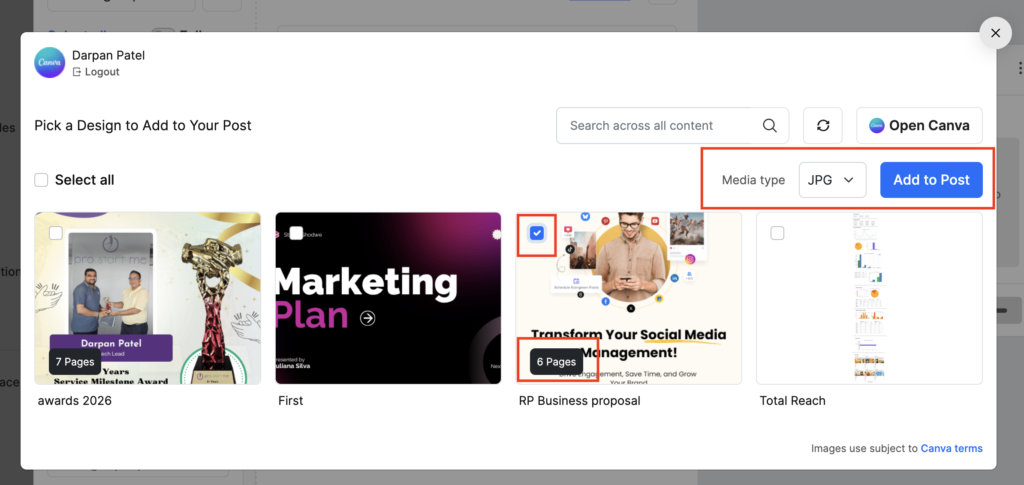
Once connected, a panel opens showing all your existing Canva designs. You’ll see them as thumbnail cards with their titles below.
Use the search bar at the top to find a specific design. Or click “Open Canva” if you want to create a new design first, then come back.
Click on any design to open it.
Step 4: Select a Page from Your Design
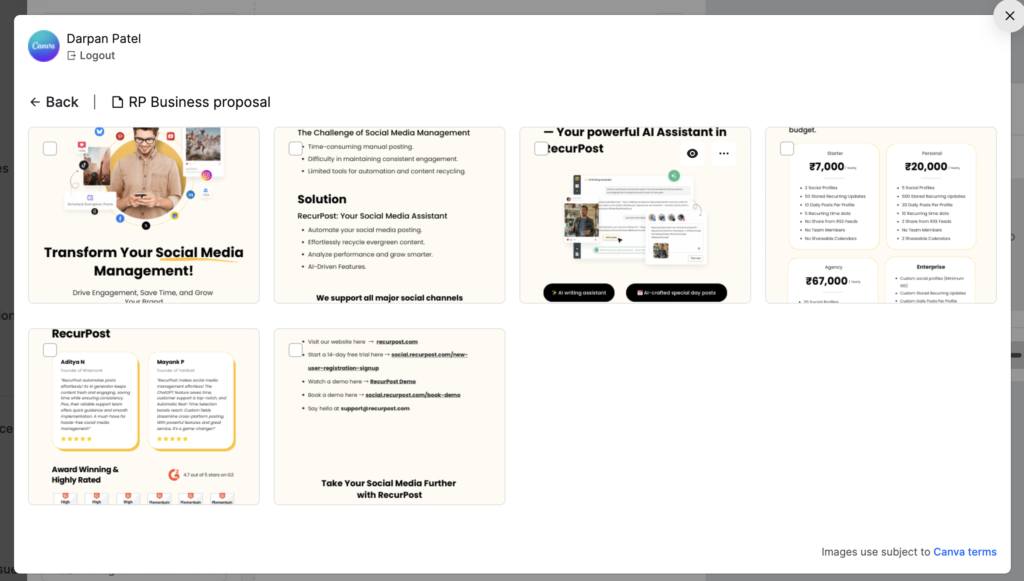
Multi-page designs show each page as a separate thumbnail. Browse the pages and click the one you want to add.
You can go back and select pages from other designs too – just hit the Back button.
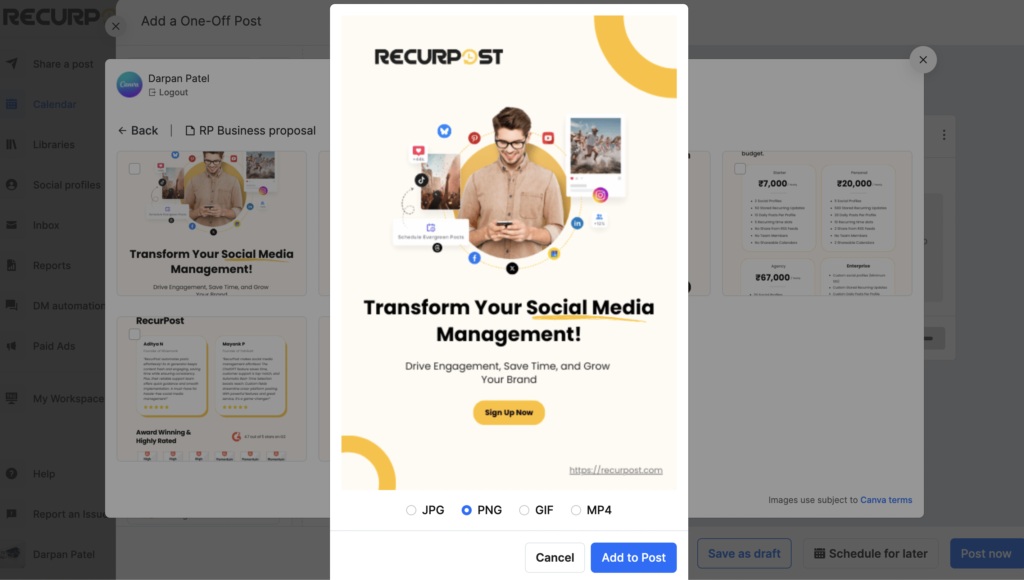
Step 5: Choose a Format and Add to Post
A full preview of your selected page will appear. Below the preview, pick the format you need:
- JPG: good for photos and detailed images
- PNG: best for graphics with transparent backgrounds (selected by default)
- GIF: for animated designs
- MP4: for video-based Canva designs
Once you’ve picked a format, click “Add to Post.”
Step 6: Your Design Appears as Post Media
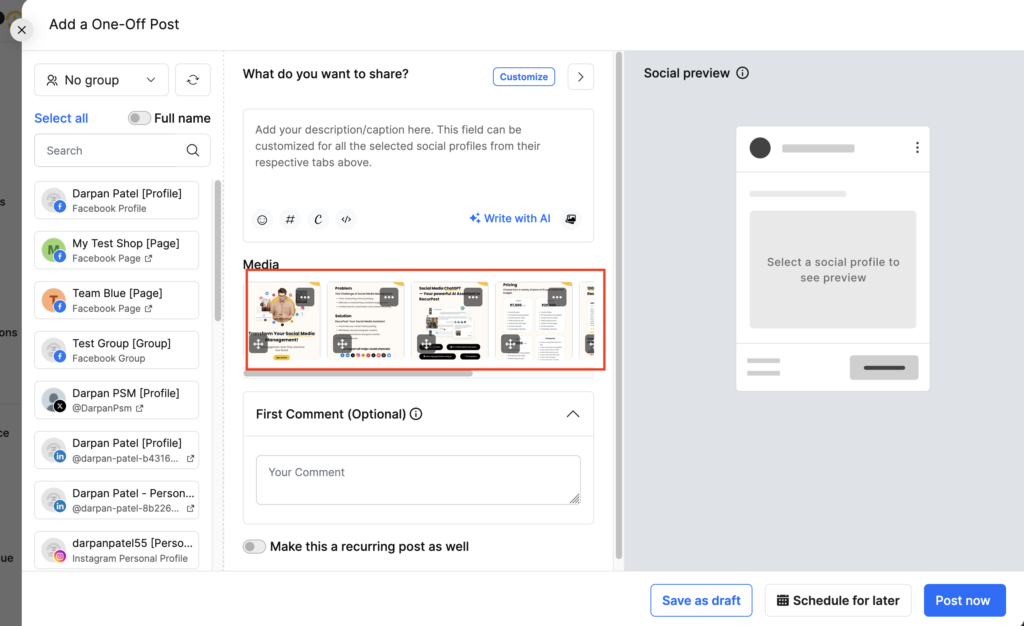
Your Canva design now shows up in the Media section of the post composer. You can repeat Steps 3–5 to add more pages or designs from other Canva files.
When you’re ready, add your caption, select your social profiles, and click “Post now” or “Schedule for later.”
You can also check out our video tutorial here:
FAQs
1. Can I add multiple pages?
Yes. Go back to the design picker and repeat the process for each page you want.
2. What happens with PDF designs?
Canva PDFs get split into individual image pages automatically. Each page becomes a separate media item in your post.
3. Do I need to reconnect to Canva every time?
No, once you connect, RecurPost stays linked to your Canva account.
4. Can I use this for recurring posts in Libraries?
Yes, the same Canva import flow works when you create or edit posts inside your Libraries, too.
Need Help?
That’s all you need to know about importing Canva images within RecurPost. Feel free to drop your queries at support@recurpost.com.