

There might be certain instances when you encounter errors while publishing a post from your RecurPost account. There might be a few reasons behind such errors, which we’re going to discuss, along with their possible solutions.
1. Profile needs to be reconnected
Error message: Your profile needs to be reconnected to RecurPost.
Solution: This error means we have lost access to your profile. Open Calendar in the left menu, find the profile in the list down the left side, and click Reconnect beside it. You can also reconnect from the Social profiles page.

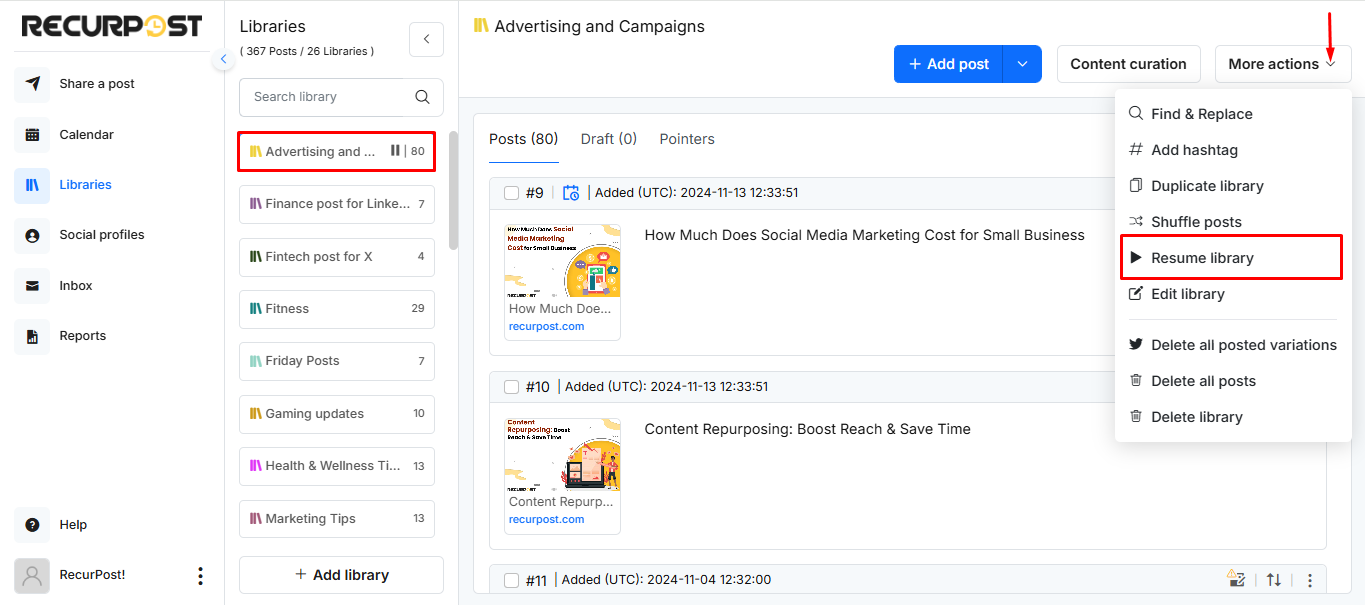
2. Library paused
Error message: Library was paused before the post was shared.
Solution: Open Libraries in the left menu and select the paused library. Click More actions at the top right, then choose Resume library.
3. Error posting the post
Error message: Oops, there was an error posting this post. Please contact us if you see this on multiple posts.
Solution: Our scheduler failed to post your content at the scheduled time. Please contact us if you see the same error repetitively.
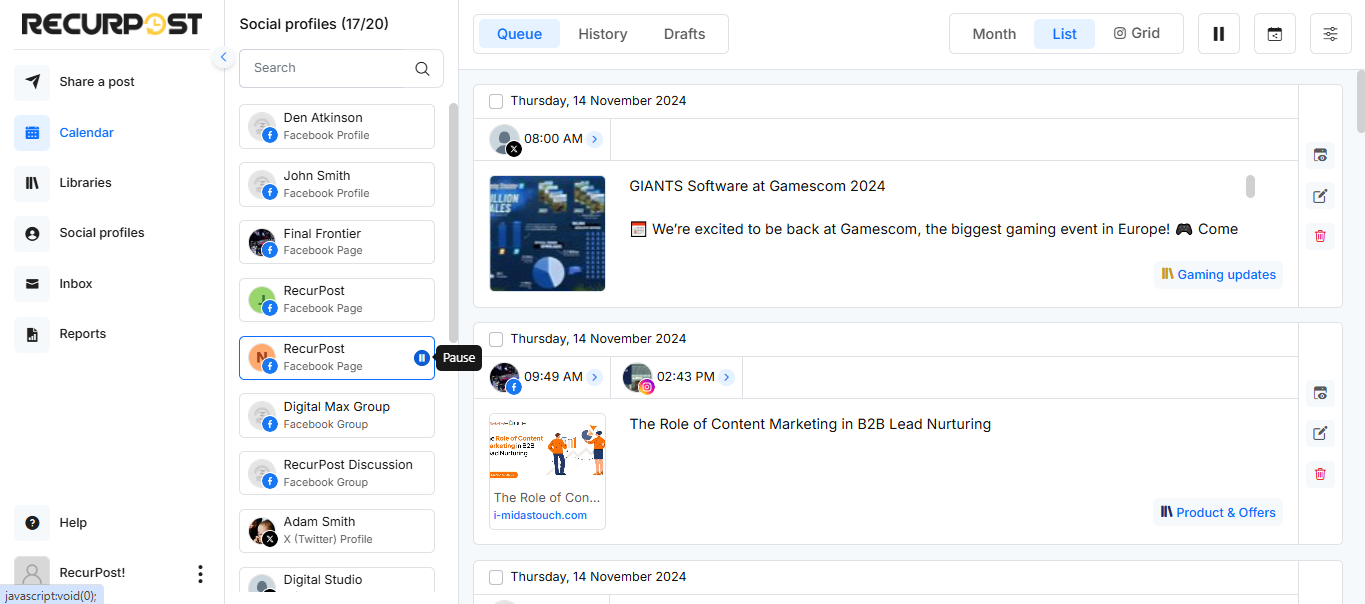
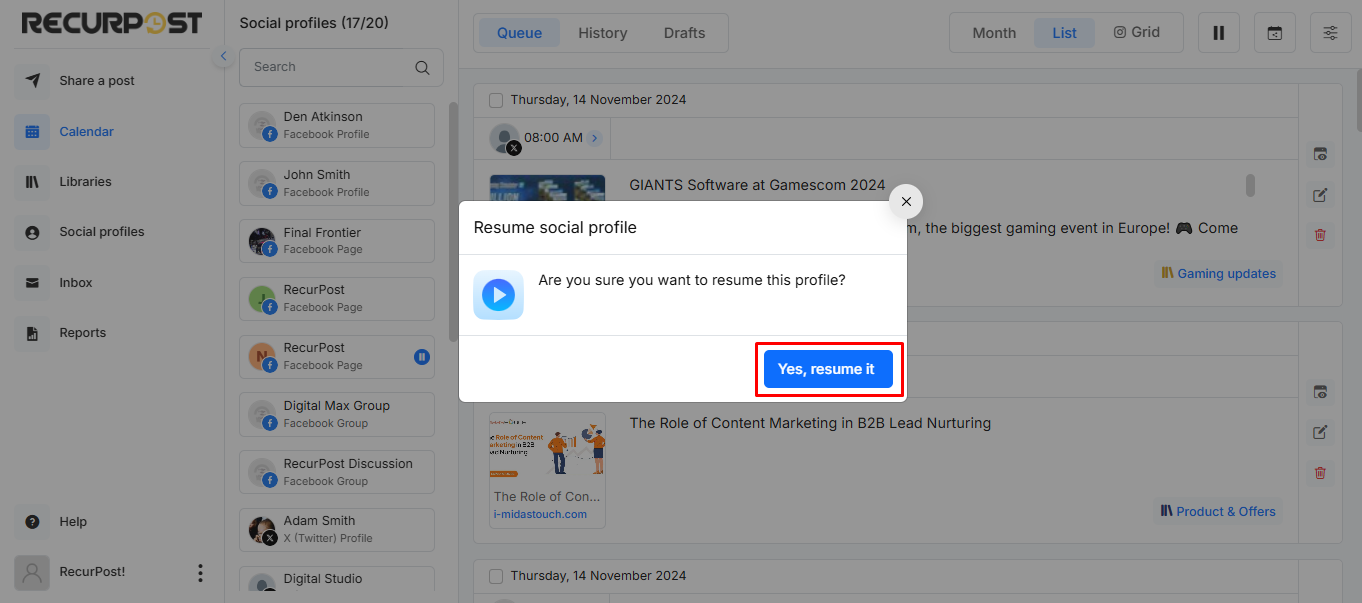
4. Social profile was paused
Error message: Social profile was paused before the post was shared.
Solution: Open Calendar in the left menu. The social profile list runs down the left side; click the play button beside the paused profile to resume it. There is no separate Manage step.
5. Please download the app and log into your account
Error message: Posting on Instagram personal and creator profiles requires you to have the RecurPost app on your phone. Please download the app and log into your account to post.
Solution: Posting on Facebook personal profiles and Instagram personal profiles works via push notification. To send push notifications at the scheduled time, you must be logged in to the RecurPost mobile app on your phone.
6. Queue paused
Error message: Your queue was paused at the time of posting this post.
Solution: Resume your queue to continue posting. Open Calendar in the left menu, go to the Queue tab, and click Resume Queue.

In case of any queries, feel free to contact us at support@recurpost.com.