

RecurPost lets you attach photos, videos, and GIFs to any post directly from the post composer. The Add Media button gives you several ways to find and attach your files from your own device to free stock libraries to AI-generated images.
How to Open the Add Media
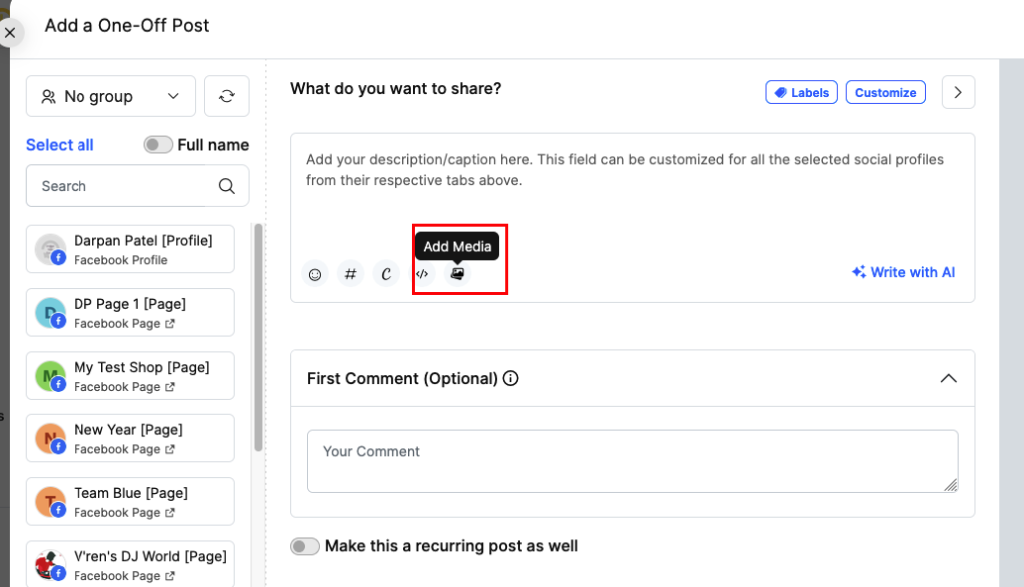
When composing a one-off post or adding a post to a library, look for the media icon in the post editor toolbar and click Add Media.
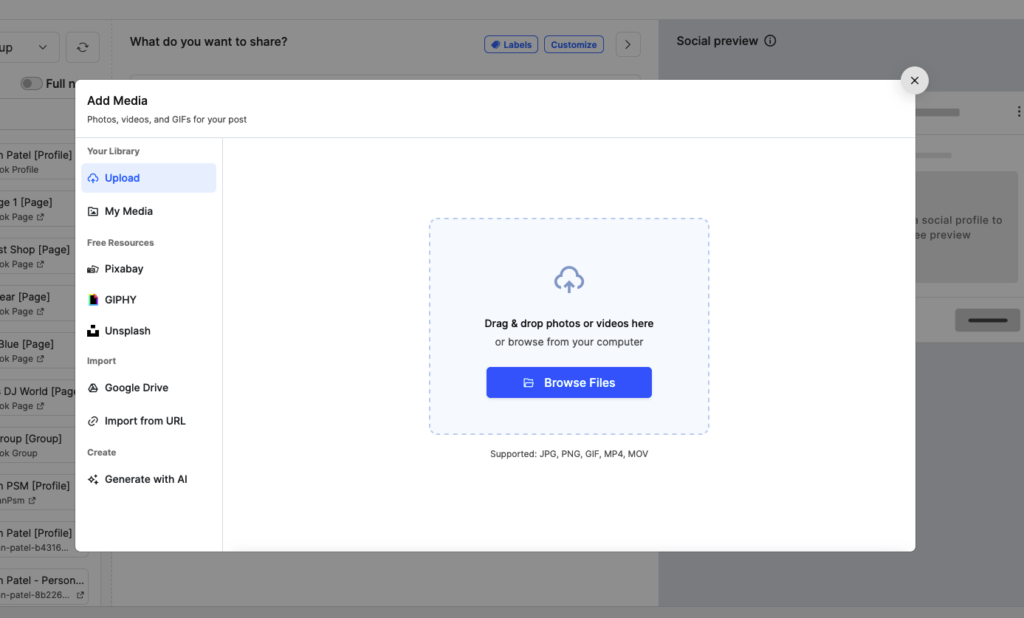
The Add Media container will open. The left panel shows all available media sources. The main area on the right is where you upload, browse, or generate your files.
Media Sources
Upload (from your device)
Select Upload from the left panel. Drag and drop your files into the upload area, or click Browse Files to select them from your computer.
Supported formats: JPG, PNG, GIF, MP4, MOV
My Media
Select My Media to access files you have previously uploaded to RecurPost. Browse your existing library and select the files you want to reuse.
Pixabay
Select Pixabay to search and use free stock photos and videos from Pixabay’s library. No attribution is required for Pixabay content.
GIPHY
Select GIPHY to search and attach animated GIFs directly from GIPHY.
Unsplash
Select Unsplash to search and attach high-resolution free photos from Unsplash.
Google Drive
Select Google Drive to import media files stored in your Google Drive account. You will be prompted to connect your Google account if it is not already linked.
Import from URL
Select Import from URL to paste a direct link to an image or video hosted online. RecurPost will fetch the file from that URL and attach it to your post.
Generate with AI
Select Generate with AI to create an image from a text prompt.
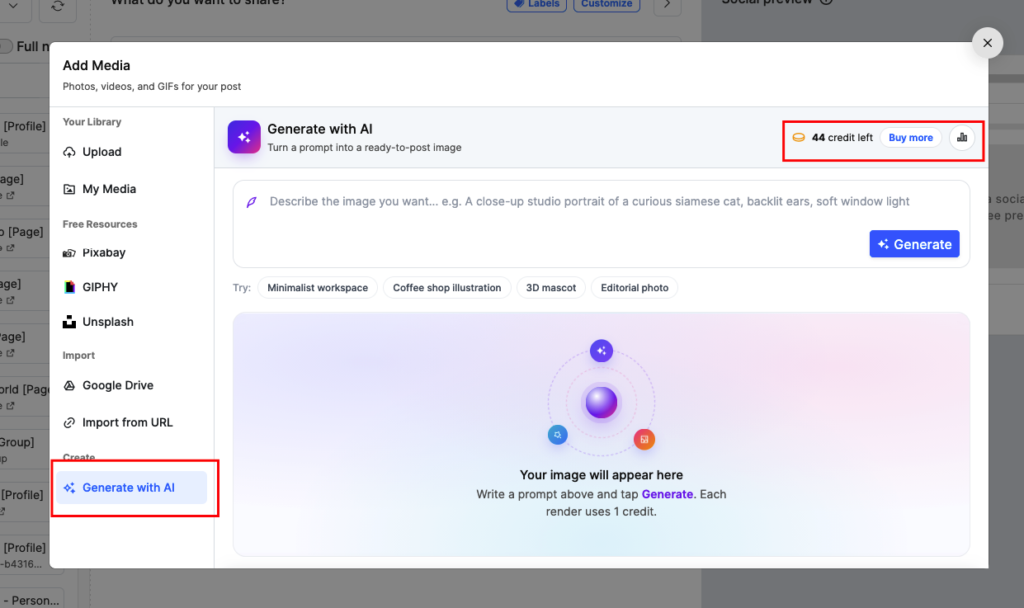
Type a description of the image you want in the prompt field and click Generate. Each render uses 1 credit. You can see your remaining credits at the top of the panel and purchase more by clicking Buy more.
Note: Generated images can be added to your post alongside any other uploaded or selected media.
How to Select Multiple Files from Different Sources
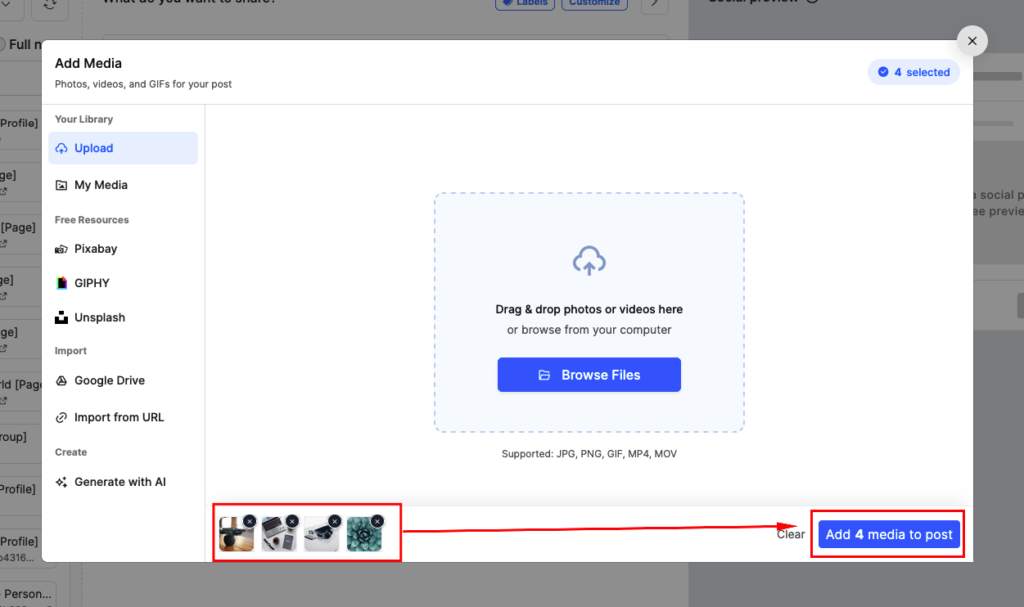
The media box includes a selection cart at the bottom of the screen. This lets you pick files from more than one source before adding anything to your post.
Here is how it works:
- Open any media source tab and select your files. The selected count appears in the top-right corner of the box (e.g., 4 selected).
- Switch to another source tab. Your earlier selections stay in the cart.
- Continue adding files from other sources as needed.
- Review the selected files shown at the bottom of the box. Click the × on any thumbnail to remove it, or click Clear to remove all selections.
- When you are ready, click Add [X] media to post to attach all selected files to your post at once.
Supported File Formats
| Format | Type |
|---|---|
| JPG | Image |
| PNG | Image |
| GIF | Animated image |
| MP4 | Video |
| MOV | Video |
Frequently Asked Questions
Can I select files from multiple sources in one session?
Yes. The selection cart holds your picks as you switch between tabs. Add files from Upload, My Media, Pixabay, or any other source, then confirm all of them together.
How do AI image credits work?
Each time you click Generate, one credit is used. Your remaining credit count is displayed in the Generate with AI tab. Click Buy more to purchase additional credits.
Can I remove a file after selecting it?
Yes. Click the × on any thumbnail in the selection cart to remove that file. Click Clear to remove all selections and start over.
What file formats does RecurPost accept?
RecurPost supports JPG, PNG, GIF, MP4, and MOV files.
For further queries, contact us at support@recurpost.com.