
Labels let you tag your posts by campaign, theme, or content type. You can then track performance across all your tagged posts from the Reports section.
What Are Labels?
Labels are tags you attach to your posts. Think of them like sticky notes – each one marks a post as part of a specific campaign, content category, or theme.
For example, you might create a label called Summer Sale and tag every post related to that campaign. Later, you can pull up a report and see exactly how those posts performed all in one place.
Step 1: Set Up Your Labels
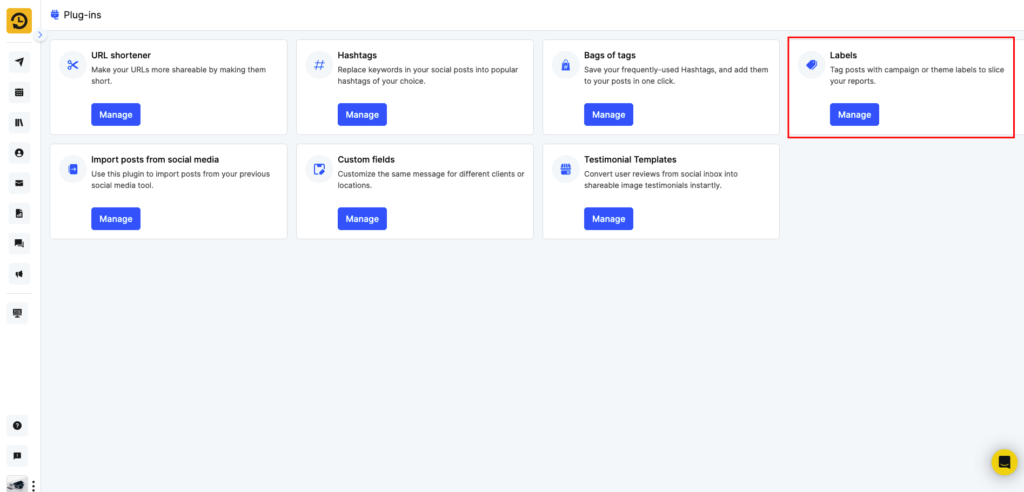
Go to Plug-ins from the left sidebar. Find the Labels card and click Manage.
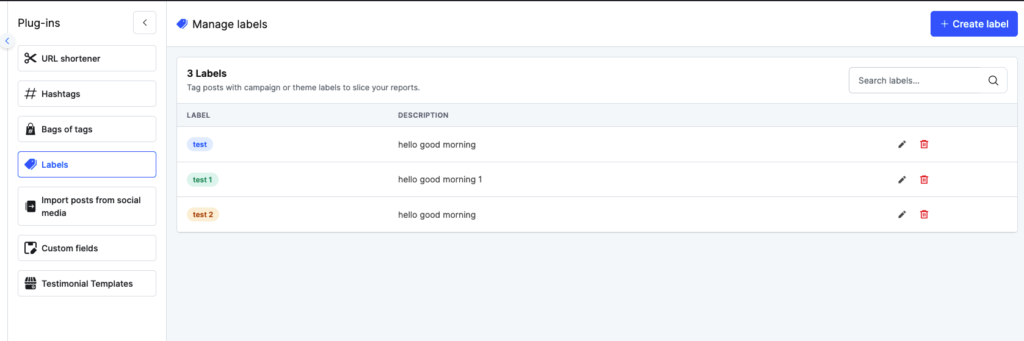
This opens the Manage Labels screen. Here you can:
- View all existing labels
- Create new labels
- Edit or delete labels
To create a label, click + Create label in the top-right corner. Give your label a name and an optional description, then save it.
Step 2: Add Labels to Your Posts
You can attach labels when creating or editing any post – both one-off posts and library posts.
One-off Posts
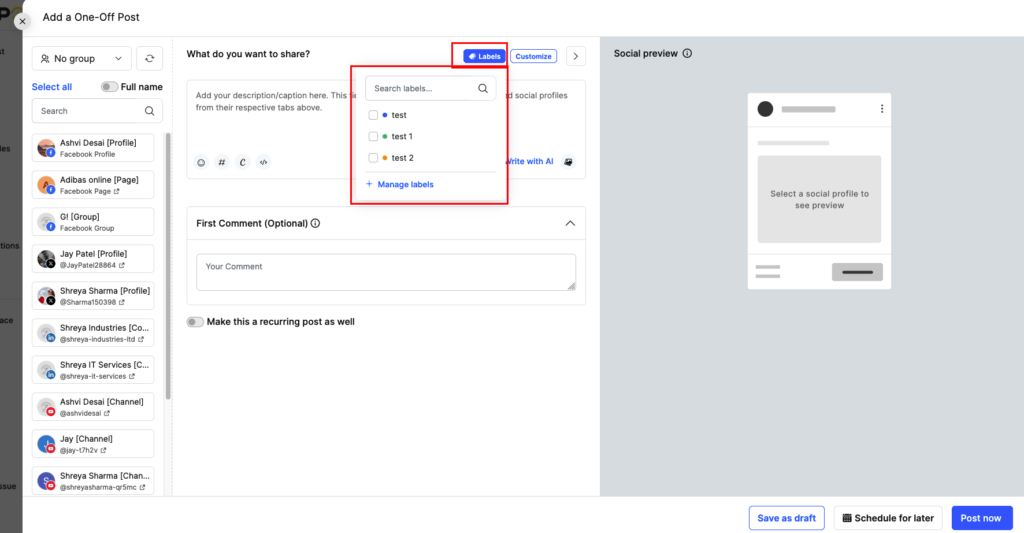
When composing a post in the Add a One-Off Post window, click the Labels button near the top of the post editor. A dropdown appears with your saved labels. Check one or more labels to tag that post.
Library Posts
Open any post in your library and look for the Labels option in the post editor. The same dropdown appears. Select the labels that apply.
Step 3: See Labels on Your Dashboard
Once labels are assigned, they show up right on your posts across the platform.
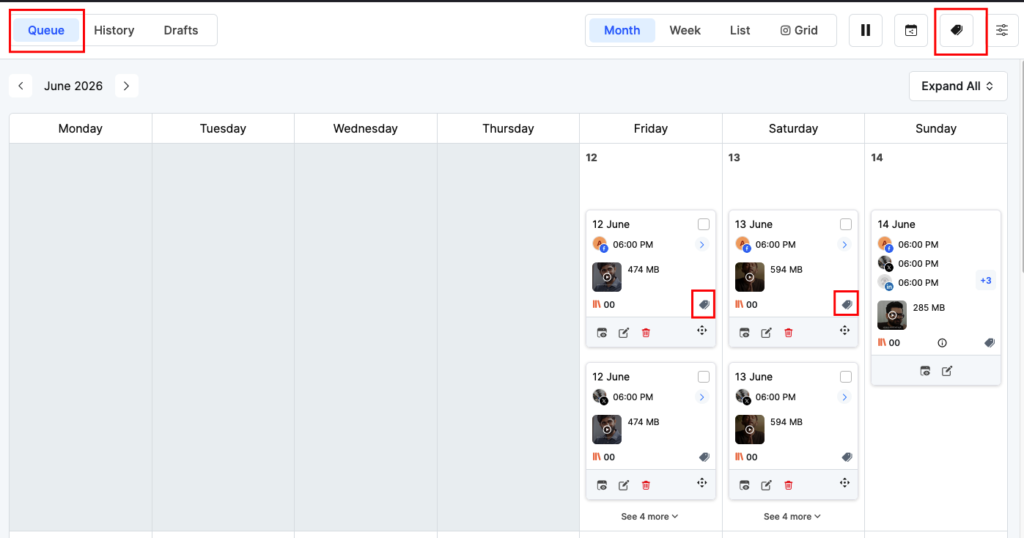
Queue view: Each scheduled post displays its label tag so you can see what’s coming up at a glance. There’s also a label filter icon at the top of the Queue to filter posts by label.
History view: Published posts show their labels alongside the post content. Posts without labels display an empty label icon.
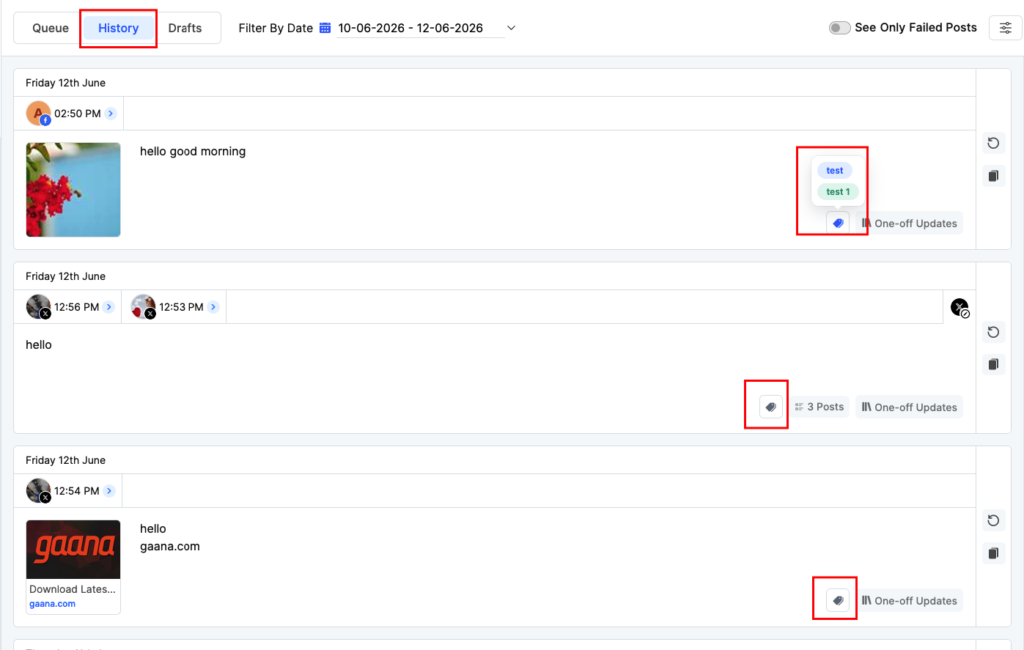
Step 4: Check Label-wise Reports
Go to Reports from the left sidebar. In the Social Profiles panel, click By Label.
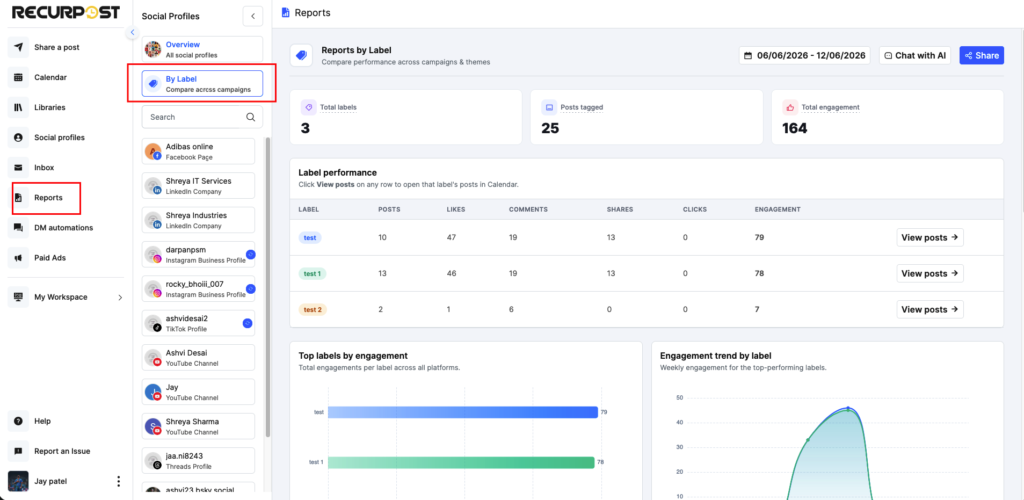
The Reports by Label page shows:
- Total labels: the number of labels currently in use
- Posts tagged: how many published posts carry at least one label
- Total engagement: combined engagement across all labeled posts
Label Performance Table
Below the summary cards, the Label performance table breaks down results by individual label. For each label, you can see:
| Column | What it shows |
|---|---|
| Posts | Number of posts tagged with this label |
| Likes | Total likes across those posts |
| Comments | Total comments |
| Shares | Total shares |
| Clicks | Total link clicks |
| Engagement | Combined engagement score |
Click View posts → on any row to open that label’s posts in the Calendar view.
Charts
Two charts sit below the table:
- Top labels by engagement: a horizontal bar chart ranking your labels by total engagement
- Engagement trend by label: a weekly line chart showing how your top-performing labels trended over the selected date range
Use the date picker in the top-right to change the reporting period.
Common Ways to Use Labels
Campaign tracking: Create a label for each campaign (Black Friday, Product Launch, Q3 Promo). Tag every post for that campaign. At the end, pull the report to see which campaign drove the most engagement.
Content categories: Tag posts by type (Tips, Testimonials, Behind the Scenes). Use reports to see which content type resonates most with your audience.
Client or team segmentation: If you manage multiple clients or brands, assign a label per client. Reports then show performance per client without mixing data.
FAQs
1. Can I add more than one label to a post?
Yes. You can assign multiple labels to a single post. All selected labels appear on the post in Queue, History, and Library views.
2. Where does the report data come from?
Label reports pull data from posts in your History tab, meaning only published posts are counted. Scheduled or draft posts do not appear in label reports.
3. Can I edit or delete a label after creating it?
Yes. Go to Plug-ins → Labels → Manage and use the edit (pencil) or delete (trash) icon next to any label.
4. Is there a limit on how many labels I can create?
There is no stated limit. Create as many labels as your workflow needs.
Using the Labels plug-in
Labels let you tag posts by campaign, theme, or content type. Once you tag your posts, you can track how each group performs from the Reports section.
Setting Up Labels
Go to Plug-ins and click Manage under Labels.
This opens the Manage Labels screen. From here, you can create new labels, edit existing ones, or delete labels you no longer need.
To create a label, click + Create label in the top-right corner. Add a name and an optional description, then save.
Adding Labels to Posts
You can add labels to both one-off posts and library posts.
For one-off posts: When composing a post, click the Labels button at the top of the post editor. A dropdown opens with your saved labels. Select one or more labels to tag that post.
For library posts: Open any post in your library and look for the Labels option in the post editor. Select the labels that apply and save.
You can assign multiple labels to a single post.
Where Labels Appear
Once assigned, labels are visible across the platform:
- Queue: Label tags appear on each scheduled post in the calendar. Use the label filter icon at the top of the Queue to filter posts by label.
- History: Published posts show their labels alongside the post content.
- Library: Labels are visible on posts inside your libraries.
Viewing Label Reports
Go to Reports from the left sidebar and click By Label in the Social Profiles panel.
The Reports by Label page shows three summary numbers at the top:
- Total labels: how many labels have you created
- Posts tagged: how many published posts carry at least one label
- Total engagement: combined engagement across all labeled posts
The Label performance table below breaks this down per label, showing posts, likes, comments, shares, clicks, and total engagement for each. Click View posts → on any row to open that label’s posts in the Calendar view.
Two charts sit below the table – a bar chart ranking your top labels by engagement, and a line chart showing how engagement for each label trended over the selected date range.
Use the date picker in the top-right corner to change the reporting period.
We hope this information is helpful to you. In case you have any questions or need help with the Plug-ins, please reach out to us at support@recurpost.com.