
Imagine typing a quick message to your AI assistant and having it schedule a week of social media posts. No dashboards to click through. No copy-pasting captions. Just one prompt and it’s handled.
That’s what the RecurPost MCP Server does. It connects AI assistants like Claude directly to your RecurPost account. Your AI can then post content, schedule updates, pull engagement data, and write posts on your behalf.
This guide covers everything. What the server does, how to set it up, and how to start using it.
What Can the RecurPost MCP Server Do?
The server gives your AI assistant direct access to your RecurPost account. You talk to your AI. Your AI talks to RecurPost. Things get done.
Here’s what it can handle:
- Post or schedule content to any connected social profile
- View your posting history along with engagement numbers
- Add content to libraries for recurring or evergreen posting
- List all your social profiles and content libraries at a glance
- Generate post text and images using AI, right inside the chat
- Get links to connect new social profiles without leaving the conversation
You don’t need to open RecurPost separately. Your AI assistant handles it all through simple prompts.
How to Get Your API Key
Before setting anything up, you need an API key from RecurPost. This is not your regular login password. It’s a separate key made just for API access.
Here’s how to get it:
- Log in to your RecurPost account
- Go to Account Settings
- Find and generate your API pass_key
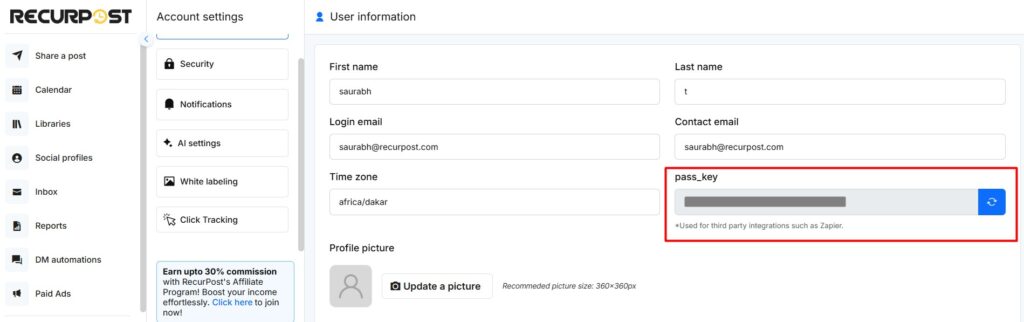
Keep this key handy. You’ll need it during the setup steps below.
How to Install the RecurPost MCP Server
You can set this up in two ways: through Claude Desktop or Claude Code. Pick whichever one you use.
Option 1: Claude Desktop
Open your Claude Desktop config file. The location depends on your operating system:
- Windows:
%APPDATA%\Claude\claude_desktop_config.json
- Mac:
~/Library/Application Support/Claude/claude_desktop_config.json
Add this to the file:
{
  "mcpServers": {
    "recurpost": {
      "command": "npx",
      "args": ["-y", "recurpost-mcp"],
      "env": {
        "RECURPOST_EMAIL": "your-email@example.com",
        "RECURPOST_API_KEY": "your-api-key"
      }
    }
  }
}
Replace your-email@example.com with your RecurPost login email. Replace your-api-key with the key you generated above.
Save the file and restart Claude Desktop. That’s it.
Option 2: Claude Code
If you use Claude Code, run this command in your terminal:
claude mcp add recurpost -- npx -y recurpost-mcp \
  -e RECURPOST_EMAIL=your-email@example.com \
  -e RECURPOST_API_KEY=your-api-key
Again, swap in your actual email and API key. The server will be ready to use right away.
Available Tools
Once connected, your AI assistant gets access to nine tools inside RecurPost. Here’s what each one does:
| Tool | What It Does |
|---|---|
user_login | Checks that your API credentials are working |
social_profile_list | Shows all your connected social media profiles |
library_list | Lists all your content libraries |
connect_social_profile_urls | Gives you links to connect new social profiles |
history_data | Pulls posting history for any social profile |
post_content | Posts or schedules content to a social profile |
add_content_in_library | Adds content to a library for recurring use |
generate_content_with_ai | Writes social media post text for you |
generate_image_with_ai | Creates images from a text description |
You don’t need to call these tools manually. Just type what you want, and your AI assistant picks the right one.
Example Prompts to Get You Started
Not sure what to type? Here are some prompts you can use directly:
- “Show me all my connected social profiles”
- “Schedule a post about our summer sale on my Facebook page for tomorrow at 9 am”
- “Generate a LinkedIn post about remote work productivity tips”
- “What posts went out on my Twitter profile this week?”
- “Add 5 evergreen tips about social media marketing to my Tips library”
These are just starting points. You can mix and match instructions however you like.
Is It Safe to Use?
Yes. Your credentials stay on your machine. They never get sent to any external server. Only directly to the RecurPost API to verify your profile.
The server runs as a local subprocess on your computer. Your API key and email are passed through environment variables. The AI model itself never sees them.
So your login details stay private. Your posts go where you tell them to go. Nothing else.
Quick Summary
The RecurPost MCP Server connects your AI assistant to RecurPost in a few minutes. Once set up, you can schedule posts, generate content, check history, and manage libraries, all from a chat window.
It works with both Claude Desktop and Claude Code. Setup takes under five minutes if you have your API key ready.
Start with the example prompts above and see how much time it saves you. For the latest version and source code, visit the RecurPost MCP GitHub page.