

RecurPost supports connecting a wide range of social profiles. Supported profile types include:
- Facebook Page
- Facebook Group (to share a post via push notification)
- Facebook Profile (to share a post via push notification)
- LinkedIn Personal Profile
- LinkedIn Company Page
- X (Twitter) Profile
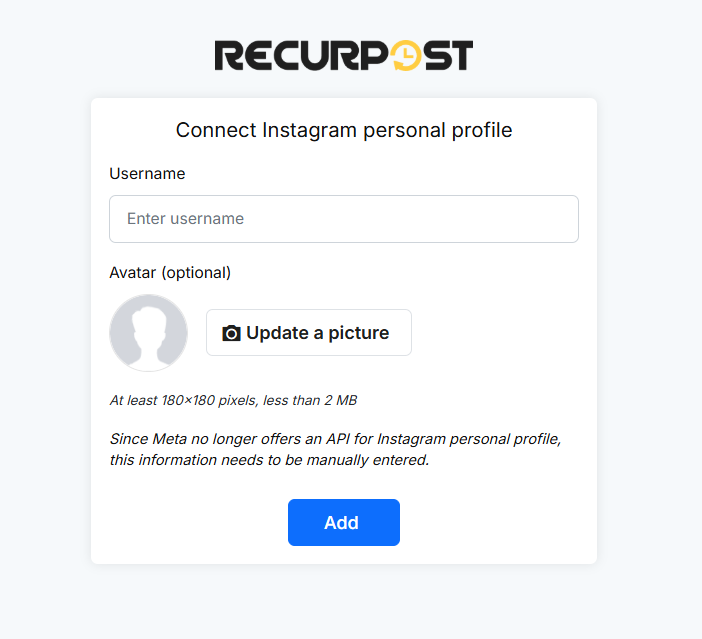
- Instagram Personal Profile (to share a post via push notification)
- Instagram Business Profile
- Google Business Profile
- Pinterest Board
- TikTok Profile
- YouTube Channel
- Threads Profile
- Bluesky Profile
Note: Facebook Profile, Facebook Group, and Instagram Personal Profile are managed through push notifications, so options like direct publishing and Quick Social Profile Link are not available for these accounts.
These appear under Social Profiles in your dashboard, and you can schedule posts to all of them. RecurPost connects via each platform’s official API (we never see or store your login credentials). This ensures a secure connection and maintains your privacy.
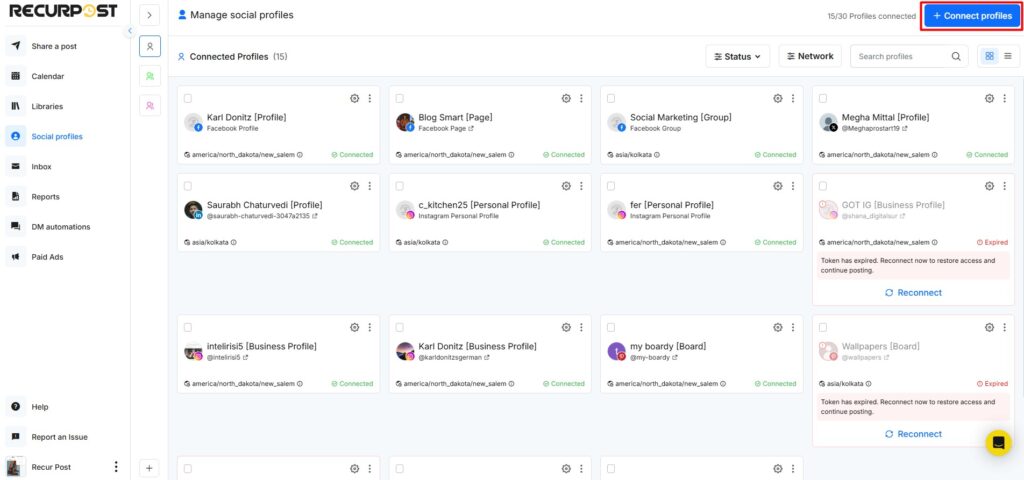
RecurPost’s Social Profiles dashboard can show multiple connected accounts from various networks. For example, you can link Facebook Pages and Groups, Instagram Business or Personal profiles, LinkedIn Pages, YouTube channels, Pinterest boards, and more. After adding profiles, the dashboard lists each profile so you can schedule content to all of them.
Note: Your plan limits the number of social profiles you may add; see the pricing page for details.
Let’s see how to add a social profile on RecurPost.
How To Add Social Profiles on RecurPost
To add your own social profiles:
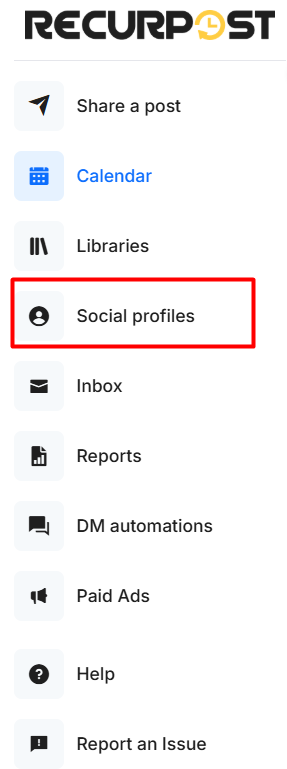
1. In the left menu of the RecurPost dashboard, click Social Profiles.
2. On the Manage social profiles page, click + Connect profiles at the top right. A window opens showing every supported network.
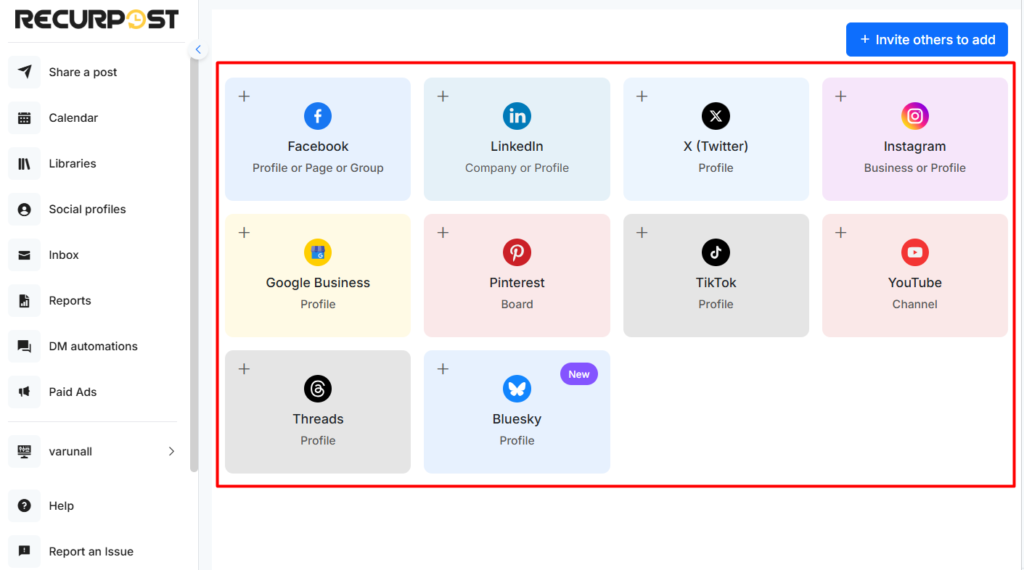
3. In the pop-up, click the platform icon and profile type you want to add.
Each network has a single tile, and you choose the profile type after clicking it rather than before. The Facebook tile is labelled Profile or Page or Group, so click it once and pick which one you are connecting in the window that opens. (You may need to be logged into Facebook in your browser.) Instagram works the same way: clicking it opens Select Instagram Profile Type, offering IG Business via Facebook, IG Business without Facebook, and Connect Personal Account. The remaining networks, LinkedIn, X, Google Business Profile, Pinterest, TikTok, YouTube, Threads and Bluesky, each connect from their own tile.
4. You will be prompted to authenticate with that social network. Enter your credentials or choose the appropriate profile to authorize RecurPost. (Remember, RecurPost never sees or stores your password.)
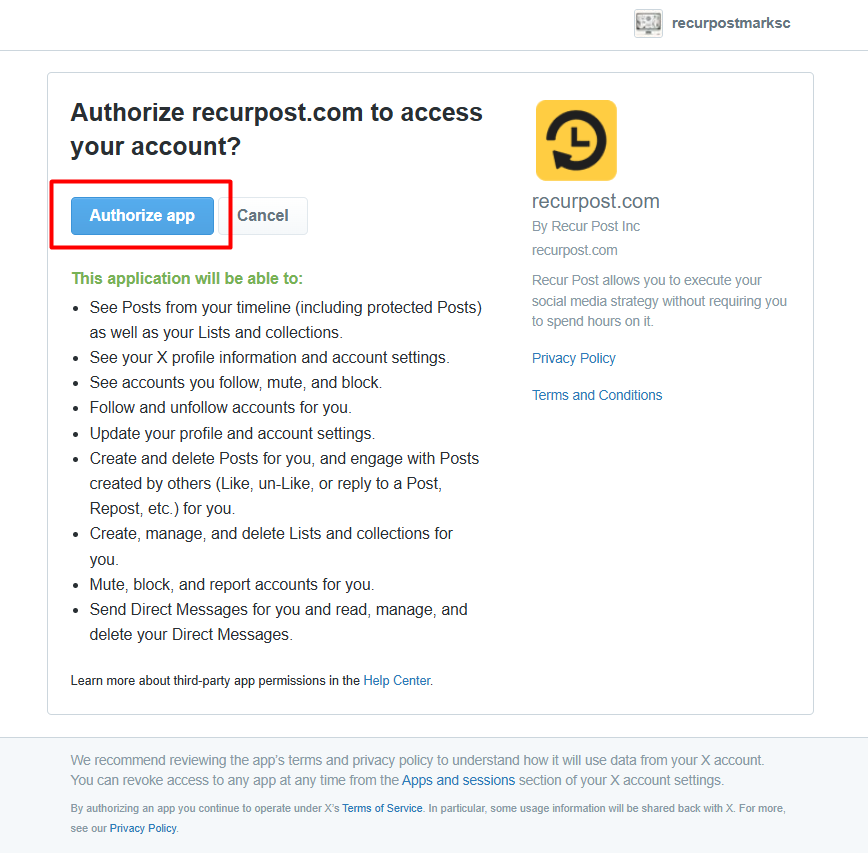
Important: During this process, the social platform will ask you to grant permissions (such as posting rights and reading account data). Approve all requested permissions; if you deny any permission, RecurPost will not be able to post on that profile. For example, Facebook will ask if you want RecurPost to manage posts on your behalf.
5. After logging in, you will see a list of available pages or profiles for that platform. Select each item you want to connect and click Add. When finished, click Done or Confirm. The selected profiles will now appear in your Social Profiles list.
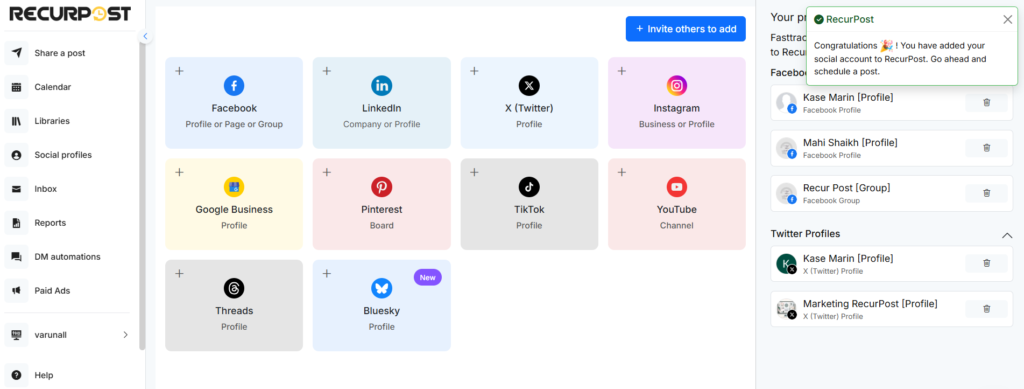
After adding a social profile, you will see them listed in the Social Profiles page. Keep in mind that the number of accounts you can add depends on your subscription plan. (Refer to our Plans & Pricing for details.)
Inviting Others to Add Social Profiles
RecurPost provides an Invite feature so clients or team members can connect their own social profiles without sharing passwords. To use this:
1. On the Social profiles page, click the Invite others to add button, near + Connect profiles at the top right.
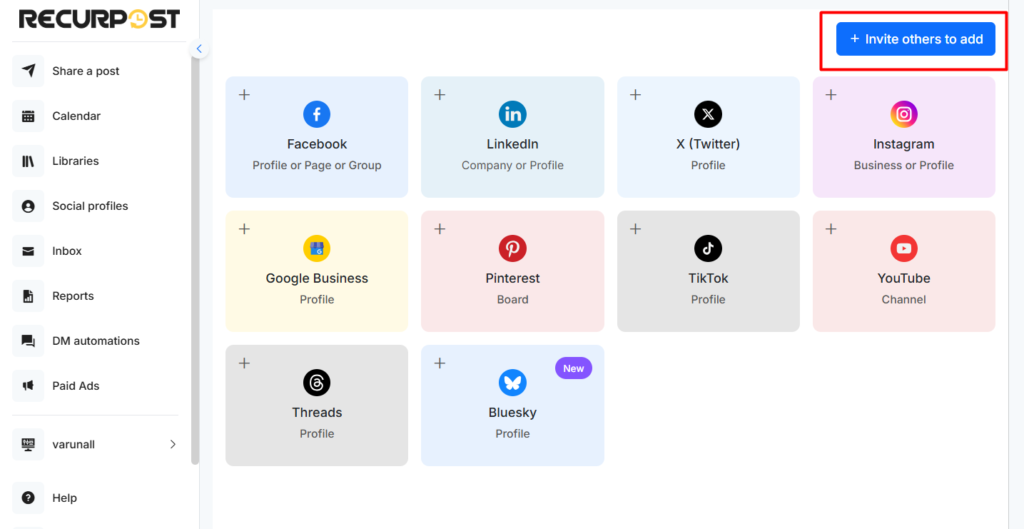
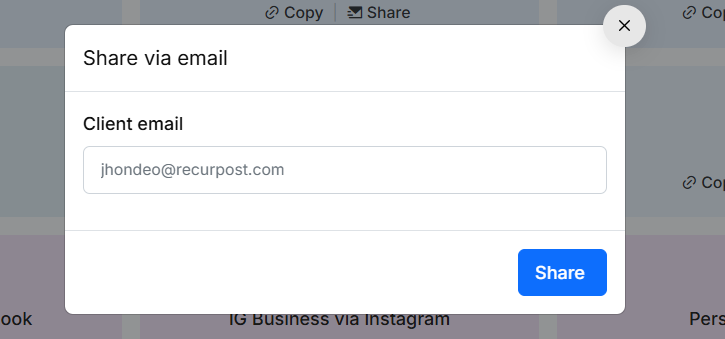
2. You will see options to Copy Invite Link or Send Email Invite. Choose Copy Link to copy the unique URL, or click Send Email and enter the client’s email address.
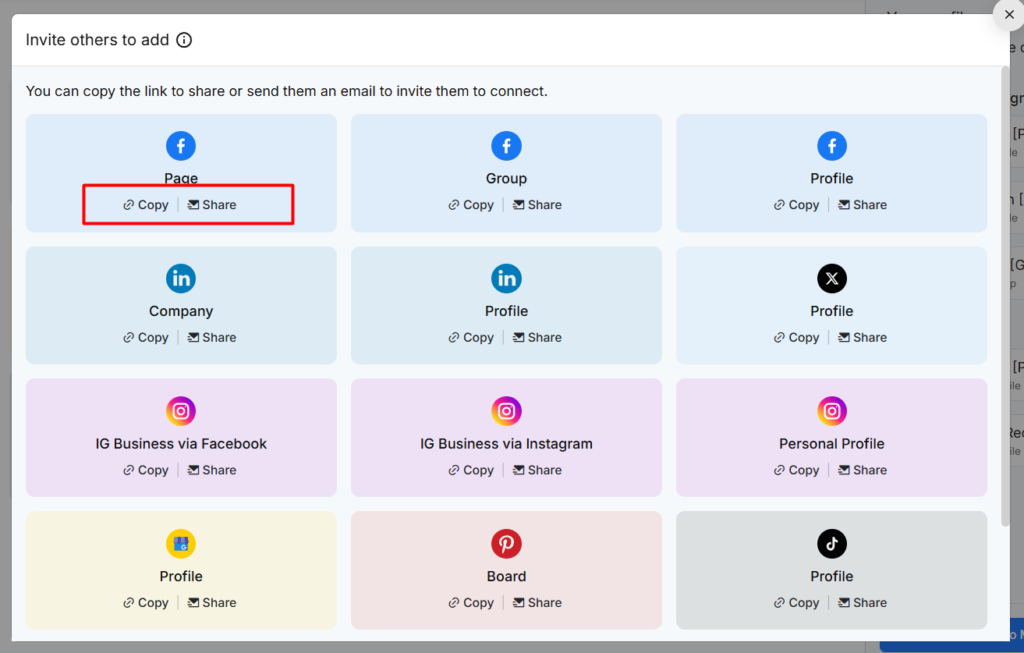
3. If you copied the link, send it to your client via your preferred method. If you sent an email, the system will email the invite.
4. When the client receives the link, they open it and log in to their social profile. The link will prompt them to authorize RecurPost for that specific profile. Once they click Approve or Authorize, the account is automatically added to your RecurPost Social Profiles list.
This process does not require you to ever handle the client’s credentials. It uses a secure connection and keeps both parties’ data safe. (Clients can revoke access at any time from their side if needed.)
Most of this process is done through the RecurPost web app, but some steps may use the mobile app. For example, if a client opens the invite link on their smartphone (as shown above), they will log in and approve from their device. Similarly, for personal profiles or groups (which cannot be posted to directly), RecurPost will send a push notification to the connected phone at posting time. By tapping the notification, you or your client can post content to those profiles.
How To Delete Social Profiles in RecurPost
You can remove/delete multiple social profiles at once in RecurPost:
1. On the Social Profiles page, select the checkboxes next to each profile you wish to delete. A Delete Selected or Remove button will appear.
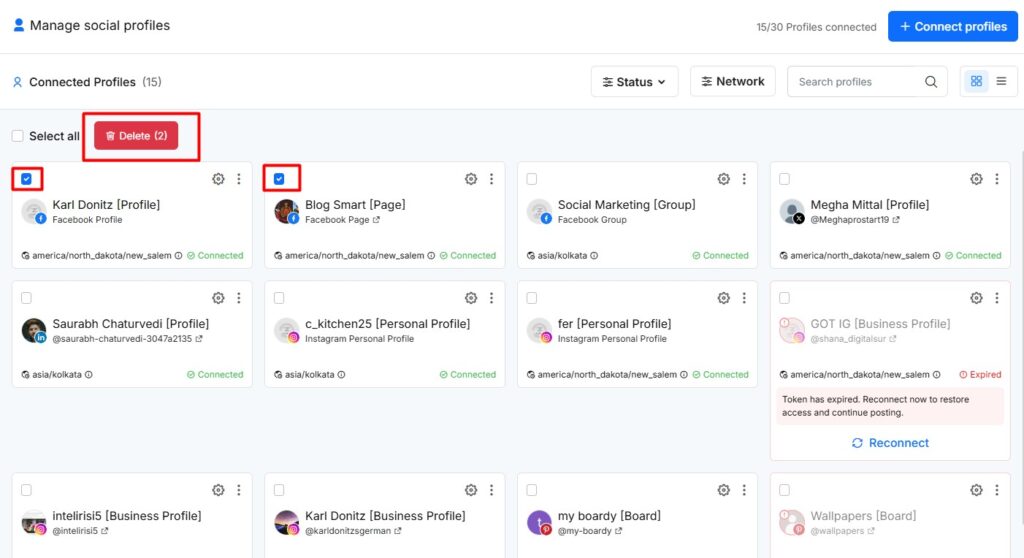
2. Click Delete Selected. Confirm the deletion when prompted. All selected profiles will be removed from your RecurPost account in one action.
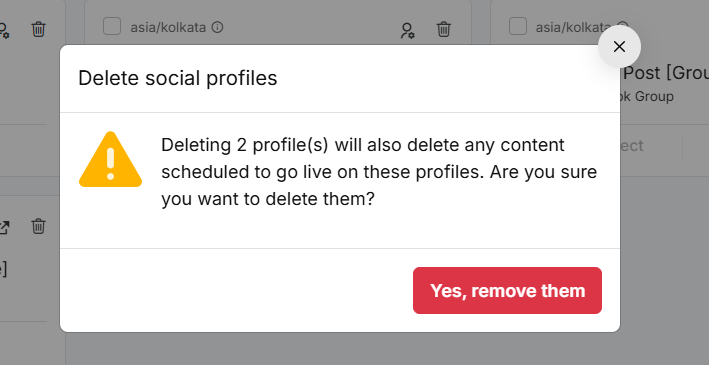
Previously, deleting an account required clicking the Trash icon for each profile. Now the bulk delete feature streamlines cleanup. (For single-account removal, you can still click the trash icon next to that profile.)
Permissions and Notifications
- Permissions: Each added profile requires approval of certain permissions (posting, reading data, etc.) from the social platform. Always allow all requested permissions during setup. If you skip granting a permission, RecurPost will be unable to manage or publish to that profile.
- Push Notifications: Facebook Profiles, Facebook Groups, and Instagram Personal profiles cannot be posted to directly via API. Instead, RecurPost will deliver a push notification to your mobile device at posting time for those profiles. (This is a platform limitation.) Ensure you have the RecurPost mobile app installed and notifications enabled so you can complete those posts.
You may also refer to our video tutorial on adding social profiles here.
Video tutorials: adding each type of profile
Here is a quick video tutorial to show you how to add your social profiles to RecurPost.
Please note that you may be asked to grant RecurPost some permissions in order to take action on your social profiles on your behalf. Make sure to grant those permissions.
We support the following social platforms:
- Facebook Page
- Facebook Group (to share a post via push notification)
- Facebook Profile (to share a post via push notification)
- LinkedIn Profile
- LinkedIn Company Page
- X (formerly Twitter) Profile
- Instagram Personal Profile (to share a post via push notification)
- Instagram Business Profile (to share the post directly on Instagram)
- Google Business Profile
- TikTok Profile
- YouTube Channel
- Threads Profile
- Bluesky
How to add a Facebook Page?
Adding a Facebook Page is a simple process.
However, if you want to give us access to only a subset of your pages, then you need to be careful.
This video shows you exactly how it works and how to change permissions from Business Integrations settings on Facebook.
How to add a Facebook Group?
Adding a Facebook Group to RecurPost is a straightforward process after Facebook deprecated its Facebook Group API in April 2024. You no longer are required to be the admin of the Facebook Group to which you wish to post.
This video shows you how to add a Facebook Group to your RecurPost account step by step.
How to add a Facebook Profile?
Check out the video here on how you can add your Facebook Profile. Please note that posting on a FB Profile works via push notification and it is not a direct posting. This is a limitation from Facebook’s end.
How to add a LinkedIn Profile?
Adding a LinkedIn profile is a straightforward process as well. You simply click on Add, type your username and password and you are good to go.
Check this video out for steps:
How to add a LinkedIn Company?
The difference between a LinkedIn profile and a company is that one LinkedIn profile can have multiple companies inside it. When you sign up for LinkedIn, you get a profile. Then you can go on to create multiple company pages. Here are the steps to add a LinkedIn Company (page) to RecurPost.
How to add X (formerly Twitter) profile?
Adding a Twitter profile is a pretty simple process.
You just need to have the username and password for the profile you want to add.
We support both profiles: the ones that have two-factor authentication enabled as well as the ones without two-factor authentication.
Here is a video that shows the steps needed to add an X (formerly Twitter) profile.
How to add an Instagram Personal Profile?
Facebook does not allow posting on Instagram personal profiles directly. This is the same for every social media scheduler out there.
We do have a workaround for this limitation, which works via our mobile app.
When it is time to post on your account, we send you a push notification. By clicking on the push notification, you will be able to post on your Instagram account.
How to add an Instagram Business Profile?
Instagram Business profile is different than the personal/creator profile, as in this case we support posting there directly.
In order to add an Instagram Business profile, you need to be the admin of the Facebook Page that is connected to the Instagram Business profile that you want to add.
Here is a video on how to add your Instagram Business Account.
How to add a Google Business Profile?
Adding a Google Business Profile (previously called Google My Business Location) is also a straightforward process with one exception.
Please note that as of January 2021, Google only allows you to add those locations that have not been marked as chains by them.
There is no standard definition of what is a chain, but when they mark a location as a chain, we will not let you add that to your RecurPost account.
As long as you are a manager (or owner) for the location, it will show up in the list to add it to RecurPost. In this video, we show you how to add your Google Business Profile to RecurPost.
How to add a Pinterest Board?
Here’s a video that shows the steps required to add the Pinterest Board.
How to add a TikTok profile?
Here’s a video explaining the steps to add a TikTok profile.
How to add a YouTube Channel?
Here’s a video explaining the steps to add a YouTube Channel.
How to add Threads to RecurPost?
Here’s a video explaining the steps to add a Threads profile to RecurPost.
If you prefer reading more than watching a video, then you can also check out our textual guide covering the same topic here.
How to Add Bluesky Profile to RecurPost?
If you prefer reading more than watching a video, then you can also check out our textual guide covering the same topic here.
If you have any questions or need more help, please reach out to us at support@recurpost.com.